- What are Regions/Groups
- Accessing and creating a new Region
- Linking Units
- Frequently Asked Questions (FAQ)
What are Regions/Groups
To have a better view of how units are being audited, you can use the Regions/Groups tool.
This functionality offers more clarity when your operation has a large number of branches or franchises distributed across various territories.
Accessing and creating a new Region
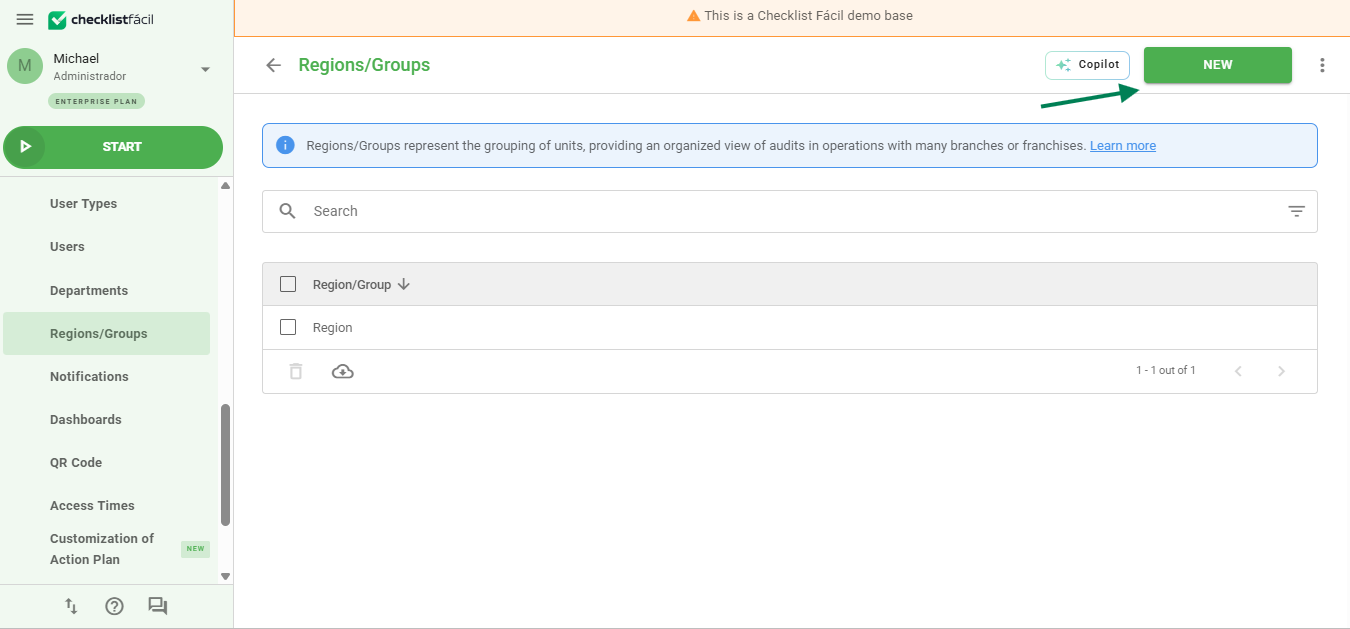
To register, access the Regions/Groups screen in the Settings menu and click the New button.
On the registration screen, fill in the desired name in the Registration Data tab.
You can define if this is a "parent" Region/Group of another. Example: "Brazil" can be the parent region of "Santa Catarina". This creates an organized hierarchy.
After filling in the initial data, click Save to enable the selection of units.
Linking Units
With the region created, it is necessary to inform which units will be part of it.
To facilitate the process, click Link. You can select all units at once or use the Filter to find specific stores.
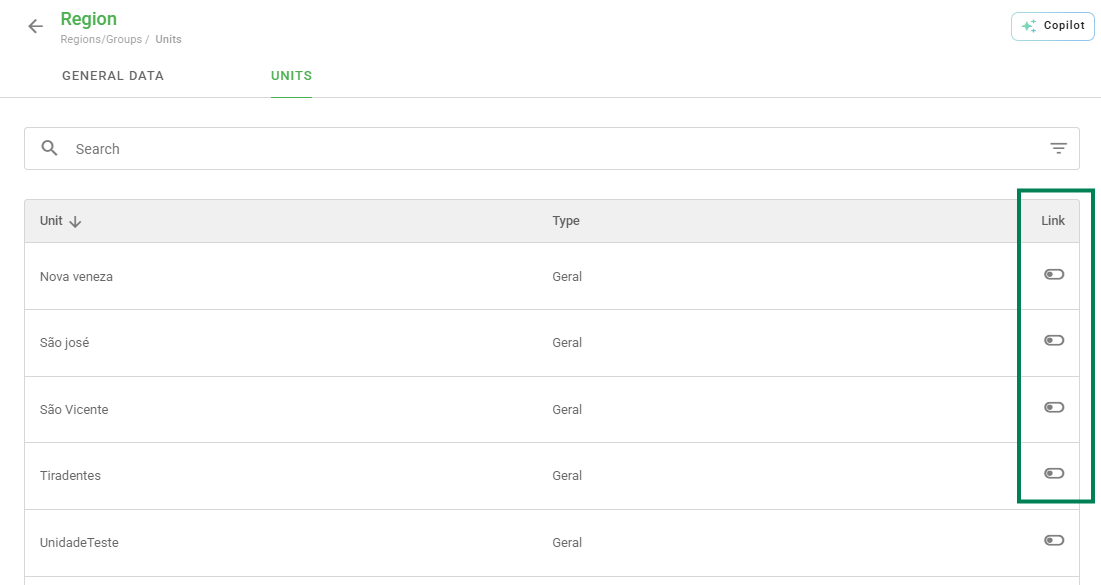
After selecting the desired units, Save your selection to complete the process.
Frequently Asked Questions (FAQ)
1. Can I link the same unit to more than one region?
Yes, a unit can belong to different groups or regions, depending on your organizational strategy and hierarchy.
2. How to edit an existing Region/Group?
Simply access the Regions/Groups menu again, click on the name of the desired region and perform the necessary Edit.
❓Tem dúvidas? Entre em contato com nosso time de suporte.