Learn how to create and manage standardized and efficient workflows through the Workflow Modules.
What is Workflow?
Workflow is a solution that enables the creation of work processes, meaning the application of checklists in stages and in a pre-defined sequence.
In this sense, a stage can only be started after the conclusion of the previous one, increasing control over processes that need to be performed in a cadenced manner.
Workflow has two modules: Essential and Advanced.
Discover Workflow Modules
Essential Workflow Module
Offers essential tools to create processes organized in sequential stages, ensuring organization, traceability, and standardization.
- Create up to 5 sequential stages;
- Copy responses, comments, and attachments between stages;
- Configure unit and user restrictions.
Advanced Workflow Module
Offers more robust features, granular control, and strategic automation.
- Create up to 50 stages;
- Define time intervals and execution deadlines for each stage;
- Designate specific users for each stage;
- Block stages if there are pending action plans;
- Start workflows via public link (no login required).
Customers on Professional or Enterprise plans can already subscribe to one of the Workflow Modules directly through the Marketplace.
Workflow Advantages
The main advantage is the possibility of inserting sequential application stages and designating different applicators to evaluate a checklist at distinct moments.
Practical example: You configure a flow where the first stage is completed by Production. From this evaluation, the checklist automatically passes to a Quality employee, optimizing the process and ensuring a complete audit.
How to create a Workflow?
Follow the step-by-step below to configure your flow:
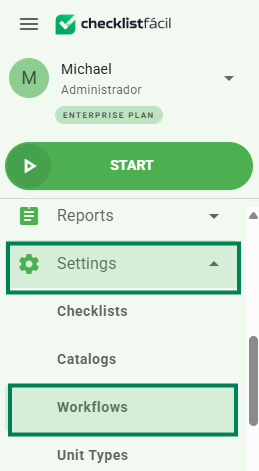
Step 1: In the left side menu, access the Settings tab and click on Workflows.
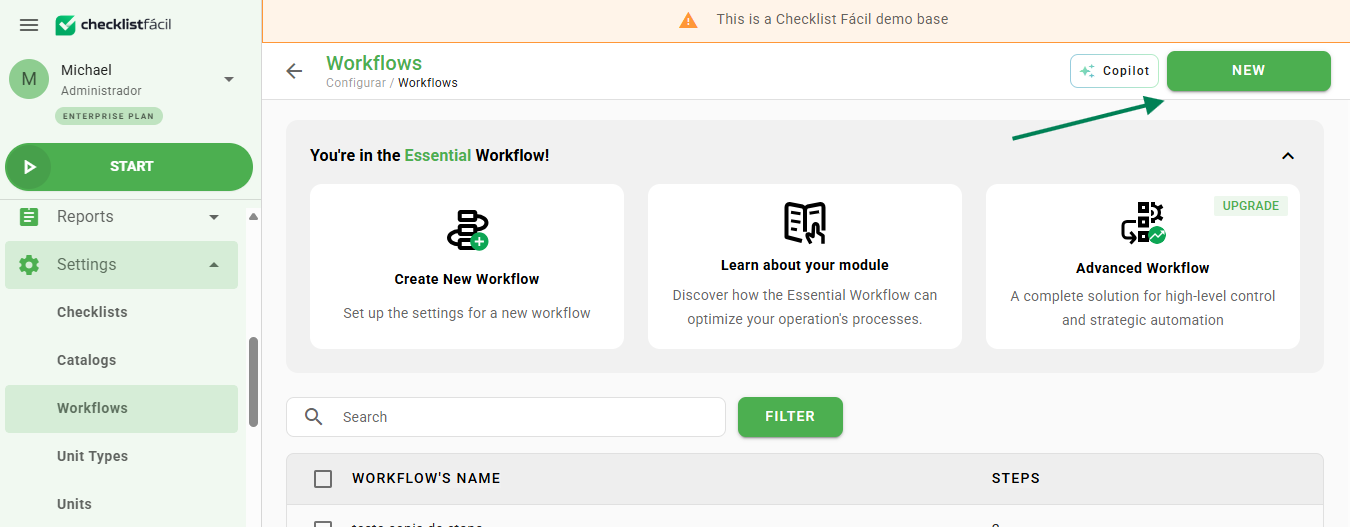
Step 2: Click the New button, located in the upper right corner.
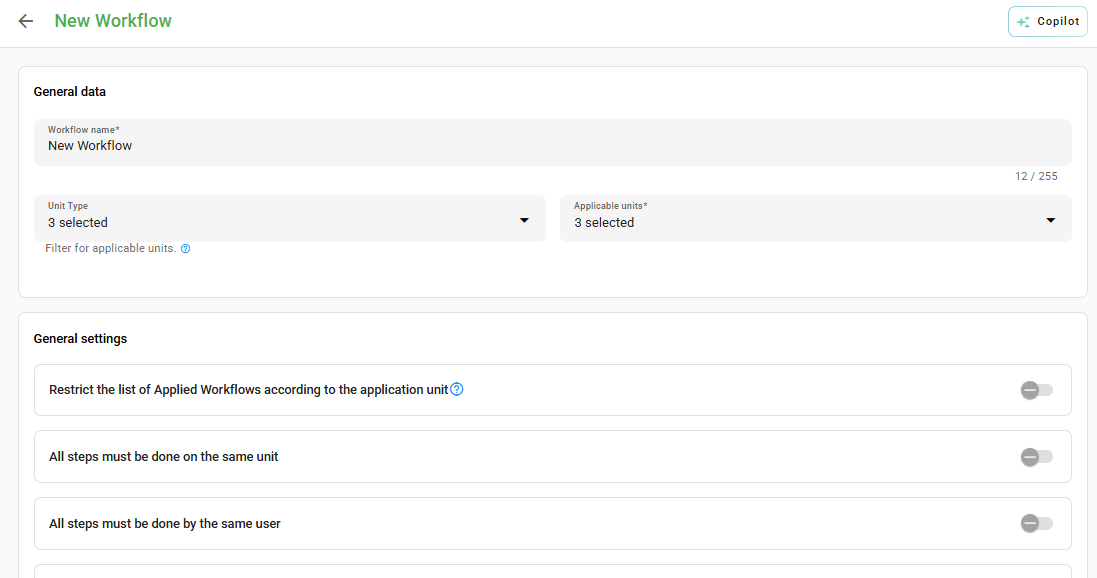
Step 3: Fill in the basic information: Name, Unit type, and Applicable units.
If you do not select any "Unit type", all registered units will be available for selection.
You can also enable specific settings:
- Restrict list: Displays the workflow only to users linked to the application units.
- All stages in the same unit: The unit of the first stage defines where the others will be applied.
- All stages by the same user: The author of the flow start must apply all stages.
- All stages apply the same checklist: Replicates the checklist from the first stage to the others.
Step 4: Register the flow stages by filling in:
- Stage name: Cannot be repeated in the same workflow.
- Stage checklist: The same checklist can be repeated in multiple stages.
- Unique identifier: A checklist item (e.g., License Plate, Tax ID, Short Text) whose response will identify this flow. The item must be mandatory and non-dependent.
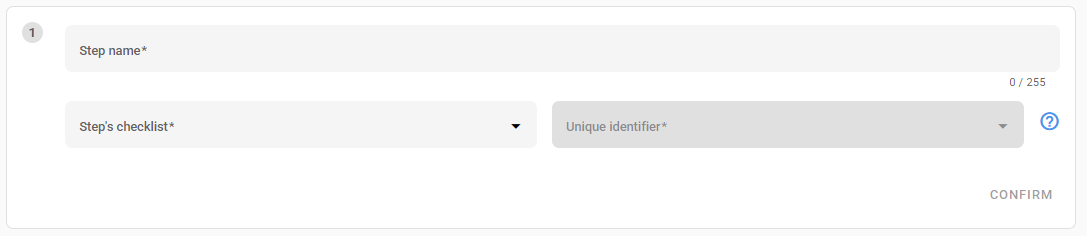
Step 5: Click Confirm to create the first stage.

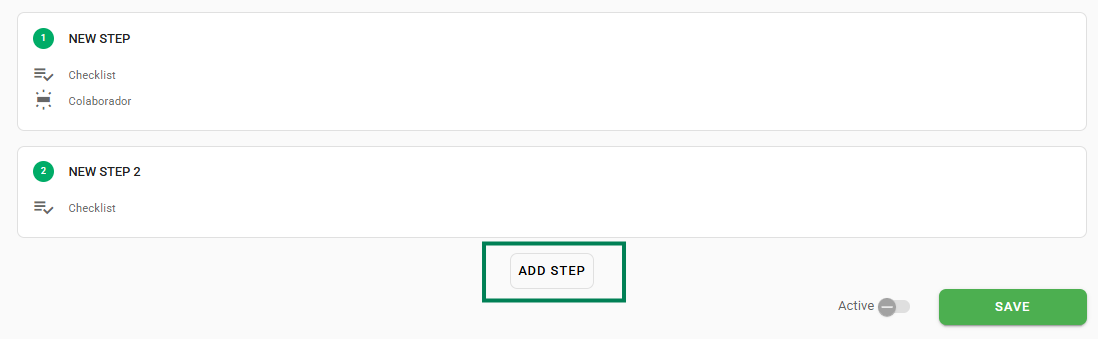
After saving the first stage, you can add the next ones by clicking Add Stage. When finishing the entire structure, make sure to leave the Flow active and click Save.
Extra Settings
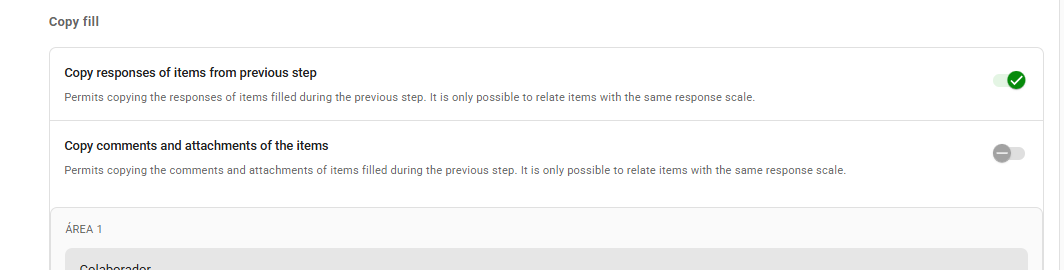
When configuring stages subsequent to the first one, it is possible to allow the user to copy responses, comments, and attachments from the previous stage. It is also possible to block editing of these imported responses to ensure data integrity.
Frequently Asked Questions (FAQ)
1. Can I repeat a stage name?
No. The system does not allow duplicate stage names within the same workflow to ensure flow organization.
2. Can I use the same checklist in multiple stages?
Yes. Unlike the stage name, you can repeat the same checklist template in as many stages as necessary.
3. What is the main difference between the Essential and Advanced module?
Essential allows up to 5 basic sequential stages. Advanced allows up to 50 stages and includes automations such as deadlines, blocks for pending items, and public links.
❓Tem dúvidas? Entre em contato com nosso time de suporte.