What are the advantages of using a QR Code in Checklist Fácil?
By using the Unit QR Code, it is possible to create a shortcut for applying checklists in specific units.
Additionally, it is possible to condition the application of checklists in these units to the reading of the QR Code. In other words, the user will only be able to apply the checklist in the linked unit after scanning its corresponding code.
How to create a QR Code for units?
- Access the left side menu of the system and click on Settings > Units.
- In the unit list, click on New, in the top right corner of the screen.
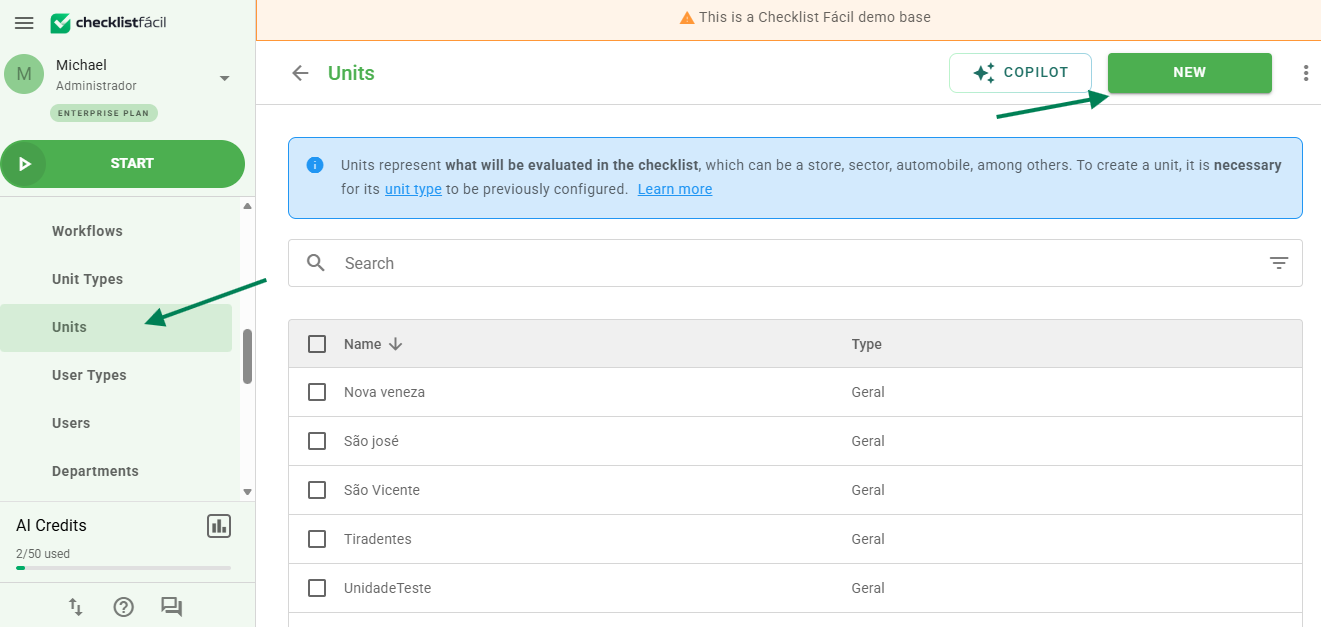
- Fill in the Registration details of the unit. This is its identification within Checklist Fácil.
- Still in this tab, it is possible to enable the "Mandatory QR Code" field, determining whether the checklist application can only be performed by scanning the code.
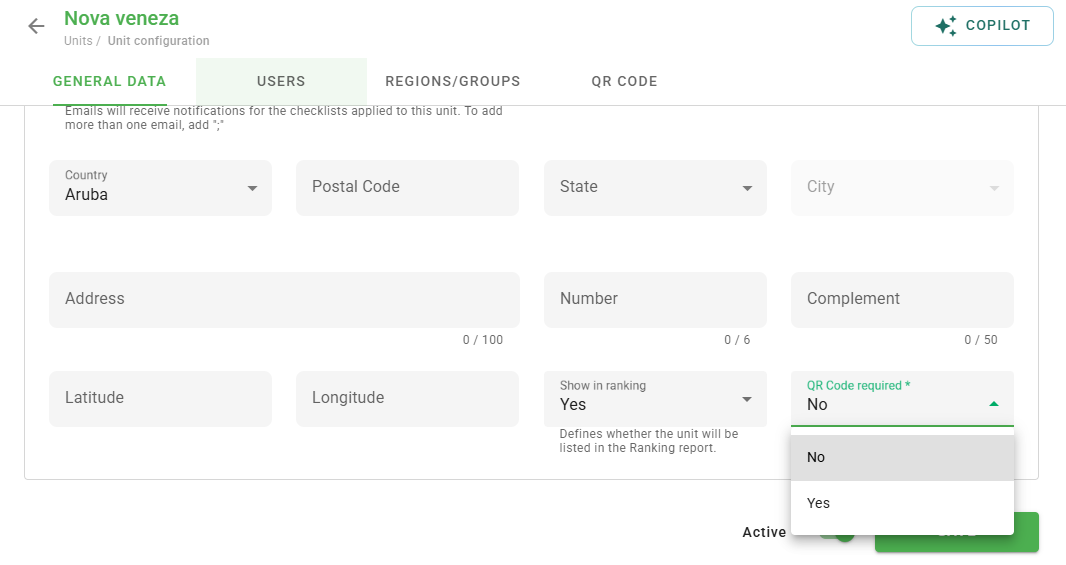
- After saving, link the unit to users and regions/groups in the corresponding tabs.
- Finally, go to the QR Code tab. In it, you can create the code, define a custom content and adjust the foreground and background colors.
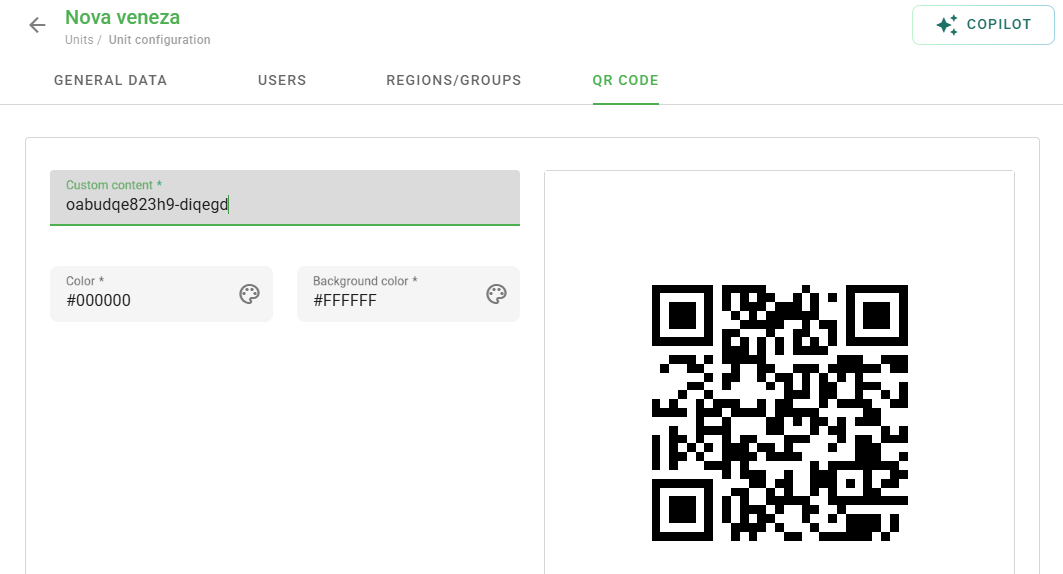
If the QR Code is marked as mandatory, the checklist can only be applied after scanning the code. Otherwise, the unit can be selected normally from the list or via the QR Code.
Tip: It is not necessary to create a new unit to insert a QR Code. In the existing units list, hover your mouse over the desired unit and click on the pencil icon (Edit).

- In the Registration details tab, activate (if desired) the mandatory reading option.
- In the QR Code tab, create and customize the code.
- Save all changes before exiting.
Frequently Asked Questions (FAQ)
1. Is it possible to export or print the generated QR Codes in bulk?
Yes, you can print or save the QR Code image directly from the unit settings tab to make it physically available at the inspection site.
❓Tem dúvidas? Entre em contato com nosso time de suporte.