- What is Single Sign-On (SSO)?
- What happens during SSO login?
- How to implement SSO
- Configure Azure AD SAML Toolkit
- Configure SSO integration
- Assign users
What is Single Sign-On (SSO)?
Single Sign-On (SSO) is a method for secure centralized authentication, where Checklist Fácil can request an Identity Provider (IdP) to verify the user's identity, and we will trust their validation.
With SSO, users do not need to remember different passwords for each application the company uses; they will use existing login identification managed by the Identity Provider (IdP), such as ADFS or Azure AD, for example.
Users with Administrator status can perform the SSO integration configuration in Checklist Fácil if it is available for your plan.
Checklist Fácil supports the SAML2 protocol to exchange user identity information securely between the identity provider and the service provider.
What happens during SSO login?
- You will enter your access email for Checklist Fácil on our login page.
- If you are already logged into the SSO identity provider, it will verify and grant access to Checklist Fácil.
- Otherwise, you will be redirected to the identity provider, such as Azure AD, and you will log in with that provider.
- The identity provider authenticates you, ensures that Checklist Fácil is requesting your authentication, and Checklist Fácil uses this information to log your user in.
How to implement SSO
Single Sign-On (SSO) is a system that allows users to securely authenticate multiple cloud applications by logging in only once to a managed authentication system.
To configure SSO:
- Log in to your Checklist Fácil account.
→ Note: Ensure that your user has Administrator permissions and the contracted plan allows SSO integration.
- Access the Integrations menu > Single Sign-On (SSO).
- Configure according to the selected identity provider.
- Save the changes.
Configure Azure AD SAML Toolkit
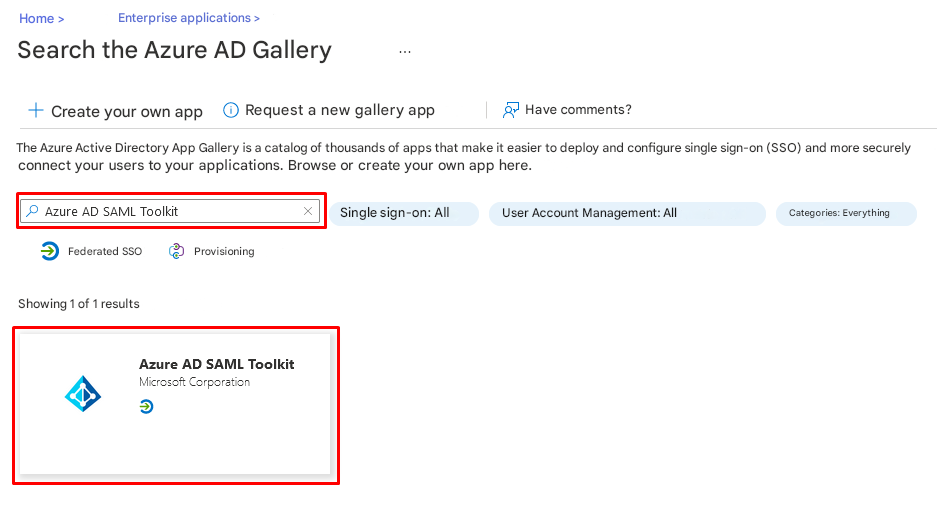
To configure the Checklist Fácil integration in Azure AD, you need to add the "Azure AD SAML Toolkit" from the gallery to your list of managed SaaS applications.
- Log in to the Azure portal.
- In the left navigation panel, select the "Azure Active Directory" service.
- Navigate to "Enterprise Applications" and select "All Applications".
- To add a new application, select "New application".
- In the Add from gallery section, type "Azure AD SAML Toolkit" in the search box.
- Select "Azure AD SAML Toolkit" from the results panel and add the application. Wait a few seconds while the application is added to your tenant.
→ Suggestion: Change the application name to "Checklist Fácil SSO" to better identify it in your list of managed applications.
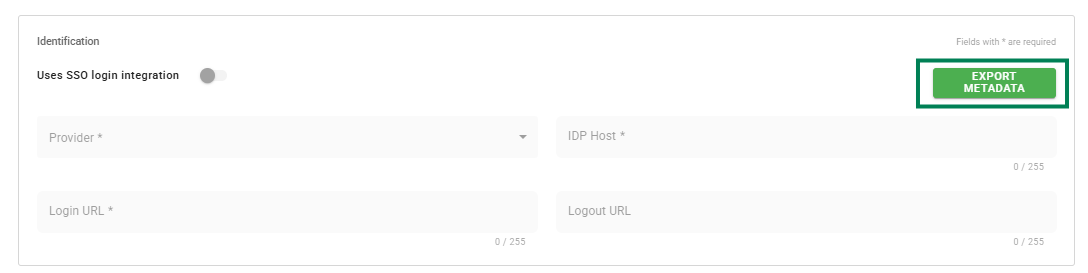
Configure SSO integration
- Log in to Checklist Fácil and ensure you have administrator access and your plan allows integration via SSO, so you can configure the integration parameters.
- Navigate to the SSO configuration in the Integrations > Single Sign-On (SSO)menu.
- If you cannot access via the menu, use the link: https://app.checklistfacil.com.br/integrations/sso-config
- Download the metadata; you will need it to import into the Azure portal.
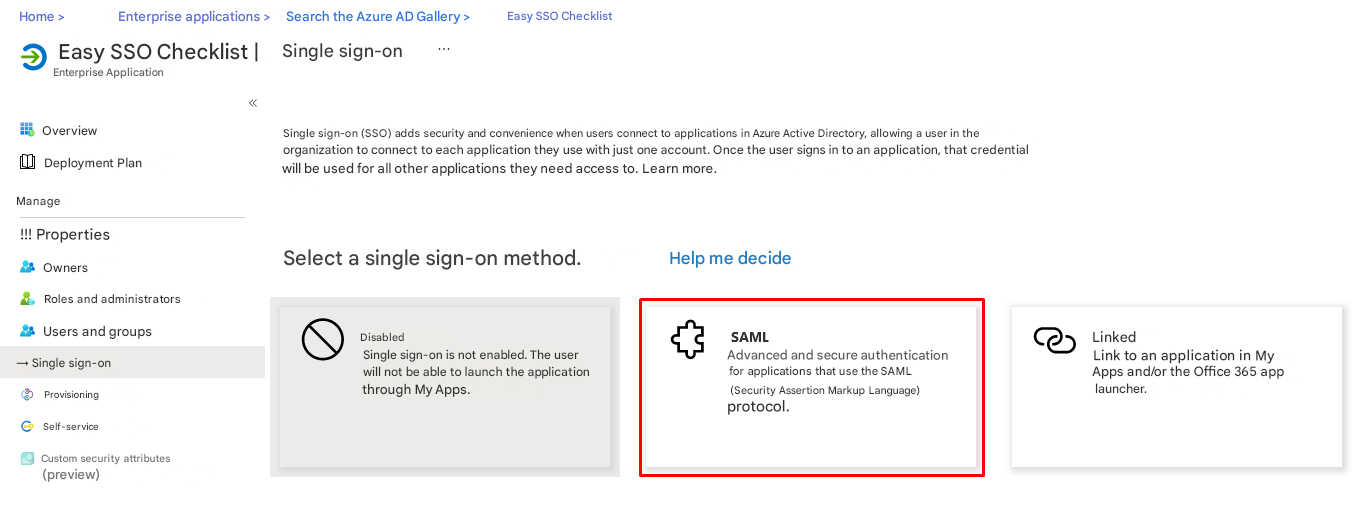
- Log in to the Azure portal, navigate to the "Checklist Fácil SSO" application page (Azure AD SAML Toolkit, added in the previous step), locate the Manage section in the sidebar, and select single sign-on.
- [Azure] On the Select a single sign-on method page, select SAML.
- [Azure] On the Set up single sign-on with SAML page, click "Upload metadata file" and select the file you generated in step 03.
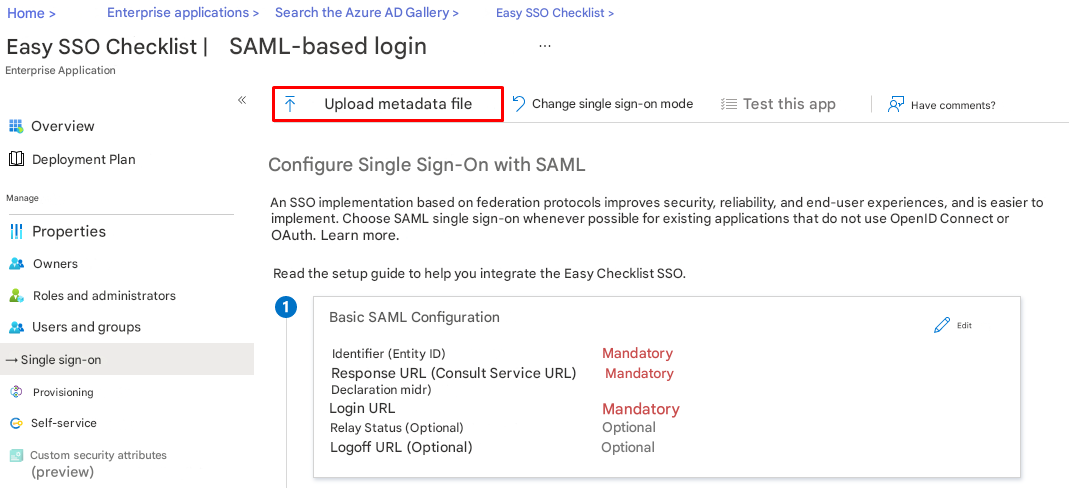
- When uploading the file, the mandatory fields will be filled with your company's configuration information.
- It will be necessary to provide the "Logon URL" which is not specified in the metadata file. For this field, you must enter: https://spa.checklistfacil.com.br/login
- Save the initial Single Sign-On with SAML configurations.
- [Azure] On the Set up single sign-on with SAML page, click the edit/pencil icon for "Attributes & Claims" to edit the settings.
- [Azure] Select the "Unique User Identifier" as user.mail. The name-id format should not be specified.
→ Note: This configuration is necessary because this field is used to identify the user in the Checklist Fácil registry.
- [Azure] Click Save in the upper left corner when finished.
- [Azure] In the "SAML Signing Certificate" section, locate "Certificate (Base64)" and select Download to download the certificate and save it to your computer.
- [Azure] In the "Set up Checklist Fácil SSO" section, copy the necessary information to fill out the integration registration in Checklist Fácil.
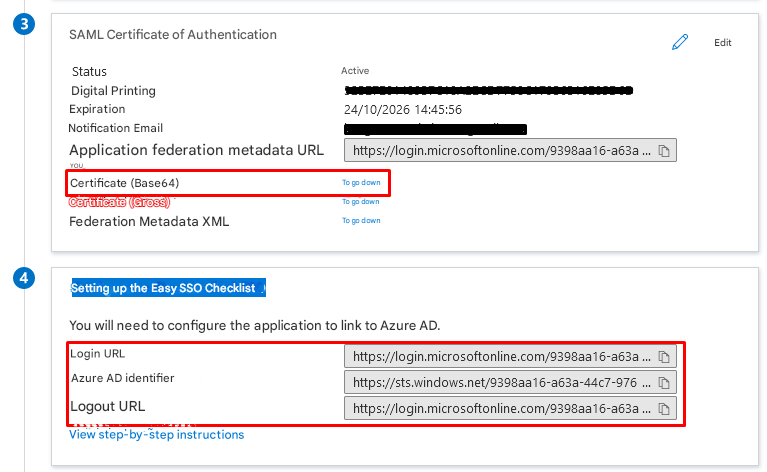
- [Checklist Fácil] Copy and paste the Azure AD information into the required fields. Specifically:
- In the "Provider" field, select "SAML2 (Azure)".
- In the "Host IDP" field, copy the "Azure AD Identifier" URL.
- In the "Login URL" field, copy the "Logon URL".
- In the "Logout URL" field, copy the "Logout URL".
- In the "Attach certificate by upload (.cer)" field, select the "Certificate (Base64)" file you downloaded.
You can also open the "Certificate (Base64)" file you downloaded with Notepad, copy its content, and paste it into the "Attach certificate in base64 text" field.
- [Checklist Fácil] Click Save.
Assign users to "Checklist Fácil SSO"
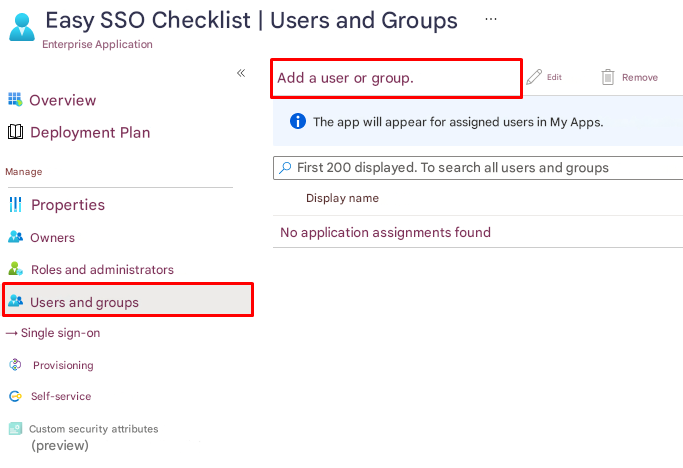
Once the configuration is complete in the Azure Portal, the client must assign users to the "Checklist Fácil SSO" application to ensure that the right users have the correct access.
The user can assign individual users or groups to the application by accessing the "Checklist Fácil SSO" application > "Users and groups" > "Add user".
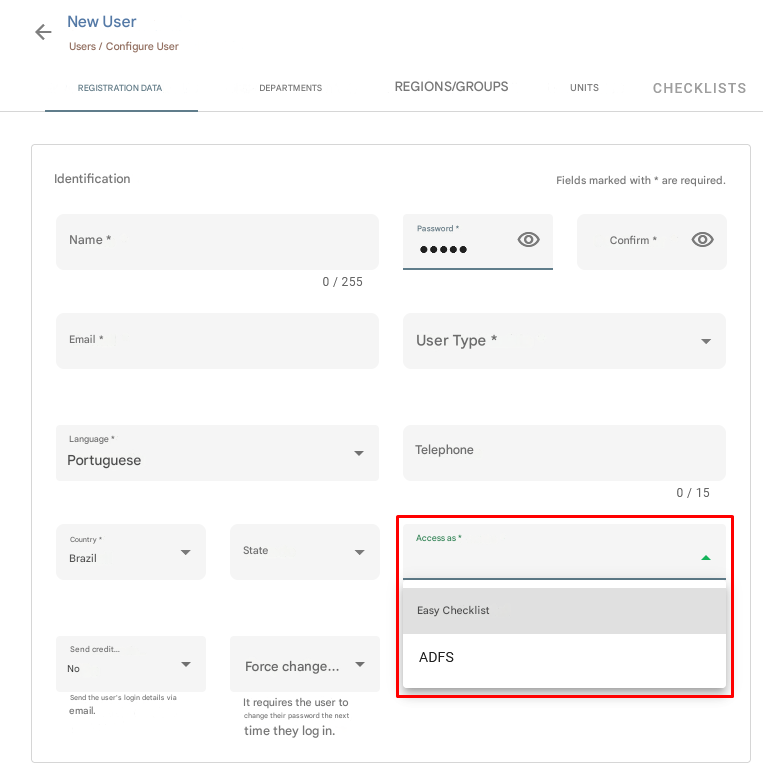
→ Remember: When registering or editing a user in Checklist Fácil, you need to define the type of login they will use to access the system.
❓Tem dúvidas? Entre em contato com nosso time de suporte.