In this article, you will learn how to customize checklist reports in the web system, both in the Current PDF and Optimized PDF models.
Customization allows you to adjust how information is presented, implement preferred formats, and highlight the data that makes the most sense for your analysis.
- How to access report settings
- Available configuration options
- Optimized PDF
- Frequently Asked Questions (FAQ)
How to access report settings
To configure a checklist report, follow the steps below:
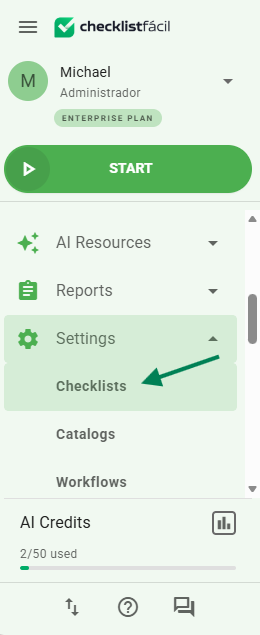
Step 1 - Access the menu Settings > Checklists.
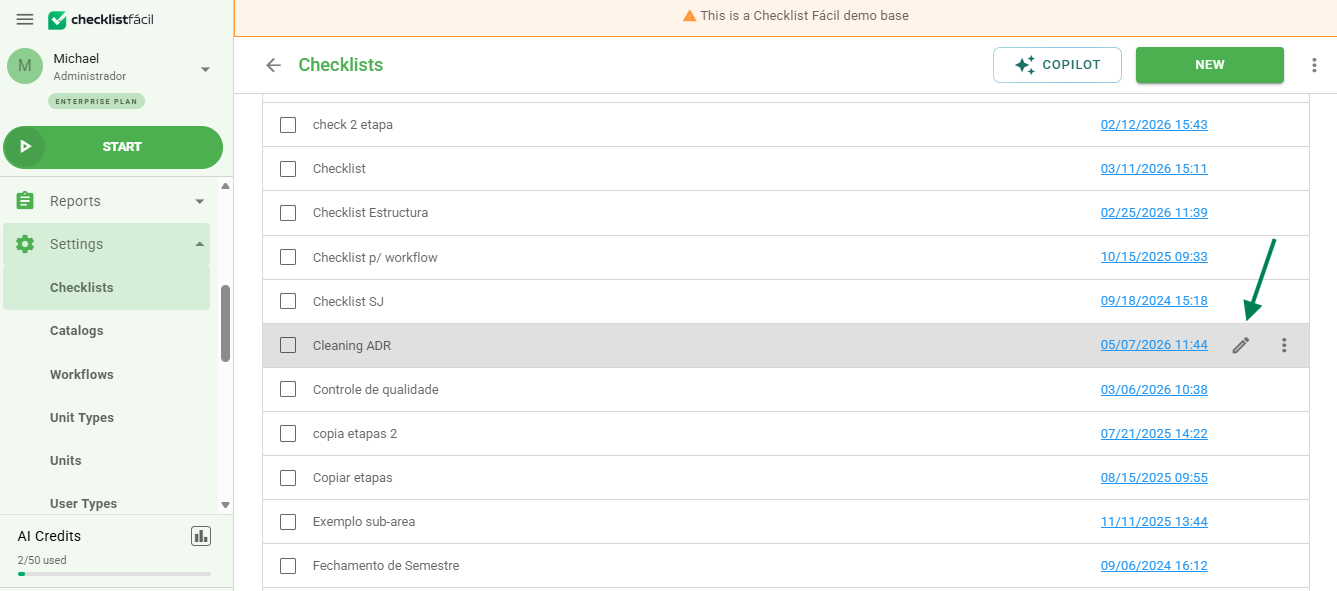
Step 2 - Click on Edit Checklist.
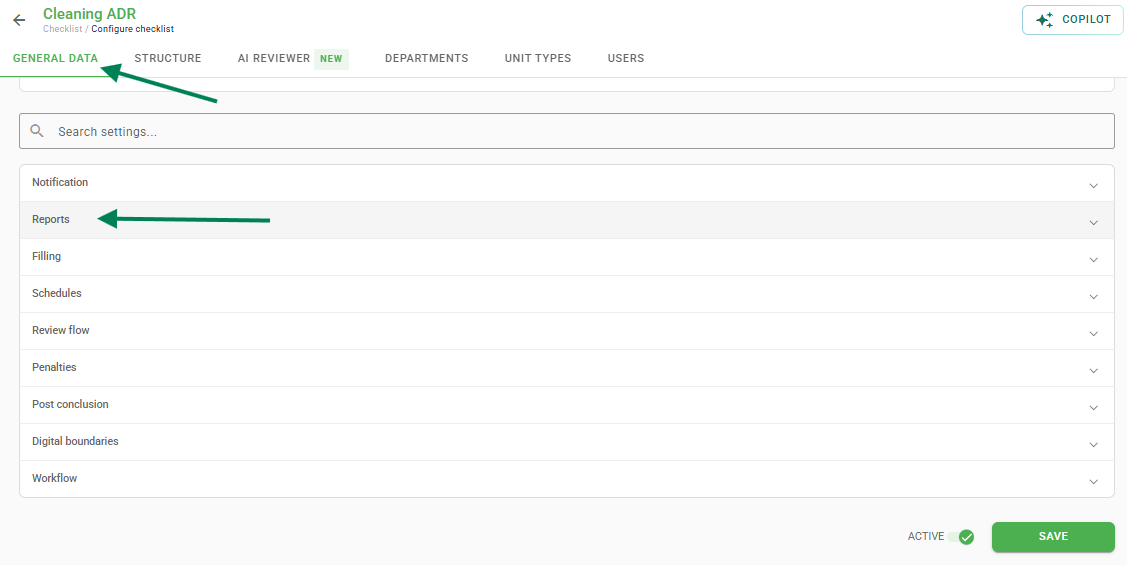
Step 3 - In the Registration Data tab, locate the Reports section.
Available configuration options
In the Reports section, you can customize several options that affect the presentation and organization of the generated PDF.
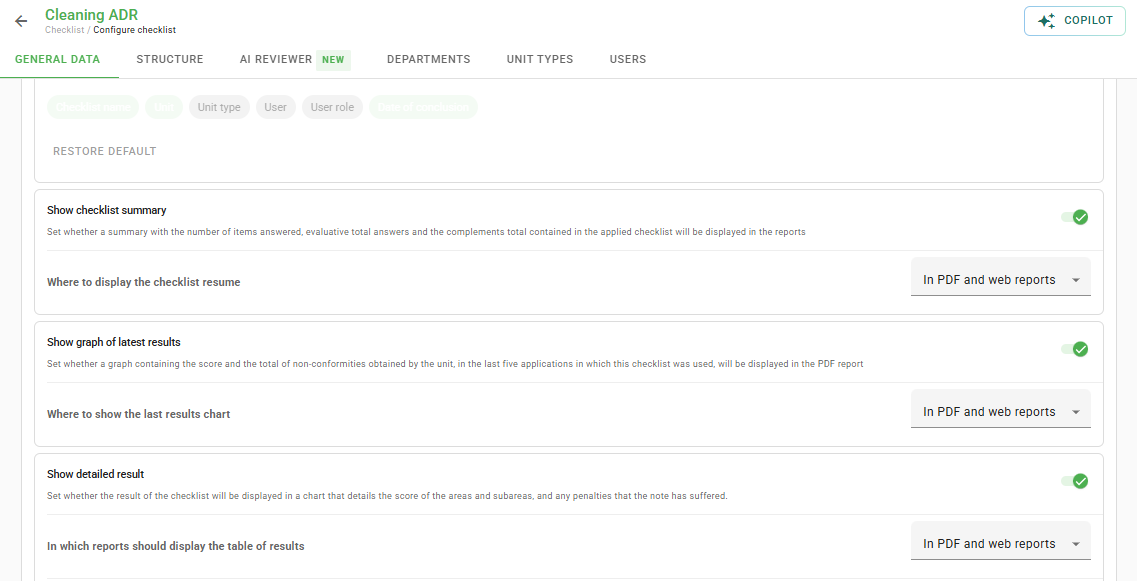
Check below what each option allows you to configure:
Custom sequential code – Defines the numbering format for reports.
Header image – Allows you to include your logo or other visual at the beginning of the PDF.
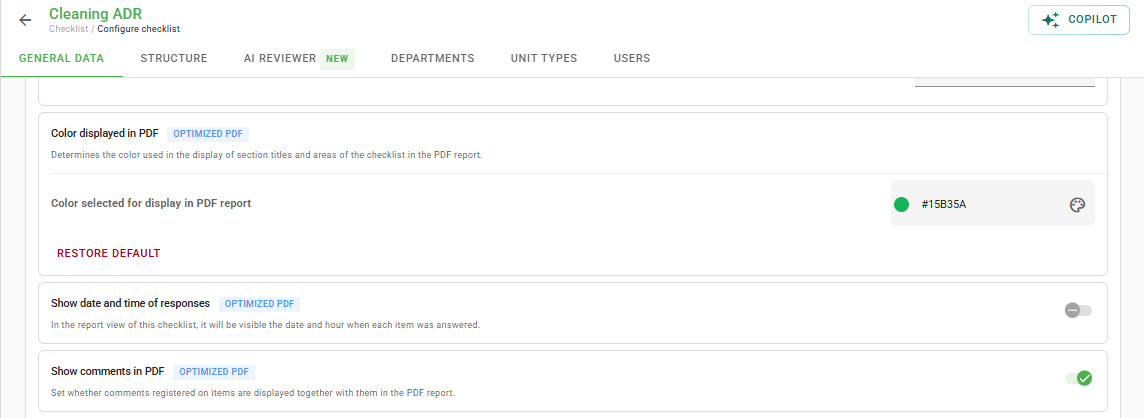
PDF customization – Choose the file name and whether to include comments and attachments.
Checklist summaries – Insert charts of latest results to make comparisons easier.
Automatic classification – Configure limits to assign classifications automatically.
Evaluation scale – Customize the answer scale (e.g., “Compliant / Non-compliant”) and the presentation format.
Optimized PDF
The system also provides the Optimized PDF, a lighter version of the report that organizes information in a table and displays only essential data.
Some configurations are exclusive to or compatible with this model. In the system, they are identified with a specific compatibility tag.
Frequently Asked Questions (FAQ)
1. What is the difference between the Current PDF and the Optimized PDF?
The Current PDF offers a standard layout with more visual details. The Optimized PDF is a lighter version organized in a table format, ideal for focusing only on essential data and saving pages during printing.
2. How do I know if a configuration works in the Optimized PDF?
When browsing the report options, look for the "Compatible with Optimized PDF" tag next to the feature. This indicates that the change will also be reflected in the optimized version.
❓Tem dúvidas? Entre em contato com nosso time de suporte.