- What is a Satisfaction Survey
- How to create a Survey
- Registration Data tab settings
- Structure tab settings
- How to obtain the Link and QR Code
- Difference between Survey and Public Attachment Link
- Frequently Asked Questions (FAQ)
What is a Satisfaction Survey
A Satisfaction Survey is a checklist that can be accessed and answered externally, without the need to log into the platform, through a link or QR Code.
This enables evaluations to be performed by anyone who has the link. You can track the results of these surveys directly in the Applied Checklists area.
How to create a Survey
1. Access the Settings > Checklists menu and click the NEW button. Then, select New Checklist.
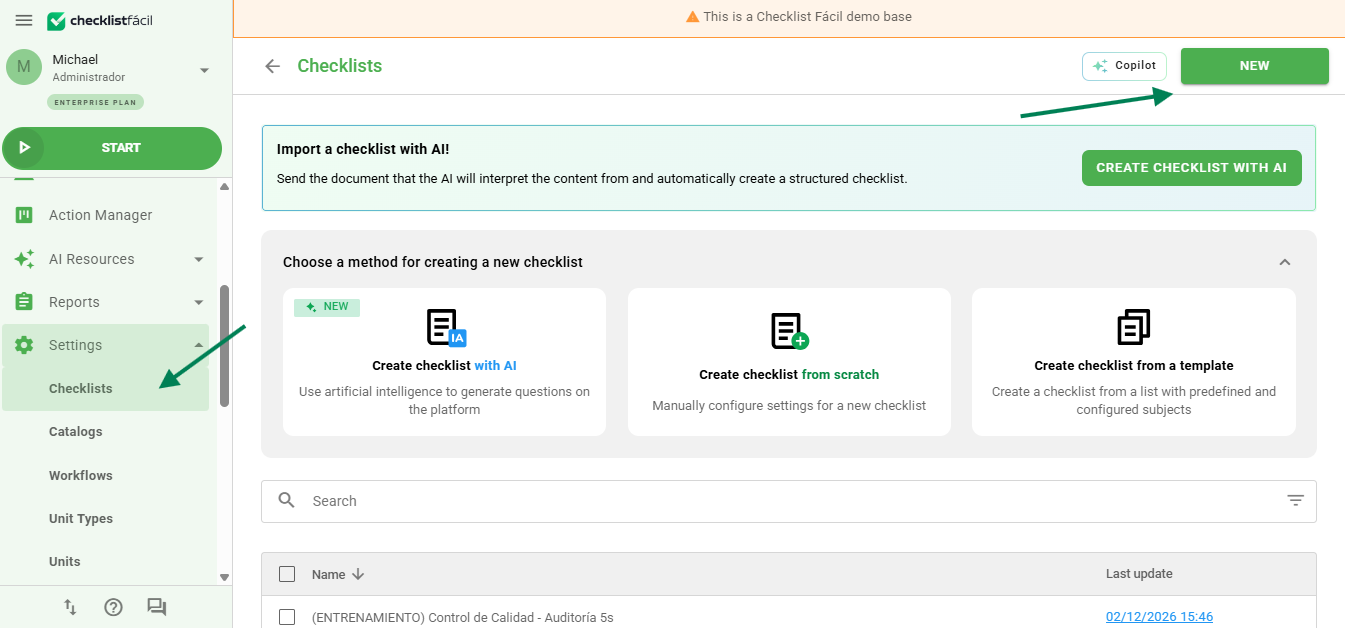
2. In the Registration data tab, change the Checklist type field to Satisfaction survey.
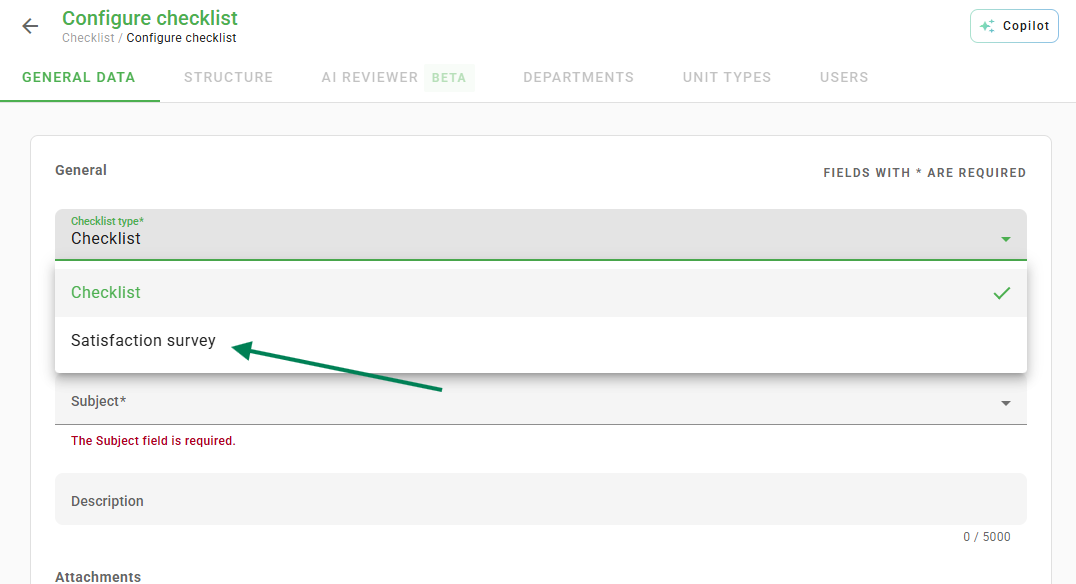
Registration Data tab settings
In this step, define the main information for your survey:
Checklist name: The title that will identify the survey.
Completion message: A personalized text that will appear on the user's screen once they finish submitting the responses.
Header image: Allows you to insert your company logo or banner at the top of the survey (recommended dimensions: 300x100 pixels).
Report settings: Defines how the data will be compiled, similar to a standard checklist.
Status: Keep it as "Active" so the survey can receive responses.
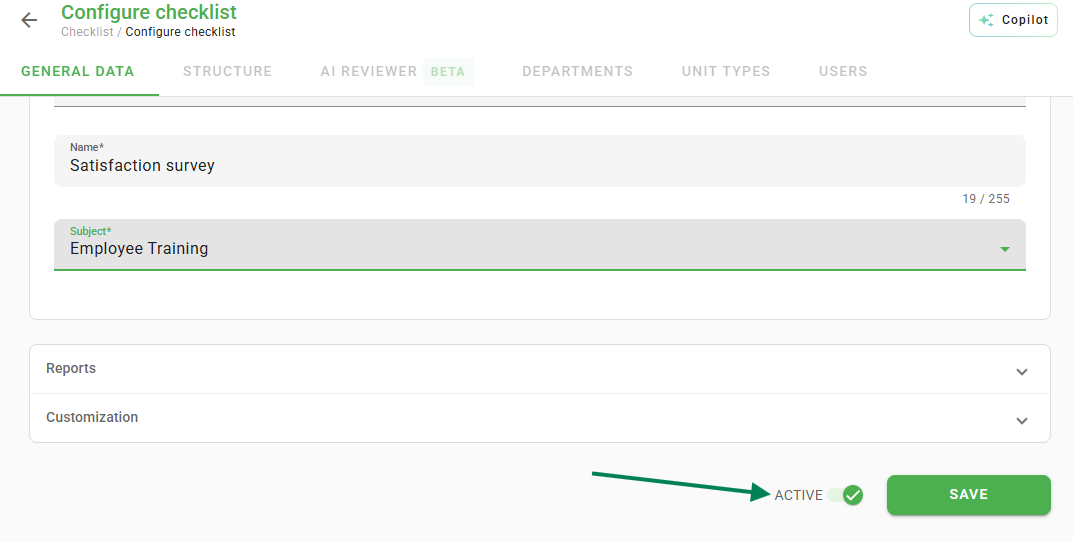
Structure tab settings
In the Structure tab, you create the areas (topics) and items (questions) of your questionnaire.
Due to the public nature of the survey, some advanced features of internal checklists are not available in this mode.
Unavailable items: GPS, Barcode Reader, and Signature.
Unavailable add-ons: Action Plan.
For more details on how to set up questions, see the article: Checklists: how to create, structure, edit and delete.
How to obtain the Link and QR Code
After saving your survey, the access link and QR Code will be available in the general checklist listing.
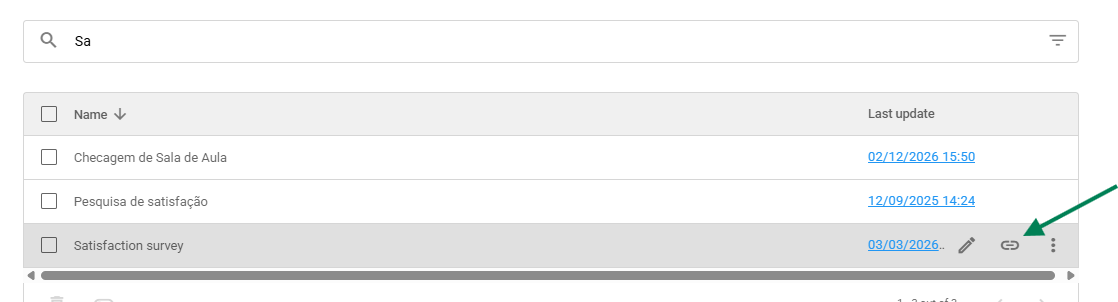
Difference between Survey and Public Attachment Link
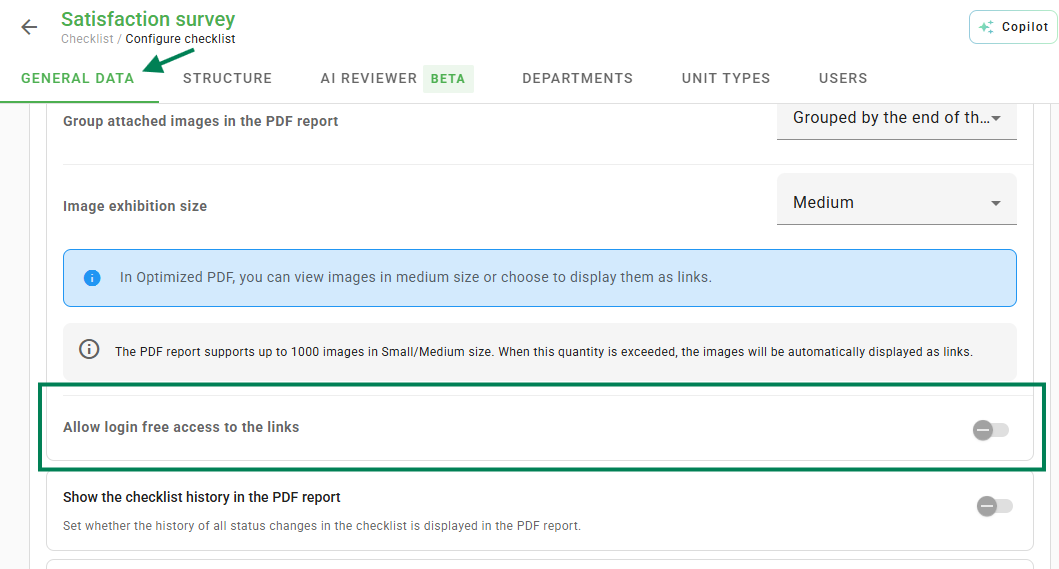
There is a setting called "Allow access to links without login". It is important not to confuse this option with the Satisfaction Survey.
The setting shown below refers only to media links (photos and files) within exported reports (Excel/PDF). It does not activate or deactivate the Satisfaction Survey.
When a checklist is exported, photos and attachments generate links. If the option below is checked, anyone with the photo link will be able to see it. If unchecked, it will be necessary to log into the system to view the photo.
Frequently Asked Questions (FAQ)
1. Does the user need to pay or have a license to answer the survey?
No. The Satisfaction Survey is public and free for those who respond. Simply have the link or read the QR Code; it does not consume system user licenses.
2. Can I use Action Plans in a satisfaction survey?
No. Due to the nature of external access without login, features that require internal responsibility assignment, such as Action Plans and Workflow, are not available.
3. Where do I view the responses?
Responses enter the system as applied checklists. You can consult them on the Checklists screen or through Reports, filtering by the name of your survey.
❓Tem dúvidas? Entre em contato com nosso time de suporte.