Introduction
The use of QR Codes creates a shortcut for selecting the Checklist and the configured Unit, providing greater security for the data in the applied Checklist.
The QR Code ensures that the auditor is physically at the inspection site by automatically linking the correct unit to the form.
How to create a QR Code
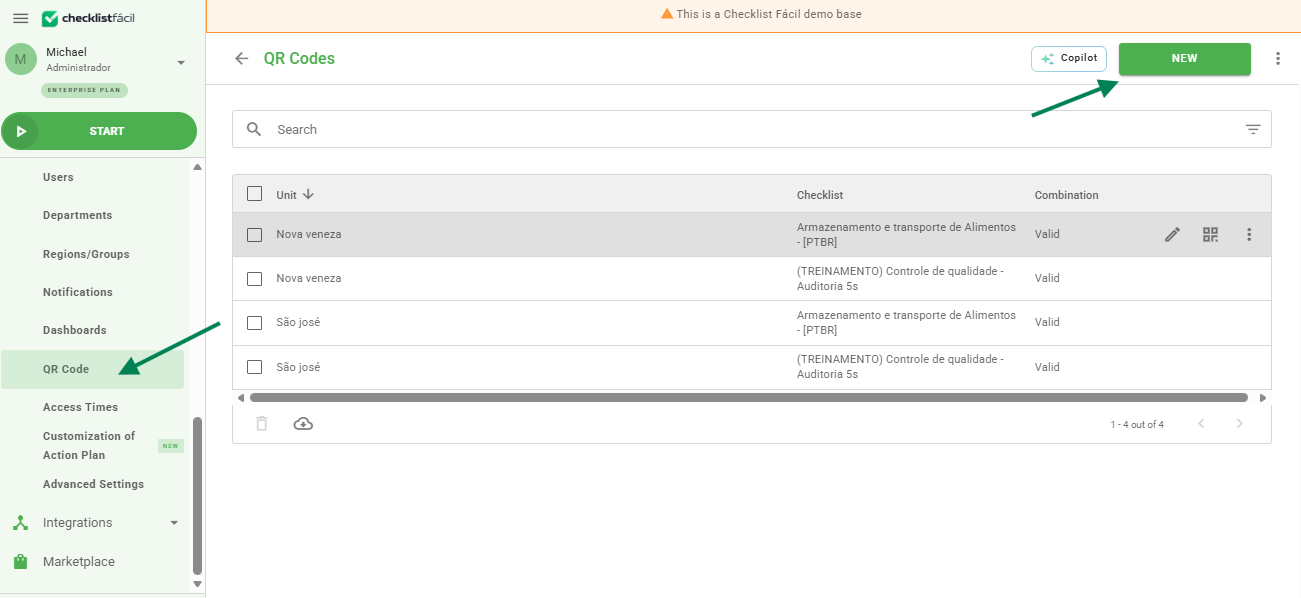
To create a QR Code, simply access the Settings menu, select the QR Codes option, and click the New button:
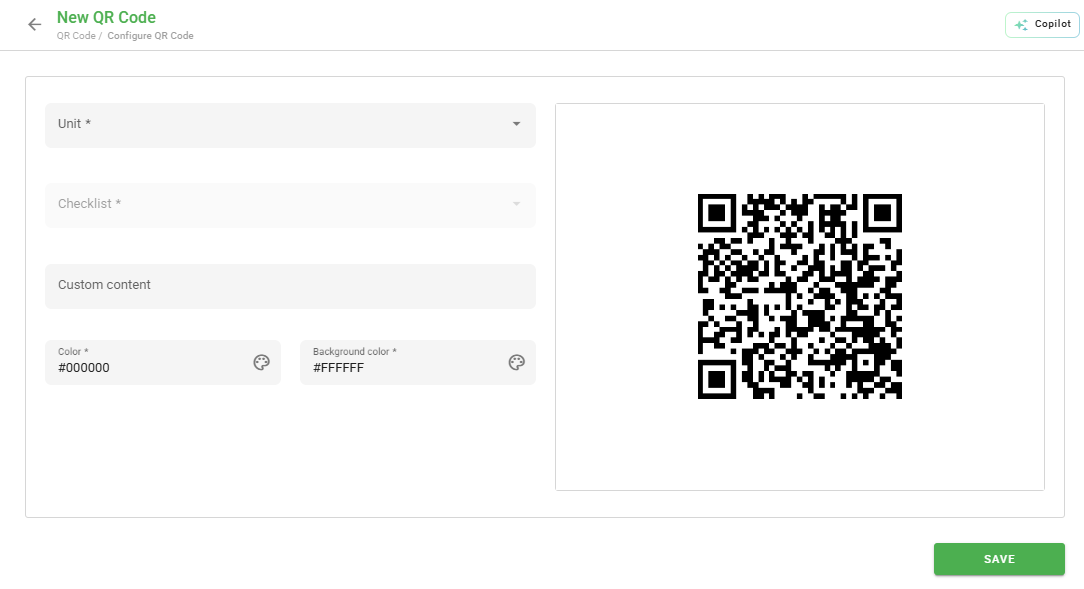
When clicking New, you can configure the following points:
- Unit: Select the units that will be linked to the QR Code. You can search by name or use the Select all option.
- Checklists: Choose which forms will be available for response through this code.
- Custom content: In this field, you can describe a situation, tip, or important summary to guide the auditor at the time of scanning.
QR Code Management
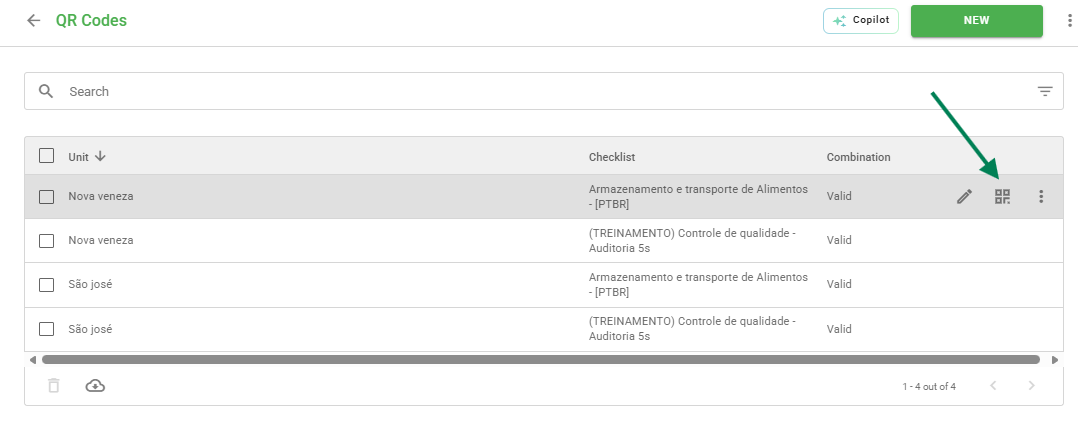
After saving the settings, you will have access to the listing of all created QR Codes. On this screen, you have the following options:
* Pencil Icon: Allows you to Edit the QR Code settings.
* QR Code Icon: Allows you to download the image file to your computer for printing.
* Three dots: Option to Delete the QR Code permanently.
Tip: Keep your QR Codes printed in visible locations that are easily accessible to field teams.
Frequently Asked Questions (FAQ)
1. Can I link more than one checklist to a single QR Code?
Yes, during the creation or editing of the QR Code, you can select multiple checklists.
2. What happens if I delete a QR Code?
The link will be broken and the printed code will stop working, no longer being recognized by the Checklist Fácil application.
❓Tem dúvidas? Entre em contato com nosso time de suporte.