- What are the advantages of using a QR Code?
- How to create a QR Code?
- How to view an existing QR Code?
- Is it possible to edit existing QR Codes?
- How to delete a QR Code?
- Can I import a QR Code?
Ensure agility and efficiency when starting the application of a specific checklist and unit by scanning the QR Code.
What are the advantages of using a QR Code in Checklist Fácil?
With the use of a QR Code, it is possible to create a shortcut for a specific checklist of a particular unit to be answered.
Thus, in addition to greater data security for the checklist itself, the QR Code is a great facilitator in certain types of applications, such as satisfaction surveys, for example.
How to create a QR Code?
The process of creating a QR Code through the Checklist Fácil system is very simple. See the steps below:
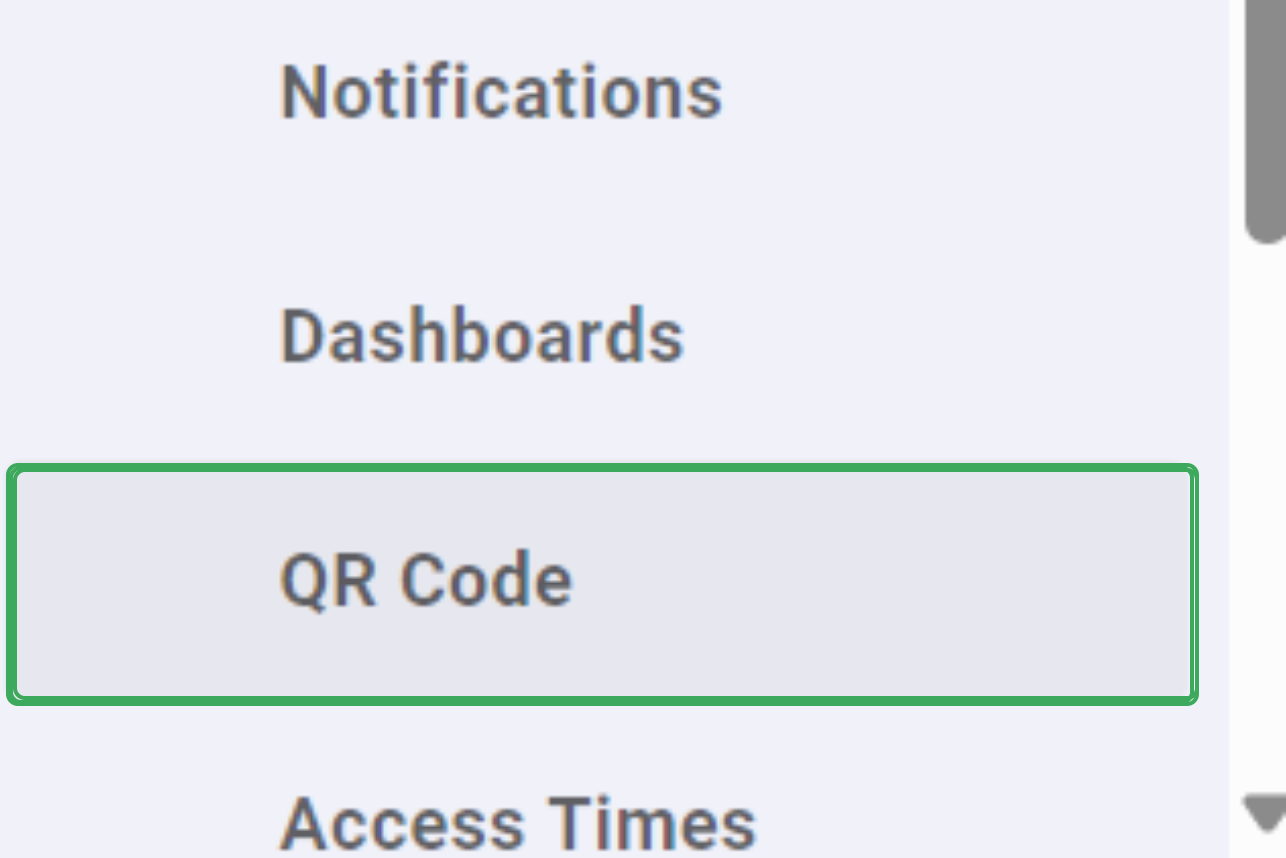
Step 1: Access the Settings tab on the left side menu of the system, and then click on QR Code:

Step 2: Next, click on New in the upper right corner of the screen:

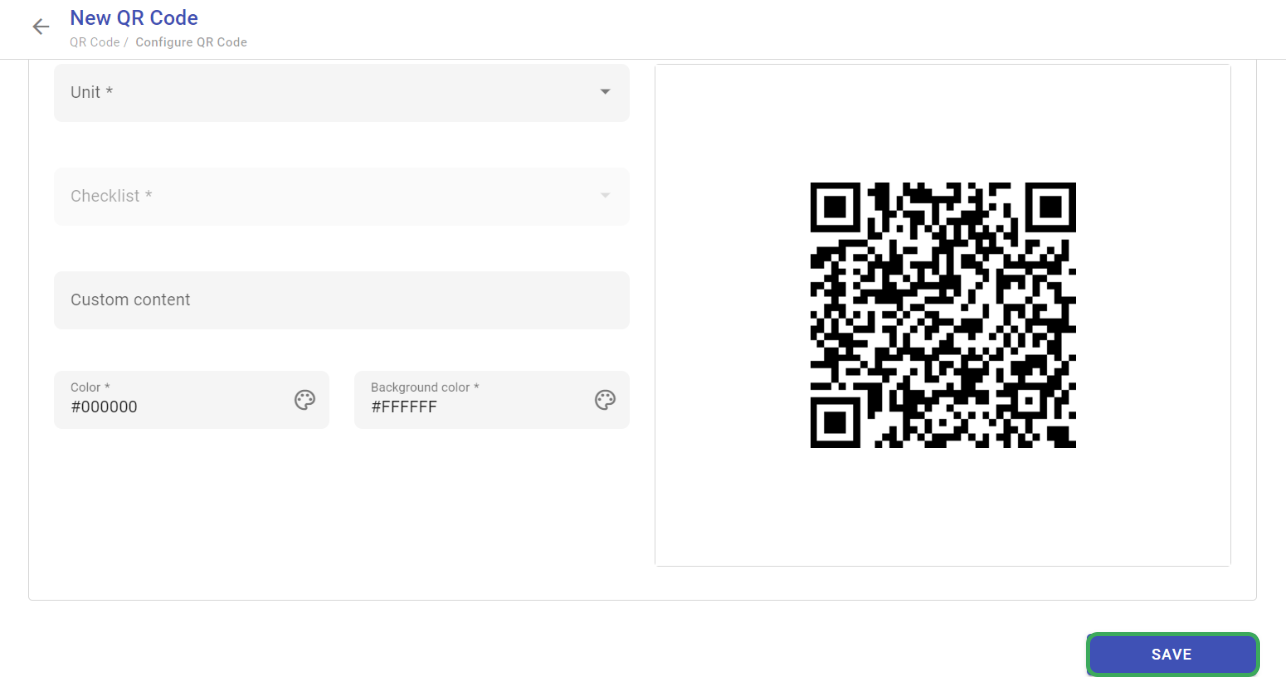
Step 3: Configure the QR Code by choosing the unit, the checklist linked to it, a custom content describing a situation or tip for the user, as well as the background and code colors. Then, click on Save.
How to view an existing QR Code?
It is possible to view a list of the created QR Codes on the main page of this solution. If you wish to view the details of a specific QR Code, hover your mouse over the desired code and click on the icon highlighted below:
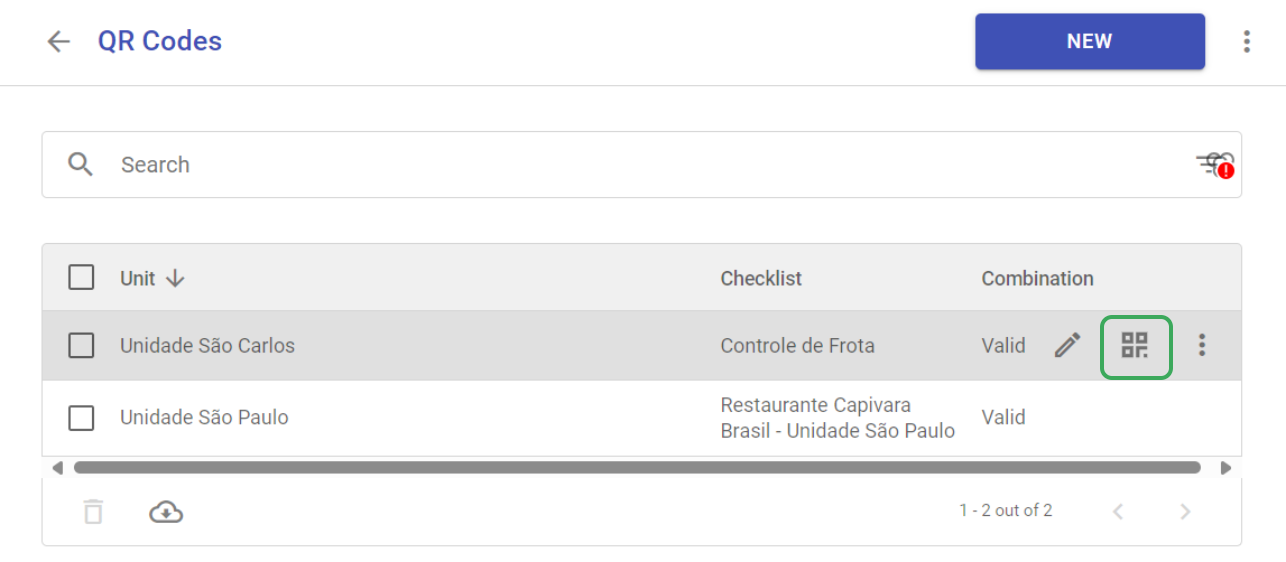
The file will be downloaded to your computer. Go to your saved items folder to view it.
Is it possible to edit existing QR Codes?
Yes! If you want to edit a QR Code, simply go to the screen for adding QR Codes, hover your mouse cursor over the one you wish to change, and click on Edit on the icon highlighted in the image below:
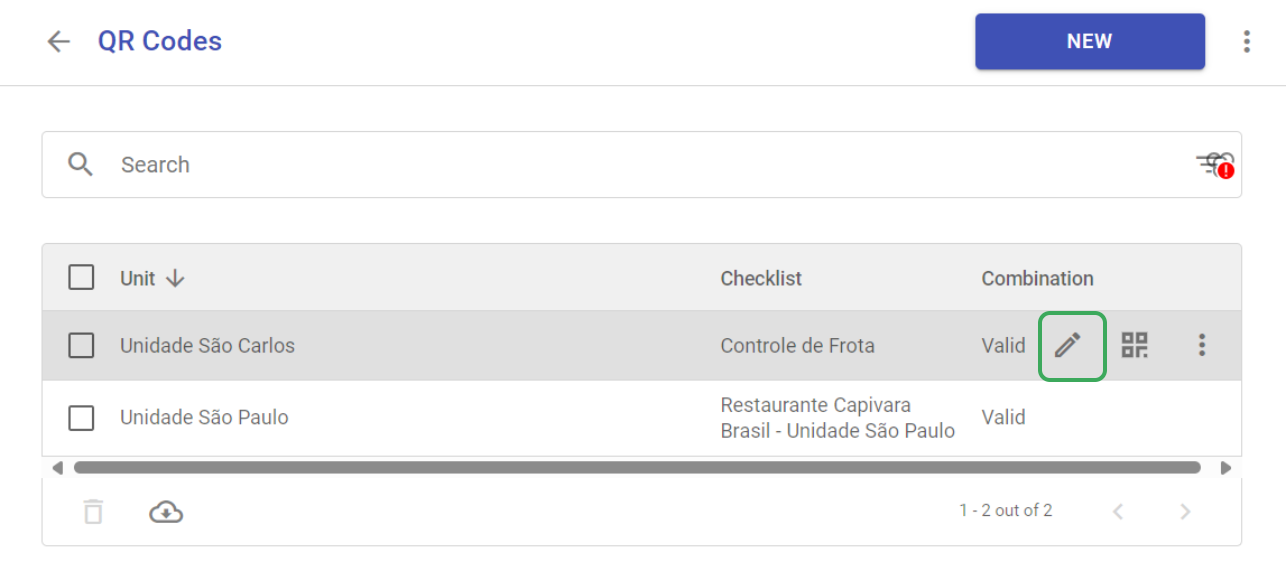
The editing screen allows you to change the information entered at the time of registration, such as unit, checklist, custom content, and colors.
Do not forget to click on Save after making the desired changes.
How to delete a QR Code?
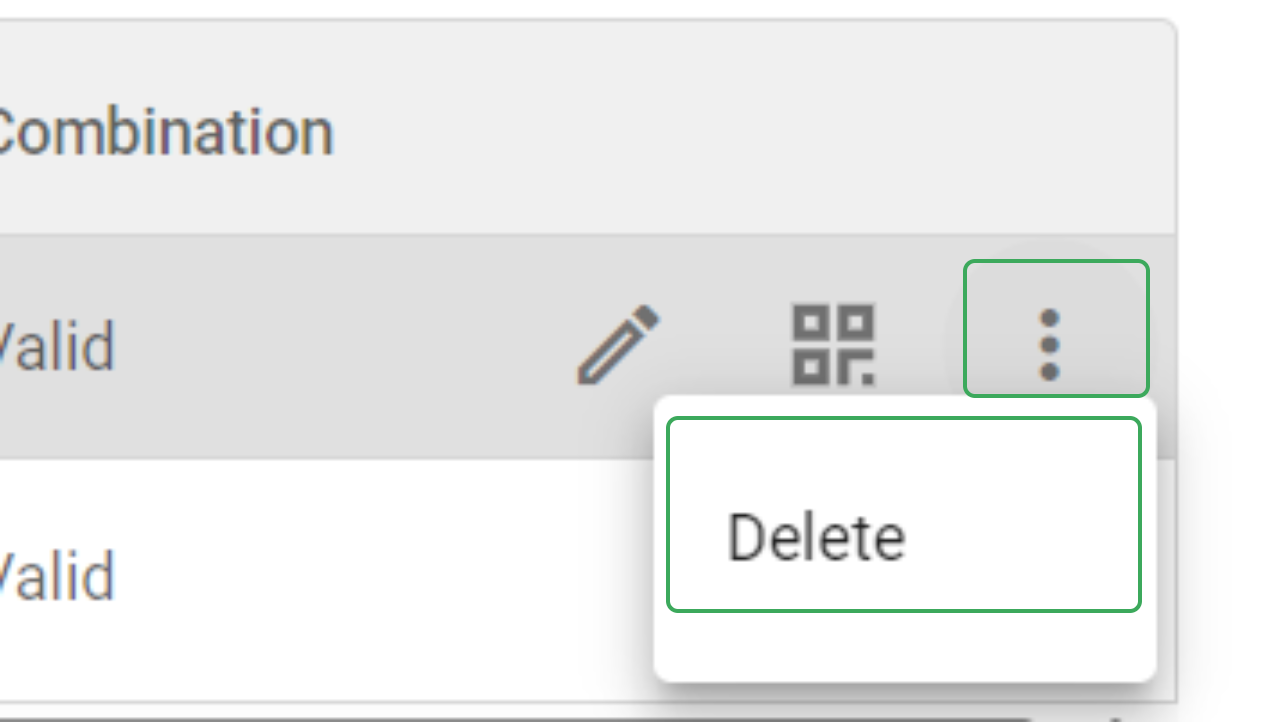
Next to the edit option, it is possible to delete a QR Code by clicking on the three dots:
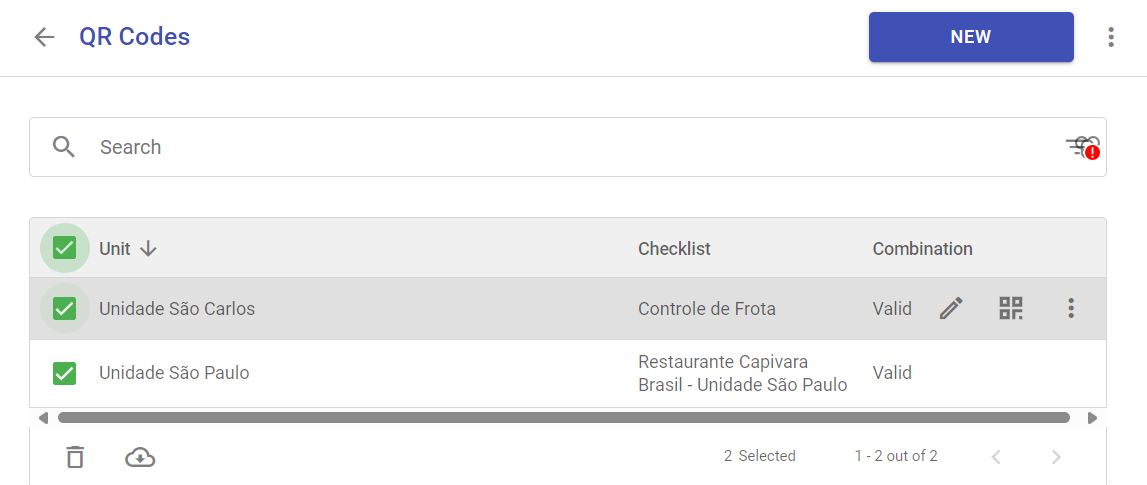
If you want to delete or export multiple QR Codes at once, select the corresponding checkboxes and apply the bulk actions available at the bottom of the page.
Can I import a QR Code?
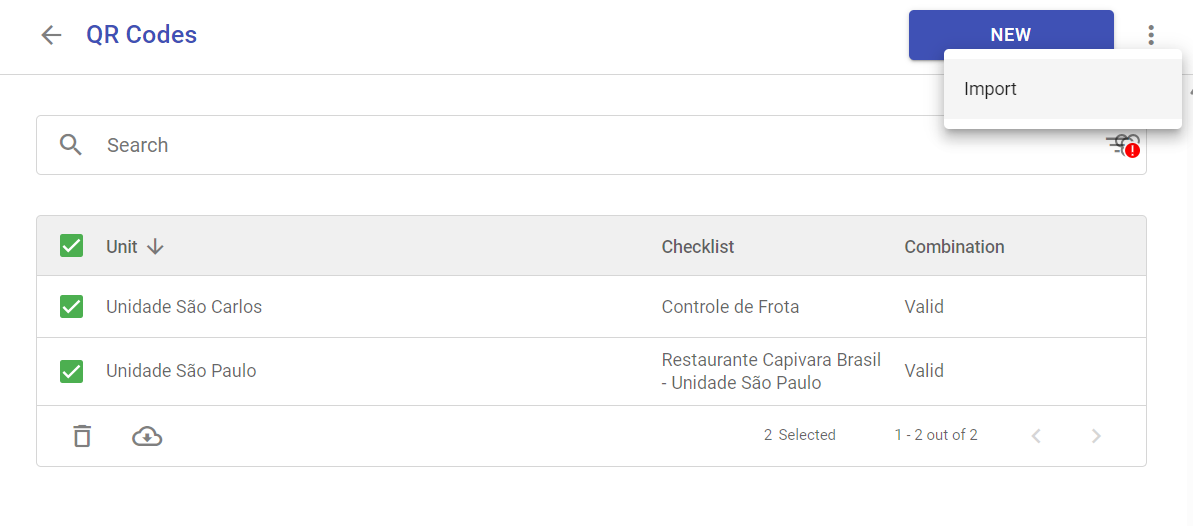
Yes! If you already have a QR Code ready, it is possible to import it. When accessing the screen for adding QR Codes, click on the three dots and then click on Import:
A modal will open as shown in the image below:
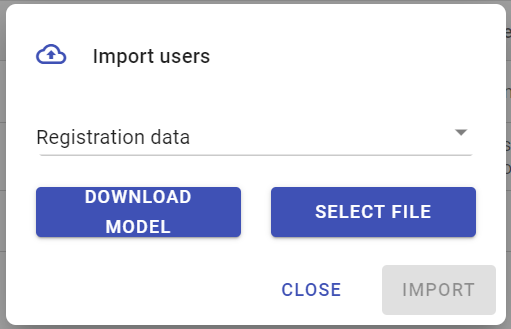
To import the data, simply click on Select File, locate the spreadsheet on your computer with the data to be imported, and click on Import.
If you do not have this spreadsheet yet, just select the import type and click on Download Template. Once it is filled out, locate the file on your computer and click on Import.
Frequently Asked Questions (FAQ)
1. Can I change the color of my QR Code?
Yes, during the creation or editing of the QR Code, you can customize both the background color and the color of the code itself.
2. Is it possible to delete multiple QR Codes at once?
Yes, use the checkboxes in the QR Code list and use the bulk actions bar at the bottom of the page to delete multiple items.
❓Tem dúvidas? Entre em contato com nosso time de suporte.