The Satisfaction Survey is a special checklist model where you can collect evaluations from external people, without the need for a login or user registration on the platform.
Unlike the standard checklist, which focuses on technical audits, the survey is ideal for measuring customer satisfaction (NPS), collecting service feedback, or conducting open inspections through a public Link or QR Code.
- Main differences and limitations
- How to create a Satisfaction Survey
- Configuring the Structure
- How to obtain the Link and QR Code
- Frequently Asked Questions (FAQ)
Main differences and limitations
To ensure accessibility via an external link, the Satisfaction Survey has some structural differences compared to the standard checklist. It is essential to understand these limitations before creating your form:
- Access: Does not require username and password. Anyone with the link can respond.
- Special Items: Does not support items that require specific hardware or system validation, such as GPS (Geolocation) and Barcode Reading.
- Add-ons: Does not feature the Action Plan and Signature resources, as there is no logged-in user to take responsibility for the resolution.
Tip: Use the Satisfaction Survey when you need a high volume of responses from diverse people. For technical audits that require proof of location (GPS) and treatment of nonconformities, use the Standard Checklist.How to create a Satisfaction Survey
The creation process is very similar to that of a common checklist, with an important difference in the initial settings.
1. Access the Settings menu and click on Checklists.
2. Click on the New button and select New Checklist.
3. In the Registration Data tab, locate the "Checklist type" field and change it to Satisfaction survey.
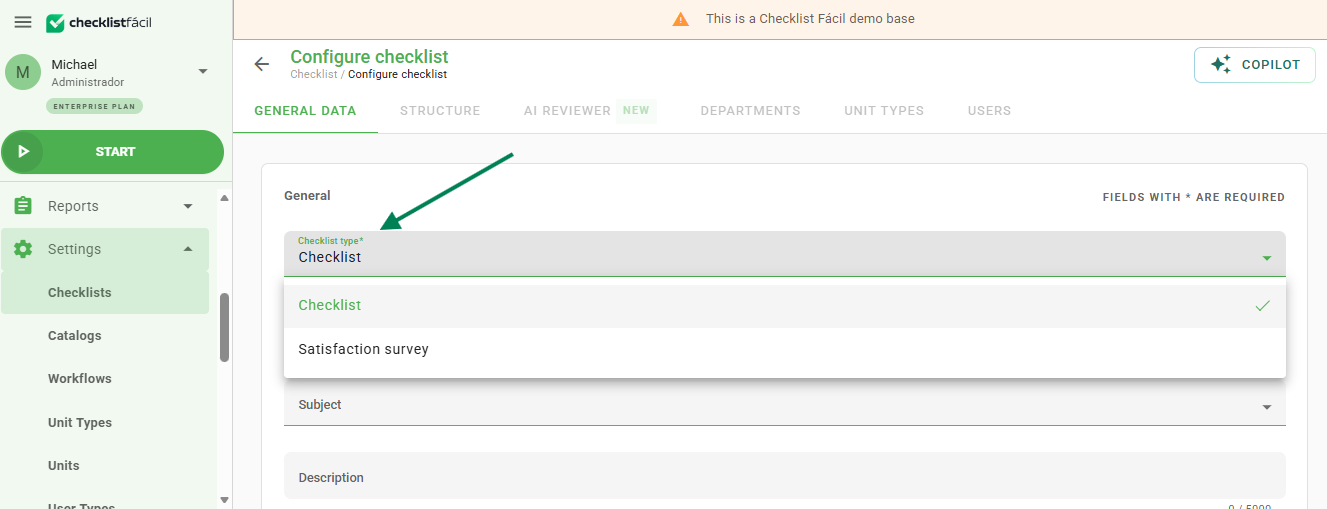
Upon selecting this type, new customization options will appear in the Customization tab:
- Completion message: Text that will appear on the user's screen as soon as they finish submitting the answers.
- Header image: Allows you to insert your company logo or campaign banner at the top of the form (recommended dimensions: 300x100 pixels).
Configuring the Structure
In the Structure tab, you must create the questions (items) that the customer will answer. You can use:
- Evaluative items (Yes/No, Grades, Mood faces).
- Text fields (for comments and suggestions).
- Single or multiple selection lists.
- Date and time fields.
- Numeric type.
- Registration.
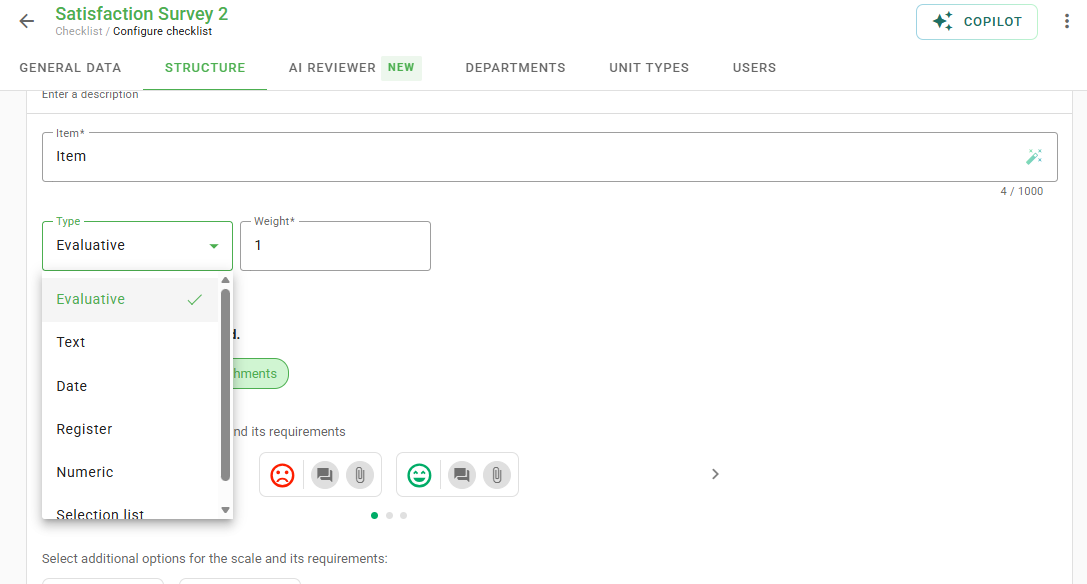
Attention: Remember that special items such as GPS and Barcode will not function in this mode.How to obtain the Link and QR Code
After saving your survey, you will need the access data to distribute to your users.
1. Go back to the Checklists listing screen.
2. Locate the created Satisfaction Survey.
3. Click on the Link icon (chain icon).
4. In the window that opens, you will find the Direct link and the QR Code image for download.
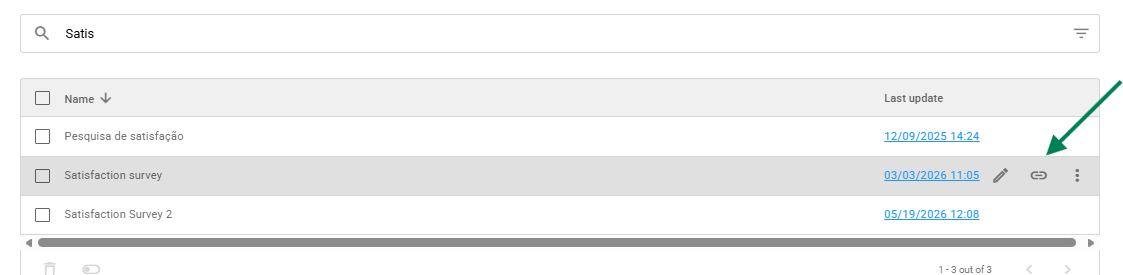
Usage idea: Print the QR Code and place it in strategic locations of your company (service counter, tables, exit doors) to encourage immediate customer feedback.Frequently Asked Questions (FAQ)
1. Is it possible to apply a standard checklist via a link?
No. The external link and public QR Code functionality is exclusive to the Satisfaction Survey. The standard checklist requires a login to the platform to be applied.
2. Can I use GPS in the survey?
No. Special items such as GPS and barcode are not available in the satisfaction survey.
3. Is it possible to edit any information of a checklist?
No, it is not possible to change the checklist type after it has already been saved. If you need a checklist with a different type, it will be necessary to create a new checklist.
❓Tem dúvidas? Entre em contato com nosso time de suporte.