- Pin configured filters and have quick access to them
- Apply default Assigned to me filter
- Frequently Asked Questions (FAQ)
Two more improvements are coming for Action Plans filters! With them, you gain agility in tracking your daily tasks.
Soon, you will be able to:
Pin configured filters and have quick access to them
If you have questions about how to configure filters in Action Plans, check out this other article.
After configuring your filters, you can pin them by clicking the pin icon:
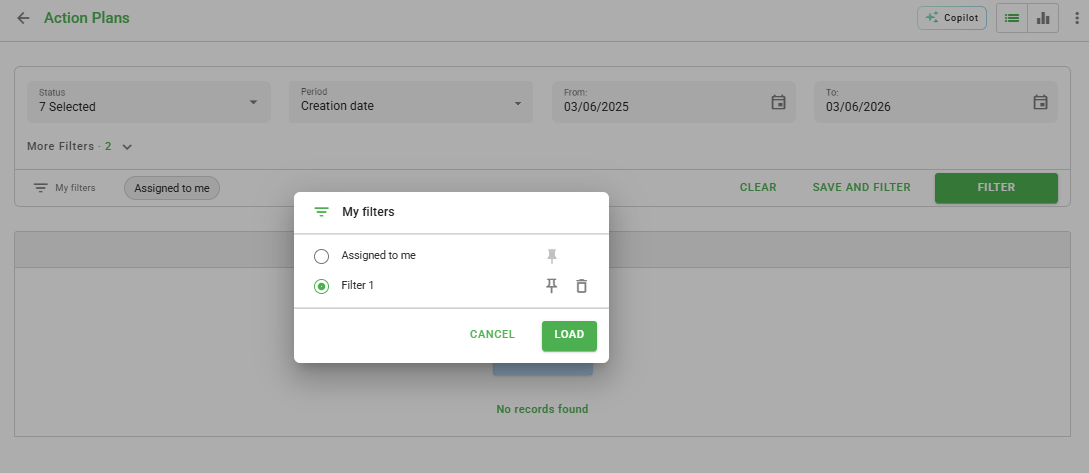
After pinning, the filters will be displayed just below the search field as buttons. By clicking on one of them, the filter will be applied immediately, highlighting the icon and displaying the results. You can have up to three pinned filters simultaneously.

Select the clear option to deactivate all applied filters at once.
Apply default Assigned to me filter
By default, the assigned to me filter will already be pre-pinned in your quick access. It is important to note that this specific filter cannot be removed from the shortcut bar.
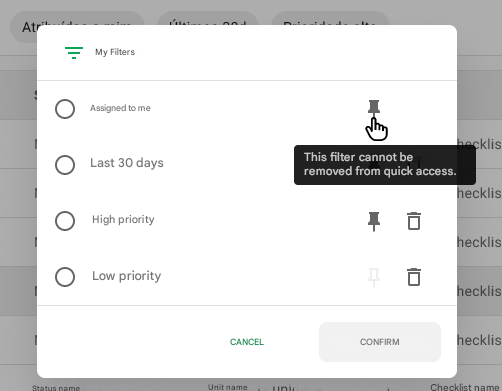
This filter displays pending action plans (except canceled and concluded) created in the last year, linked to your user, your user type, or departments you are part of.
Frequently Asked Questions (FAQ)
1. How many filters can I keep pinned?
In addition to the default "Assigned to me" filter, you can pin up to three custom filters of your preference.
2. Can I remove the "Assigned to me" filter?
No, this filter is fixed to facilitate direct access to your pending items, but you can switch between it and your other pinned filters freely.
❓Tem dúvidas? Entre em contato com nosso time de suporte.