See how simple it is to treat nonconformities through Action Plans!
- What are Action Plans?
- How to enable an Action Plan?
- How to create an Action Plan during checklist application?
- How to view registered Action Plans?
- In which formats is it possible to view Action Plans?
- What are Action Plan priorities?
- How to add a solution to an Action Plan?
- How do I conclude an Action Plan?
What are Action Plans?
The Action Plans module aims to assist in the treatment of nonconformities identified at the time of checklist application.
For example: suppose a slippery floor is identified in a factory, risking employee safety. As soon as this nonconformity is detected, the applying user can open an Action Plan, indicating the person responsible, the date, and how this problem should be solved.
Thus, following the 5W2H format (what, why, where, when, who, how, and how much), it is possible to identify problems with greater ease, ensuring agility and efficiency in operational processes.
How to enable an Action Plan?
Before a user can fill out an Action Plan, it must be configured and enabled. But how to do this?
Let's go back a bit to the moment of checklist creation. In the Structure tab, you added an area and, within it, an item. When creating this item, the evaluation type, weight, and desired add-ons were selected. One of these add-ons consists of the Action Plan.
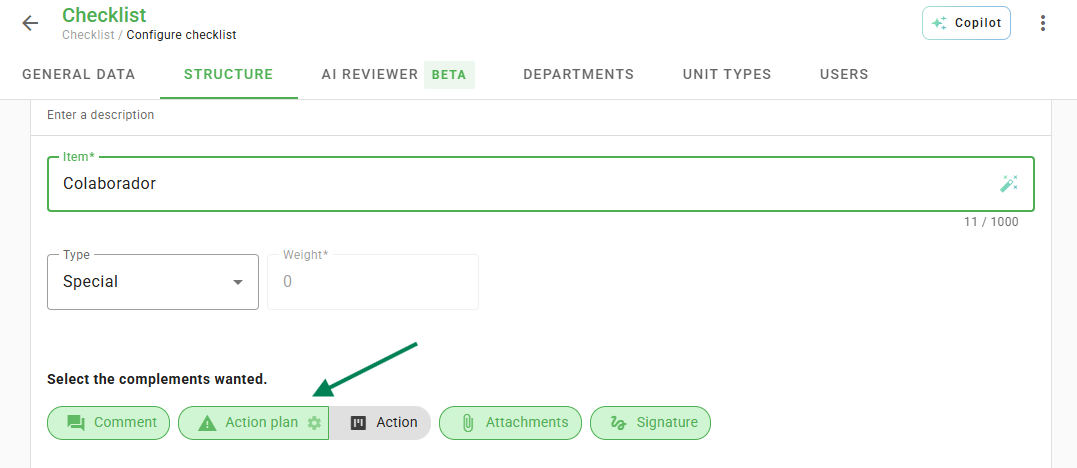
To activate the Action Plan, simply click on it (the disabled color is gray, so to ensure you have activated it, it must be colored).
Now, to make the Action Plan add-on mandatory for the applier when they select a specific response for an item, you must enable it by clicking on the corresponding icon during the item type configuration.
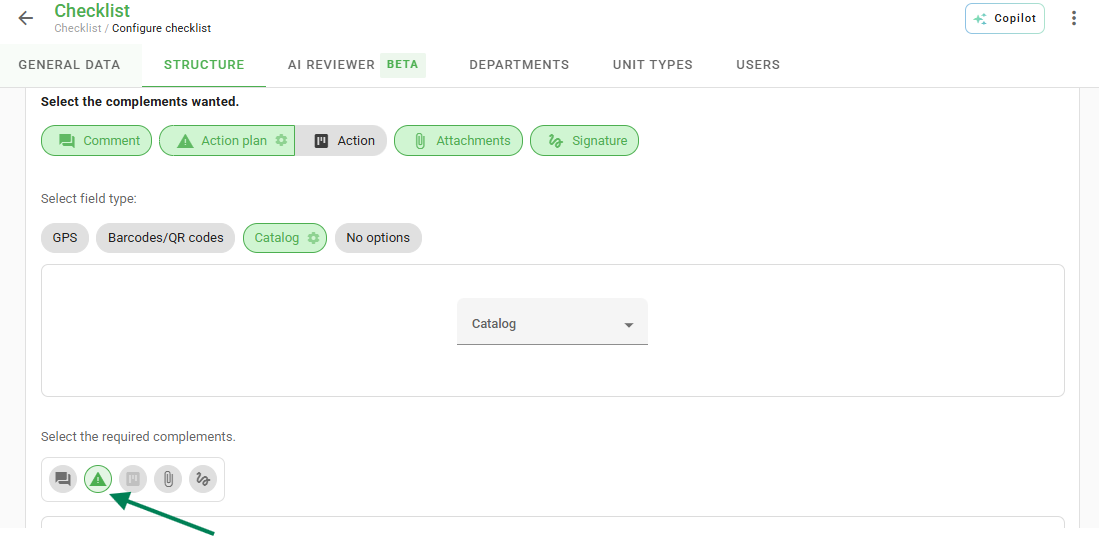
This way, when the applier answers the item above with a negative evaluation, the Action Plan add-on will be highlighted to be created in order to treat this nonconformity.

How to create an Action Plan during checklist application?
Upon identifying a nonconformity during checklist application, the applier must select the Action Plan add-on to create it.
In the modal that opens, the fields present will comprise the 5W2H format presented in the introduction of this article, with some being mandatory, such as "Priority", "What will be done?" and "When will it be done?".
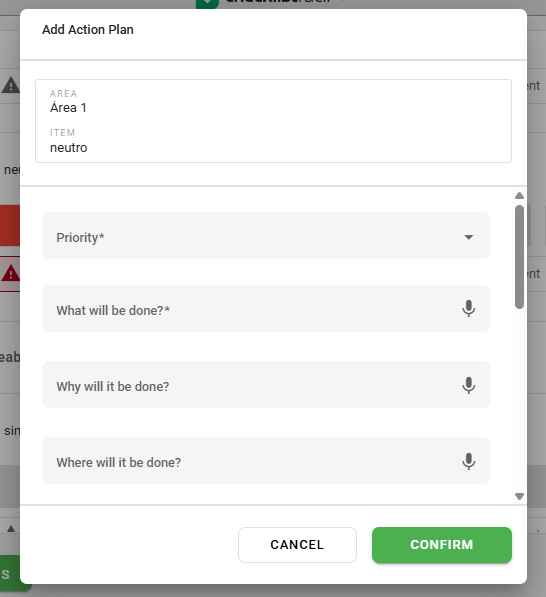
With all necessary fields filled in, the applier must click confirm to register the Action Plan.
Tip: Did you know it is possible to configure Action Plans by item or area, shaping their structure and behavior? To take advantage of all available features, upgrade your plan by clicking here.How to view registered Action Plans?
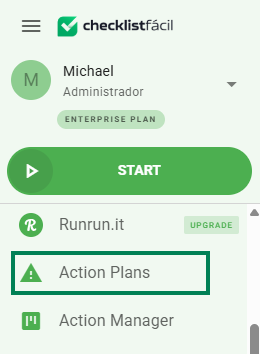
To view Action Plans, go to the system's left sidebar menu and click on Action Plans.
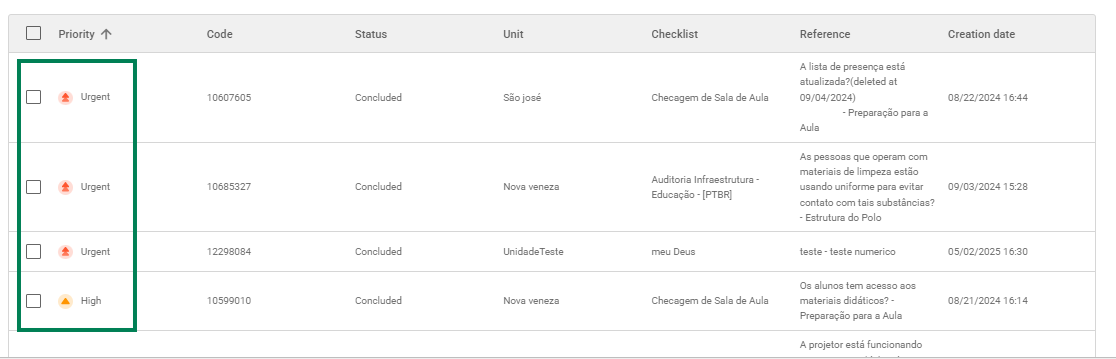
A page will open with a list of Action Plans and the following information about each: priority, code, status, unit, checklist, reference, and creation date.
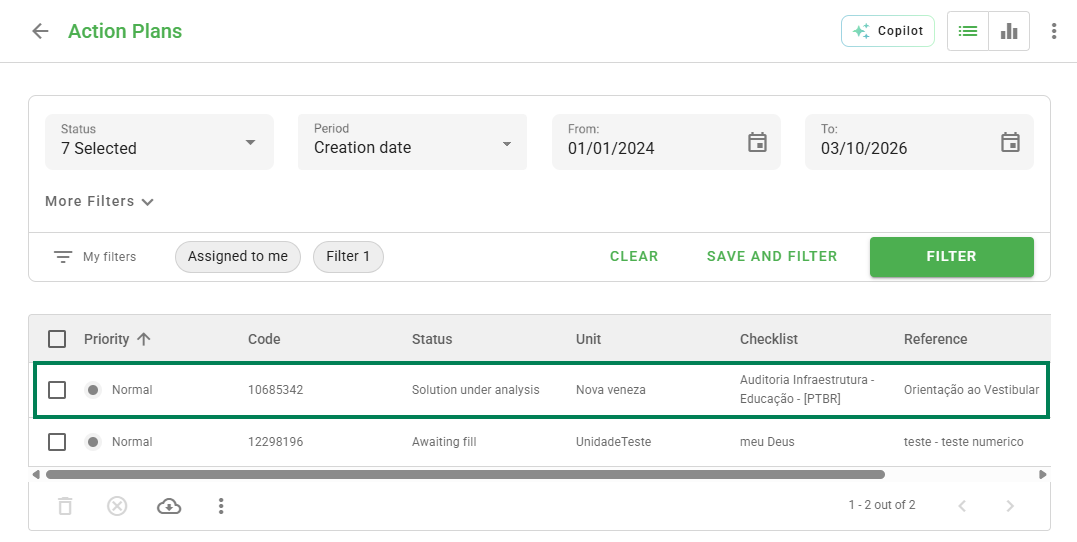
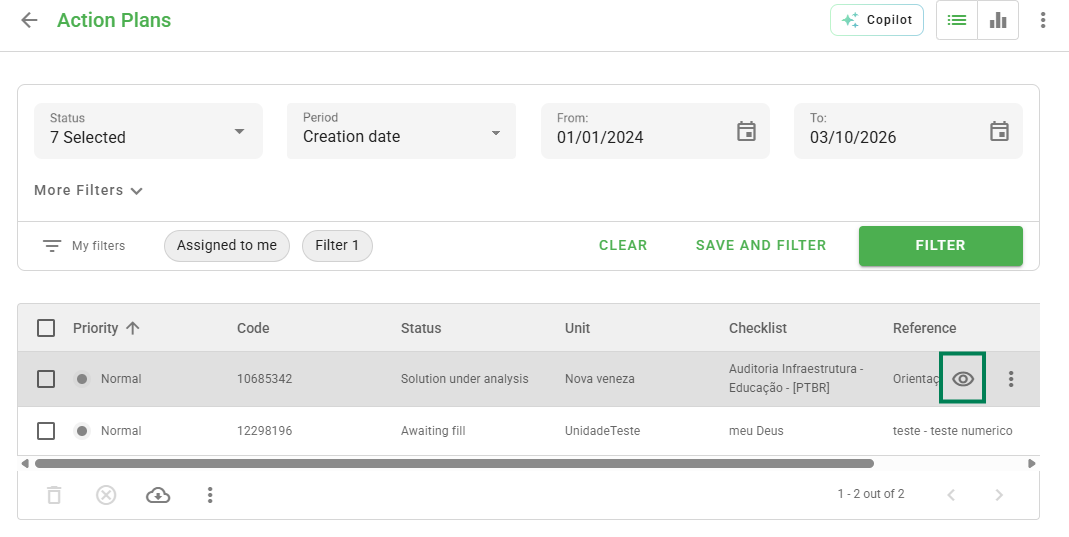
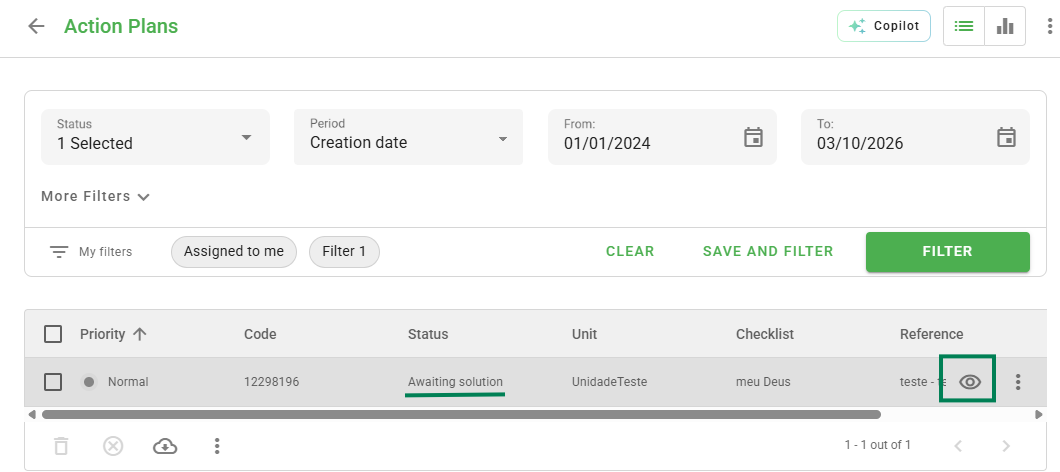
To view a complete Action Plan, simply hover over it and click the eye icon:
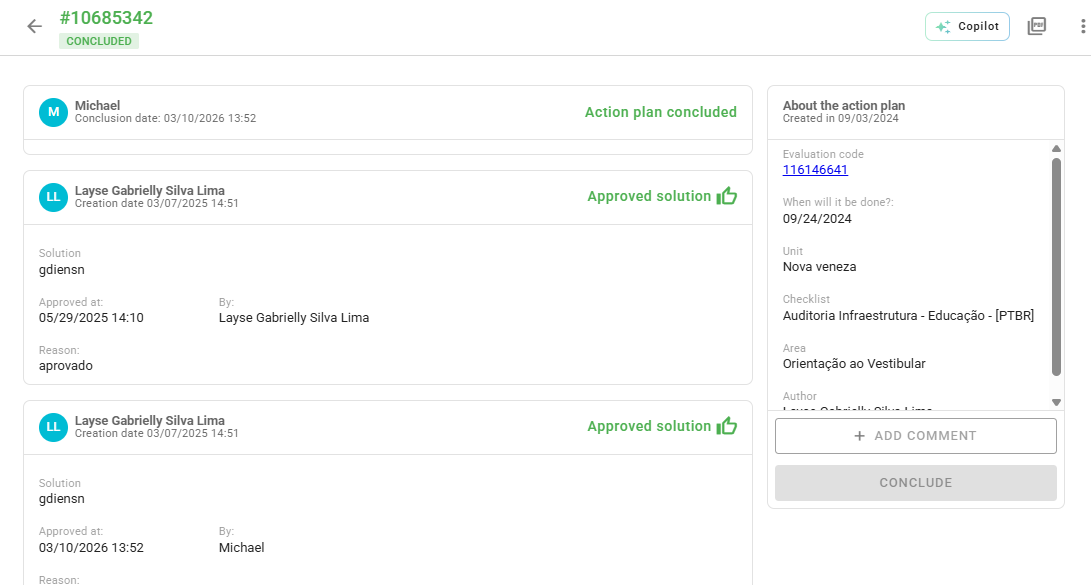
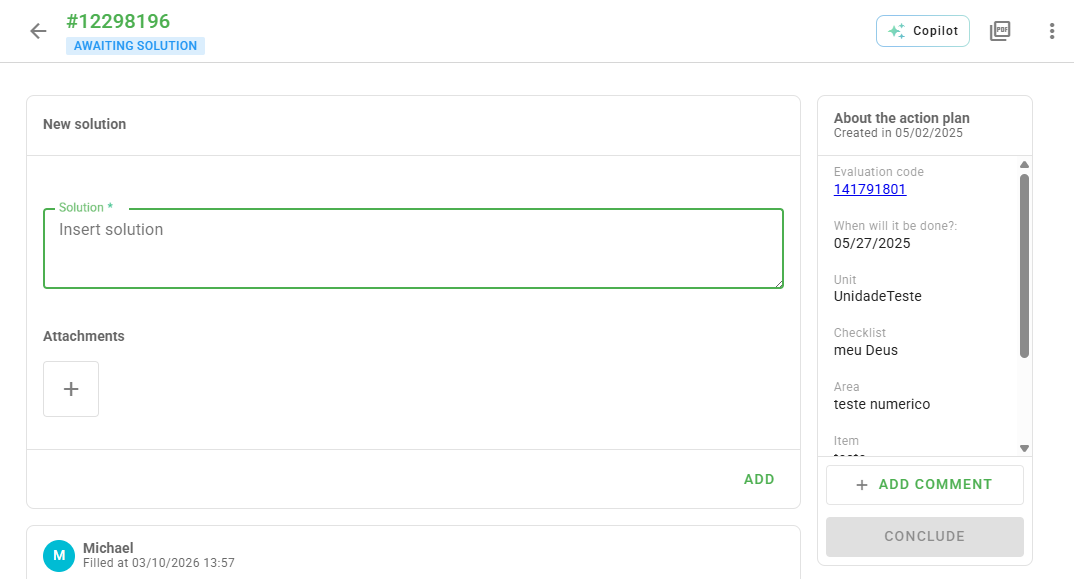
A page will then open with the information filled in about the selected Action Plan:
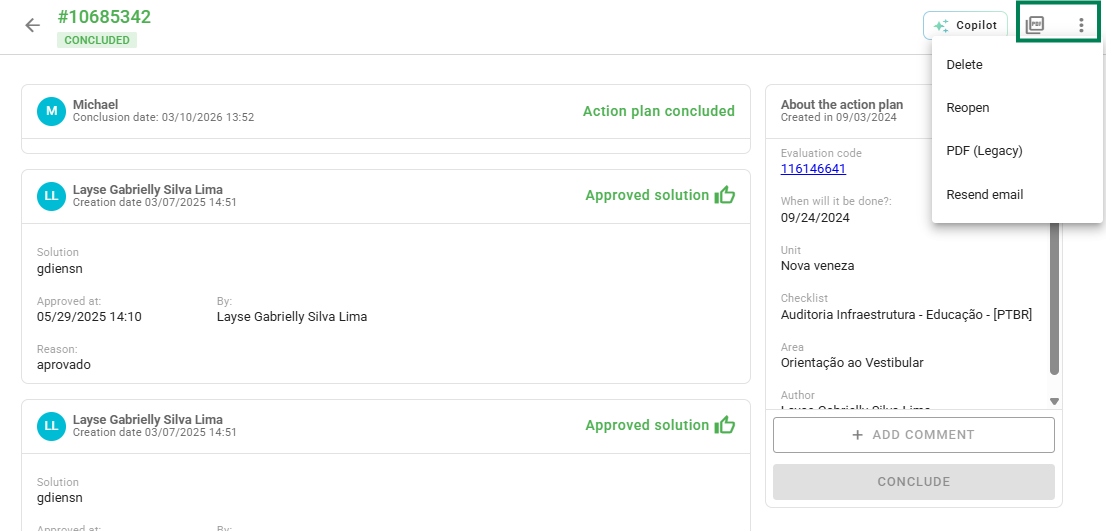
On this page you can also download the information in PDF, as well as delete or reopen the Action Plan.
In which formats is it possible to view Action Plans?
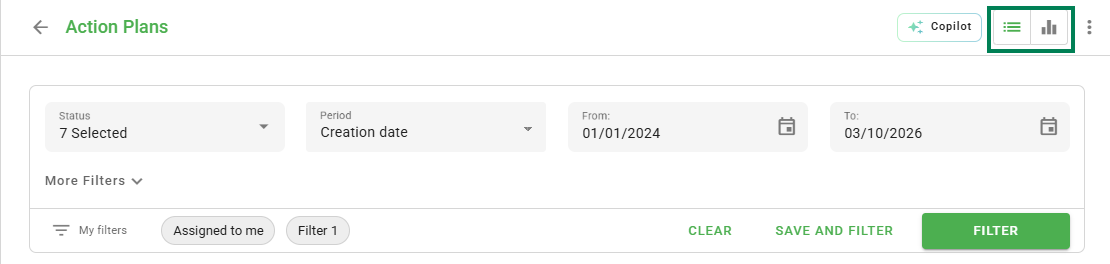
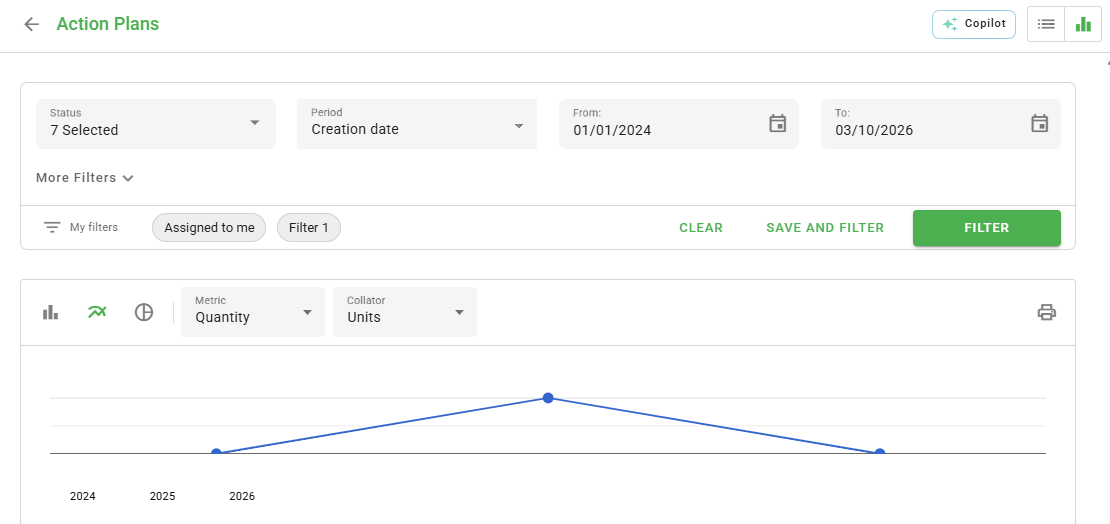
In addition to the list, you can view Action Plans in chart format (bars, lines, or pie), by clicking on the icons highlighted below:
Tip: In chart format, it is possible to change the metric and the grouper to get more precise information.
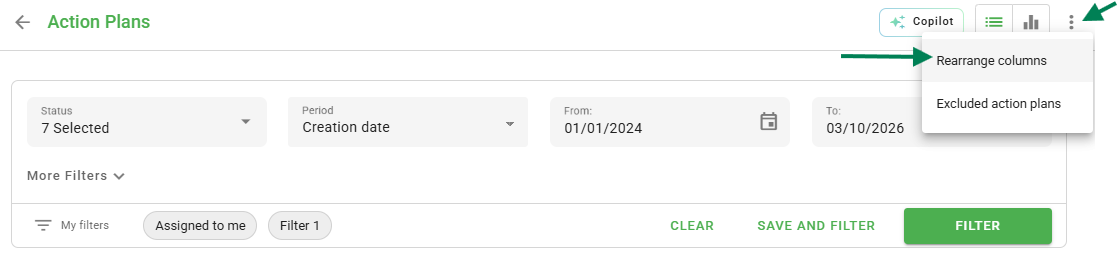
If you wish to view the data in list format, you can choose the order of the columns by clicking on the three dots in the upper right corner of the screen and then on Rearrange columns.
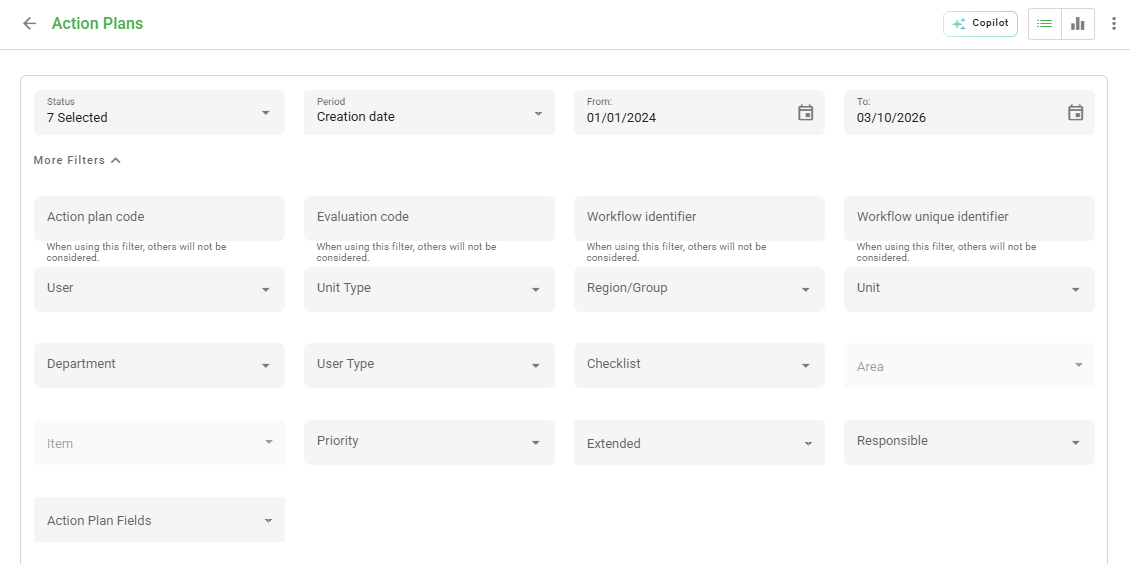
Finally, use the filters to locate a specific Action Plan, selecting status, period, checklist, etc.
What are Action Plan priorities?
When adding an Action Plan, you can choose with what priority this plan should be treated:
- Urgent (maximum priority);
- High;
- Normal;
- Low (minimum priority).
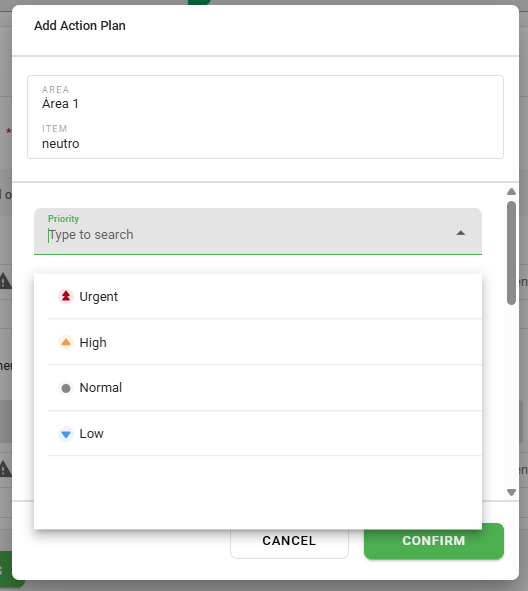
By filling in the priority, you can identify the most emergency Action Plans, maximizing productivity.
How to add a solution to an Action Plan?
It is possible to add a solution to plans with "Waiting for Solution" status. In the listing, hover over it and click on the icon highlighted:
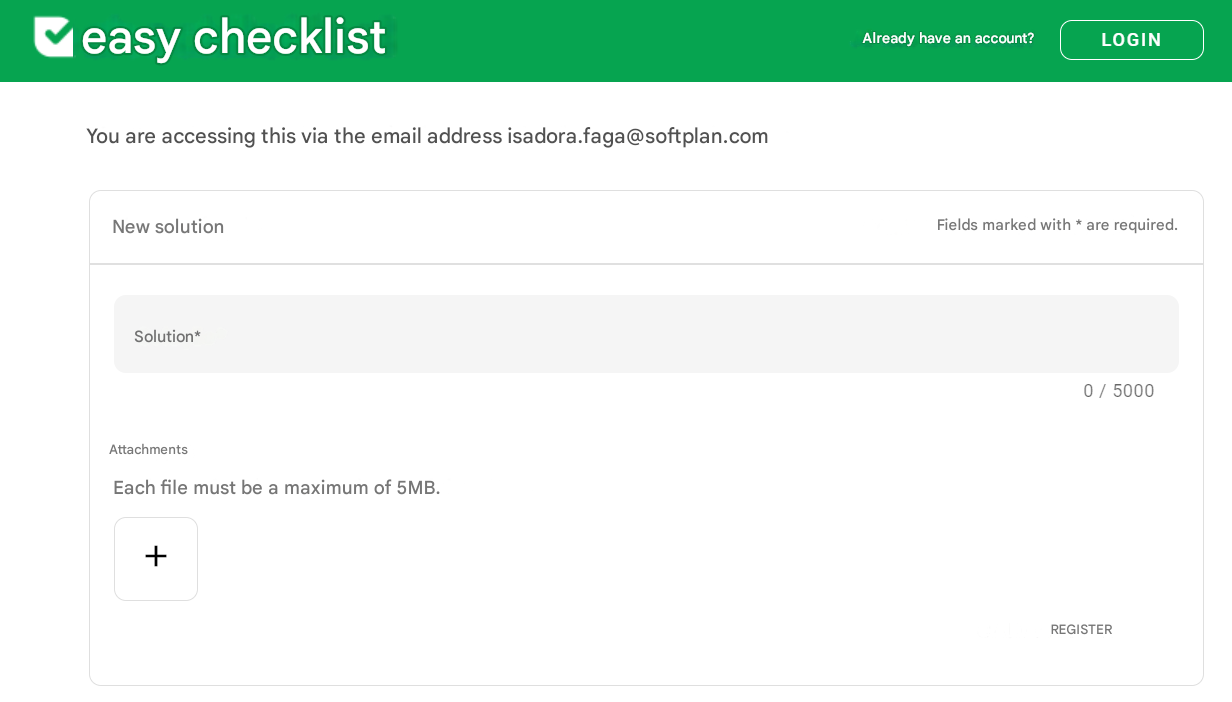
Insert the solution and add comments. Don't forget to click Add.
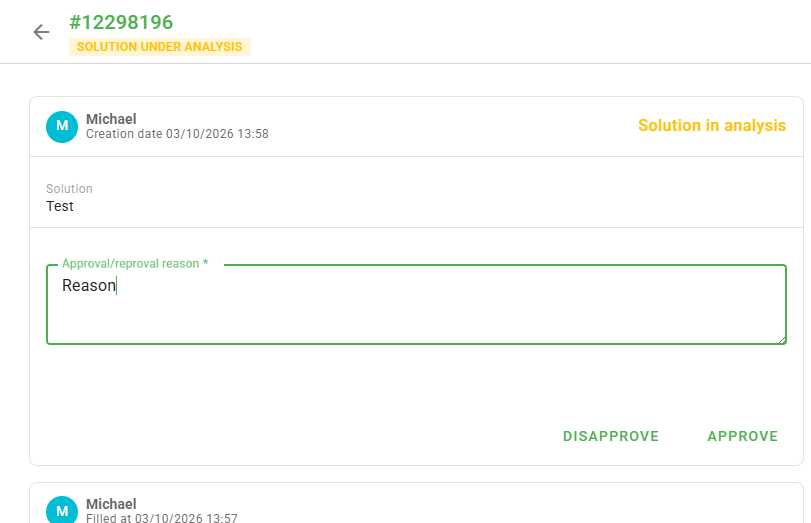
The solution may appear "In Analysis" if enabled. The person responsible can approve or disapprove:
Another way is to click on the three dots and select Copy link to share with whoever will carry out the treatment.
How do I conclude an Action Plan?
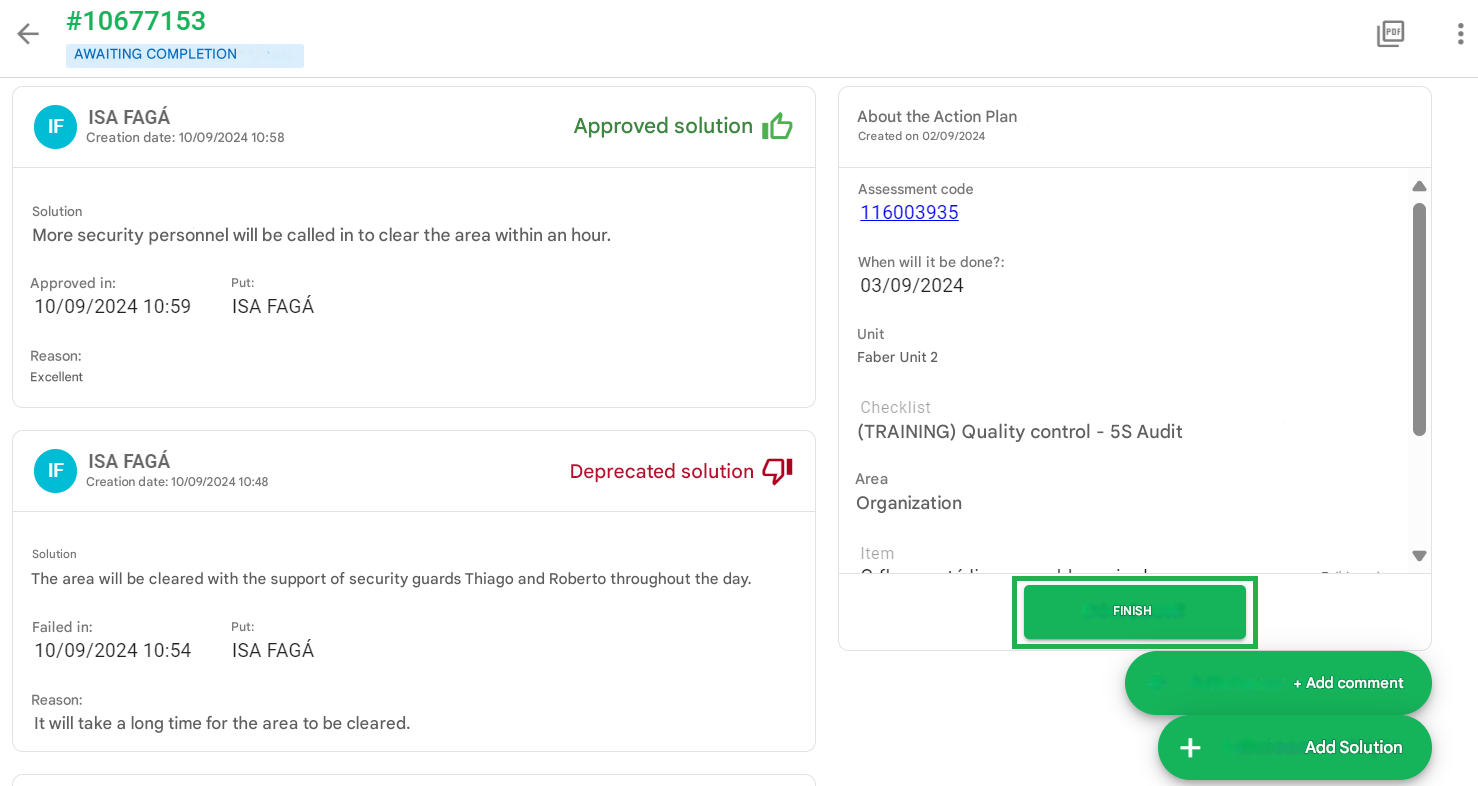
After the solutions are approved, you can conclude the treatment through the Details Screen (Conclude button) or through the Listing, by selecting the plans and clicking on the three dots in the bottom menu.
Tip: Did you know it is possible to conclude Action Plans in bulk? Enable all of them in the listing and click Conclude in the bottom menu.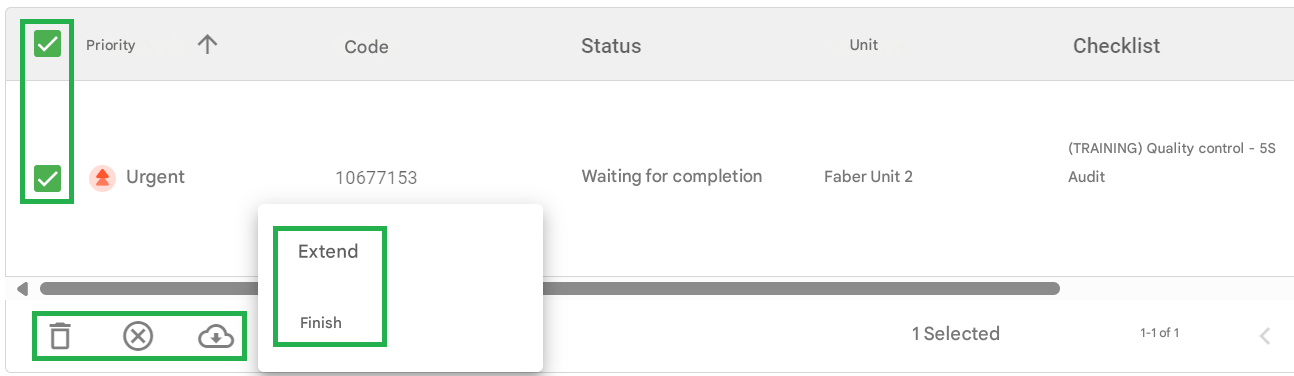
Frequently Asked Questions (FAQ)
1. Can I reopen an Action Plan to edit the fields (Who, How, When)?
No. It is not possible to reopen an Action Plan to change the initial field entries. You can only reopen the plan to register or approve/disapprove new solutions. If you need to change the entries, you must cancel the current plan and create a new one with the correct data.
2. Can I create an Action Plan without being linked to a specific question (item)?
Yes! You can use the General Action Plan. It does not depend on a nonconformity in a specific item and can be created at any time during the application, provided it is enabled in the checklist settings.
3. Is it possible to change the person responsible for a plan already created?
Yes. You can change the person responsible by accessing the plan's details screen (clicking on the eye icon) or through the listing, selecting the plan and clicking on the "Change responsible parties" option in the bottom menu.
❓Tem dúvidas? Entre em contato com nosso time de suporte.