On the Action Plans page, we have the option to filter the Action Plans we want to locate. To begin, let's understand the Period filter in more detail, and each option it provides.
Filter by Period
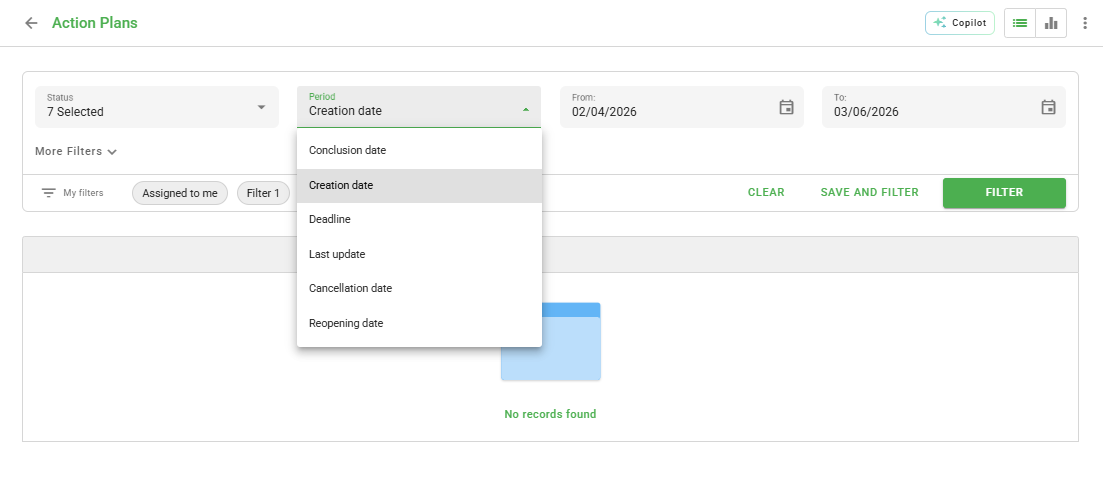
Completion date: Completion date of the applied checklist that generated the action plan;
Creation date: Date the action plan was created;
Deadline: Deadline date for the completion of the action plan;
Last Update: Date of the last time any changes were made to the action plan;
Cancellation Date: Date the action plan was canceled;
Reopening date: Date the action plan was reopened.
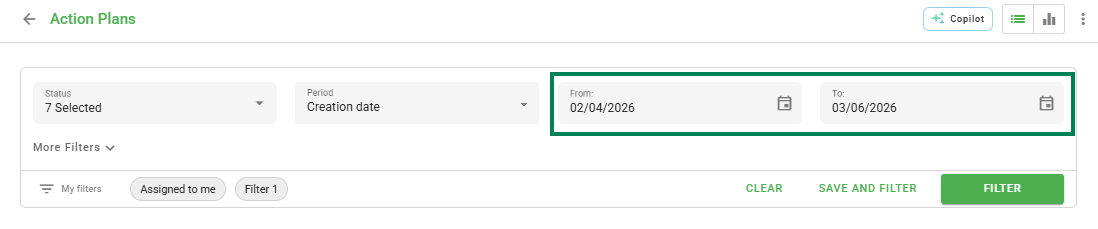
Next, you can choose the start date and the end date of the period you intend to filter.
Advanced Filters
In addition, we can use advanced filters. Below, we detail what each one offers:
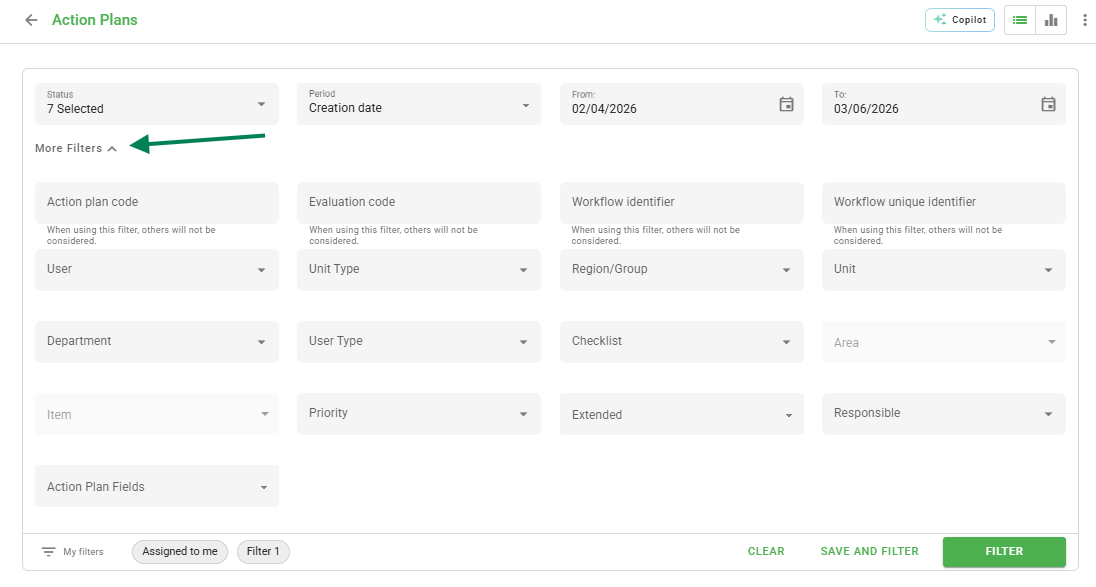
Code: Select by the Action Plan identification code;
Assessment code: Select by the identification code of the assessment that contains the desired Action Plan;
User: Select by the users who opened the Action Plans;
Unit type: Select which unit type you need to see the Action Plans from;
Region/Group: Select from which region/group you need to see the Action Plans;
Unit: Select which unit you need to see the Action Plans from;
Department: Select the department you need to see the Action Plans from;
User Type: Select which type of user created the Action Plan;
Checklist: Select by the Applied Checklist;
Area/Item: Select by area and/or item;
Extended: Select only if the Action Plan was extended or not;
Responsible: Select by the person responsible for the Action Plan;
Action Plan Fields: Select by the input field of the Action Plan.
How to save and load filters
Finally, you have the option to save the created filters. By clicking on the diskette icon (save), you can save the filters from this search for future use. Simply add a name for the filter and click Save.
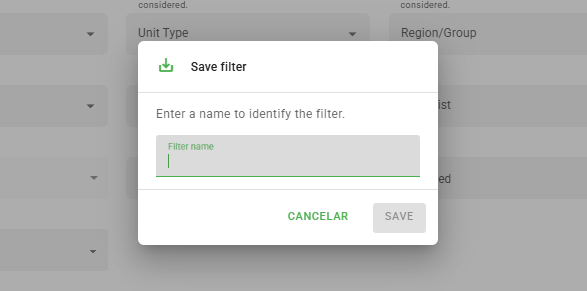
Once saved, it will be available next to the previous save button in a folder. Just click on it and the system will display the saved filters. To load a filter, select the desired one and click Load.
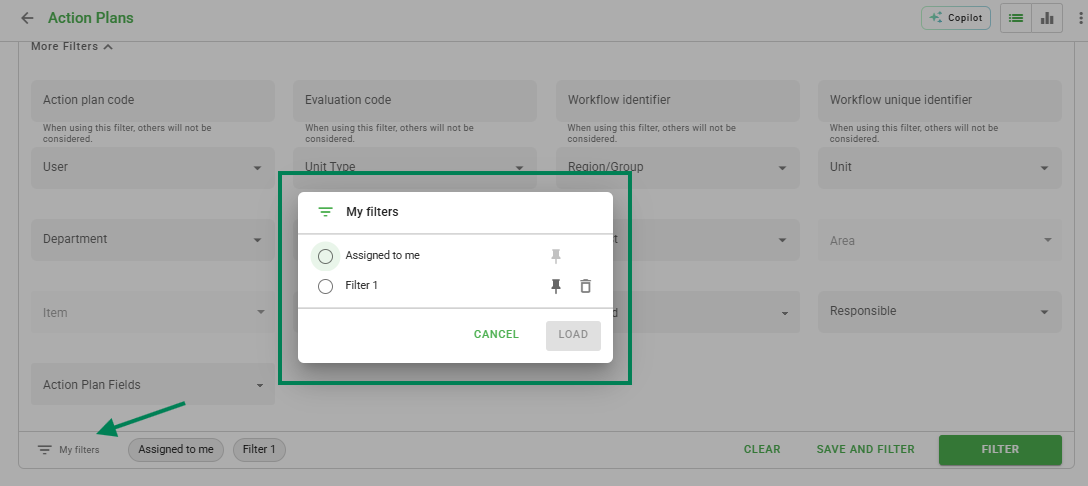
Use saved filters to speed up your routine, creating quick searches for different departments or recurring periods.
Frequently Asked Questions (FAQ)
1. Can I save more than one filter?
Yes, you can save several filters with different names to make it easier to locate Action Plans according to your needs.
2. What is the Assessment Code field?
It is the number automatically generated when a checklist is finalized. Using this filter helps find all Action Plans generated by a specific assessment.
❓Tem dúvidas? Entre em contato com nosso time de suporte.