- Introduction
- Change via details screen
- Change via Action Plans list
- Change via AP App
- Frequently Asked Questions (FAQ)
Introduction
The Action Plan owner is the team member responsible for addressing the recorded impediment. If you need to redistribute tasks, you can change the owner in several ways.
To perform this change, your user type must have the permission: Action Plan > Change action plan owner.
This action can be performed through three paths:
- Action Plan details screen;
- Action Plans list;
- AP App (Action Plan).
Change via details screen
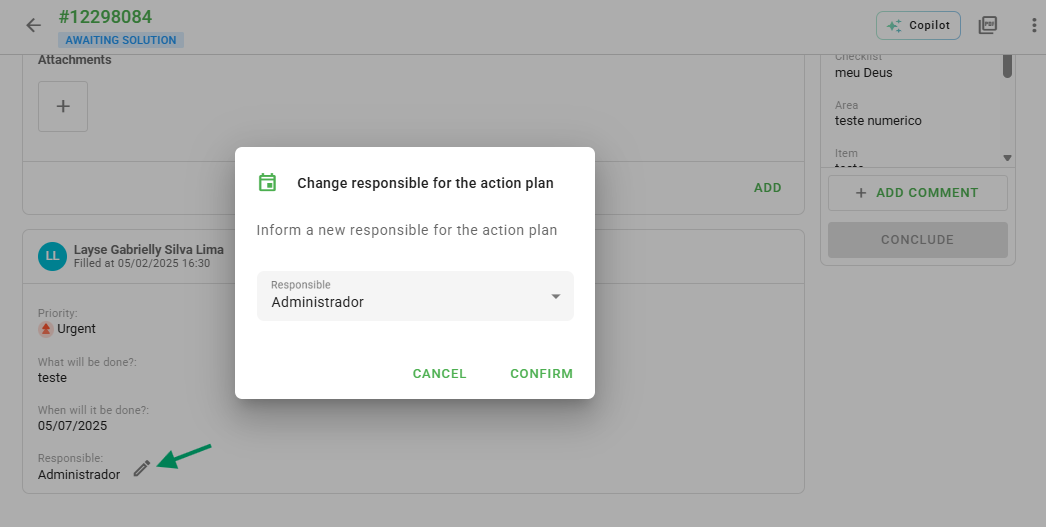
To change the owner while viewing the details, access the plan filling information and locate the Owner field. Click on the pencil icon to enable editing.
Select the desired new collaborator and click Confirm.
Change via Action Plans list
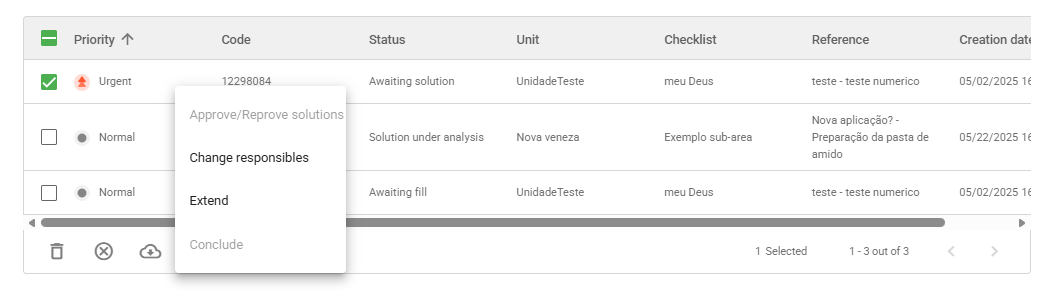
Navigate to the Action Plans menu and use the filters to locate the desired items. Check the plan's selection box, click on the three-dot menu, and select Change owners.
Choose the new owner and finish by clicking Change.
Change via AP App
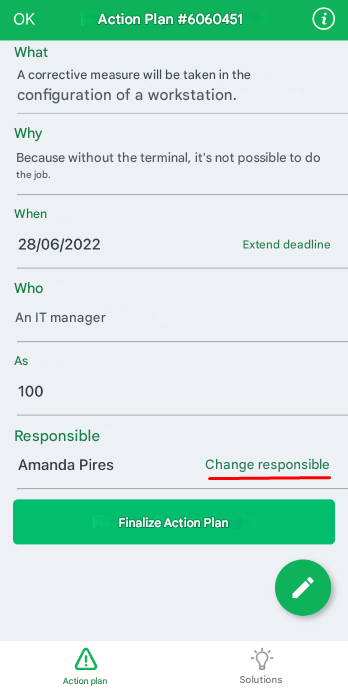
In the Action Plans application, locate the desired plan and tap to open the details. In the Owner field, use the Change owner option available next to the current name.
Frequently Asked Questions (FAQ)
1. Can I change the owner of multiple plans at the same time?
Yes, through the Action Plans list on the web version, you can select multiple plans and use the three-dot menu to change the owner in bulk.
2. Why can't I see the option to edit the owner?
Check if your user type has the permission active in Settings > User Types.
❓Tem dúvidas? Entre em contato com nosso time de suporte.