- What are Notifications?
- How to access the notifications menu?
- Is it possible to configure notifications for a user type?
- How to configure notifications only for specific users?
- How to access the Advanced Settings menu?
- Tab: Alerts
- Tab: Security
See how system notifications work and optimize your routine!
What are Notifications?
System Notifications are mostly e-mails intended to inform users about certain situations, such as:
- The conclusion of a checklist;
- A created schedule (for Professional and Enterprise plans);
- An action plan solution under review.
These notifications must be in accordance with the permissions that users have within the Checklist Fácil system.
How to access the notifications menu?
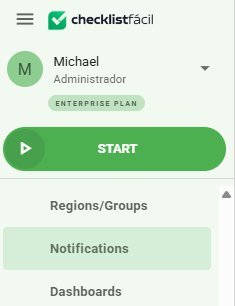
To access Notifications, go to the left side menu of the system, click on Settings and then on Notifications:
Is it possible to configure notifications for a user type?
Yes, and this configuration is very simple and intuitive. See the step-by-step guide below:
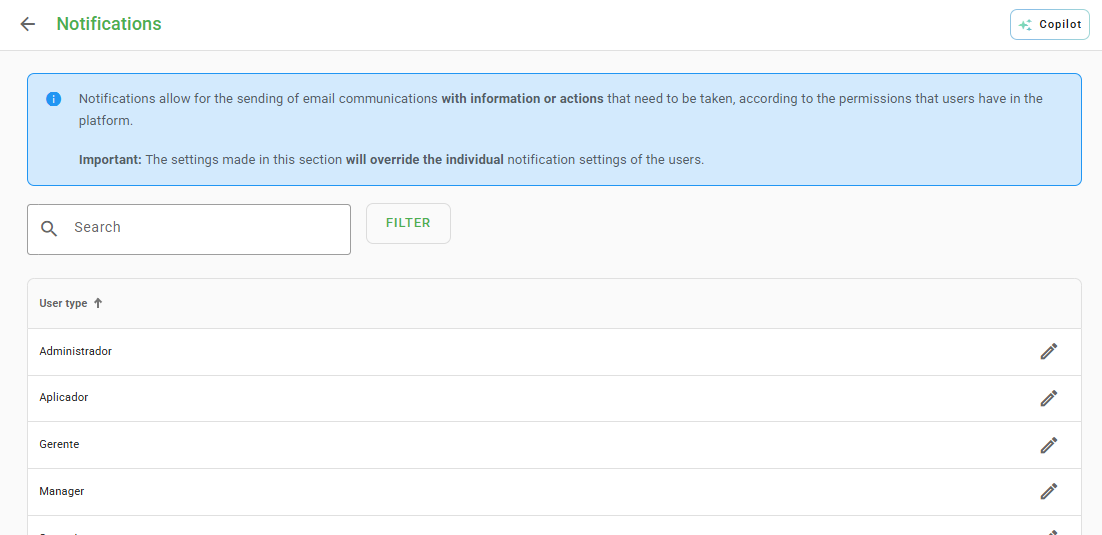
Step 1: By clicking on Notifications, you will view all user types previously registered in your account, allowing you to change notifications in bulk.
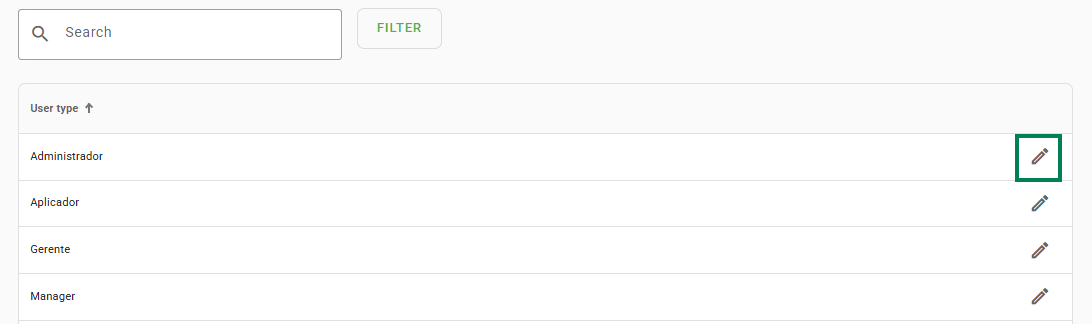
Step 2: To edit notifications, click on the pencil icon for the user type you wish to change:
Step 3: On the following screen, you will see the notifications available for the selected user type. Select or deselect the desired fields and click on save:
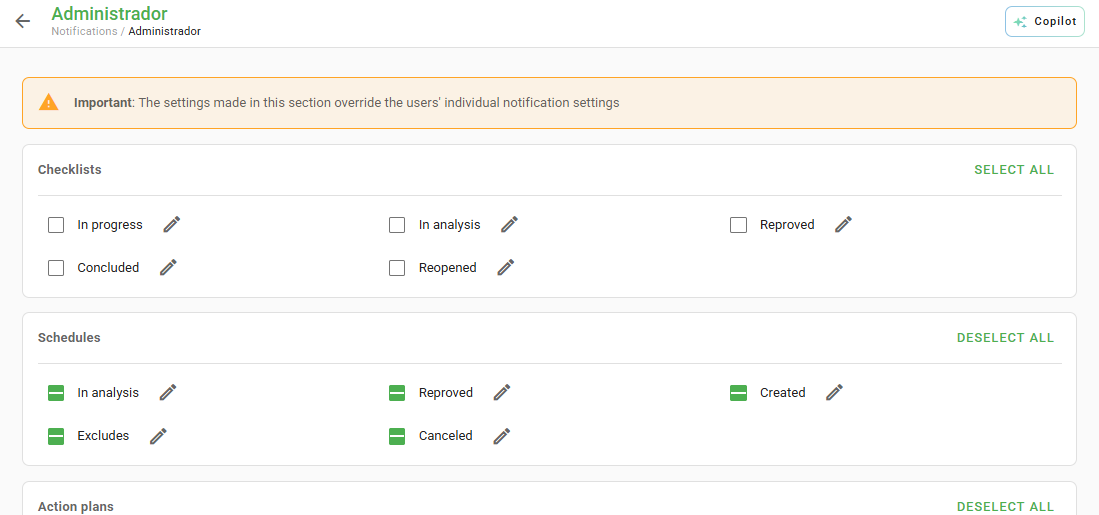
All configurations made in this section will overwrite the individual notification settings of users belonging to the edited user type.
How to configure notifications only for specific users?
In case you need to edit notifications at the user level, follow these steps:
Step 1: Select a user type from the list on the Notifications page. Then, click on the pencil icon next to the notification you wish to change:
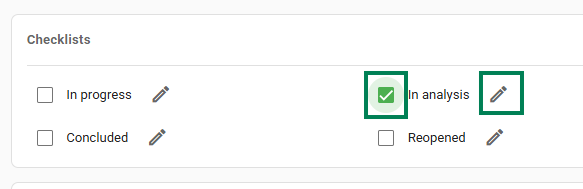
It is possible to edit notifications for checklists, schedules, and action plans.
Step 2: In the window that opens, manually define the users who will have their notifications modified and click on Confirm:
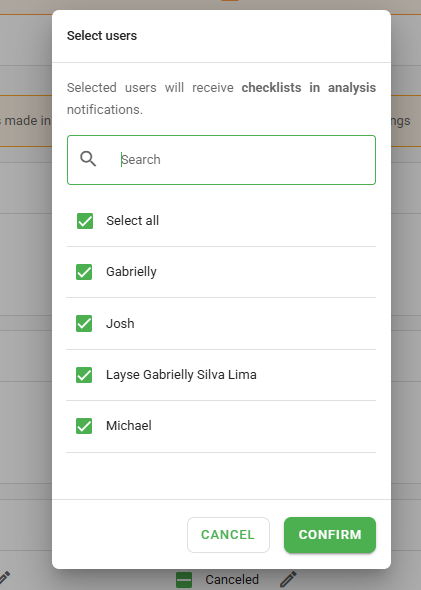
Step 3: After the edits are made to the desired notifications, click on Save in the bottom right corner of the screen.
Done! Now your users will only receive the configured notifications. In addition to these, there are other notifications that can be configured in the Advanced Settings menu.
How to access the Advanced Settings menu?
To access the advanced settings, go to the left side menu of the system, click on Settings and then on Advanced Settings:
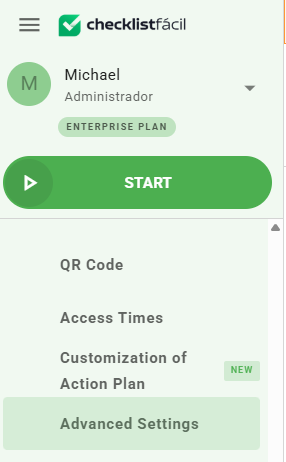
This page contains 4 tabs: Personalization, APP Localization, Alerts, and Security. In the Basic plan, it is only possible to configure resources in Alerts and Security.
Tab: Alerts
The Alerts tab is responsible for managing the delivery of new notifications:
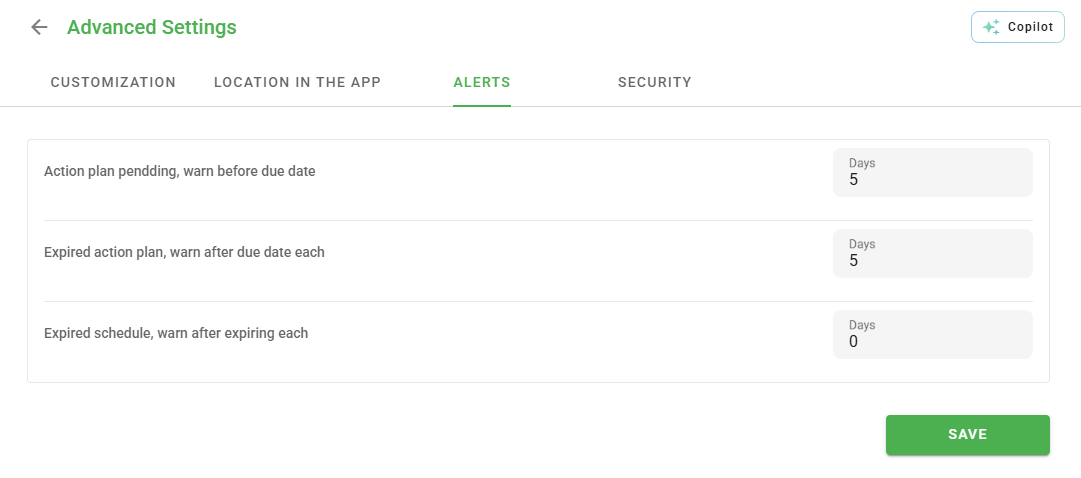
See below the fields you can customize:
- Pending action plan, notify before due date: Configure a time interval to alert those responsible for pending action plans before the deadline.
- Overdue action plan, notify after due date: Configure a time interval to alert those responsible for action plans that are already overdue.
Tab: Security
The Security tab deals with issues related to user access:
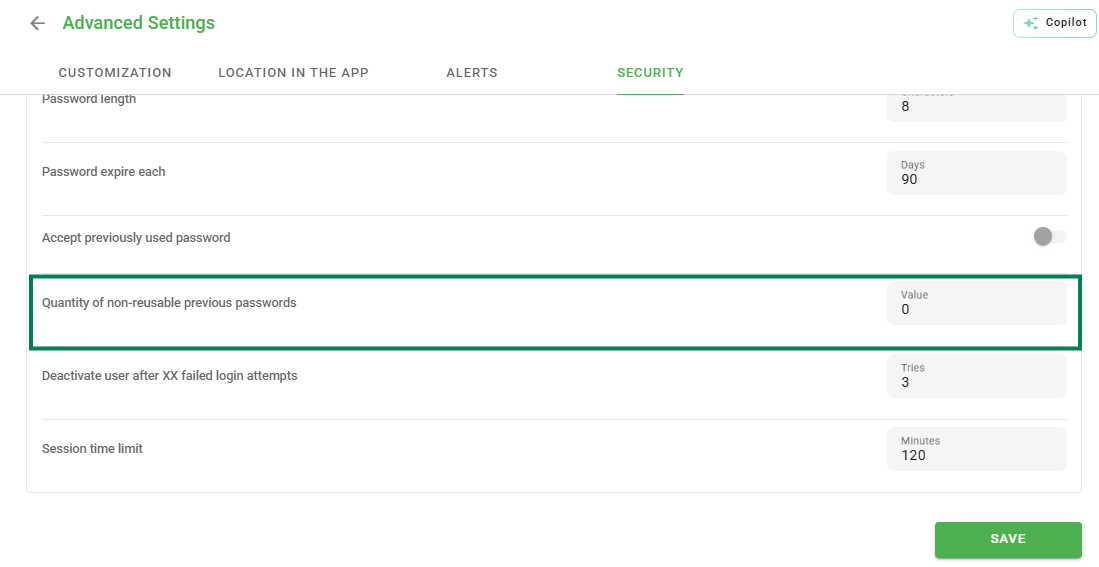
Number of previous non-reusable passwords: In this option, you define how many previously used passwords will not be accepted for use in the system.
Tip: To take advantage of all resources available in the advanced settings tab, upgrade your plan by clicking here.
Frequently Asked Questions (FAQ)
1. What happens to individual settings if I edit the User Type?
The configurations made to the User Type will overwrite any individual notification settings that users of that type may have.
❓Tem dúvidas? Entre em contato com nosso time de suporte.