- About the Checklist Fácil system
- Left side menu: what are these tabs?
- History and Help
- Proposed knowledge trail
Hello, welcome! See how your Checklist Fácil account works and check out our proposed knowledge trail!
About the Checklist Fácil system
Checklist Fácil is a system that aims to make companies more efficient by automating processes, facilitating evaluations, reducing costs, and increasing operational efficiency.
Used for checklist applications and data management, the system assists in audits and inspections of processes, equipment, environments, and people. Additionally, it allows:
- Data collection based on evaluations;
- Identification and resolution of nonconformities;
- Identification of improvement opportunities;
- Facilitated handling of nonconformities;
- Analysis of collected data and informed decisions, among others.
Let's learn a bit about the practical part of the system now?
Left side menu: what are these tabs?
In the left side menu, several important buttons are located, such as applying a checklist, performing Settings, accessing the marketplace, and so on. See below what each of the tabs that integrate this menu means:
1. Profile information: to access your profile and obtain information about your account, simply click on your name in the upper left corner and access the information you wish to consult.
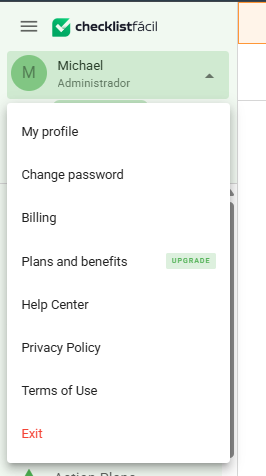
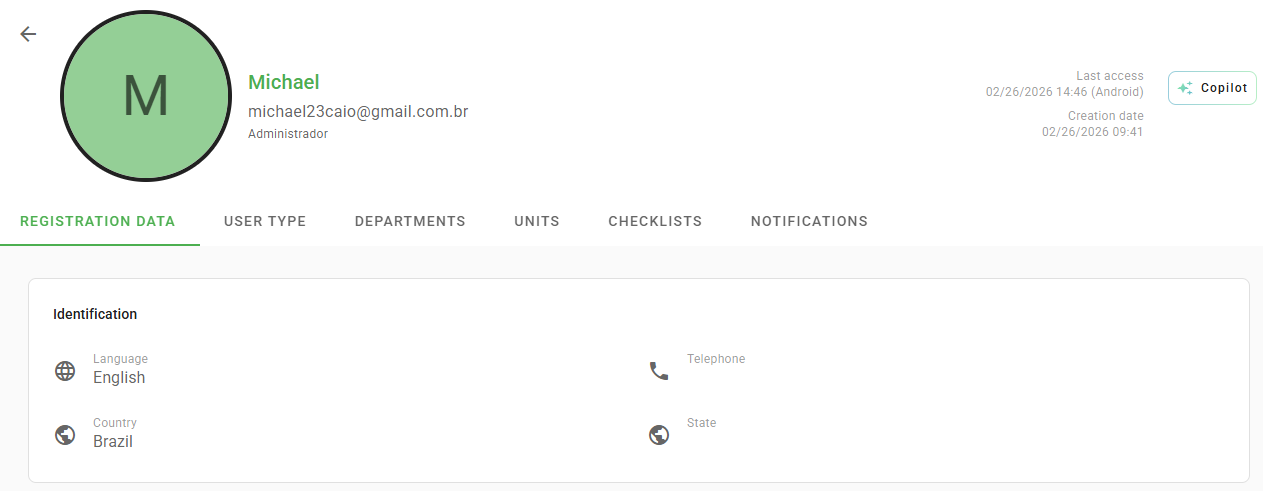
- My profile: by accessing your profile, you can insert a photo and verify information such as Registration Data, User Type, Departments, Units, Checklists, and Notifications to which you are linked.
- Change password: here it is possible to change the password with which you access the Checklist Fácil system. Remember that it is important to meet the system security criteria (letters, numbers, etc.).
- Billing: access your invoices and see information about payments, due dates, status, etc.
- Help Center: you can access help center articles whenever you need to clear up doubts about specific features, as well as configurations and news.
- Privacy policy: access the Checklist Fácil privacy policy through this tab.
- Terms of use: access the Checklist Fácil terms of use through this tab.
- Log out: click here to log out of the system.
2. Apply: Through this button, you can apply your checklists and workflows.
3. Dashboards: Dashboards are visual panels that provide an overview of your checklist applications and action plans. These panels enable greater ease and agility in data analysis, allowing for more effective decision-making and increasing the operational efficiency of your sector.
4. Contestations: The Item Contestation feature is an additional module that allows contesting item responses in case of doubts. If the contestation is accepted, it is possible to change the response and recalculate the final checklist score, even if it has already been concluded.
5. Applied Checklists: As the name suggests, in this tab you have access to all checklists that have already been applied, as well as the information related to them.
6. Applied Workflows: In this tab, you have access to all workflows that have already been applied, as well as the information related to them.
7. Schedules: The schedules module aims to program checklist applications for your users. The advantage of scheduled evaluations is that you ensure they will be performed, minimizing the risk of forgetfulness or delays.
8. Action Plans: The Action Plans module aims to assist in the treatment of nonconformities identified at the time of checklist and workflow application. Thus, following the 5W2H format (what, why, where, when, who, how, and how much), it is possible to identify problems more easily, ensuring agility and efficiency in operational processes.
9. Reports: The Reports module aims to enable more grounded decision-making, more efficient and strategic planning, identification of problems and opportunities, process optimization, internal improvements, etc., from the application of your checklists.
10. Settings: In this tab, you will have access to all the previous settings you will need to perform to enable the application of checklists. This is where you will create your evaluation, insert users, units, etc.
11. Integrations: In this tab, you will have access to the documentation that will guide the developer on how to use the Checklist Fácil Integration REST API, exploring its features and methods. You can also register your API Keys.
12. Marketplace: In this tab, you will find additional modules that can be used by your account. Some modules are free and others have a cost that will be added to your monthly bill if you choose to obtain them.
History and Help
Still in the left side menu, at the bottom, it is possible to view two icons, as in the following image:

The first concerns the history of exports and imports, that is, structures or items imported/exported from a checklist or other settings.
The second icon is Help. If you have any questions about the Checklist Fácil system, simply browse our content or open a ticket for our specialists.
Proposed knowledge trail for those who just arrived!
You can access all Help Center content whenever you feel the need. But to help you in this beginning, we suggest a knowledge trail so that you can further optimize the use of the system.
Feel free to follow it or access the articles in the order that makes more sense for you!
Shall we start?
❓Tem dúvidas? Entre em contato com nosso time de suporte.