By following the path Settings > Advanced Settings and clicking on the customization tab, you have access to important tools to manage your account. In addition to adjusting the platform's look, it is possible to customize reports, define cleaning routines in the apps, and manage expired schedules.
About Advanced Customization
Below, we detail each of the available options to optimize your operation:
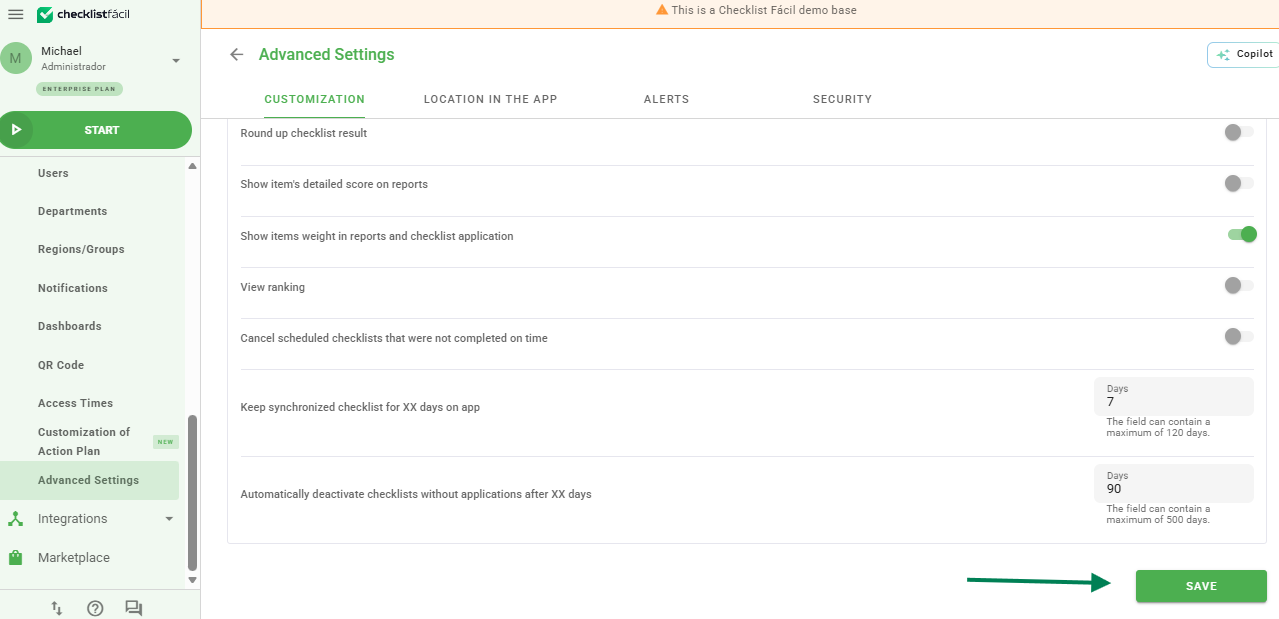
Features and Settings
Round checklist result: If the score of the applied checklist is a fraction, the platform will round it to have a whole number result.
Display score on PDF: Displays the score achieved by area in the PDF report.
Show Score Board on PDF: Provides a board that presents the scores divided by area in the footer of the PDF assessment report.
Display item weight when applying checklist: Allows the user to view the weight of each item during the checklist application.
View ranking: Provides a ranking view of the performance of the units that applied checklists in the reports.
Cancel schedules not performed/concluded on time: Deletes the schedules that were not performed within the completion deadline defined for the schedule.
Keep checklists synchronized for XX days in the application: Defines in days the execution period of a cleaning routine for assessment records already synchronized; to disable, simply enter 0.
These settings help keep the application database lightweight and organized, ensuring that only relevant information appears on mobile devices.
Frequently Asked Questions (FAQ)
1. What happens when entering 0 in the synchronization field?
By setting the value to 0, the automatic cleaning routine is disabled and the checklists will remain in the application until they are manually removed or the app is reinstalled.
❓Tem dúvidas? Entre em contato com nosso time de suporte.