- What are reports?
- Reports: Indicators
- Reports: Recurrences
- Reports: Action Plan
- Reports: Audit - Users
- Reports: Audit - Units
- Reports: how to view the PDF printout?
Analyze your data in a practical and easy way, identify bottlenecks, and make more effective decisions!
Reports are fundamental tools for the efficient operation of all sectors of a company, providing:
- Informed decision-making;
- Performance monitoring of people and processes;
- Transparency and improvement in internal and external communication;
- More efficient and strategic planning;
- Identification of problems and opportunities;
- Process optimization and resource management, and much more.
Thus, the Reports module aims to enable all the gains mentioned above, based on the application of your checklists.
What are reports?
To access your reports, go to the left side menu of the system and click on Reports.
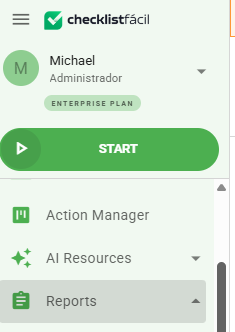
Reports are divided into several parts and in this article you can check the details about each of them.
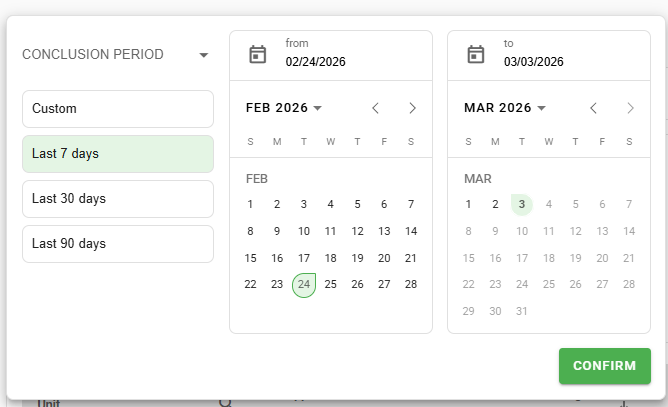
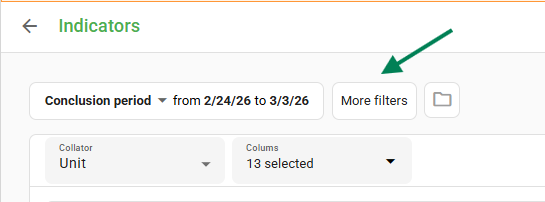
But, before we start, in all types of reports it is possible to apply filters to direct your analyses. Enter one of the report types and, at the beginning of the page, use the completion period filter to filter the checklists. By default, it is already configured for the last 7 days, but you can filter by the last 30, 90, or by the period you desire.
In addition to the period, there are other filters at your disposal:
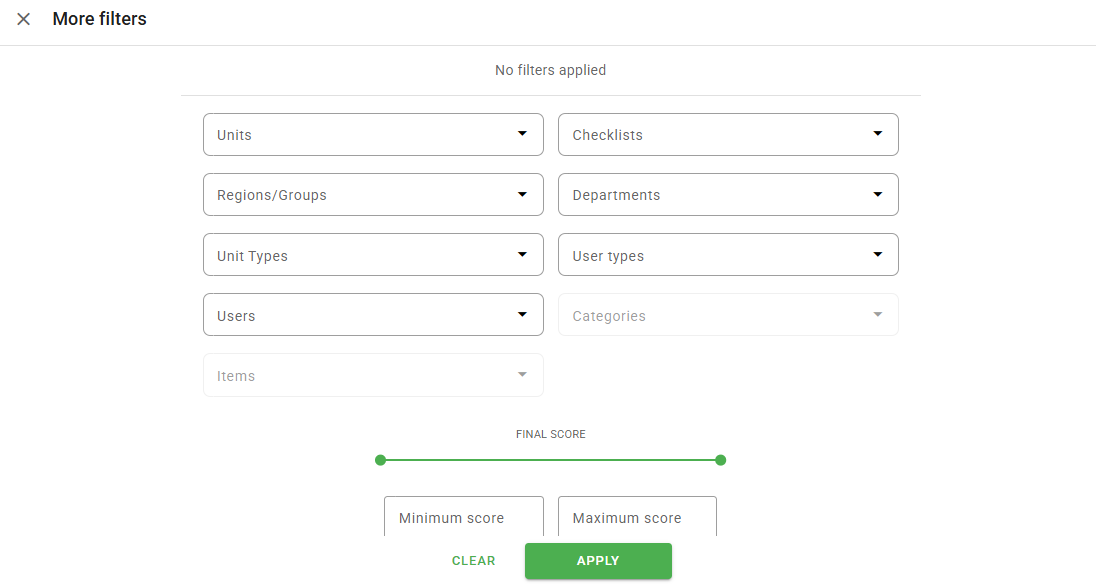
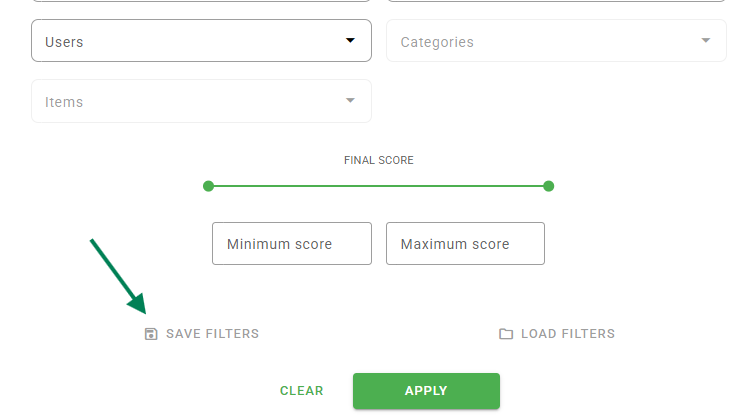
➕ Tip: Did you know that it is possible to save the filters you apply?

After you select those you want, just click on Save Filters and that's it! They will be available for use, optimizing your time and avoiding rework.
Now, let's look at the report types.
Reports: Indicators
The indicators report is used to create comparisons of the evaluations that were carried out. In this sense, it is possible to make comparisons based on the following grouping options:
- Unit
- Areas
- Item
- User type
- User
- Checklist
To configure your indicators report, simply apply the period filters, select one of the groupers presented above, and choose the columns you want to analyze:
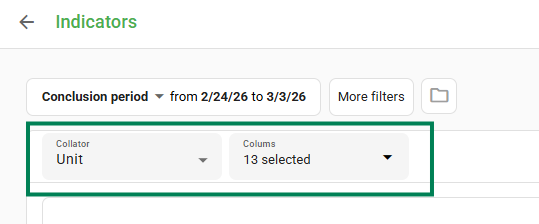
In the example in the image above, the selected grouper was unit and 13 columns were chosen. The report visualization looks as follows:
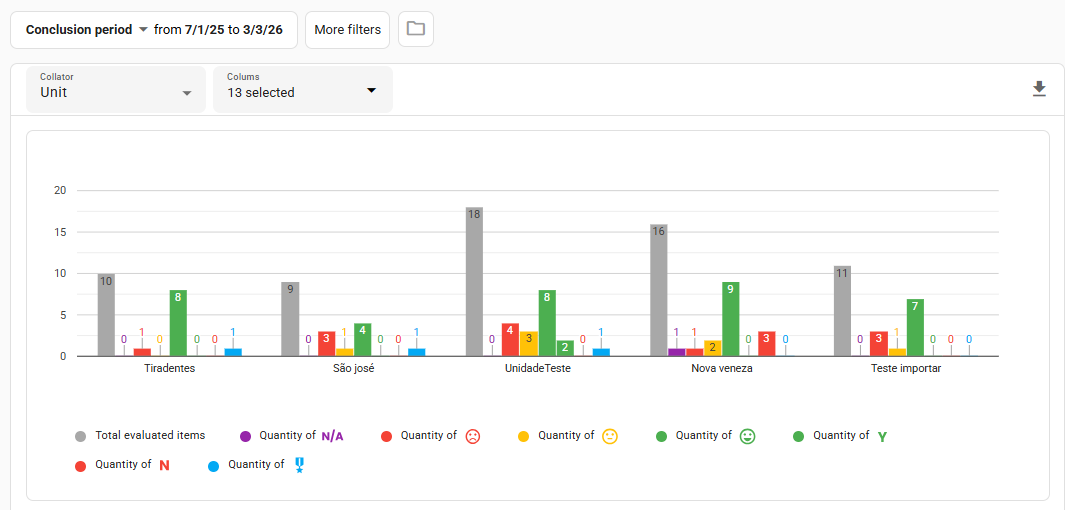
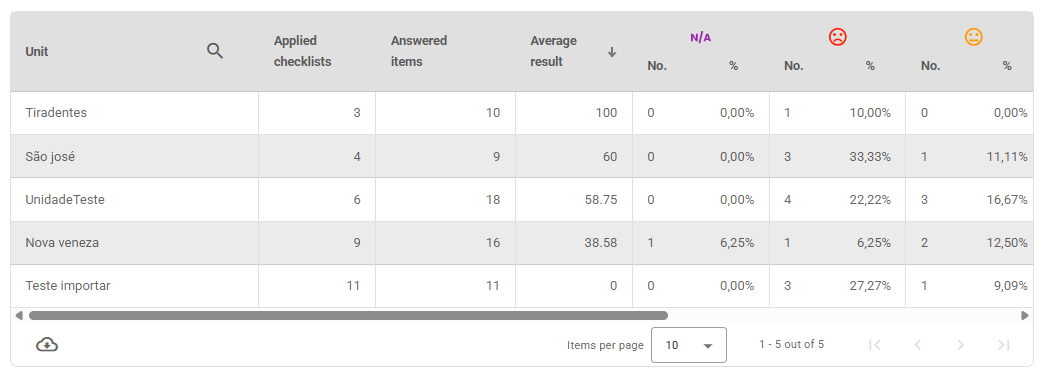
Below the chart, you will find the information arranged in a table:
✨ Tips for using Indicators Reports:

➡️ Analyze the average of your units: which ones are performing better? which ones present difficulties?
➡️ Check which items have the highest number of nonconformities and propose ways to overcome them.
➡️ Analyze which users have the highest and lowest number of applications and make a fairer distribution.
Reports: Recurrences
This report makes it possible to view the number of recurrences* that occurred in the selected grouper. These groupers can be:
- Unit
- Checklist
- Area
- Item
*Whenever an item is negatively evaluated several times in a row, it is identified as a recurrence.
To configure your recurrences report, simply apply the period filters, select one of the groupers presented above, and choose the columns you want to analyze:
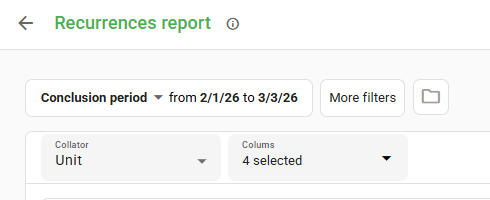
In the example in the image above, the selected grouper was item and 4 columns were chosen. The report visualization looks as follows:
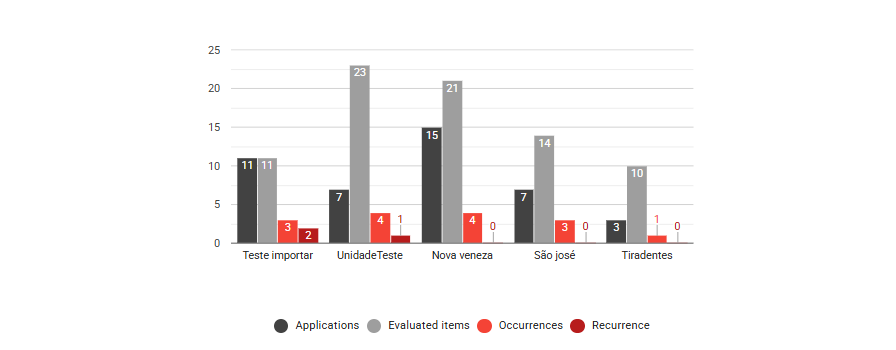
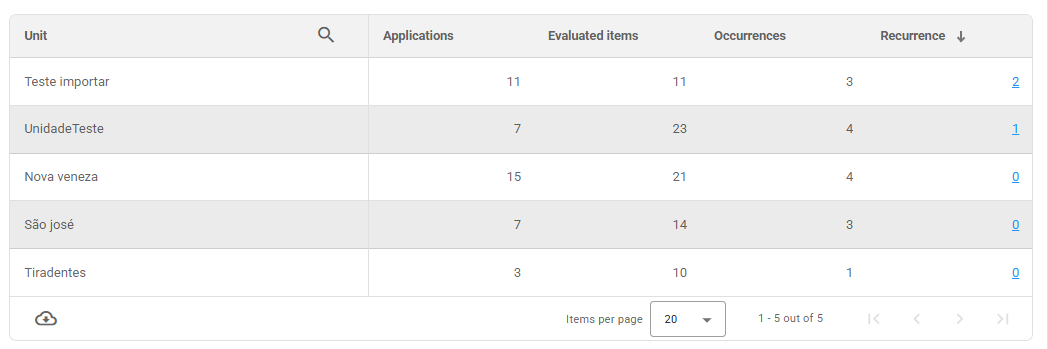
Below the chart, you will find the information arranged in a table. It is possible to click on the recurrences displayed in the table and view which unit or unit type they belong to.
✨ Tips for using Recurrences Reports:

➡️ Check which items are presenting nonconformities with higher frequency and analyze if it is a case for increasing maintenance or even replacing the item, for example.
➡️ View which units have more repetitions and recurrences and propose new actions to mitigate these problems.
➡️ Identify checklists with the highest number of recurrences and check with the responsible users for possible causes of this repetition.
Reports: Action Plan
Through this report, it is possible to view the status of the action plans that were created, identifying the situation of these treatments from the Unit grouper.
To configure your report, simply apply the period filters. The grouper and columns will already be configured. Thus, the report visualization looks as follows:
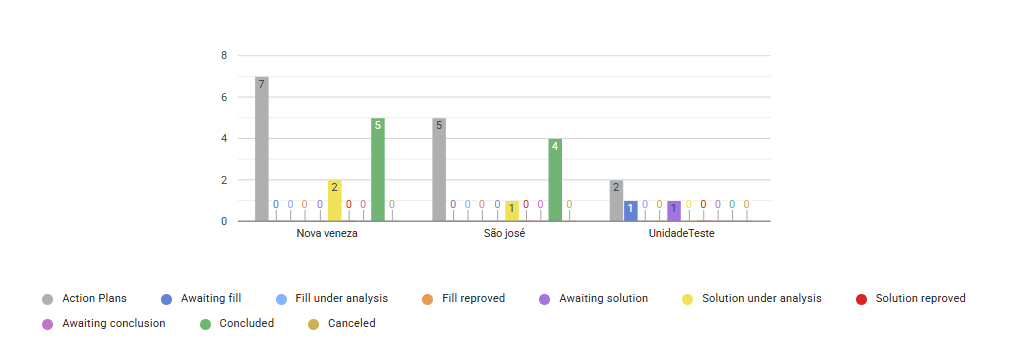
Below the chart, you will find the information arranged in a table:
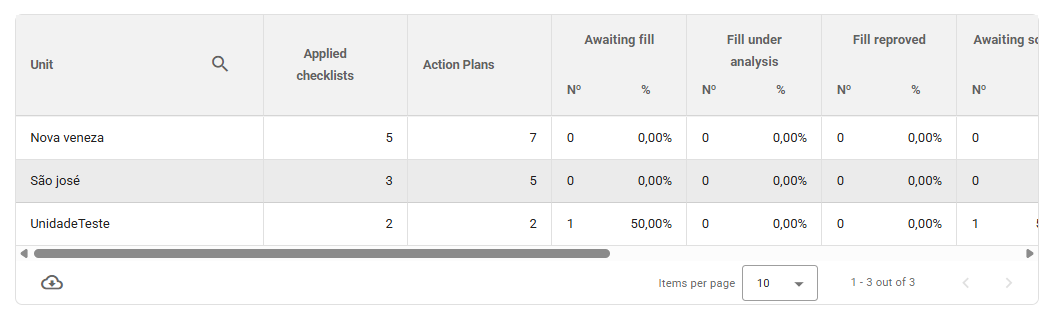
✨ Tips for using Action Plan Reports:

➡️ Check which units create the largest number of action plans and analyze these numbers: are these nonconformities recurrent? Do the units that open fewer action plans have fewer problems or are they not recording them?
➡️ Analyze which units conclude fewer action plans and identify what problems are preventing the solution of nonconformities.
➡️ Identify solutions that are under review or waiting conclusion and, then, finalize them.
Reports: Audit - Users
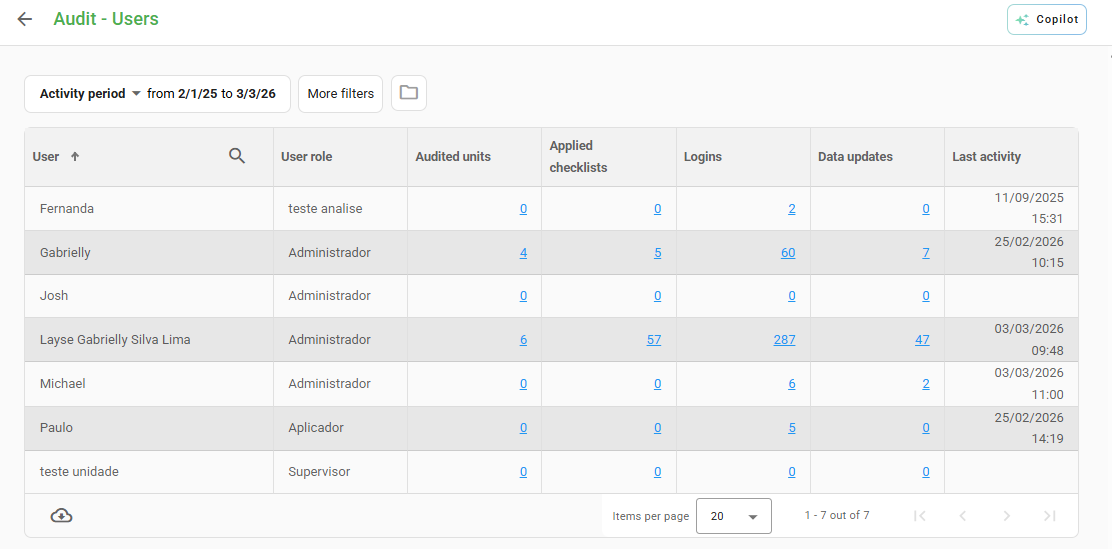
Through this report, you can view some data about your users, such as:
- User type to which they belong;
- Units audited by them;
- Applied checklists by them;
- Number of accesses in the Checklist Fácil system;
- Amount of data updates they performed (in the app);
- Date and time of the last activity performed within the system.
To configure your report, simply apply the period filters and/or click on More filters to select user types, checklists, units, and so on.
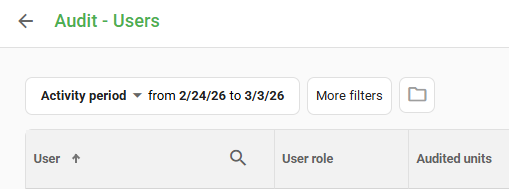
The report visualization looks as follows:
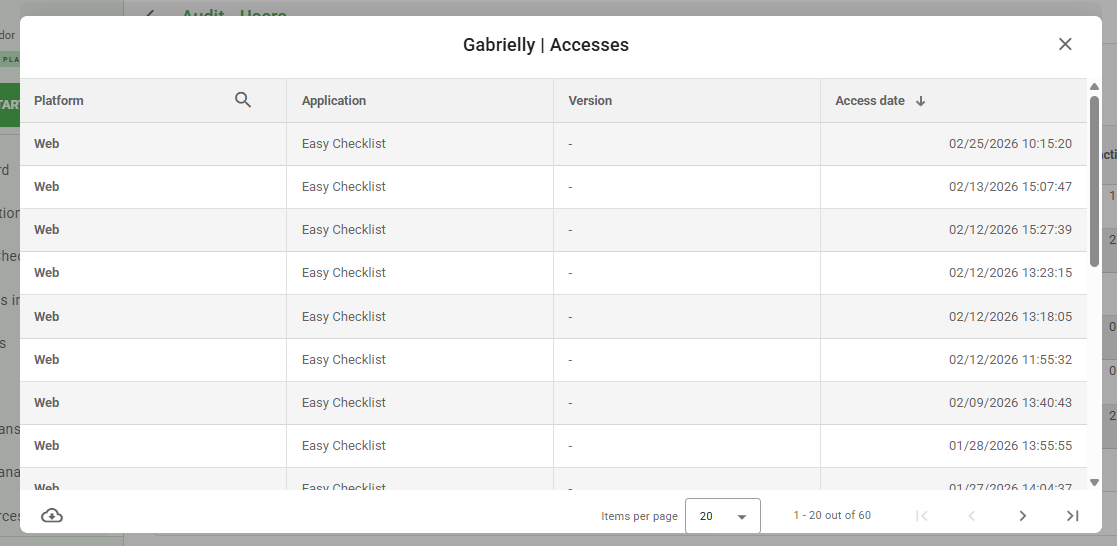
To check in detail the accesses each user had, such as: the platform used, the version, and the date, simply click on the blue number in the accesses column, and a modal will appear with the information.
Following this same process, in the Data update column, it is possible to check information about the syncs made by each user, including the date, platform, and version of the app.
In the Audited units column, you can check which units were audited by a user, the amount of checklists applied in each of them, including the date of the last application.
In the Applied checklists column, it is possible to obtain data such as: application codes, audited units, checklists, platform used, app version, and application completion date.
✨ Tips for using User Audit Reports:

➡️ Analyze if users are applying checklists with the correct frequency, viewing the last activity of each one of them.
➡️ Check which users have the highest number of applied checklists and make a fairer distribution among them.
➡️ Identify which users need to update app data and versions and, then, request this update.
Reports: Audit - Units
Through this report, you can view some data about your units, such as:
- Amount of applied checklists in the unit;
- Amount of users who applied checklists in the unit;
- Amount of days since the last checklist application in the unit;
- Date of the last checklist applied in the unit.
To configure your report, simply apply the period filters and/or click on More filters to select user types, checklists, units, and so on.
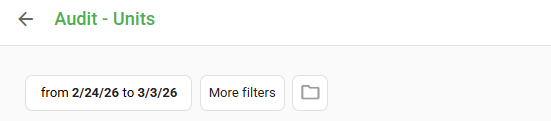
The report visualization looks as follows:
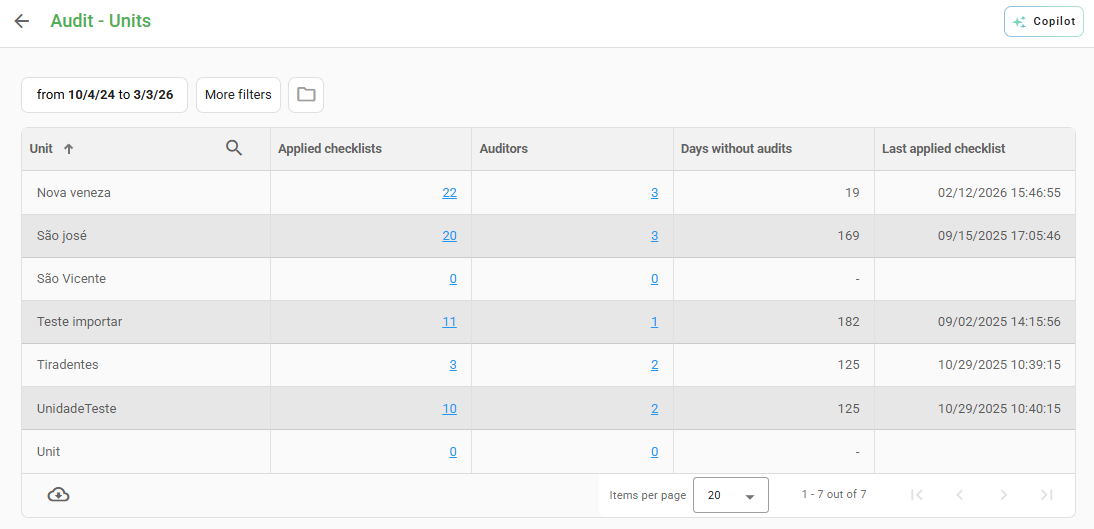
In the Applied checklists column it is possible to obtain data such as: application codes, which checklists were applied, the platform used, the app version, and the application completion date.
In the Applying users column you can check which users applied in each unit, the quantity and which checklists were applied, along with the user type and date of the last application.
The Days without applying column, as the name suggests, informs the number of days each unit has been without applying any checklist.
✨ Tips for using Unit Audit Reports:

➡️ Check how many days a unit has not completed a checklist.
➡️ Identify who are the applying users for a unit.
➡️ Analyze the number of applied checklists per unit.
Reports: how to view the PDF printout?
To optimize report printing, it is possible to view all document specifications before a PDF is generated, allowing the user to select the printing layout, among other options.
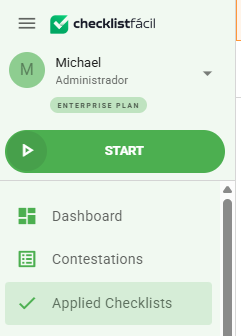
To view it, access the Applied Checklists page in the left side menu.
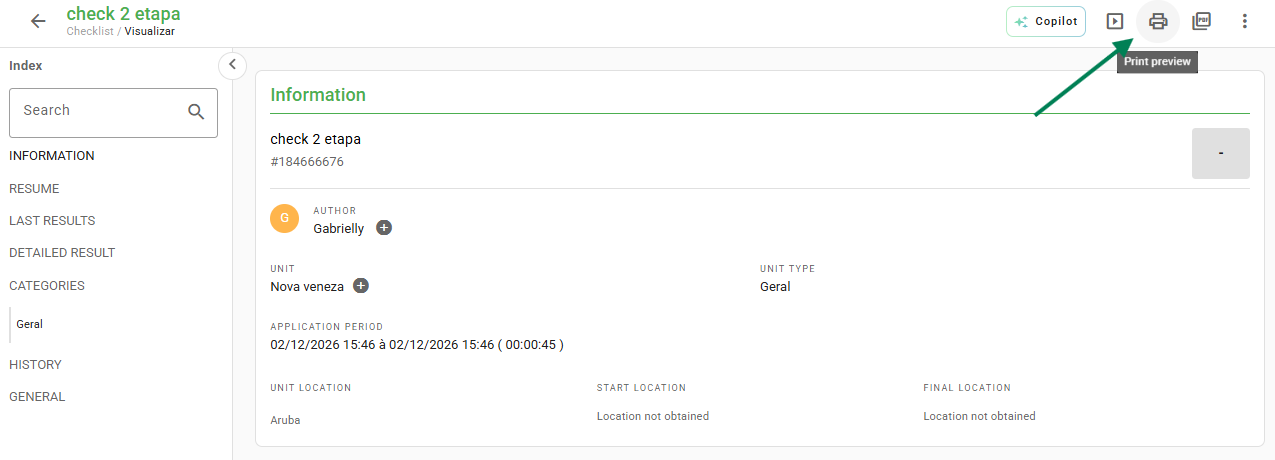
Select the report you want to view by clicking on the icon highlighted below.
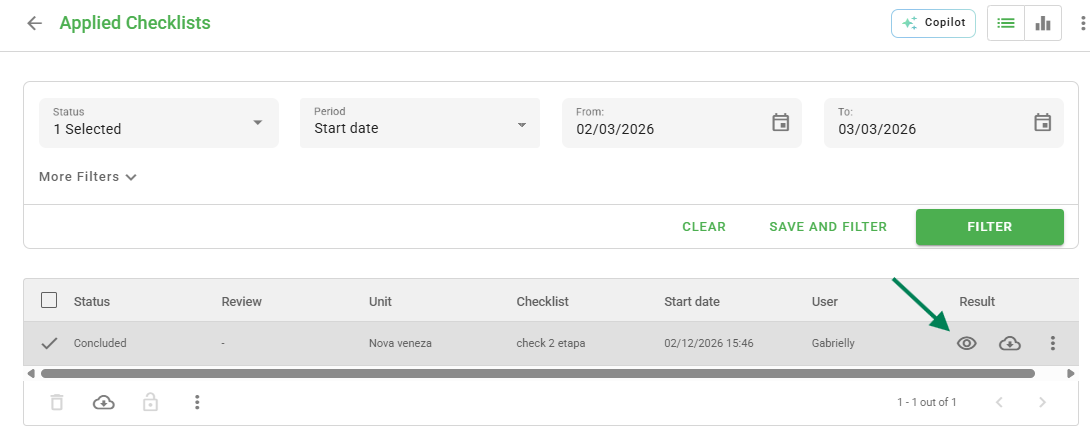
After opening the report, click the PDF button and select the option View for printing.
A new tab will open with the print modal so the user can check the document specifications, such as layout, pages, color, and the selected printer.
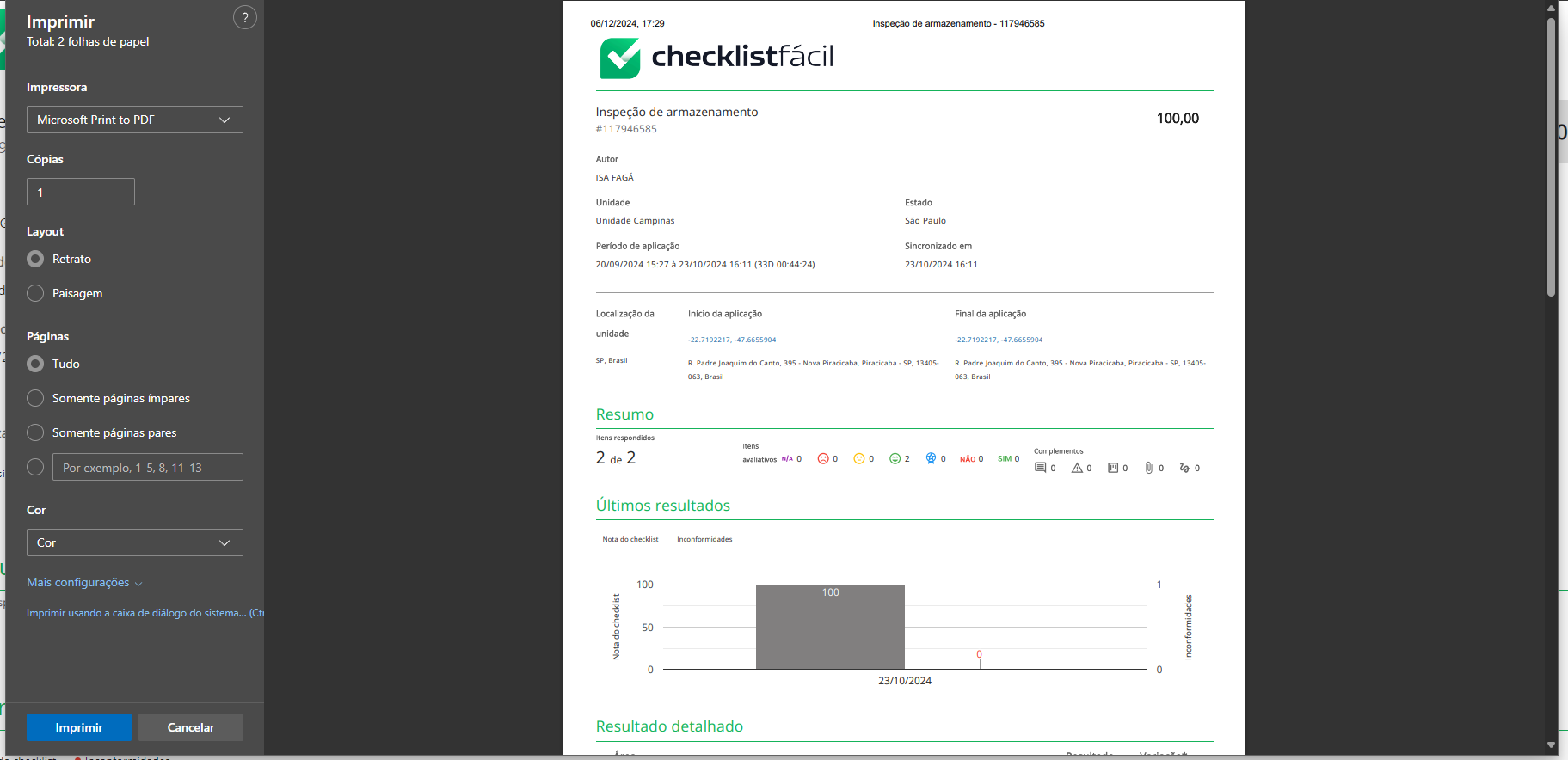
To proceed with printing, click the Print button.
If you only want to generate a PDF to save it, in the Printer field, select the Save as PDF option. Perform the same process of selecting the document specifications, and click the Save button. Choose the location where the PDF will be saved, and wait for the download to finish.
Does your company need other reports, such as schedules or rankings? Or customized dashboards according to your needs? Take advantage of these and other available resources by upgrading your plan ➡️ at this link ⬅️.
Frequently Asked Questions (FAQ)
1. How can I filter the data in the reports?
You can use the period filter (7-day default, but adjustable to 30, 90, or custom) at the top of the page. Additionally, you can use specific filters such as Unit, Area, Item, and User. To make it easier, you can save the filters you use frequently by clicking on "Save Filters".
2. What is considered a recurrence in the report?
A recurrence is identified whenever a verification item is negatively evaluated several times in a row. The Recurrences report allows you to view where these recurring problems are happening (by unit, checklist, or area).
3. How do I check the version of the app my users are using?
Access the "Audit - Users" report. In the accesses column, click on the blue number to open a modal with details including the platform used, the app version, and the date of access.
4. Is it possible to view the report layout before printing?
Yes. On the "Applied Checklists" page, select the desired report, click the "PDF" button, and choose the "View for printing" option. This will open a window where you can check the layout, pages, and colors before confirming the print or saving as a PDF.
5. What is the Indicators Report for?
This report is used to create comparisons of the evaluations carried out. You can compare performance between different units, areas, items, or users to identify bottlenecks and opportunities for improvement.
❓Tem dúvidas? Entre em contato com nosso time de suporte.