- About the Model Checklist
- How to configure the company model
- Model Tag Visualization
- Frequently Asked Questions (FAQ)
About the Model Checklist
Defining a model checklist is fundamental to ensuring the standardization of settings in new questionnaires. By using this functionality, all new checklists created will automatically follow the Reports, Notifications, Geofencing, Schedules, Penalty, Post-conclusion, and Workflow definitions of the chosen model.
To use this functionality, it is necessary to contact the Solution Team via Chat or Ticket to request activation.
Given that the user has all the necessary permissions, simply start the configuration in the administrative panel.
How to configure the company model
Follow the path below to select the questionnaire that will serve as the basis for your operation:
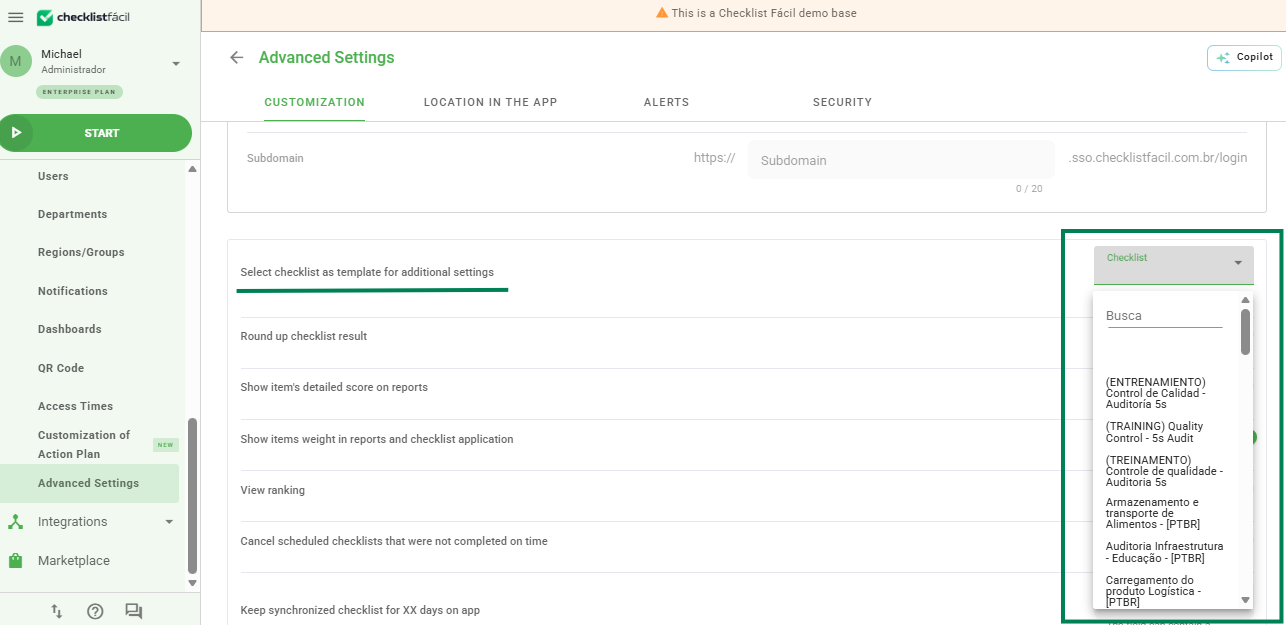
Path: Settings > Advanced Settings > Customization > Select checklist as model for additional settings.
The questionnaires appear in alphabetical order for selection. You can also use the search bar to locate a specific checklist by name.
Model Tag Visualization
After activating the model checklist, when navigating to the checklist listing, the system will display an identifying tag called “Model” next to the name of the corresponding questionnaire.
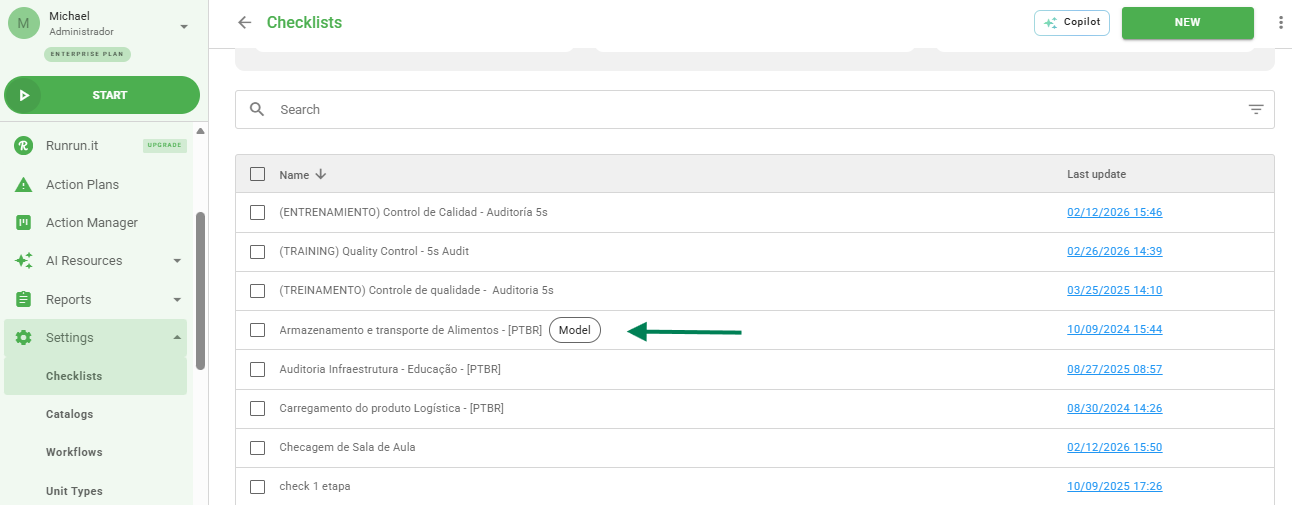
If no checklist has been configured as a model, the tag will not be displayed in the listing. Remember that it is possible to change which checklist will be the model whenever necessary by following the same configuration procedure.
Frequently Asked Questions (FAQ)
1. Can I change the checklist defined as a model?
Yes. At any time you can access the customization settings and select a new questionnaire to be the company model.
2. What happens to old checklists after defining a model?
The model configuration only affects the creation of new questionnaires. Checklists that already existed before the model definition remain with their original settings unchanged.
❓Tem dúvidas? Entre em contato com nosso time de suporte.