- How to configure the Action Plan
- Action Plan Fields
- Action Plan Behaviors
- Solutions Behaviors
- Frequently Asked Questions (FAQ)
How to configure the Action Plan
In the structure tab of a checklist configuration, when expanding an item, you can enable the action plan add-on. To configure the AP rules, click on the gear icon (configure) located on the add-on button.
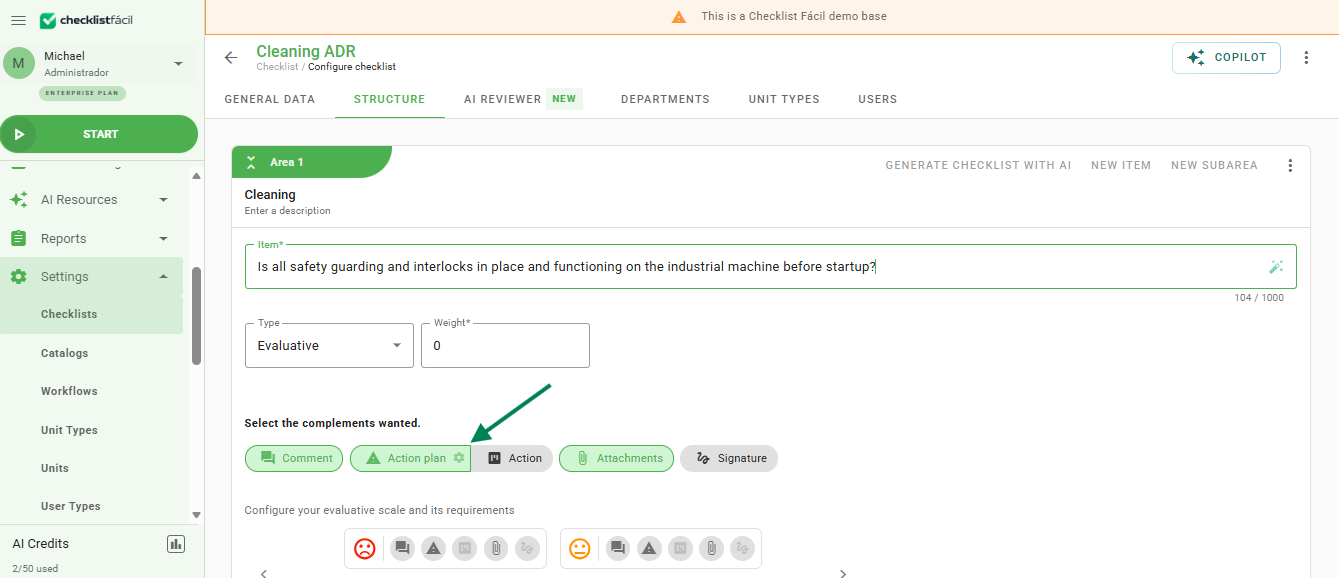
The configuration screen is divided into three pillars: action plan fields, action plan behaviors, and solutions behaviors.
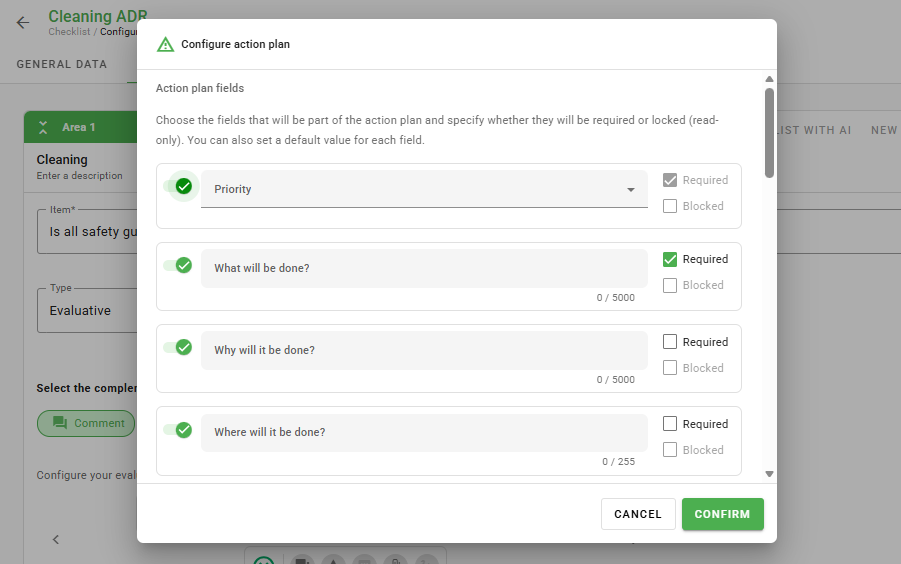
Action Plan Fields
In this section, you define which information must be collected. The fields can be disabled when necessary, in addition to the option to make filling them out mandatory or to lock the field for changes.
Tip: Did you know that you can restrict who will be the person responsible by type (Users, Departments, or User Types)? Check out how to customize this assignment in the article: How to configure types of responsible parties in the Action Plan.
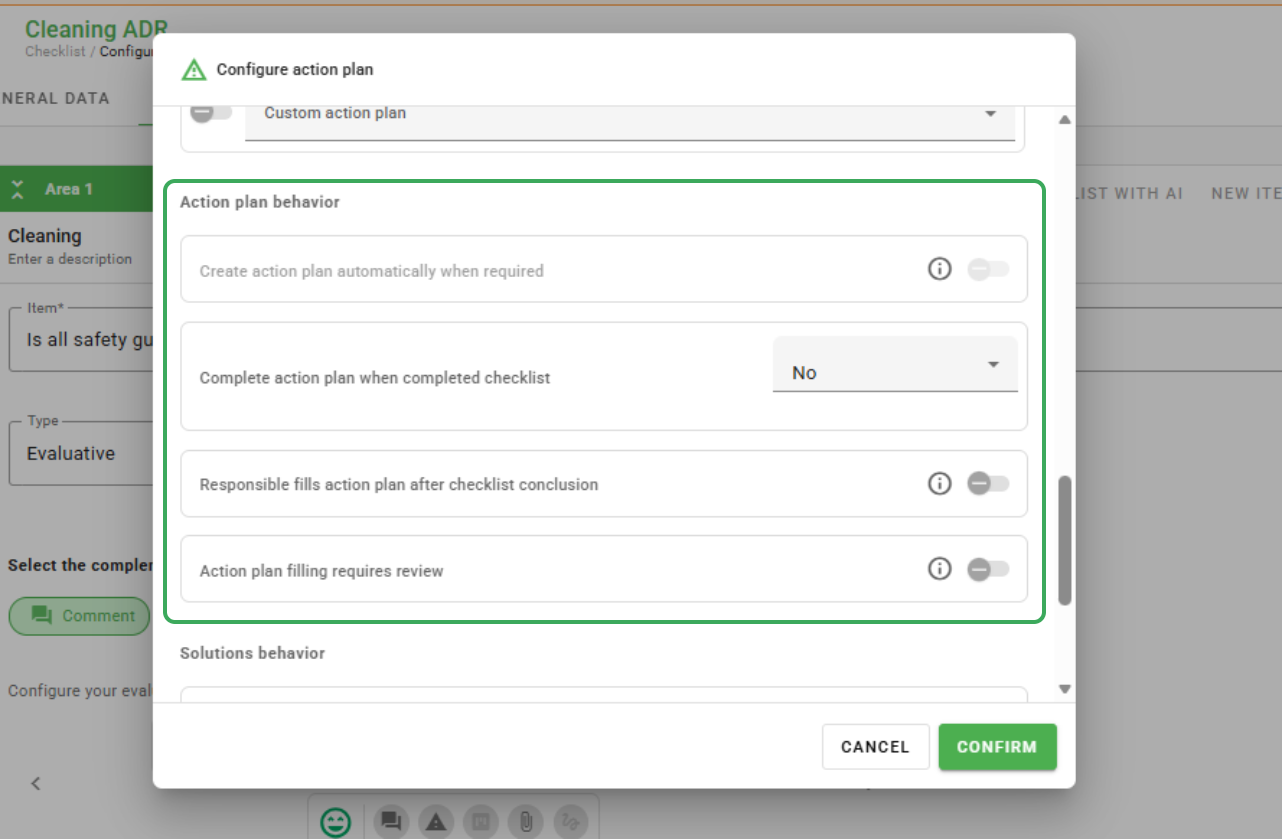
Action Plan Behaviors
By configuring the behaviors, you define the workflow of the plan. It is possible to determine whether the AP must be concluded along with the checklist application, whether the filling out must be done by a responsible party after conclusion, or whether the content must undergo an analysis.
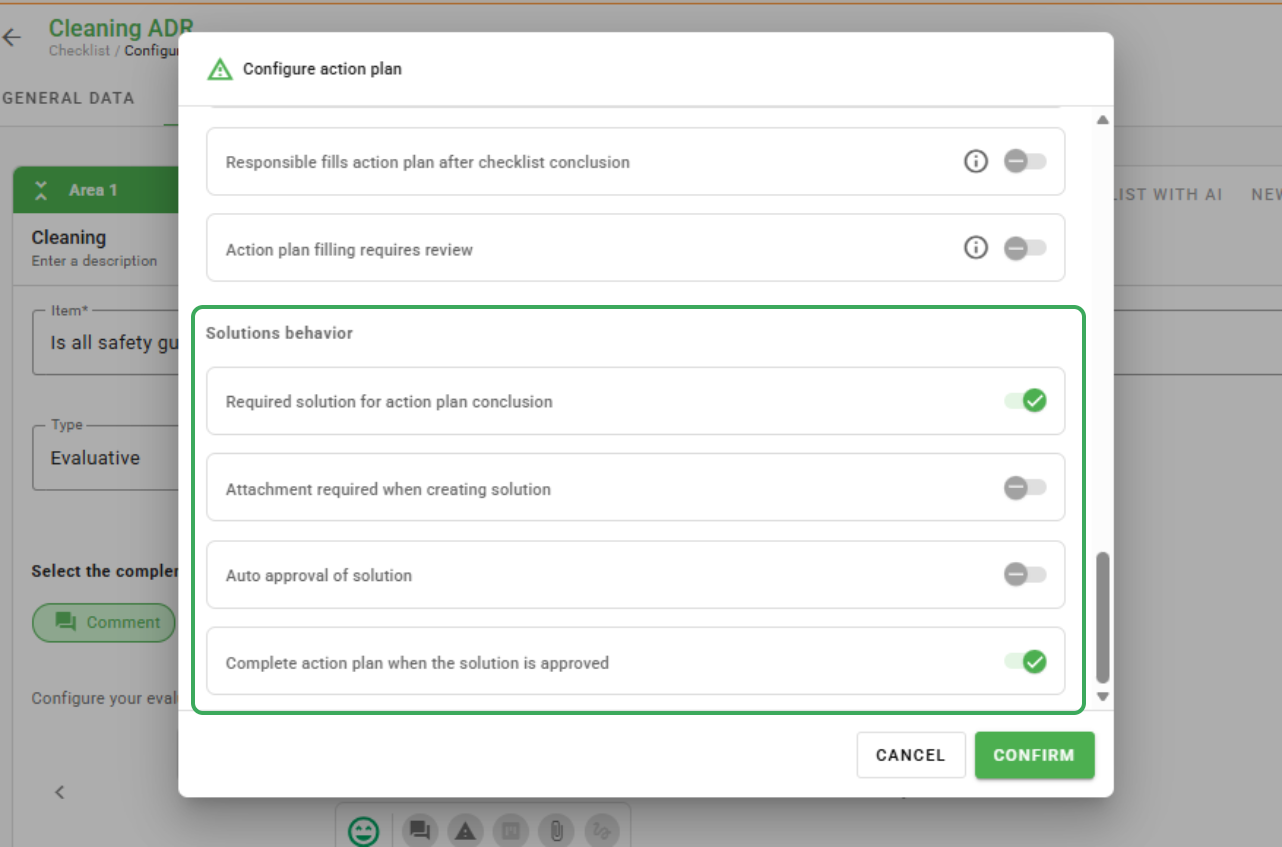
Solutions Behaviors
These parameters control the requirements for closing the dealings, such as mandatory solution, the necessity of a mandatory attachment when creating a solution, and automatic approval.
After making all the desired definitions, do not forget to save the changes to apply the new rules to your checklist item.
Frequently Asked Questions (FAQ)
1. Can I change these settings while the checklist is in use?
Yes, however, the new mandatory rules and behavior will apply only to new Action Plans created after the change.
2. What happens if I lock a field?
The field will remain visible to the user, but it will not allow edits, serving only for reading pre-defined information.
❓Tem dúvidas? Entre em contato com nosso time de suporte.