This feature is exclusively available for Enterprise plan customers. If you wish to enable it, please contact your Account Manager (CS) or our technical support team.
To ensure greater security and reliability when filling out checklists, it is possible to add an extra validation to your questions.
By using the QR Code or Barcode reading feature, you can determine that a specific question will only be released for an answer after scanning the corresponding code at the inspection site.
How to configure in the system
1. Access the path: Settings > Checklists > Structure;
2. When editing the desired item, locate the Barcode / QR Code tab;
3. Select the Code type and enter the number or text in the Custom field;
4. Define whether the item will be locked until the scan is performed.
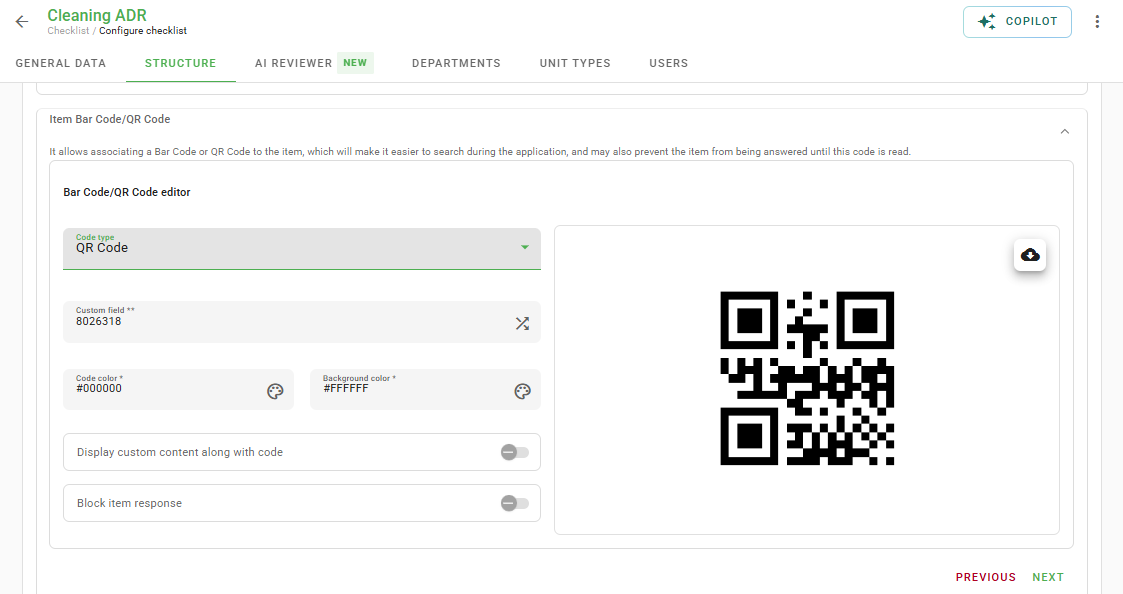
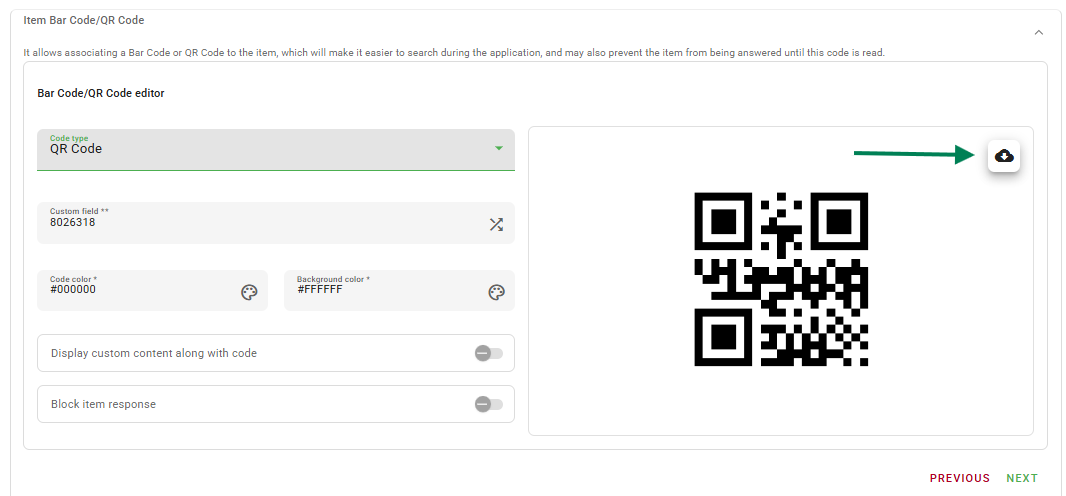
After saving the configuration, the system allows you to download the image of the generated code. To do this, simply click on the download icon, as shown below:
ℹ️ Important: When the code is scanned during the checklist application in the app, the question will be automatically unlocked for completion.
Frequently Asked Questions (FAQ)
1. Can I use a code that already exists on my product?
Yes. Simply select the compatible code type in the settings and enter the number of the barcode or QR Code already existing on your product or location.
2. What happens if I do not lock the item?
If the lock option is not checked, scanning the code will be optional and the user will be able to answer the question even without scanning the code.
❓Tem dúvidas? Entre em contato com nosso time de suporte.