- What are standalone Action Plans?
- How to configure this module?
- Using the Standalone Action Plan
- Frequently Asked Questions (FAQ)
Learn how to create corrective action plans without the need for a checklist application.
What are standalone Action Plans?
The Standalone Action Plan is an additional module that enables the creation of an Action Plan without the need for a checklist application.
This solution is useful for cases where you notice a nonconformity that is not necessarily included in a checklist evaluation item. It also serves situations where correction needs to happen more quickly, without depending on a complete inspection.
How to configure this module?
After acquiring this feature (via marketplace or with your account manager), you can configure it:
- In the left side menu, click on Settings;
- Select the Checklists option.
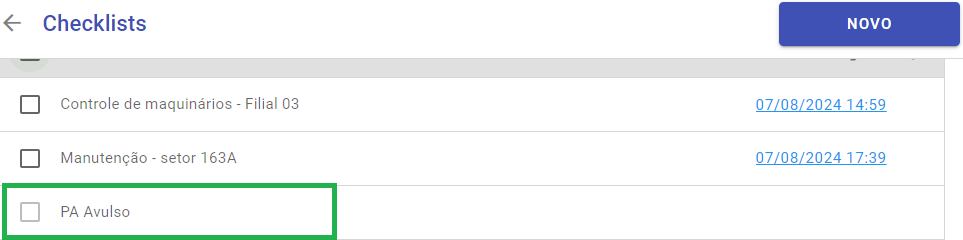
In the list, note that a Standalone AP checklist has been created, as shown in the image below:
Hover your mouse over it and click on the Edit icon (pencil):

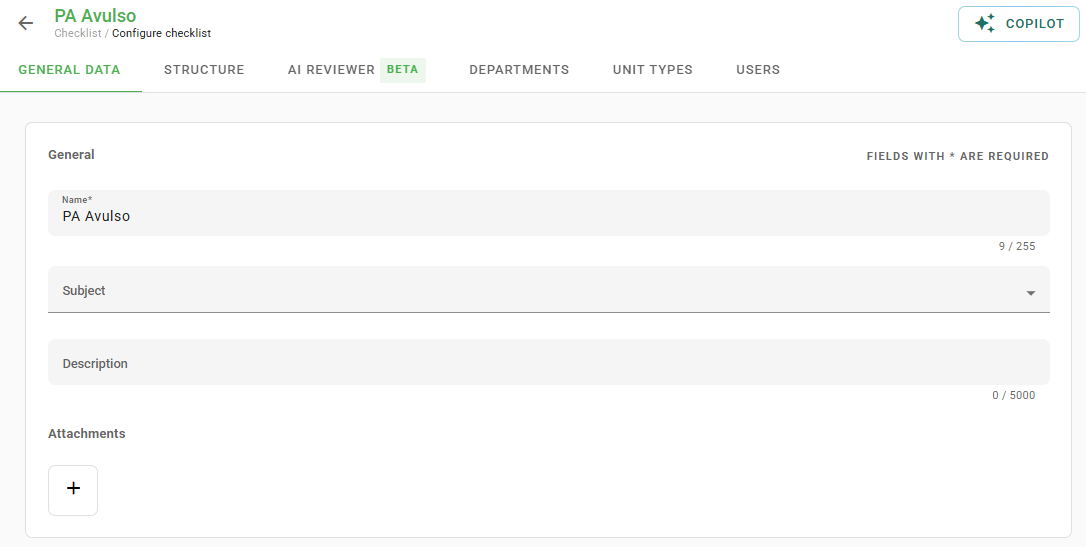
The editing page will open, similar to the creation of standard checklists:
Follow the steps for configuration:
- Registration Data Tab: Enter a name, subject and, if desired, description and attachment.
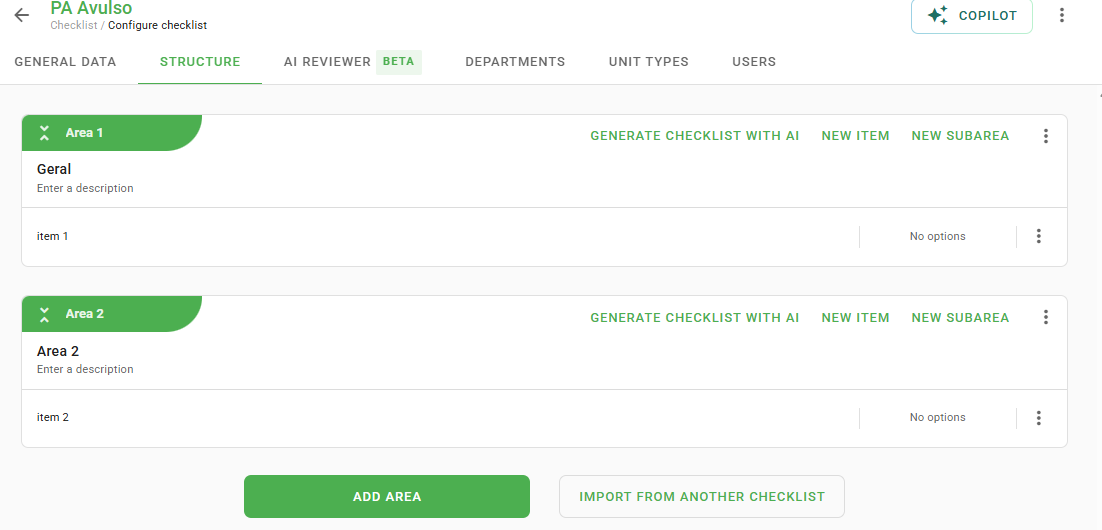
- Structure Tab:You will see a created area (General) and an unnamed item.
- Click on the item and fill in what should be evaluated.
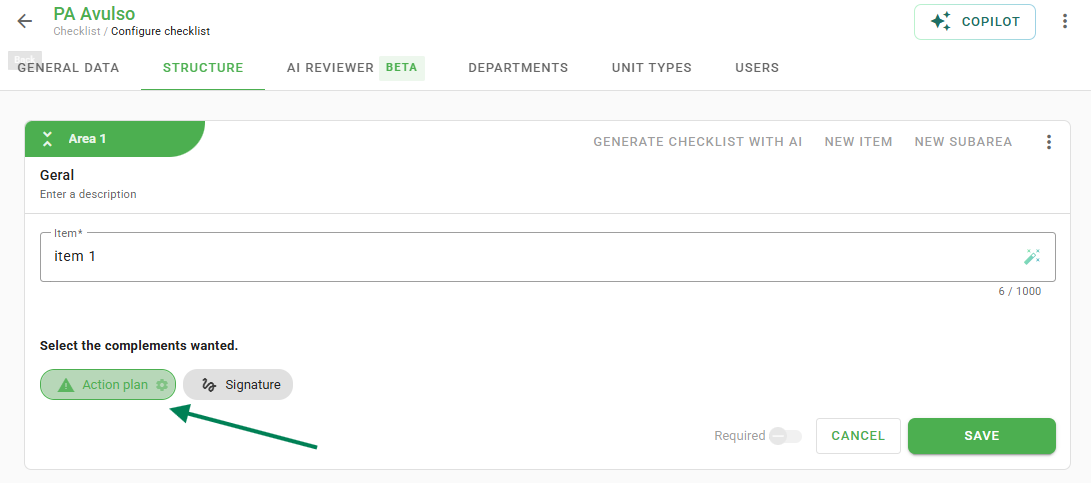
- Click on the gear (Action Plan button) to choose mandatory fields and treatment behaviors.
See the process:
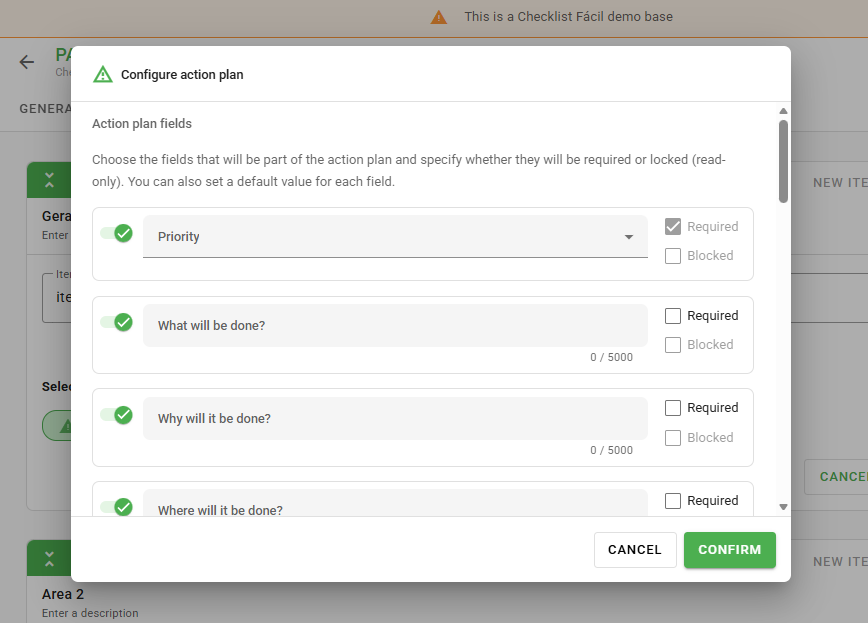
Tip: You can define whether the person responsible should always be a User, a Department, or a specific User Type. Learn how to configure this restriction here: How to define the action plan's responsible type?.
After configuring the structure, link the action plan to the desired departments, unit types, and users. Finally, click Save.
This structure serves as the unique base for using the Standalone Action Plan. Within it, you can configure questions and adjust behavior according to your operation's needs.
It is not possible to create other Standalone AP structures besides the one generated automatically. The platform allows only one model, which will be the same for all company users.
Using the Standalone Action Plan
Attention: After activating the module, it will only be available for use after you configure the "Standalone AP" checklist by accessing its editing to define the structure and necessary links; until then, it remains inactive.
The creation of standalone action plans is only possible via the app.
1. In the app, click the Apply button and select New Action Plan:
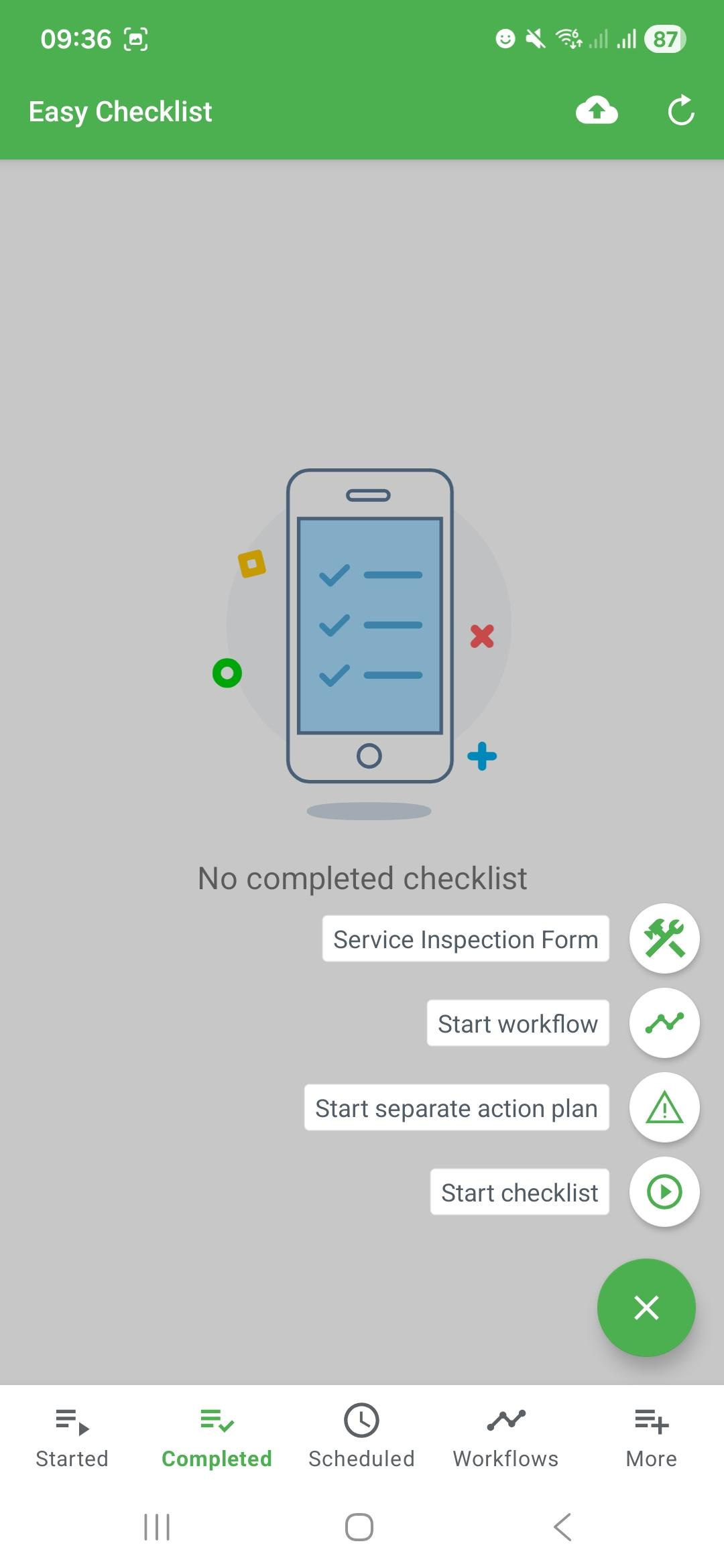
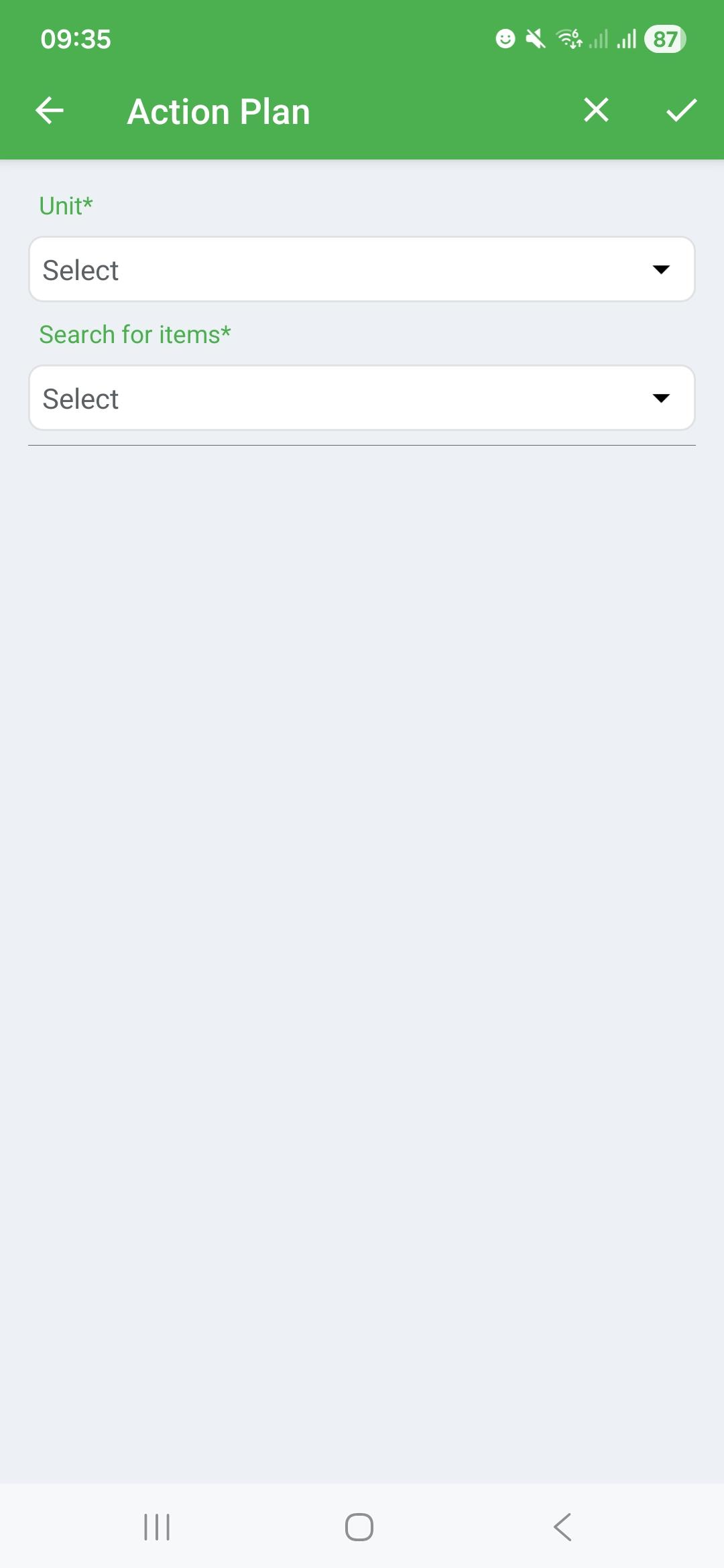
2. Select the unit and the default item configured previously:
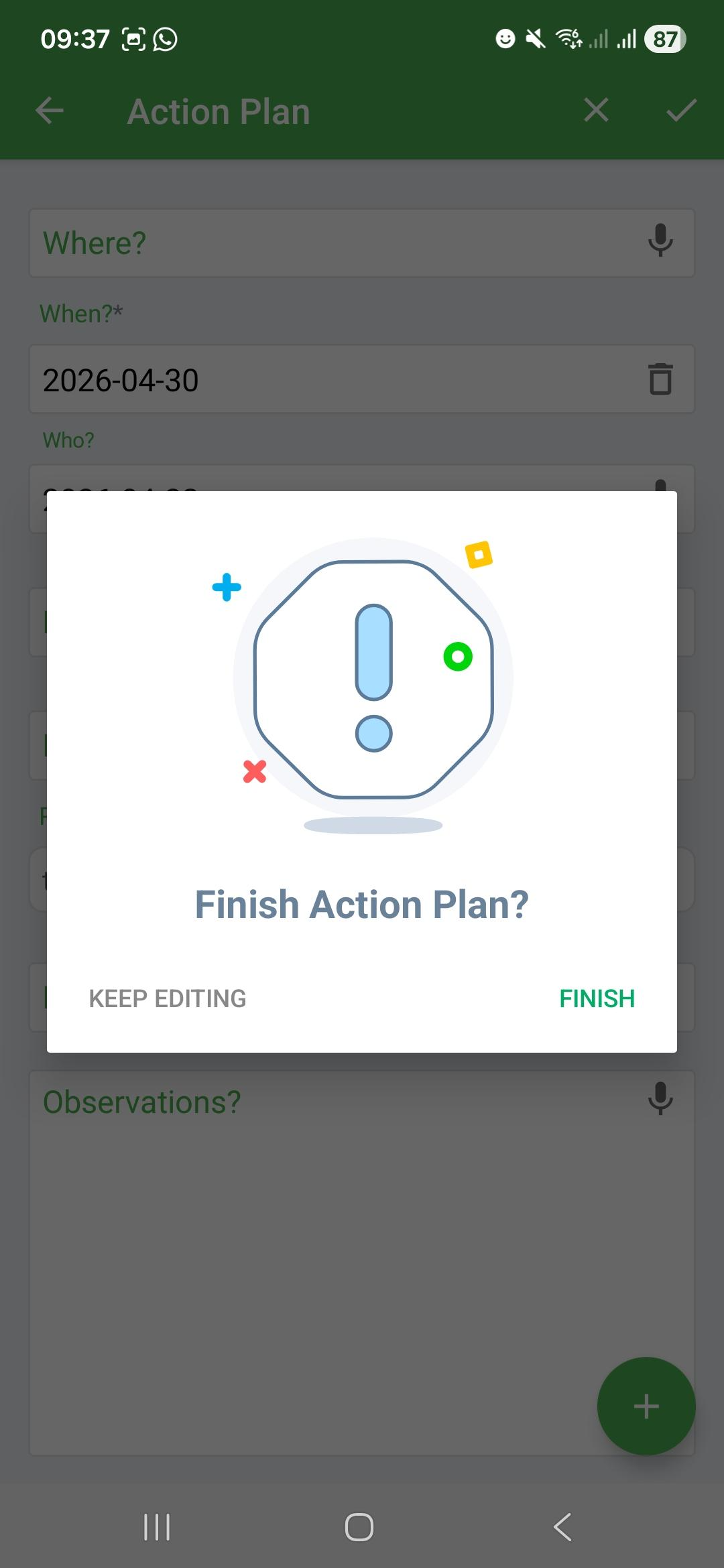
3. Fill in the treatment fields and click the conclude icon (top right corner):
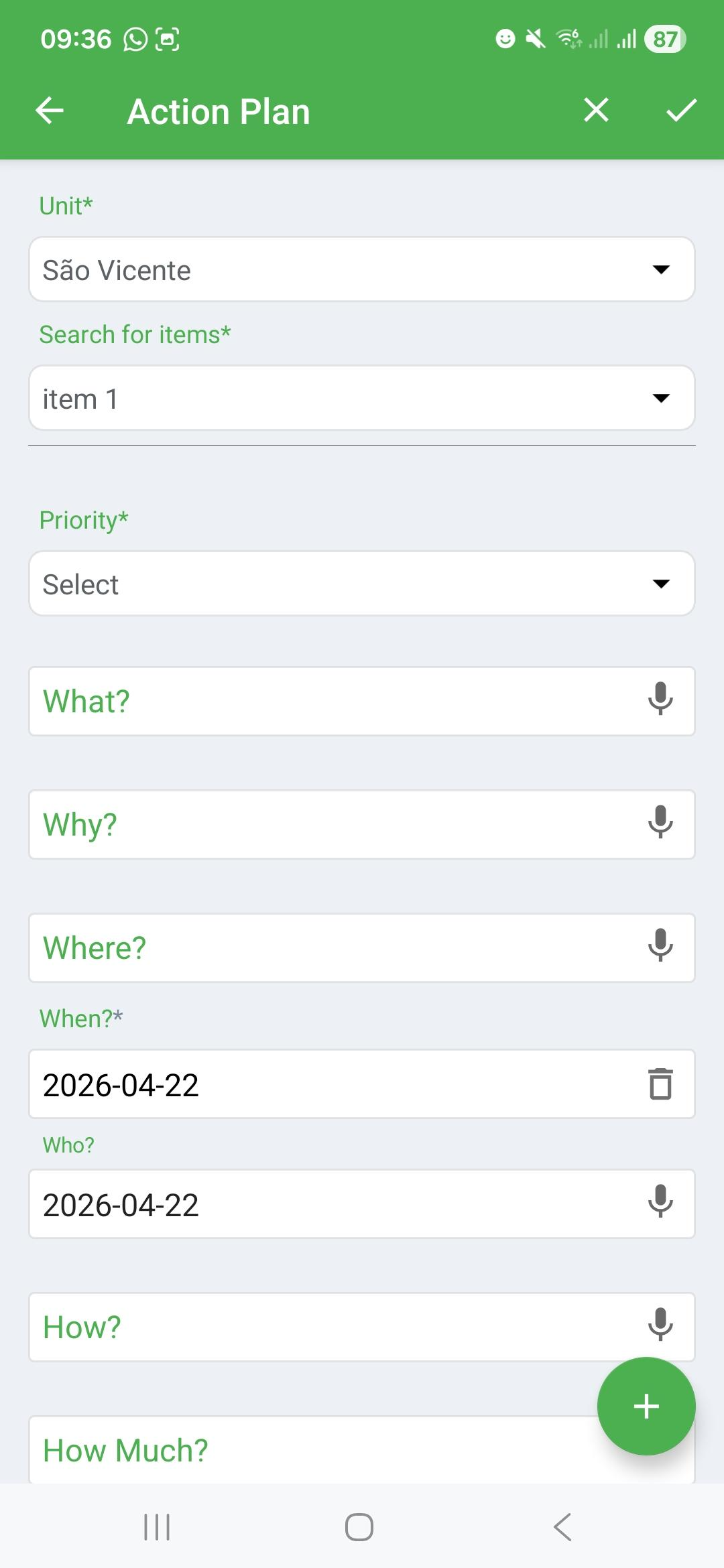
4. Confirm by clicking Concluded to save. A success message will confirm the synchronization.
Frequently Asked Questions (FAQ)
1. Can I create a Standalone Action Plan via computer (Web)?
No. The module configuration is done via Web, but the application (creation of the treatment) is only available through the mobile app.
2. Is it possible to have more than one Standalone AP model?
No. The system allows only a single Standalone Action Plan structure, which will be standardized for all company users.
❓Tem dúvidas? Entre em contato com nosso time de suporte.