We can set up a checklist to be analyzed by one or more users. Through this analysis, the applied checklist can be approved, where it is considered completed and available for viewing on the Applied Checklists screen, or failed, returning to the applicator user to be adjusted.
Accessing the configure checklists screen, in the registration data tab, we need to activate the Analysis flow:
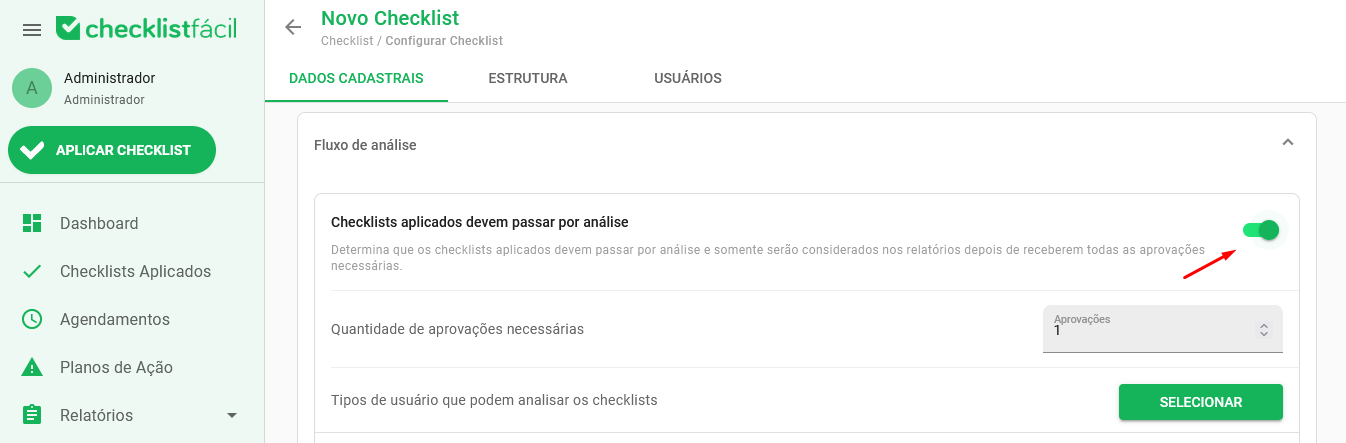
When you activate the flow, the system will allow you to choose the number of mandatory approvals and which types of users will be able to perform this analysis. Remembering that only types of users whose permission approves checklists are enabled will be available.
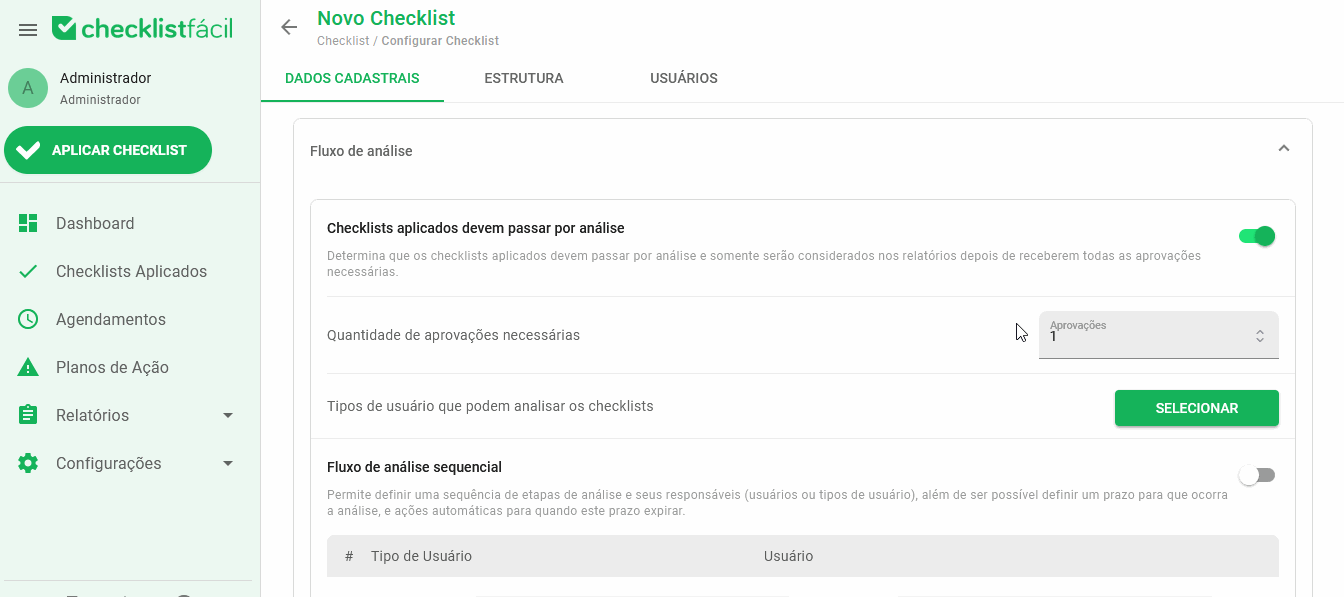
And then just click Select, confirming the action.
You can also set up a sequential analysis, where you can define the order of users or types of users who will participate:
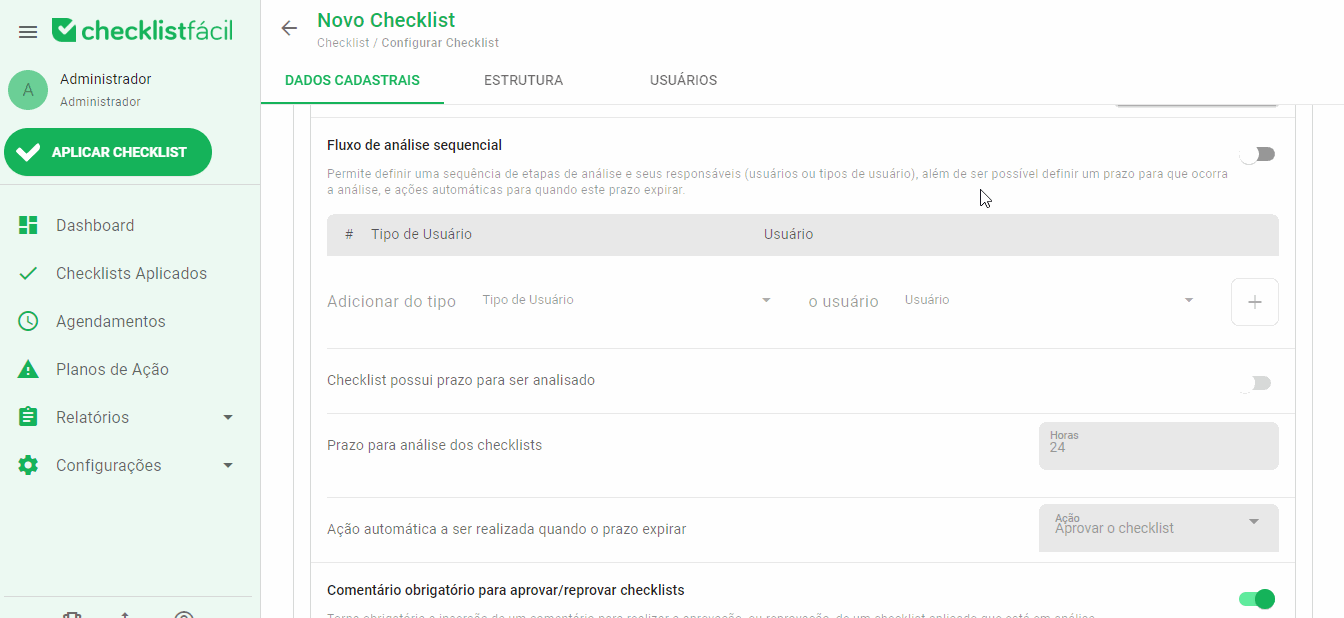
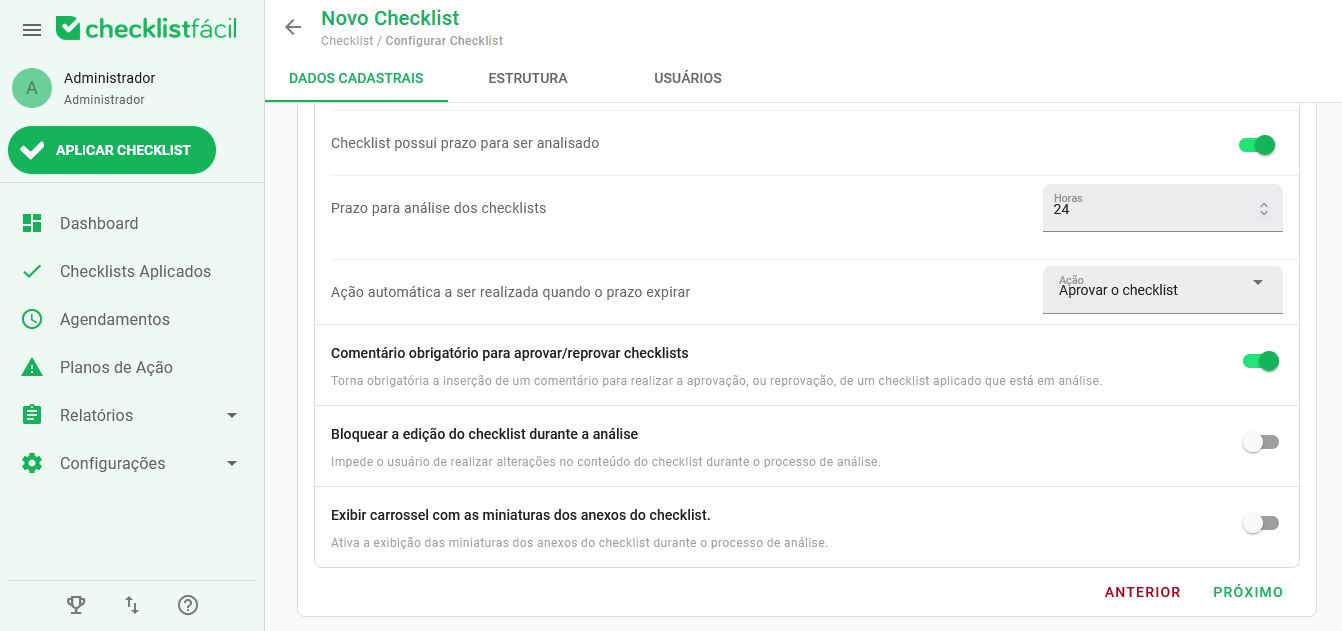
We can choose to block the editing of the checklist during the analysis, making it so that both the answers given and information entered in the additional fields (media, comment and action plan) cannot be changed, and enable the carousel of images during the analysis.
Finally, you can also configure the Required Signature and Password options. In this way, the user responsible for the approval/disapproval will need to add their signature and/or confirm their password to complete the process:
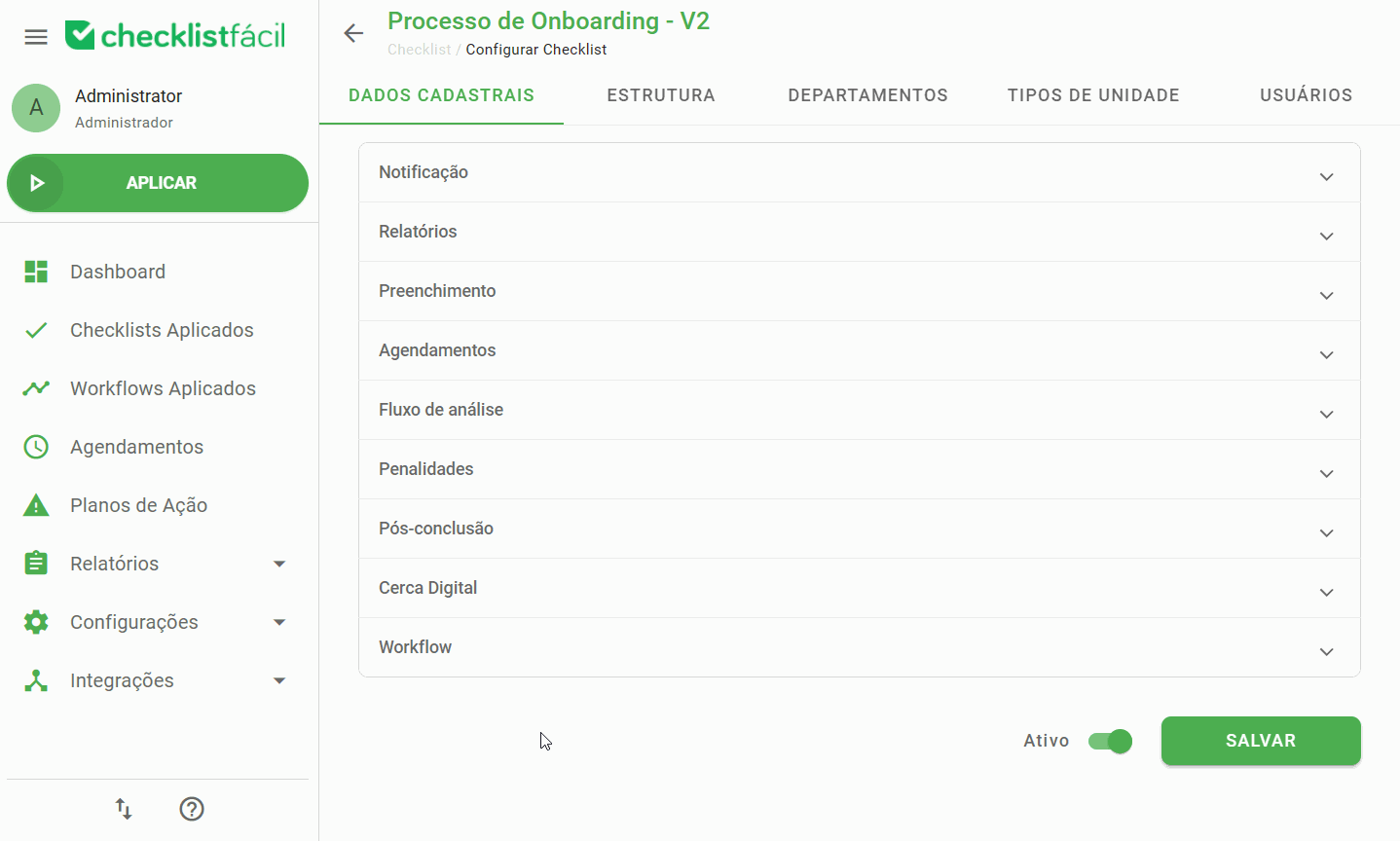
After saving the changes in the footer of the page, whenever the checklist is applied, these evaluations will go through the analysis flow before being available for viewing by other users.
➡️ Was this article useful? Leave your review!
❓Do you still have questions? Contact us via chat or ticket!
❓Tem dúvidas? Entre em contato com nosso time de suporte.