The recurrence screen is fundamental for identifying repetitive problems in your operation. To make this analysis more precise and agile, you have a filter system that allows you to segment data by specific periods or characteristics of your organizational structure.
In this article, you will learn how to use time filters and advanced filters to view exactly the information you need.
Period Filters
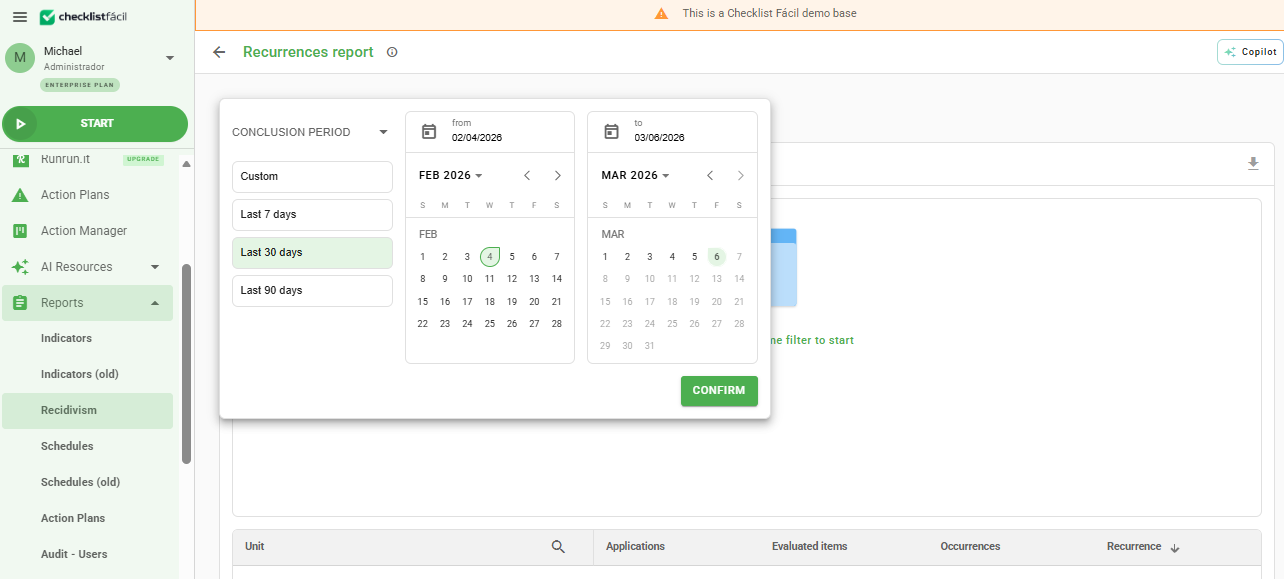
When accessing the recurrence screen, the first filtering option refers to time. It is possible to define whether the search will consider the start date or the conclusion date of the evaluation.
In addition, the system offers pre-defined intervals to speed up your query:
- Specific day: For specific analyses.
- 7 days: For a recent weekly view.
- 30 days: For monthly closing.
- 90 days: For a quarterly analysis.
- Custom: Where you freely define the start and end date.
Advanced Filters
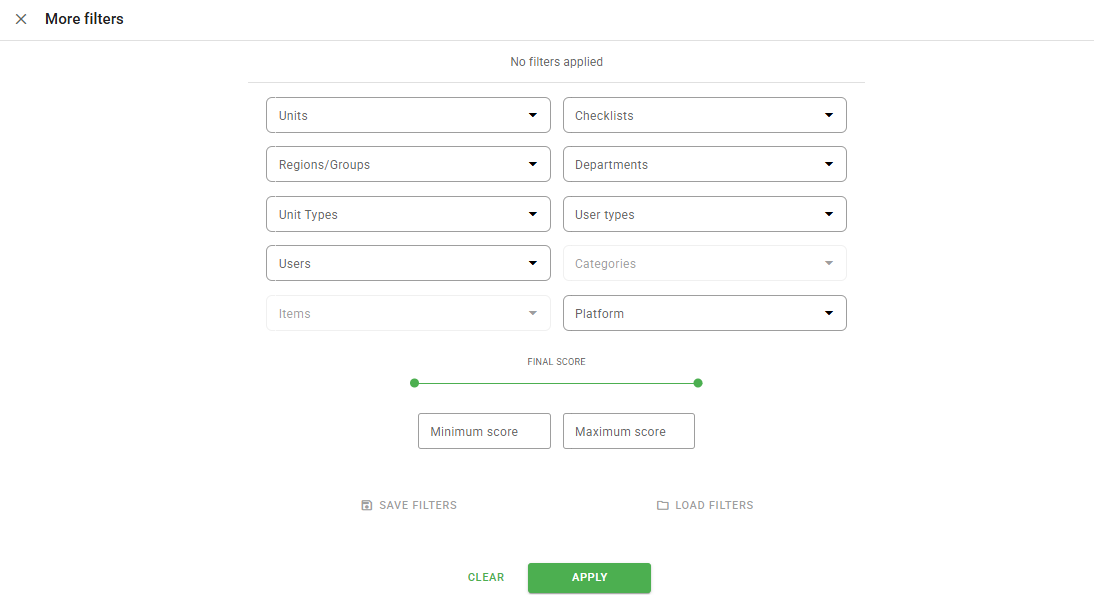
If you need a deeper analysis, you can use the More filters button. This functionality allows you to cross-reference time data with structural information from your account.
By clicking on this option, you can segment the results by:
- Region: View recurrences in specific geographical areas.
- Unit: Focus the results on a specific store, plant, or location.
- User type: Filter evaluations performed by specific evaluator profiles.
Frequently Asked Questions (FAQ)
1. Can I filter by a start date and a conclusion date at the same time?
No. You must choose between filtering by the period in which the evaluation was started or by the period in which it was concluded.
2. Are custom filters saved for the next time I log in?
By default, filters are reset when refreshing the page or leaving the system. However, you can use the "Save Filters" option to maintain the filter.
3. Is it possible to filter by more than one unit simultaneously?
Yes, within the "More filters" option, you can select multiple units or regions to compose your recurrence report.
❓Tem dúvidas? Entre em contato com nosso time de suporte.