The mathematical operation consists of performing calculations of the results of the numerical items of the checklist. With this functionality you have the option to Add, Decrease, Divide and Multiply items of the numerical scale questionnaires, regardless of the order or area of this item, and it is also possible to use other values independently of the items, thus bringing more automation to your operation.
To use the Math operation in your checklists, you need to contact the Solution Team via Chat or Ticket to analyze the activation of this feature.
To view the mathematical operation option on quiz items, there must be more than one numeric item in the quiz. If there is only one numeric item in this questionnaire, the setting for activation won't be enabled.
(Scale: Numeric/Options: Munetary, Quantity, Decimal)
To set up your checklists using this funcionality, follow the steps below:
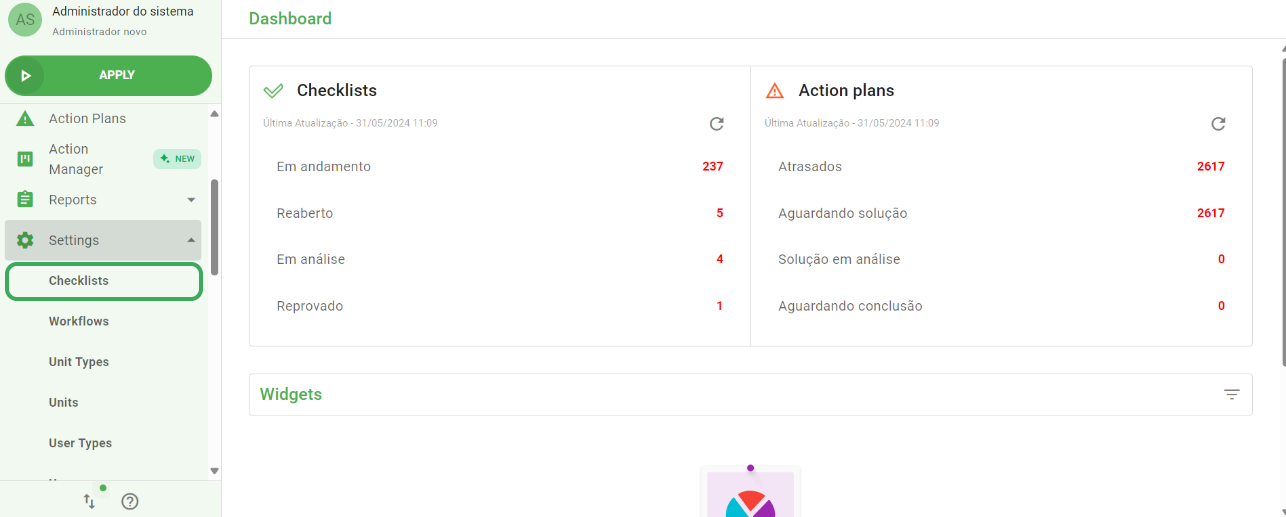
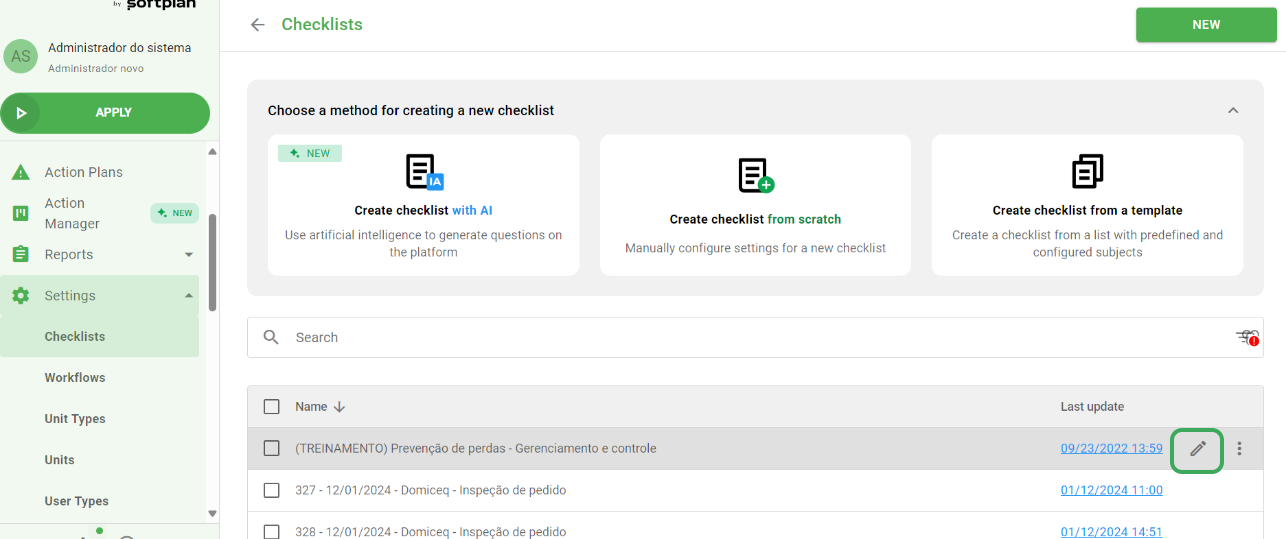
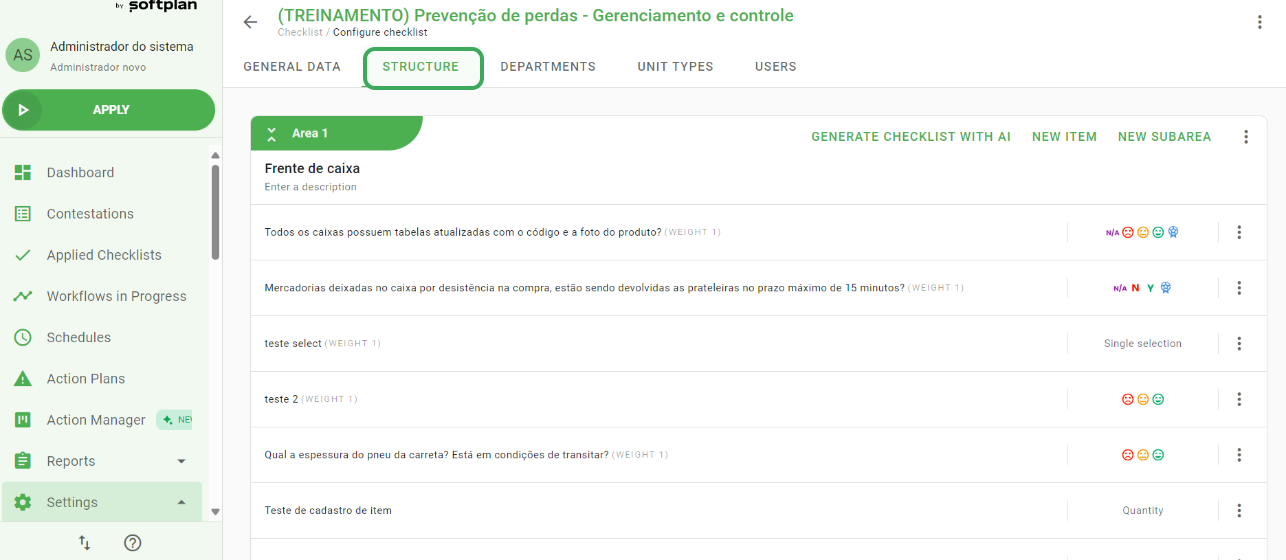
(Settings > Checklist > Edit > Structure > Modify Item > Use Mathematical Operation - Active)
This mathematical operation can be typed or selected, and when configuring this functionality it is possible to do a test in the test field to validate that the configuration is bringing the expected result.
Important: All items must be enclosed in apostrophes (e.g. 'Item Name')
Values using function must be separated by ";" (semicolon);
Operations without a full function can use the +, -, *, and / symbols.
If there is anything incorrect in filling it out, the error Error in the mathematical operation will be flagged and prevented from being saved so that the correction of this operation can be made.
When relating the items in the mathematical operation, it is necessary attention to the exclusions of the items that are part of this relationship. When you start the deletion, you will be warned that it is linked to a mathematical operation, and when deleted it will be necessary to redo the syntax.
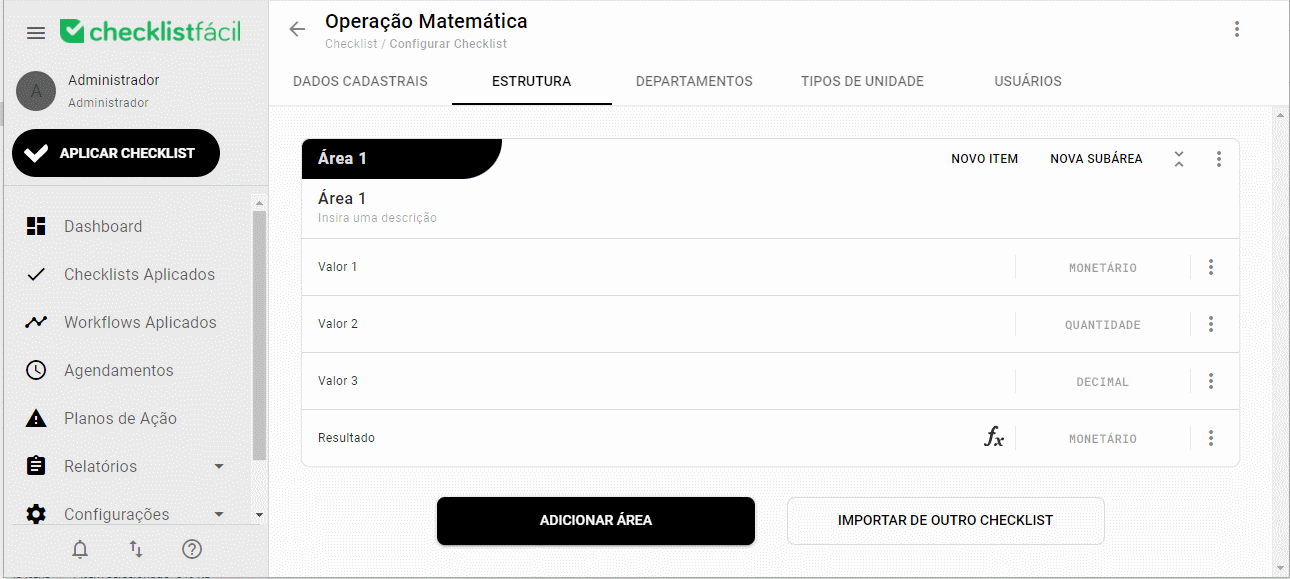
Every item within the questionnaire that is configured with the mathematical operation is flagged with fx for better visualization.
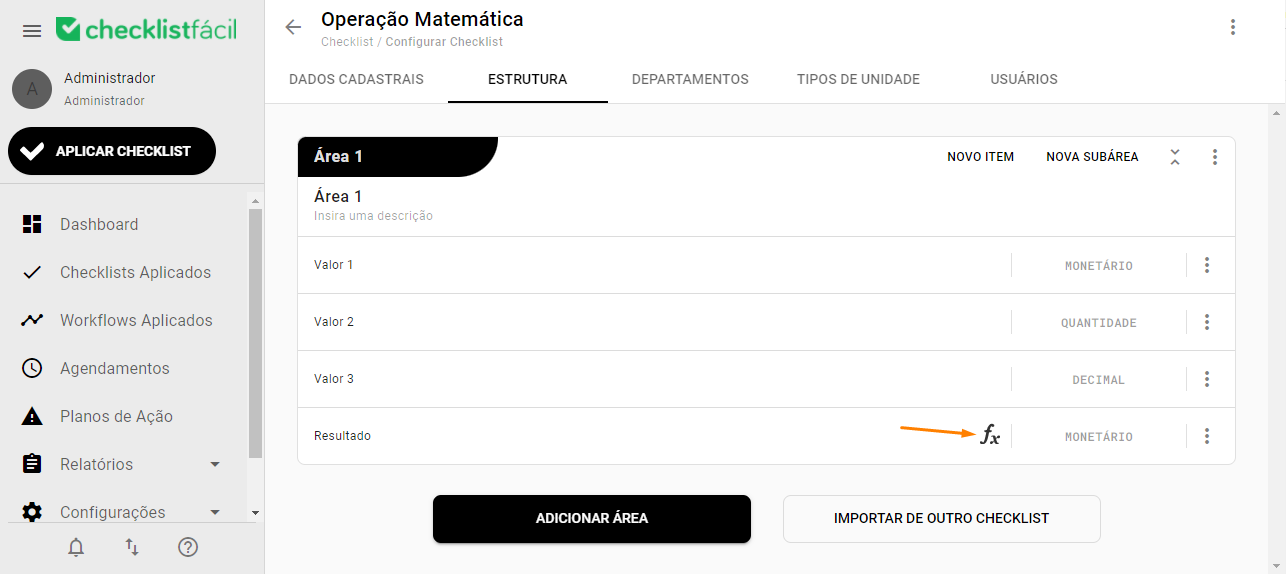
(Settings > Checklist > Edit > Structure)
Note: The item with the configured mathematical operation indicated by the fx will always be the item that will bring the result.
➡️ Was this article useful? Leave your review!
❓Do you still have questions? Contact us via chat or ticket!
❓Tem dúvidas? Entre em contato com nosso time de suporte.