How to view the operation
To check the mathematical operation in the reports, locate the desired evaluation under the Applied Checklists menu and click on the View evaluation option.
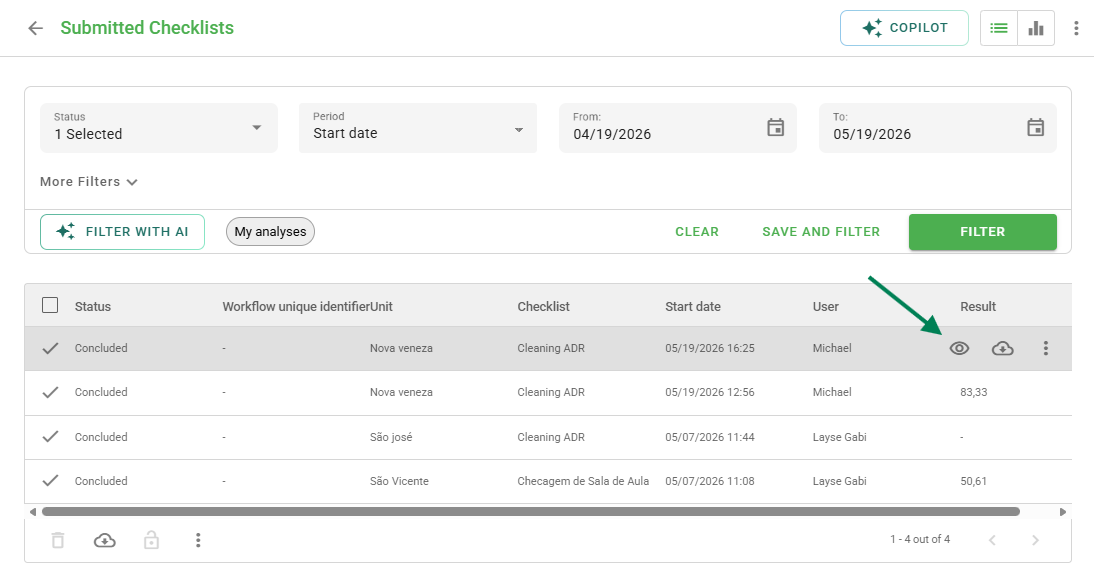
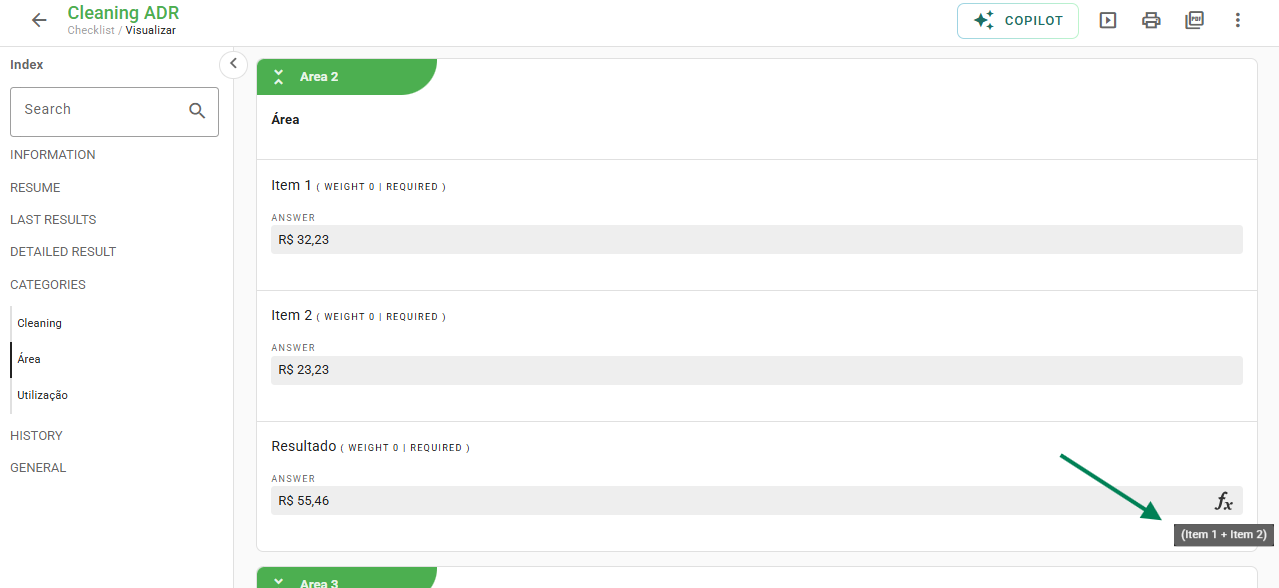
Calculation details (FX Icon)
On the view screen, items that contain a calculation are identified by the FX function icon. By hovering the mouse over this icon, the system will display the formula or calculation configured for that item.
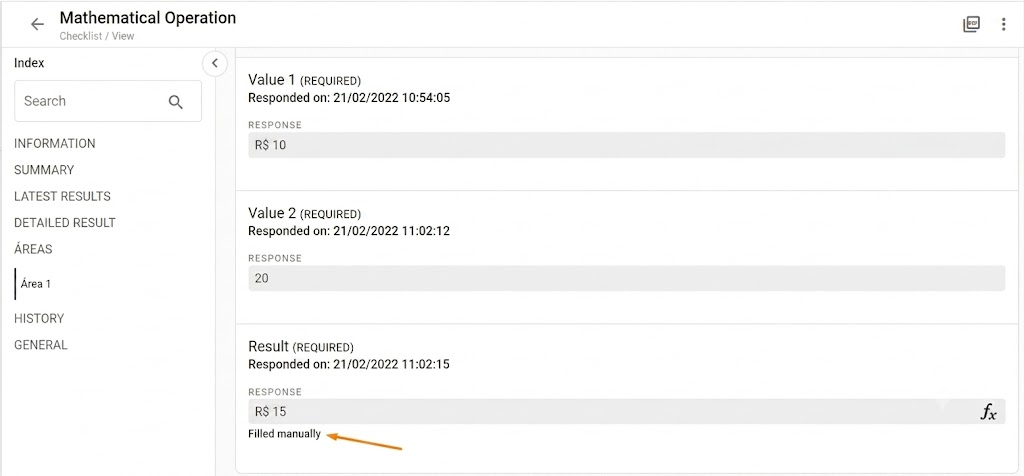
Manual entry indication
The system will also signal if the calculation result was manually entered by the user applying the checklist, displaying the "Manually filled" label.
→ Important: The "manually filled" option is only enabled in the application when an error occurs in the automatic calculation (for example, if a required item for the formula was not answered).
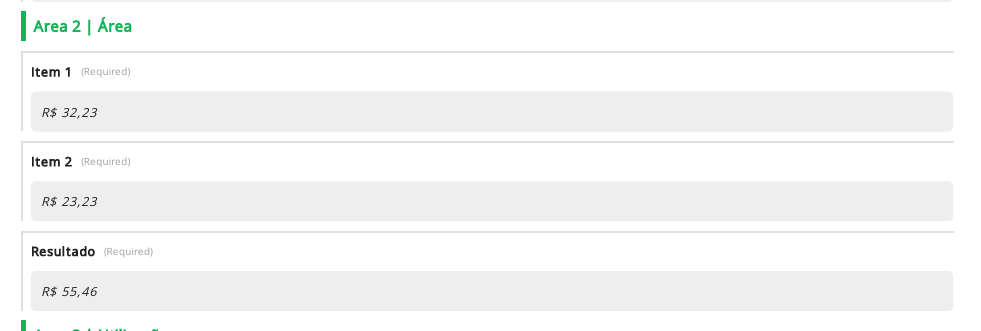
PDF view
When downloading the evaluation in PDF format, the report will display only the final results. The mathematical operation indicators (FX icon) are not shown in the export.
Frequently Asked Questions (FAQ)
1. Why did the manual entry option appear?
This occurs when the system cannot calculate the formula automatically, generally because one of the items that make up the operation was not filled out during the application.
2. Does the FX icon appear in the PDF report?
No. In the PDF file, only the final values of the calculations are displayed, without the function icons.
❓Tem dúvidas? Entre em contato com nosso time de suporte.