- 1. Notification
- 2. Reports
- 3. Filling
- 4. Schedules
- 5. Analysis Flow
- 6. Penalties
- 7. Post-conclusion
- 8. Workflow
- Frequently Asked Questions (FAQ)
The Registration Data tab is the heart of a checklist's intelligence. It is here that we define not only what will be asked, but how the information will be processed, who will be notified, and how the final report will be presented to stakeholders.
Important: Checklist Fácil is a modular platform. Therefore, the visibility of certain tabs or specific features (such as the "Optimized PDF" seal) depends on the contracted plan and the active modules in your unit.
1. Notification
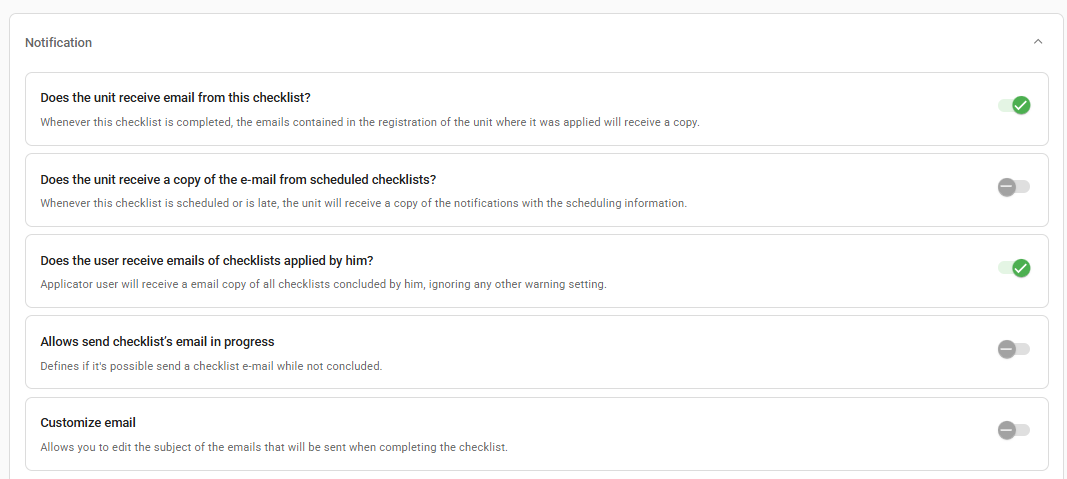
This section manages communication automation. The goal is to ensure that the right people receive the data as soon as a relevant action occurs.
- Does the unit receive an email for this checklist?: Whenever this checklist is concluded, the emails contained in the registration of the unit where it was applied will receive a copy.
- Does the unit receive a copy of the scheduling emails?: Whenever this checklist is scheduled or is overdue, the unit will receive a copy of the notifications with the scheduling information.
- Does the user receive emails for the checklists applied by them?: The applying user will receive a copy by email of all checklists concluded by them, regardless of any other alert settings.
- Allow sending email for a checklist in progress?: Determines if it is possible to send an email of the checklist while it is still in progress.
- Customize email: Allows editing the subject of the emails that will be sent upon concluding the checklist.
2. Reports
The aesthetic and technical standards of the generated documents (PDF and Web) are defined here. This is the showcase of your auditing work.
Visual Customization and Identification
- Use personalized sequential code: Determines that the applied checklists must display a sequential code in the reports based on the configured prefix, along with its original application code.

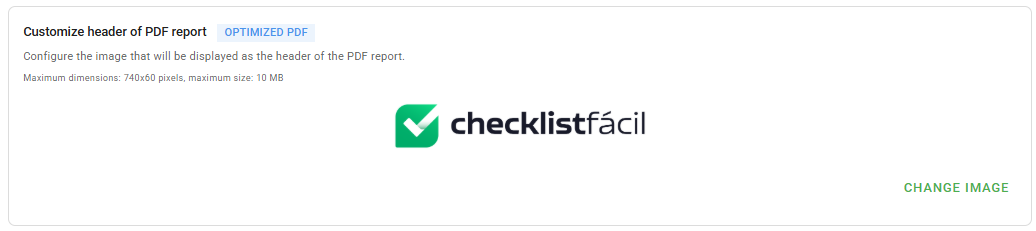
- PDF header image: Configure the image that will be displayed as the header of the PDF report. Maximum dimensions: 740x60 pixels.
- Color displayed in the PDF: Determines the color used in the display of section titles and areas of the checklist in the PDF report.

Content Structure
The system allows marking exactly which fields should compose the body of the report:
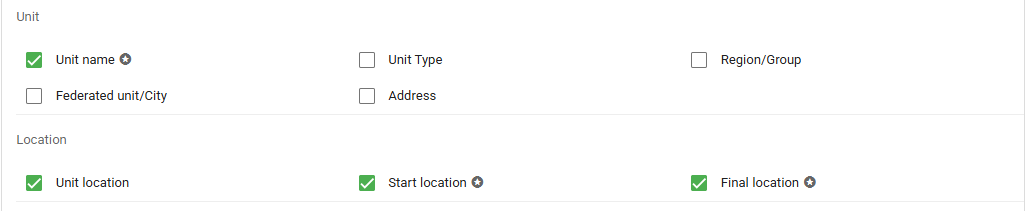
- Application Data: Includes options such as Applied Checklist Code, Application period, Classification, Start and conclusion dates.
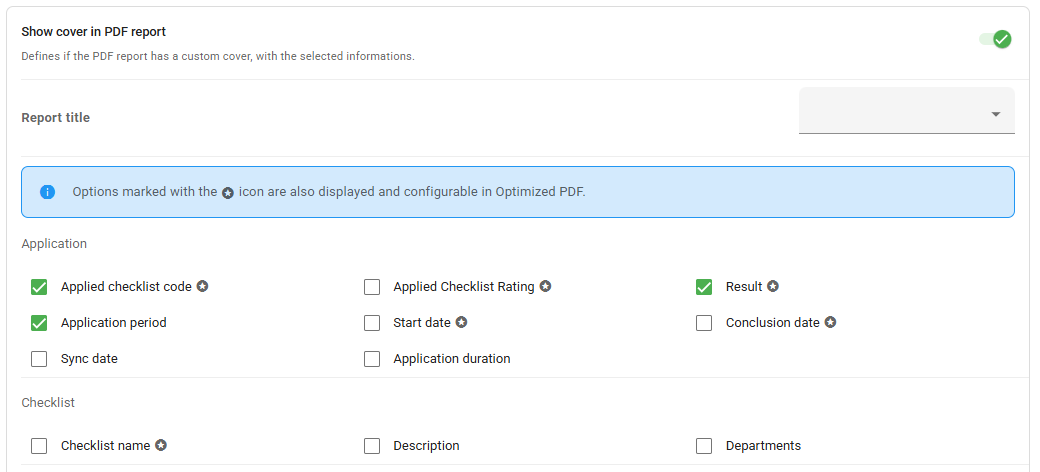
- Identification: Allows displaying Checklist Name, Description, and Applying User.
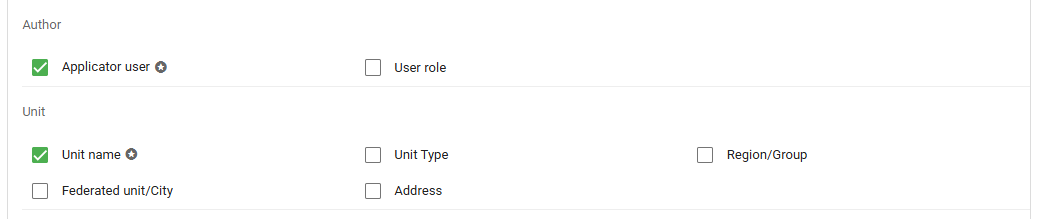
- Geolocation: Displays the Unit Name and the captured start and end Location coordinates.
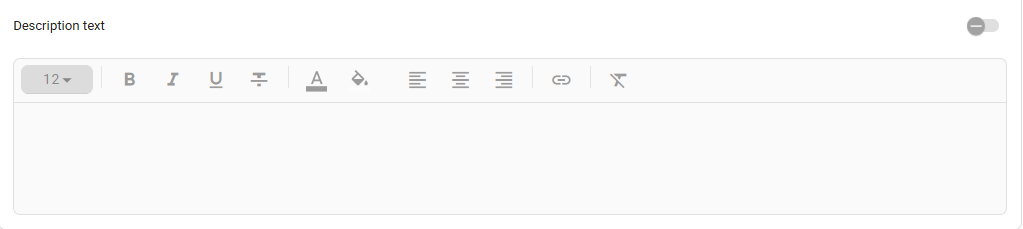
- Explanatory Text: Field to insert guidelines or fixed warnings in the body of the report.
Summaries and Visual Indicators
- Latest Results Graph: Determines if a graph with the score and total nonconformities of the last five applications will be displayed.

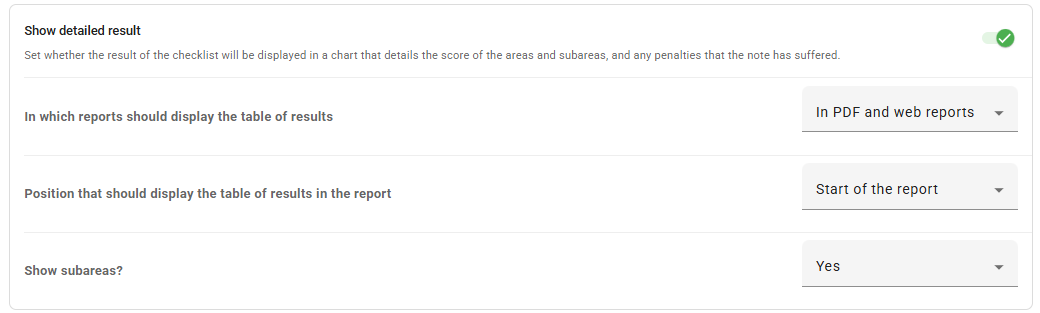
- Detailed Result: Determines if the result will be displayed in a table detailing the scoring of areas and subareas.
Customize evaluative scale
This section is fundamental for defining how the system interprets and displays results in the PDF report:
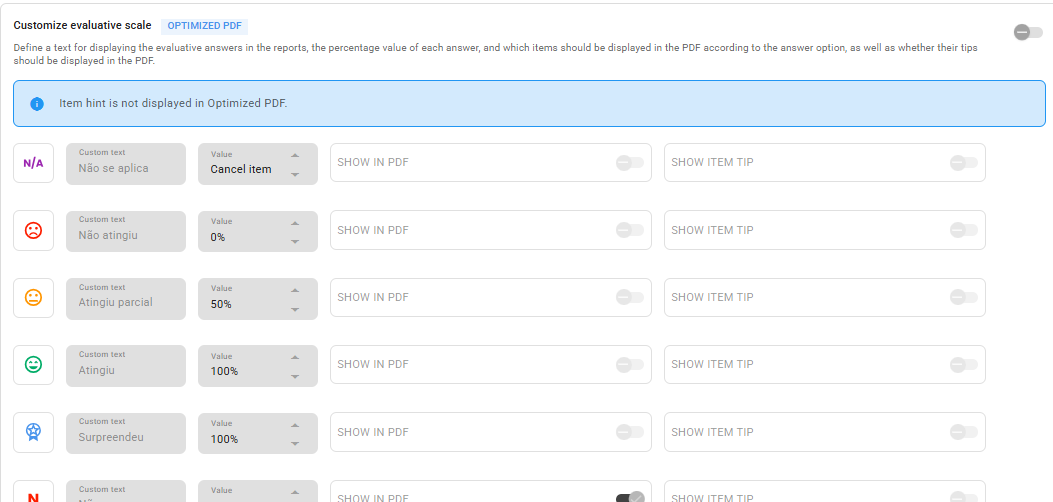
- Response Customization: Allows defining the text for displaying evaluative responses, the percentage value of each response, and visibility in the PDF.
- Tips Visibility: Configures whether item tips will be displayed or not in the Optimized PDF.
- Response display mode: Defines whether responses in the report will be presented in text format or via Image.
- Individual Display Control: Switches to determine if each response should DISPLAY IN PDF or DISPLAY ITEM TIP.
Media and Evidence Management
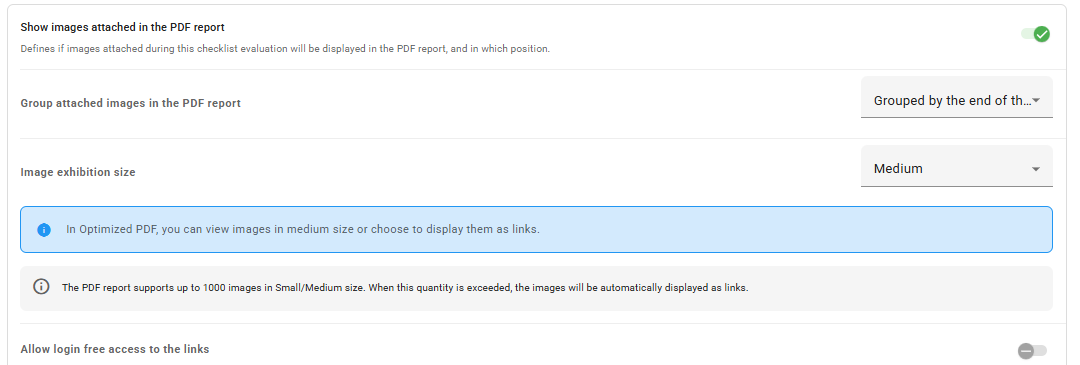
- Display attachments in PDF: Determines if attached files will be displayed, their position, and the size of the images.
- Access via Links: In the Optimized PDF, it is possible to view images in medium size or choose display as links.
3. Filling
This tab defines the filling rules, controlling how the applier interacts with the system during data collection.
- Apply checklist only via the app: Determines that this checklist can only be applied via the mobile application.

- Allow attaching files from device memory: When inactive, it will only be possible to insert photos and videos taken with the camera through the application.

- Bulk answer items: By activating this setting, the "Answer all" option appears during application.

- Display partial result: Determines if during the application of the checklist it is possible to view the partial result.

- Security and Validation: Configures mandatory fields for Name and Position in the signature and the possibility to Request password when concluding checklist.

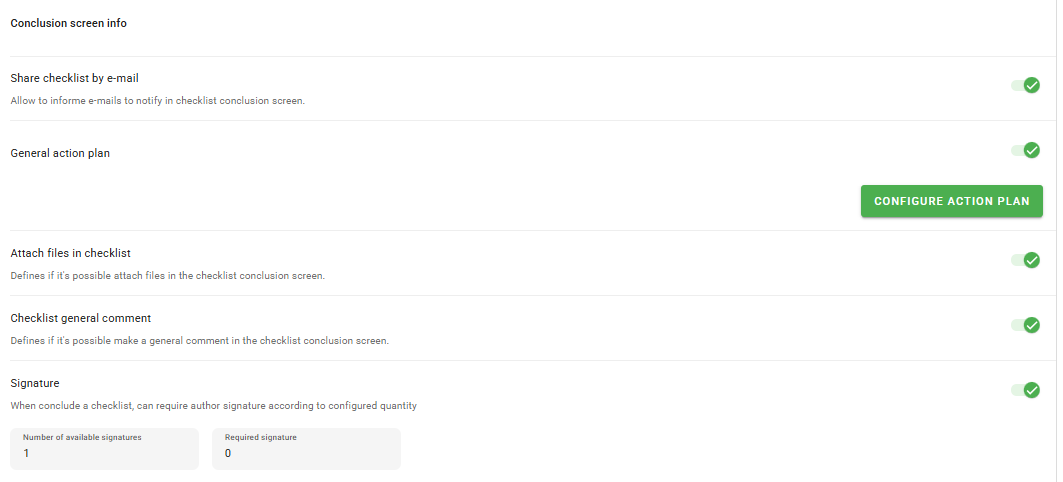
- Conclusion Screen: Allows configuring Share checklist by email, General Action Plan, and General comment on the checklist.
- Can checklist be continued on the web?: Determines if there will be an option in the app to continue the application of the checklist using the web platform, learn more about the feature here How to continue a checklist on the web? : Checklist Fácil.

- Display the achieved score per area: During the application of this checklist, it will be possible to monitor the score achieved per area.

- Request password when concluding checklist: When activating this feature, the user must enter their password when concluding the checklist. After 5 attempts, the user will be logged out of the platform.

4. Schedules
Essential for routine management, this section determines the level of rigor over audit planning.
- Apply only scheduled checklist?: Determines that this checklist can only be applied via scheduling.

- Schedules need to be approved?: Determines that schedules will only be available to appliers after an approval.

- Block creation of duplicate schedules: Prevents schedules from being created with identical parameters (user, unit, date, and time).

5. Analysis Flow
Here the system establishes the governance layer, defining the path of the checklist after field collection.
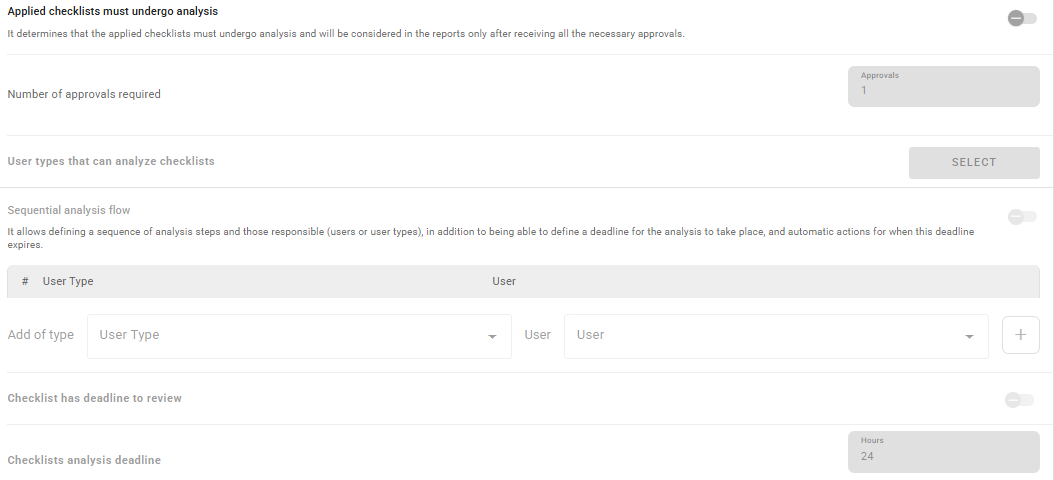
- Applied checklists must undergo analysis: Defines that checklists will only be considered in reports after receiving approvals; to learn more, access this article How to create a checklist approval flow? : Checklist Fácil.
6. Penalties
This section allows transforming nonconformities into a direct impact on the final score.
- Recurrence penalty: When an item is evaluated negatively and identified as recurrent, the item's weight will be increased by (%), learn more at How to configure penalties for recurrence of nonconformities? : Checklist Fácil .

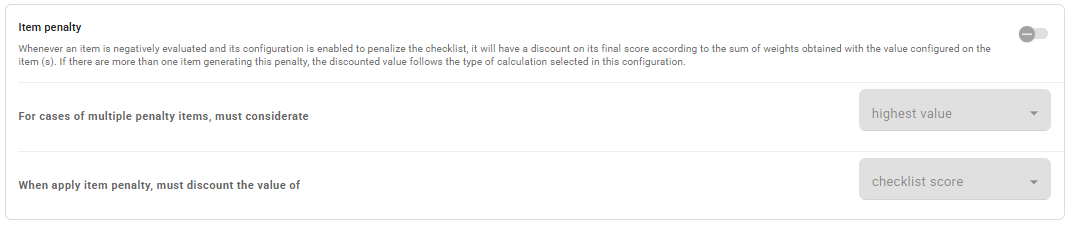
- Item penalty: Applies a deduction to the final score or the sum of weights when configured items are evaluated negatively.
- Overdue scheduling penalty: When a schedule is performed outside the deadline, it will have a progressive deduction in the result, learn more at How to configure a penalty for overdue scheduling? : Checklist Fácil.

7. Post-conclusion
Rules for what happens to the data after the end of the entire checklist lifecycle.
- Can the checklist be commented on after its conclusion?: Determines if it is possible for the checklist, after being concluded, to be commented on (this has no correlation with the feature to reopen a checklist).

To comment, simply go to the applied checklist report, and at the bottom of the page, the comments section is available.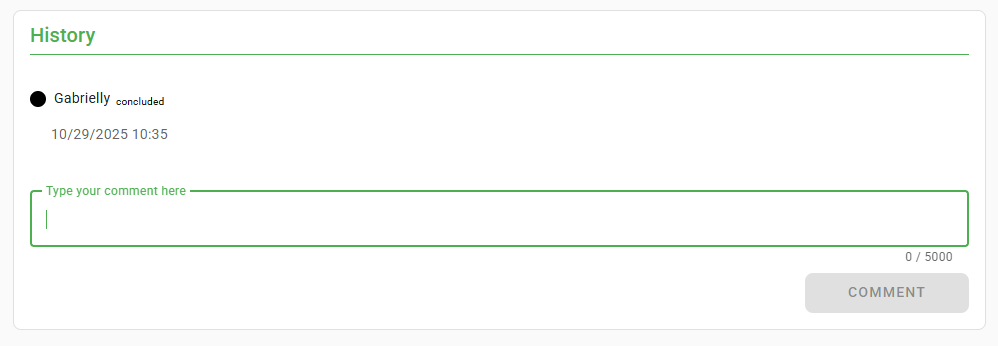
It will then appear along with the checklist history.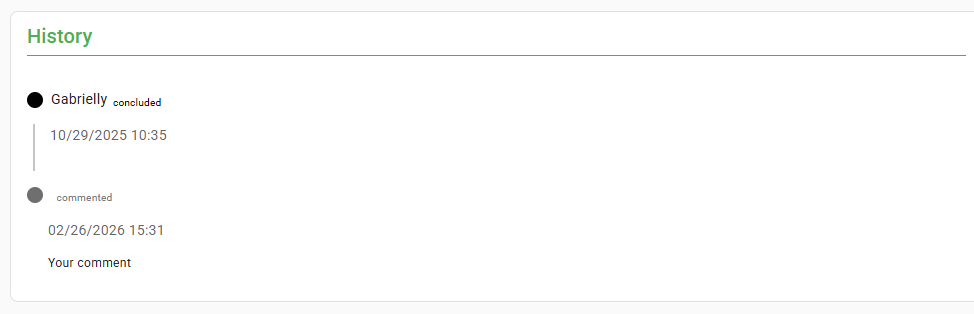
- Can the checklist be reopened after its conclusion?: Determines if it is possible for the checklist, after being concluded, to be reopened; learn more at How to reopen an applied checklist? : Checklist Fácil.

- Group recurrent action plans?: If there is a plan in progress in the unit for the same item, the new one will be linked and grouped with it; learn more at Group recurrent action plans: learn everything about this feature: Checklist Fácil.

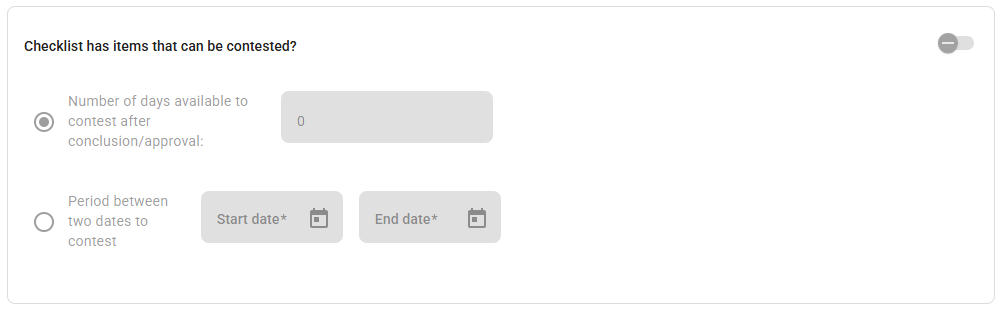
- Right of Contestation: Enables a period or maximum number of days for contestation after conclusion/approval; see more about contestation here: How to configure the contestation of an item? : Checklist Fácil.
8. Workflow
Workflow allows the checklist to be part of an intelligent and conditional process.
- Apply only in workflow?: Determines that this checklist can be applied only if configured in a workflow.

Frequently Asked Questions (FAQ)
1. Why don't I see the Workflow tab?
As Checklist Fácil is modular, the visibility of certain tabs depends on your contracted plan and the active modules.
2. What is the difference between "Original Code" and "Personalized Sequential Code"?
The original code is automatically generated by the system for internal control. Meanwhile, the Personalized Sequential Code allows you to create your own identity for your audits (e.g., AUD-001, AUD-002), facilitating tracking in external audit processes.
❓Tem dúvidas? Entre em contato com nosso time de suporte.