You can generate a file containing all the media (photos and attachments) from your assessments completed in Checklist Fácil. This feature is ideal for saving backups or sending evidence and is available on the Web version.
Export via Checklist List
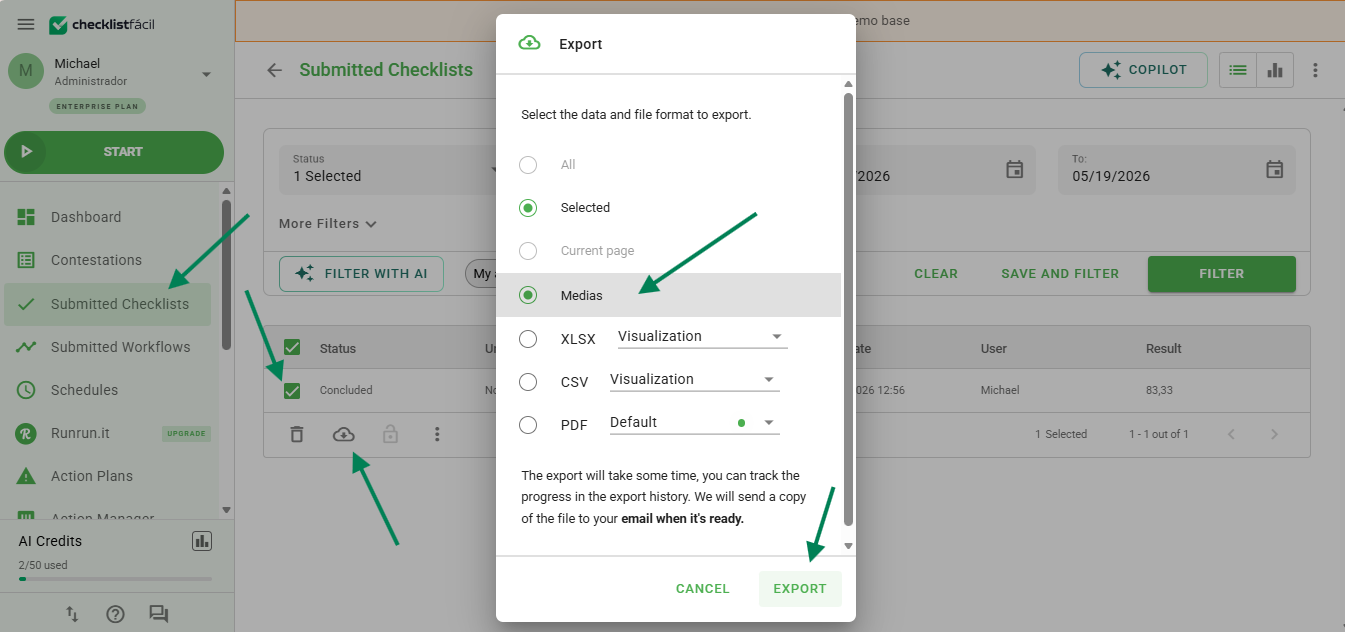
On the Applied Checklists screen, filter and identify the desired assessments. Select the items in the list, click the Export button, and choose the Media option.
Export via Assessment View
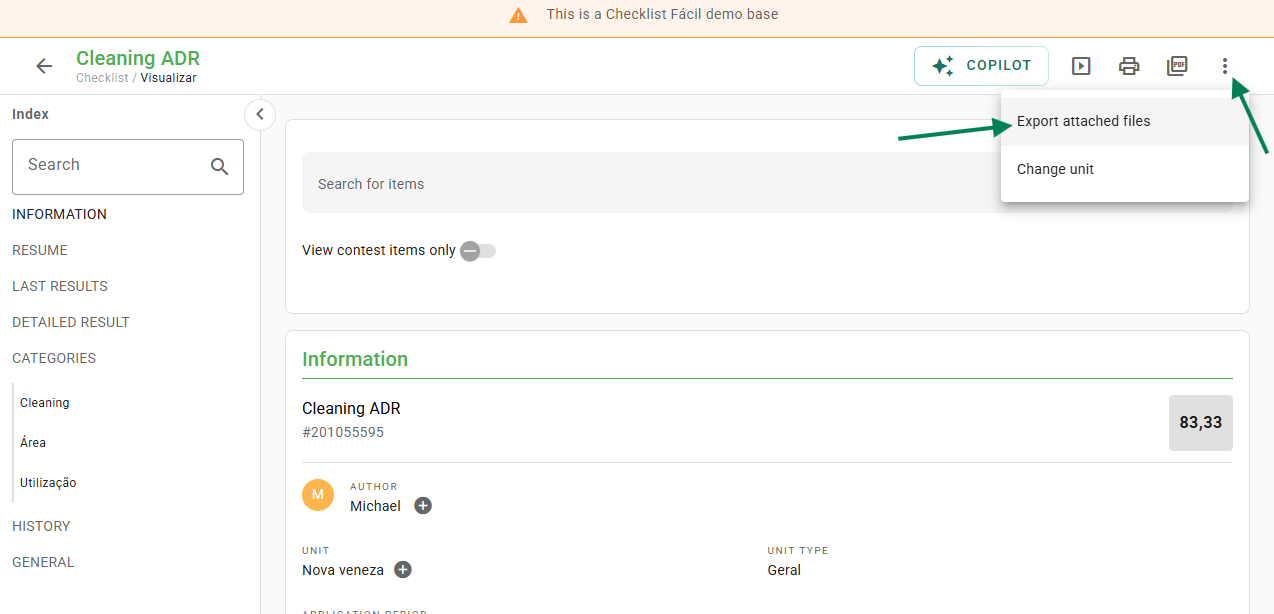
It is also possible to request media while viewing a specific assessment. Click the options menu (three dots icon) and select Export media.
How to download the generated file
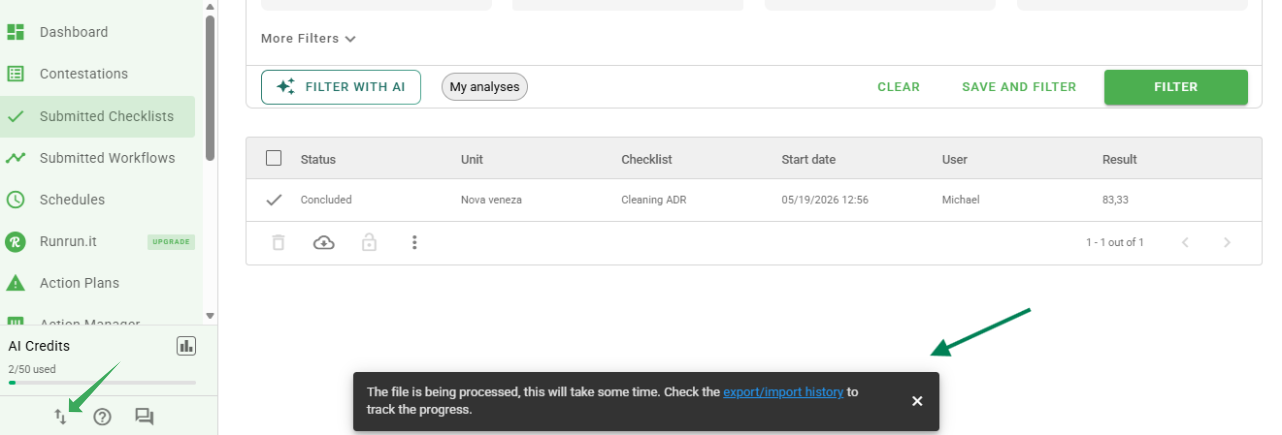
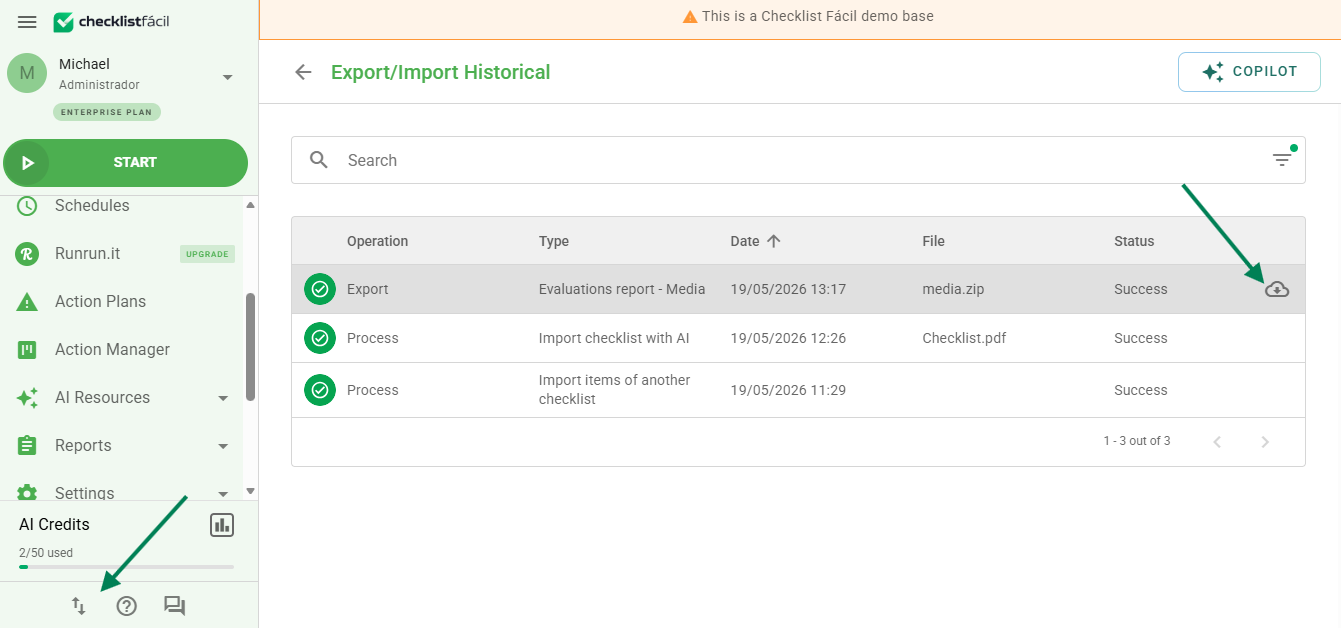
After the request, the system will process the data. The file will be available on the Import/Export History screen, located in the lower-left side menu.
Processing time may vary depending on the quantity and size of the requested images.
To download, hover your mouse over the desired export in the list and click the Export button (Download).
Frequently Asked Questions (FAQ)
1. Can I export media via the mobile app?
No. Currently, the bulk media export feature is only available through Web access (browser).
2. Where do I find the file after clicking export?
The download is not immediate. You must access the Import/Export History menu in the left sidebar to download the file once the status is concluded.
❓Tem dúvidas? Entre em contato com nosso time de suporte.