- What are Checklists?
- How to create a checklist?
- Configuring a checklist from scratch: Registration Data tab
- Configuring a checklist from scratch: Structure tab
- Configuring a checklist from scratch: Departments tab
- Configuring a checklist from scratch: Unit Types tab
- Configuring a checklist from scratch: Users tab
- Frequently Asked Questions (FAQ)
Learn everything about creating and editing checklists and further optimize your process!
What are Checklists?
Checklist is the term used for a set of items or questions that need to be answered or evaluated during an audit or inspection, whether internal or external.
In this sense, the answers obtained through the application of a checklist can function as indicators of the unit you are evaluating.
Do you know what units are? Access the following article to learn more: Click here
How to create a checklist?
Follow the steps below and see how simple and intuitive it is to create a checklist:
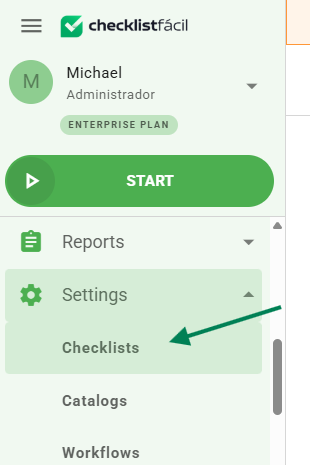
Step 1: On the left side menu of the system, click on Settings and then on Checklists.
Step 2: There are 4 ways for you to create a checklist, with the following options: (1) New, (2) Create checklist with AI, (3) Create checklist from scratch, or (4) Create checklist from a template.
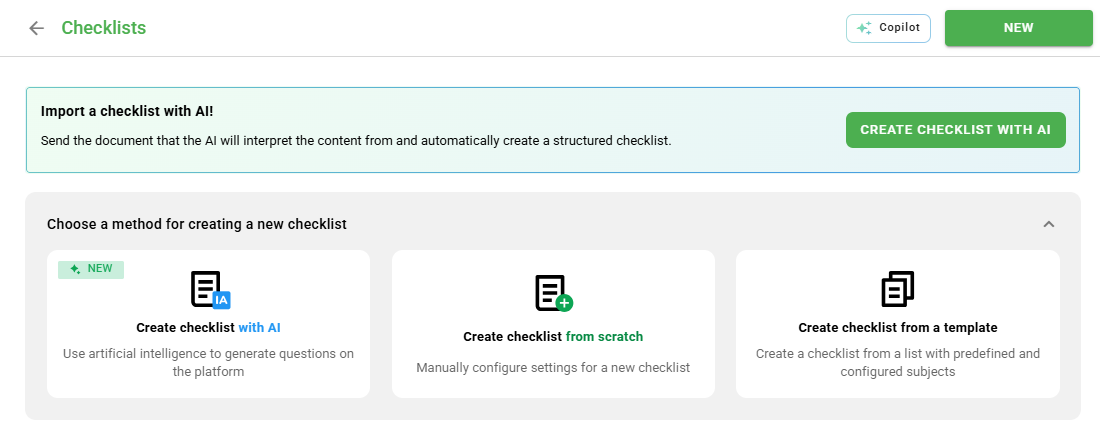
See what each of these options means:
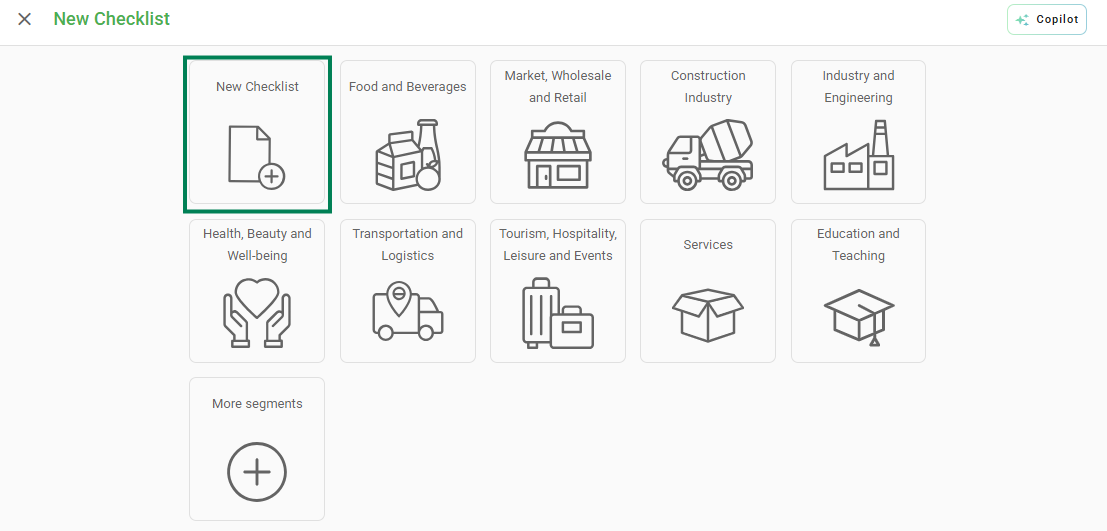
- (1) New: when clicking this button, a page will open with several options, including New Checklist. Here it is possible to create your evaluation with the items and stages you need.
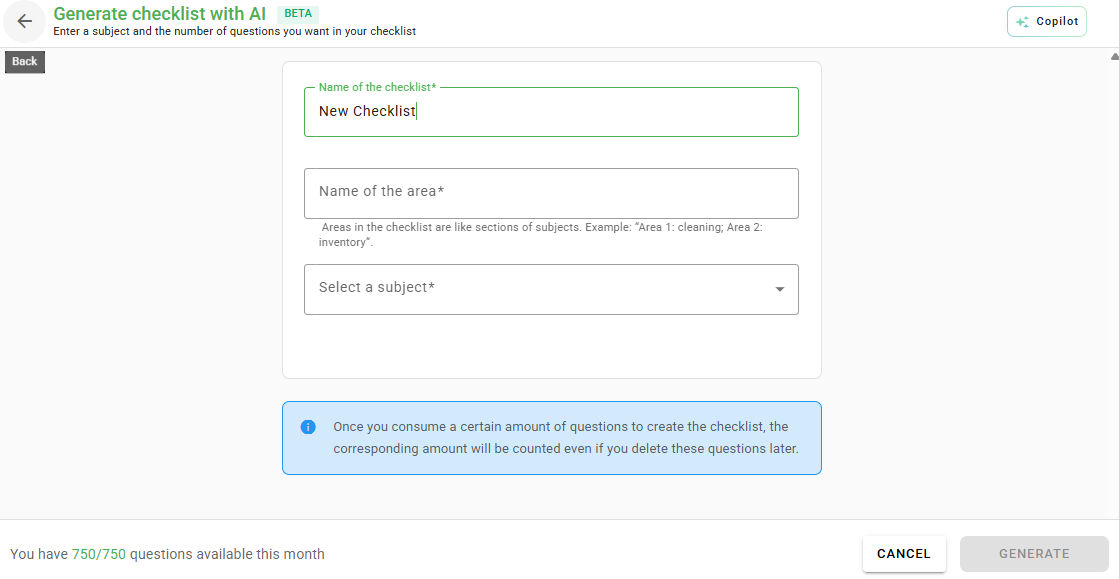
- (2) Create checklist with AI: this option enables you to use artificial intelligence (AI) to generate questions for your checklist, optimizing time. Just give it a name, type the area name, select a subject of interest, the number of questions you want, and that's it: your checklist will be generated automatically!
- (3) Create checklist from scratch: this option is very similar to the first one (New button) and has the same purpose.
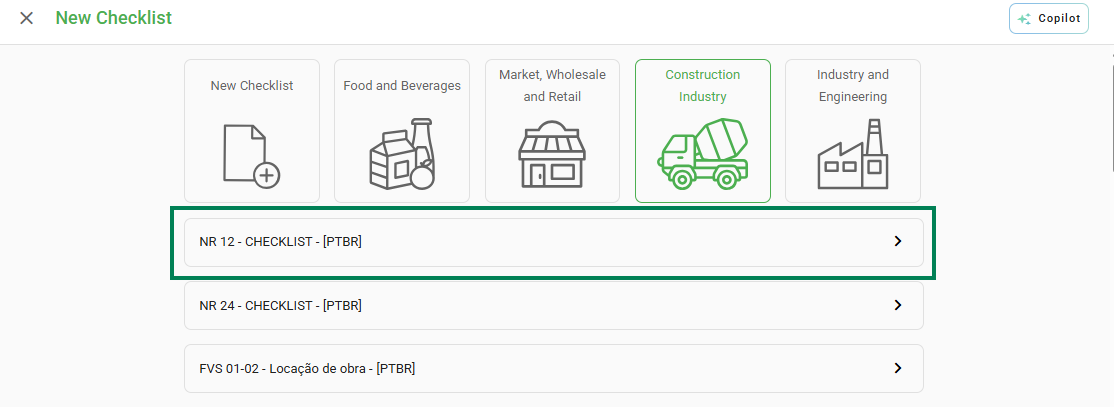
- (4) Create checklist from a template: this option allows you to reuse existing checklist templates, such as in the Construction Industry example:
Configuring a checklist from scratch: Registration Data tab
If you choose to create a checklist from scratch, the first step is to fill in the Registration Data, available in the first tab of the checklists screen.
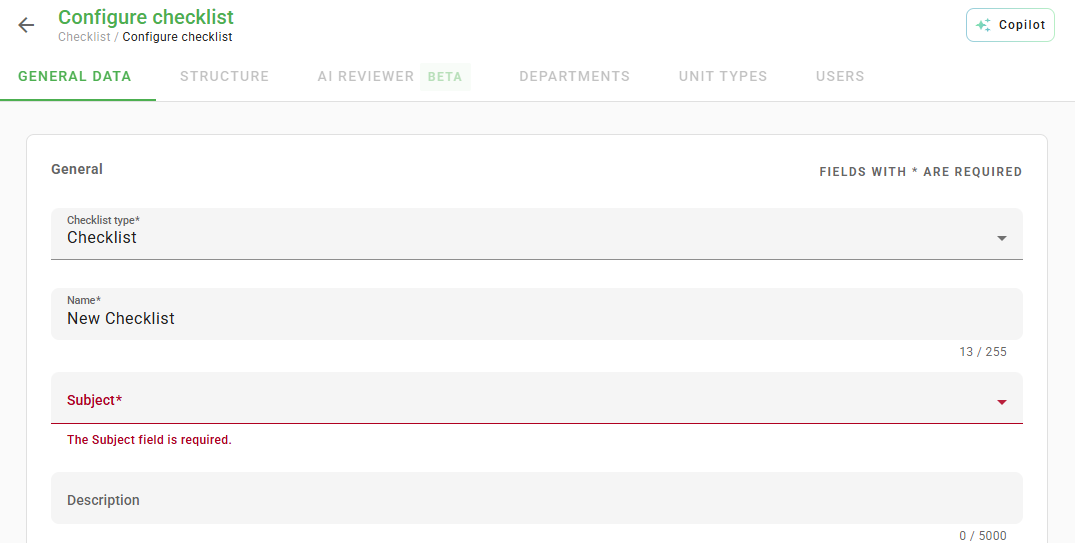
Here you will name your checklist, select a Subject from the dropdown list or click on "Other Subject" and create a description, if necessary. Additionally, it is possible to include an attachment that is useful at the time of application.
After finishing the registration, set this checklist to active and click Save at the bottom of the page. Done!
In the Registration Data tab, you can also configure various fields, such as notifications and reports. Click on the following article to learn what each of these options are and what they are for: Click here
Configuring a checklist from scratch: Structure tab
The next tab is Structure, where you will add questions and complements to your checklist. Generally speaking, this is the part that will be evaluated by the applying user.
See the step-by-step on how to fill in this tab:
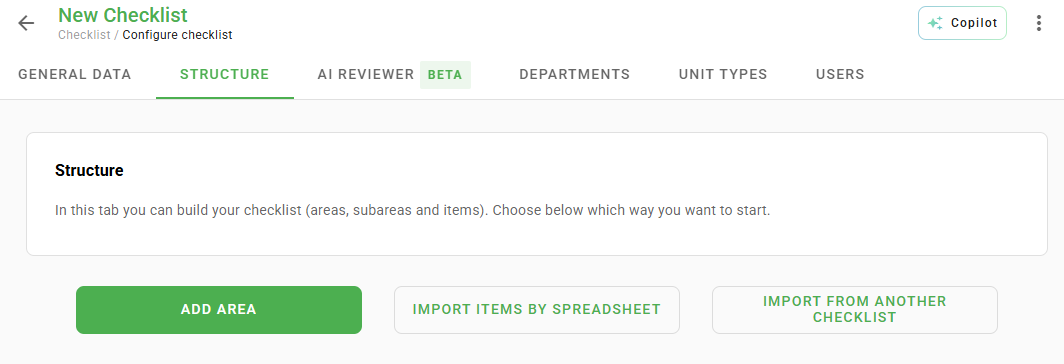
Step 1: To start creating your checklist, click Add area.
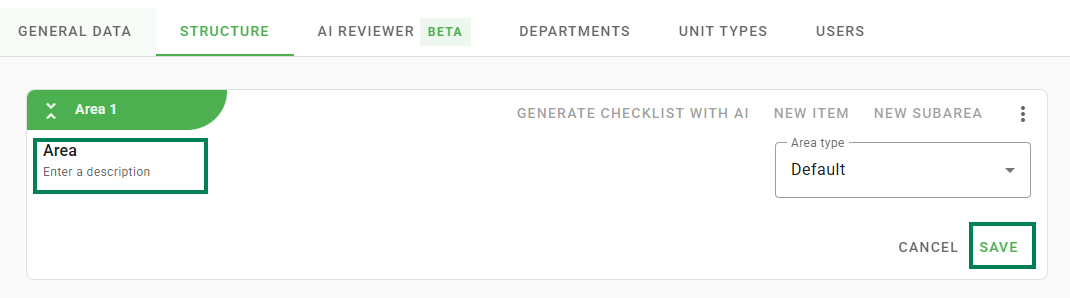
Then, choose a name for it, a description (optional), the type of area you want (standard or image), and click Save.
* If you want an even more detailed division, you can create subareas. The process is the same as creating an area.
** You can add as many areas as you wish within a checklist.
*** If you prefer, it is possible to import items into the created areas.
Step 2: With the area created, it's time to add the items that will be evaluated by clicking New item.

When adding an item, you will have some fields to configure. These fields will appear to the applicator when they are applying the checklist. See what each field means:
- Item: it is in this field that you will add exactly what the applicator should evaluate. Examples: "Is the floor clean?" or "Is the instrument panel working properly?".

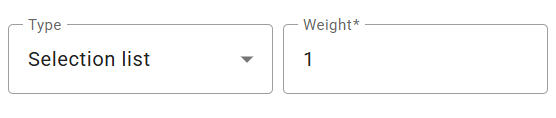
- Type: this field refers to the way the item will be evaluated, and you can choose one of the 7 existing options.
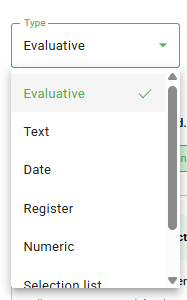 Evaluative Type: this is the most common type, providing three answer options: Yes or No, evaluative faces, or additional response scale (N/A or Medal).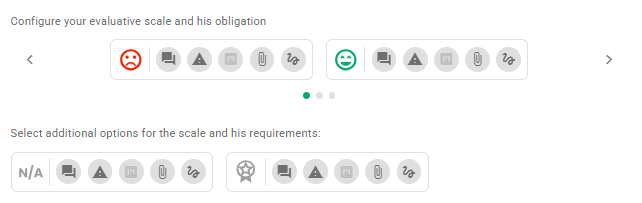
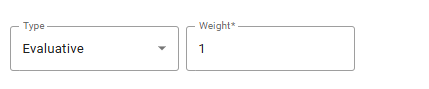
- In the evaluative type, you can also choose the weight this item will have in the final evaluation.
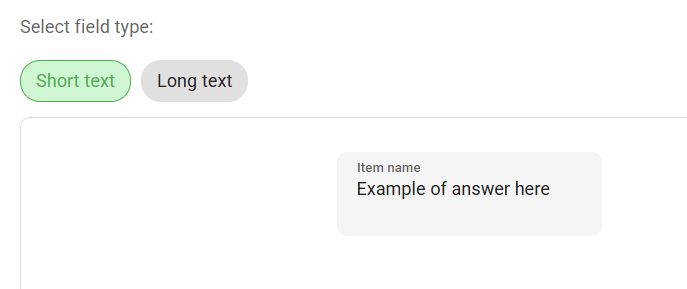
- Text Type: enables the item to be answered in a short text or long text field.
- Date Type: allows a value to be selected, respecting the chosen display standard.
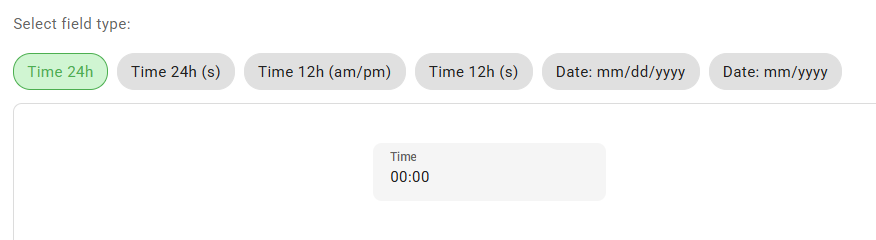
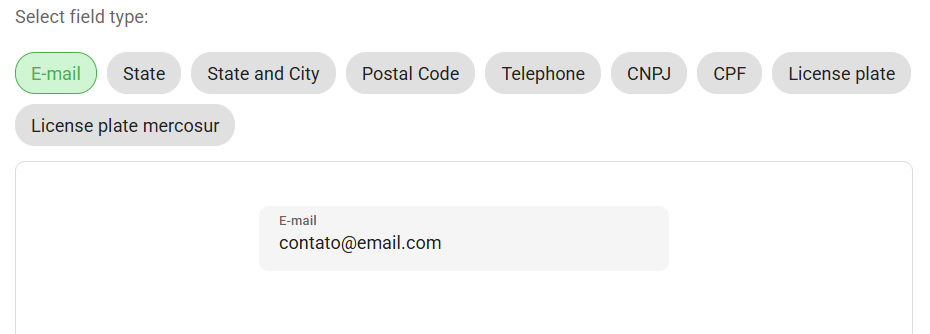
- Registration Type: brings several filling options, such as email, state, license plate, among others.
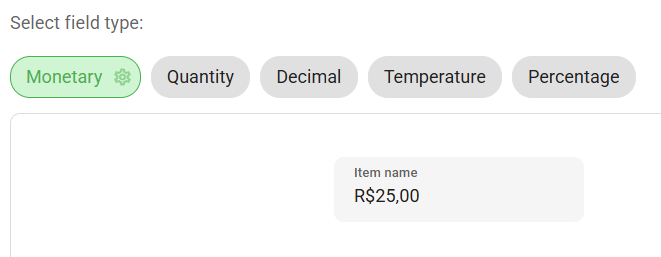
- Numeric Type: allows defining the format in which the value will be answered, such as quantity, decimal value, monetary, and percentage.
- Selection List Type: allows creating a list of options. It is possible to define single or multiple selection.
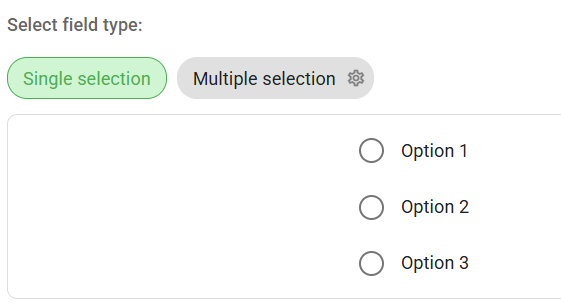
- In this type, you can also choose the weight this item will have in the final evaluation.
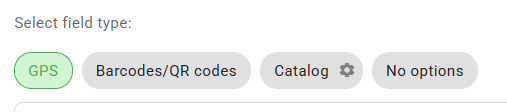
- Special Type: includes options to respond with GPS, barcode/QR code, product, or no option.
- Desired Complements: regardless of the type of item chosen, there is the possibility of enhancing the responses through complements. If selected, the applicator must mandatory fill them in:

Comment: you can configure, for example, that whenever an item is evaluated with a certain face, a comment is required.
Action Plan: if activated, if an item presents a certain evaluation, it is mandatory to open an action plan.
Attachments: requires an attachment to be included depending on the evaluation.
Signature: requires the applicator to insert a signature depending on the evaluation.
In the Structure tab, you can also configure fields such as item tip, display, barcode, etc. See details in the article: Click here
After filling in the data about the item, choose if it is mandatory to fill in and click Save. You can add as many items as you wish within an area.
Configuring a checklist from scratch: Departments tab
The third tab is Departments. In it, you will link the checklist to a specific department previously configured. Simply enable the link in the corresponding boxes and Save.
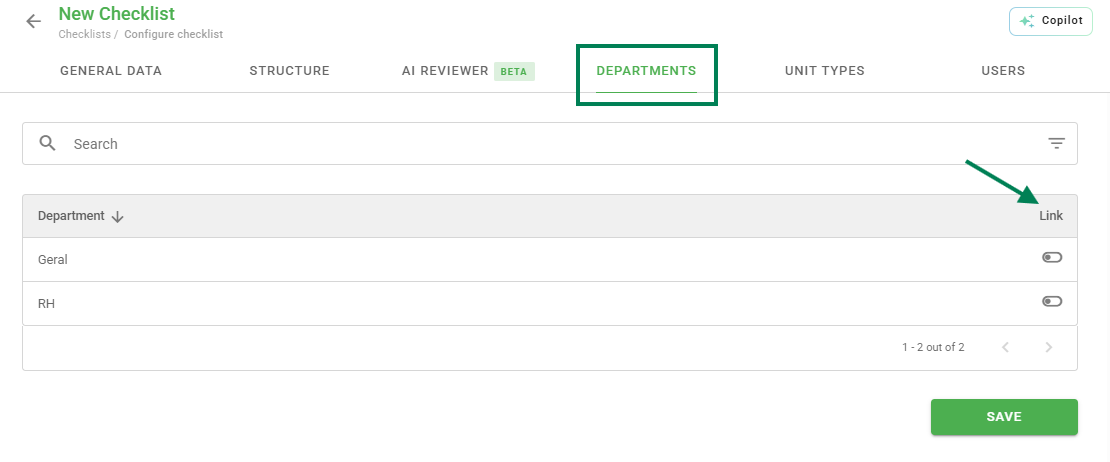
Don't have departments registered yet? Access this article and learn how: Click here
Configuring a checklist from scratch: Unit Types tab
The fourth tab is Unit Types. In it, you will link the checklist to a specific unit type. Simply enable the link in the corresponding boxes and Save.
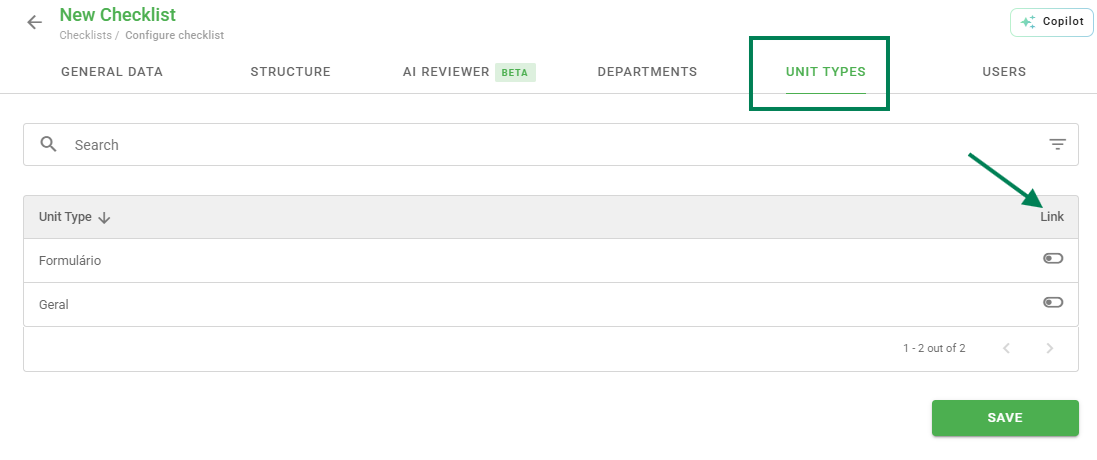
Don't have unit types registered yet? See how to register them: Click here
Configuring a checklist from scratch: Users tab
The last tab is Users, where you will link this checklist according to the role each user will play in the evaluations. Simply enable the link in the corresponding boxes and Save.
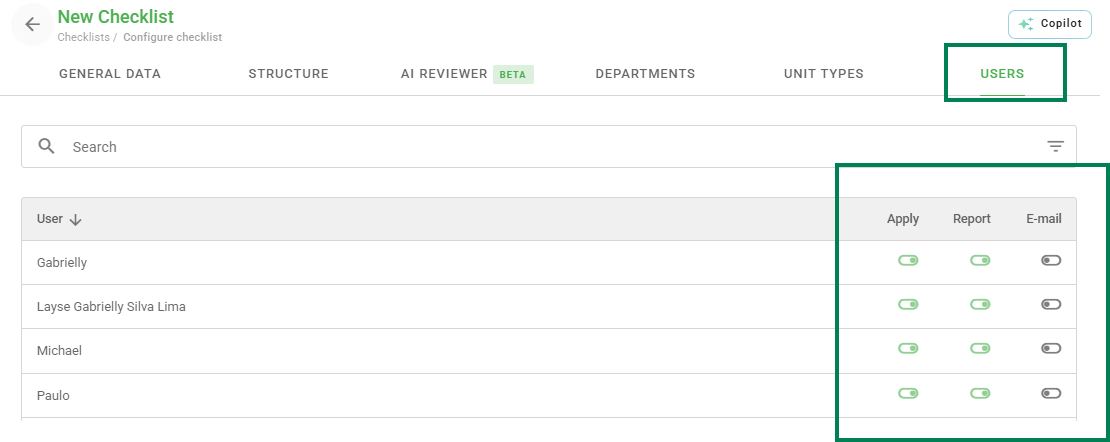
Haven't you registered your users yet? Learn how: Click here
Frequently Asked Questions (FAQ)
1. Is it possible to edit any information of a checklist?
Yes! If you want to add or change any information, go to the add checklists screen, hover the mouse cursor over the one you want to change and click Edit on the highlighted icon.
The editing screen allows you to change fields, activate/deactivate user, department, and unit type links, as well as edit the structure. Don't forget to click Save when finished.
2. Is it possible to delete a checklist?
Yes, however, only after deactivating it. Next to the edit option, it is possible to deactivate a checklist by clicking on the three dots and then on Deactivate.
After deactivating it, redo the same procedure to Delete the checklist. The system will request a code to confirm the deletion.
❓Tem dúvidas? Entre em contato com nosso time de suporte.