- What is Slide Mode
- Understand the layout of the visualization
- Media behavior
- How to download attachments
- Frequently Asked Questions (FAQ)
What is Slide Mode
Slide Mode is a more immersive way to view and present information from an applied checklist. With it, you view the question information sequentially, highlighting all attachments and complements.
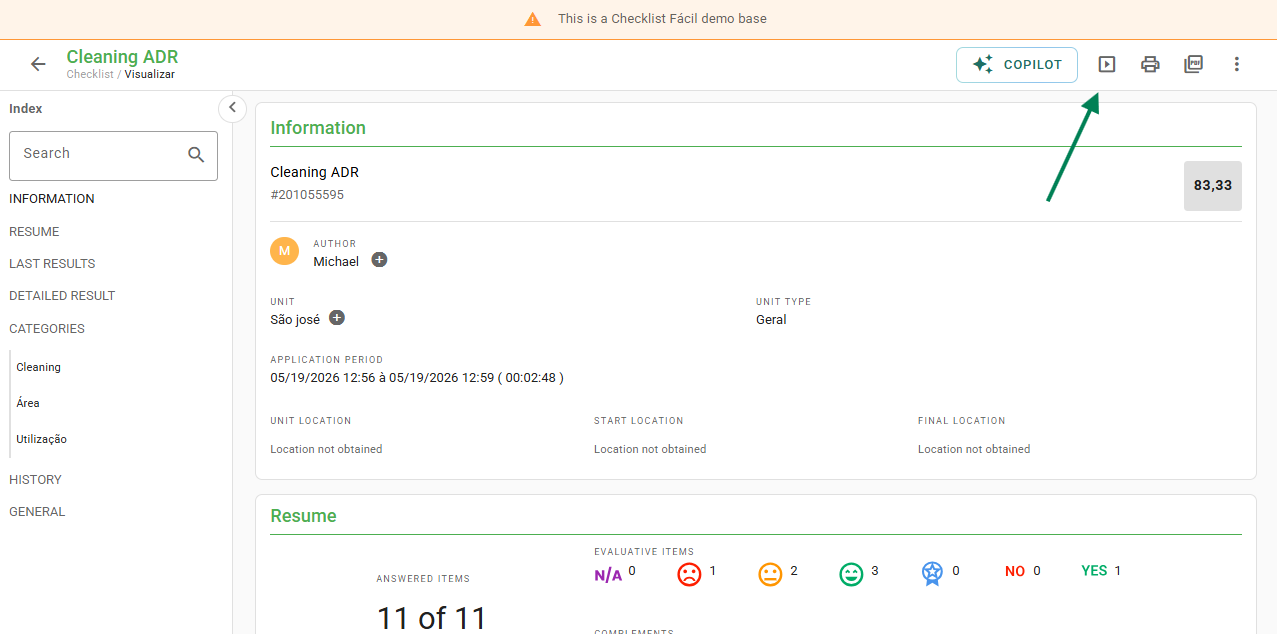
The option is available in the upper right corner of the checklist report:
Understand the layout of the visualization
When activating the mode, the visualization is arranged as follows:
- Center of the screen: Displays the attachments of the item in question;
- Upper right corner: Media counter for the item;
- Top: Thumbnails of the media attached to the item (located just above the featured media);
- Footer: Information of the answered item (such as area, description, answer, comment, and action plan) and navigation buttons;
- Sides: Arrows on the right and left to navigate between the items' answers.
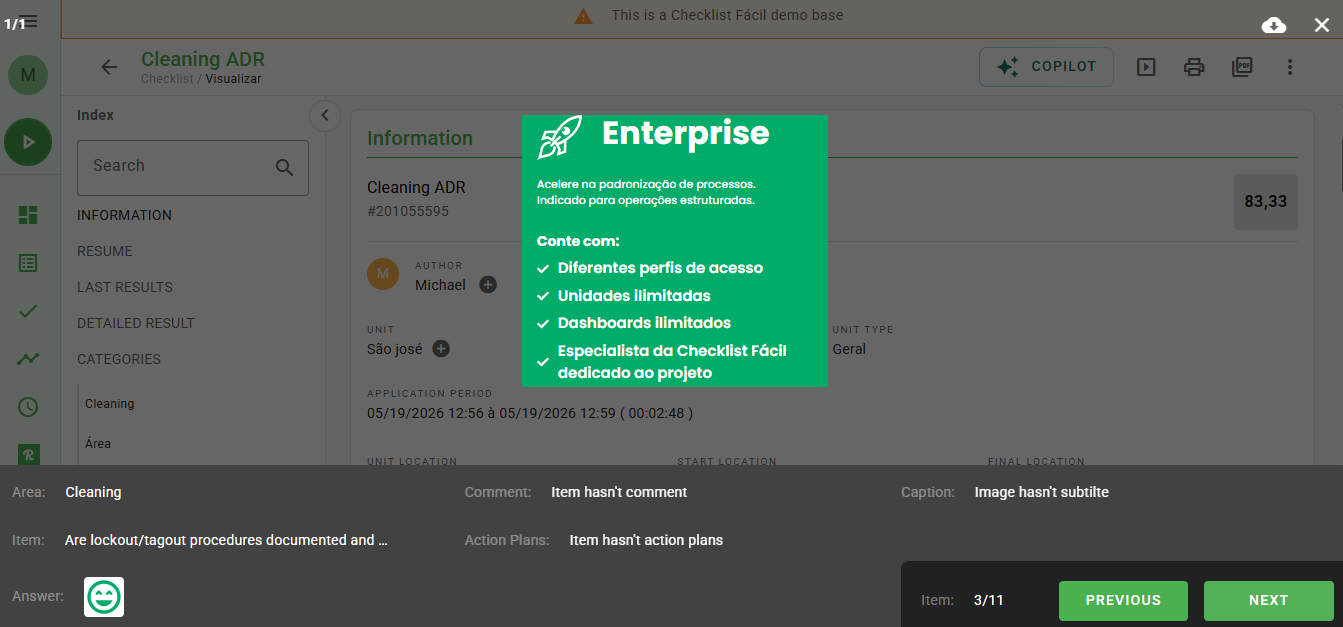
Use the keyboard arrows or click the side arrows on the screen to move forward or backward through the checklist items.
Media behavior
Media in Slide Mode behaves in specific ways depending on the file type:
- Images: Displayed according to orientation (landscape or portrait);
- Videos and Audios: Display the icon referencing the file type and the extension acronym;
- Documents (PDF, XLSX, CSV): Display the document icon and the extension acronym;
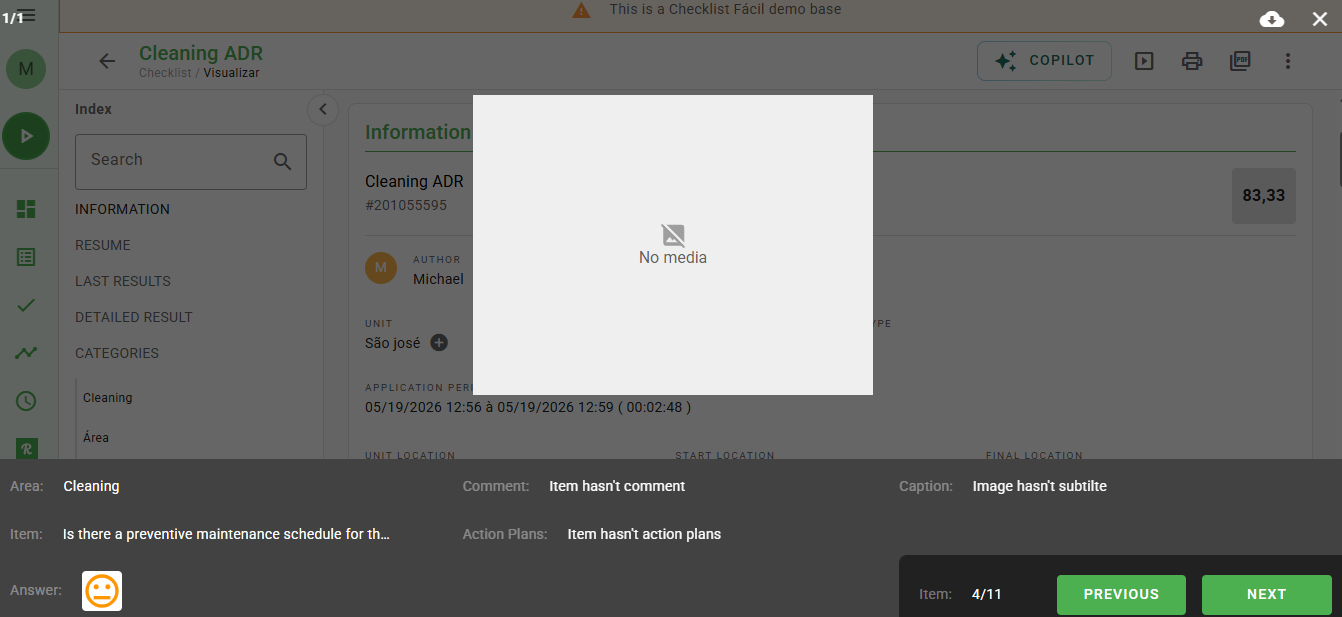
- No media: Presents a default image indicating the absence of attachments.
How to download attachments
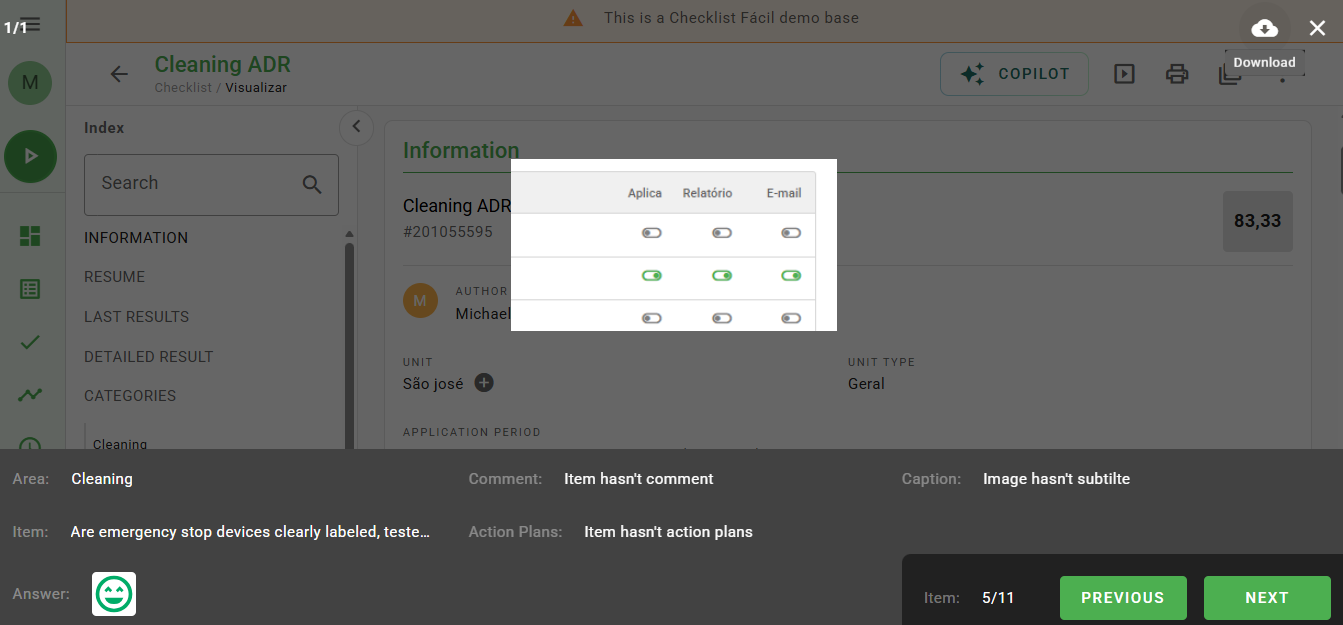
It is also possible to download files directly through this visualization. Simply click the download icon located in the upper right corner.
Frequently Asked Questions (FAQ)
1. What happens if the item does not have any photo or attachment?
The system will display a default image (placeholder) in the center of the screen, visually indicating the absence of attachments in that specific item.
2. Can I watch videos directly in Slide Mode?
No. For video, audio, and document files (such as PDF or Excel), Slide Mode displays a representative icon. You must download the file by clicking the download icon to view it on your device.
❓Tem dúvidas? Entre em contato com nosso time de suporte.