- Overview
- When to use the identifier item?
- What is it for
- How to configure the identifier item
- Eligible item types
- How it works during application
- How to view the identifier item
- Synchronization and Offline Mode
- Best practices
- Frequently Asked Questions (FAQ)
Overview
The Checklist Identifier Item allows you to define a specific item whose response will be displayed directly in listings. This feature solves the difficulty of differentiating checklists that share the same name or unit but have distinct internal content.
When to use the identifier item?
- When you have checklists with the same name/unit;
- When you need to quickly identify records in the app;
- When you want to avoid opening multiple checklists to find a specific one.
What is it for
This tool is essential to optimize the operational routine, providing:
- Cognitive effort reduction: Less need to memorize details of each open checklist.
- Productivity gain: Fast identification without having to navigate internally through each record.
- Operational security: Reduced risk of errors when selecting the correct checklist.
How to configure the identifier item
The configuration is done directly in the checklist template structure on the Web.
Important rules:
• Only users with permission to edit checklists can perform the configuration.
• Only 1 identifier item is allowed per checklist.
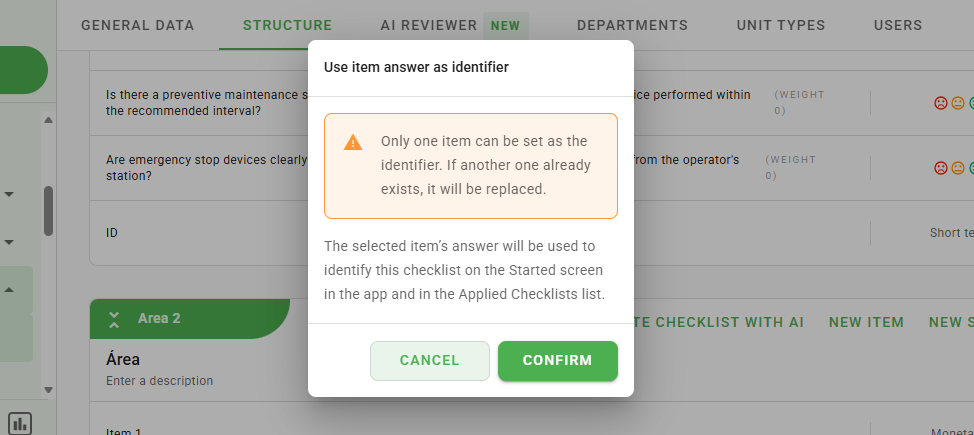
• If you define a new item as an identifier, the previous one is automatically removed.
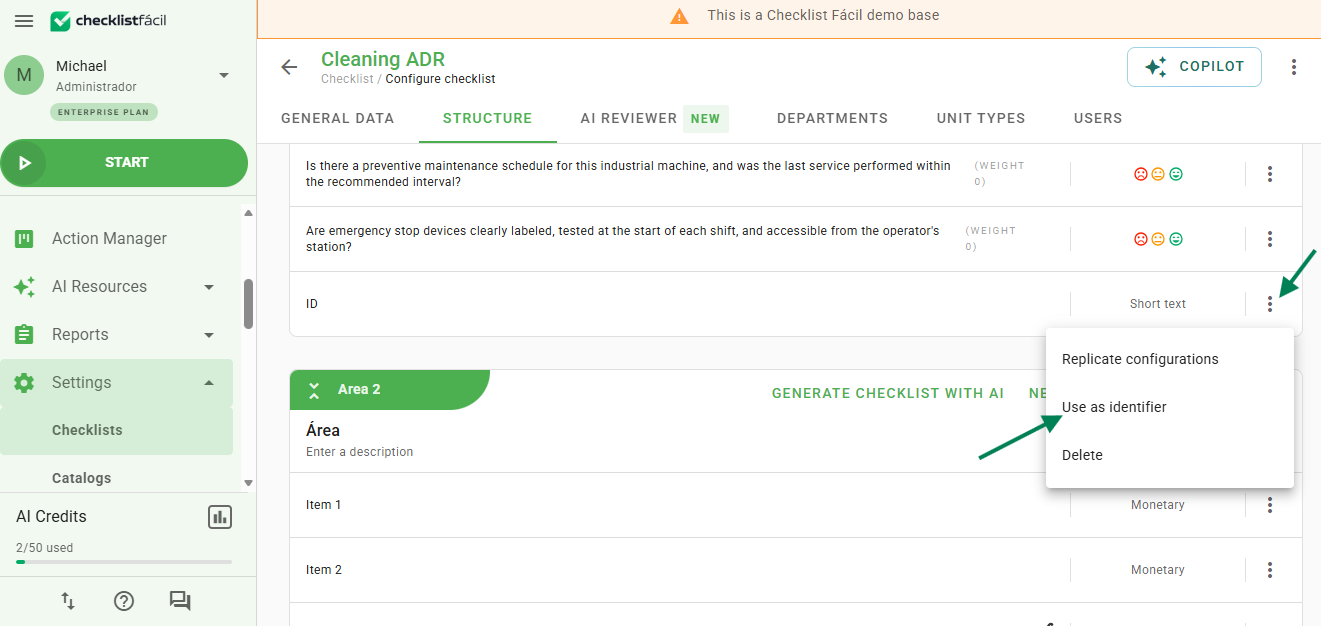
Step 1: Access the checklist editing interface and locate the desired item. Click on the item option menu and select "Use as identifier".
Step 2: Confirm your choice in the pop-up window that appears.
View of the identifier item in the structure: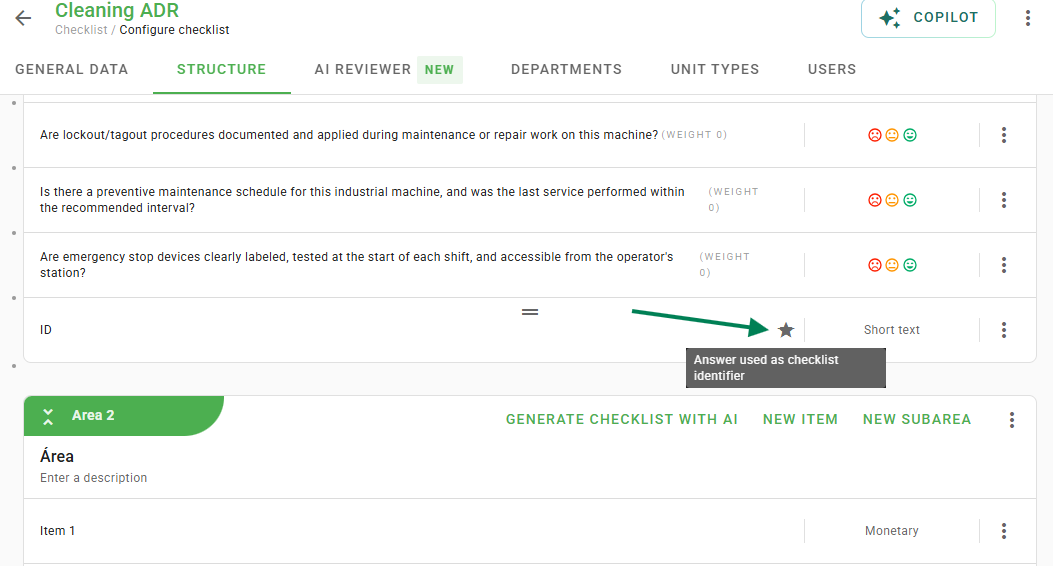
Eligible item types
To be an identifier, the item must belong to one of the following types:
| • Short text | • Date | • ZIP code |
| • Phone | • CNPJ | • CPF |
| • License plate | • Barcode | • Product (single selection) |
Attention: If the item type is changed to an ineligible format, it automatically loses its function as an identifier.
How display works when applying
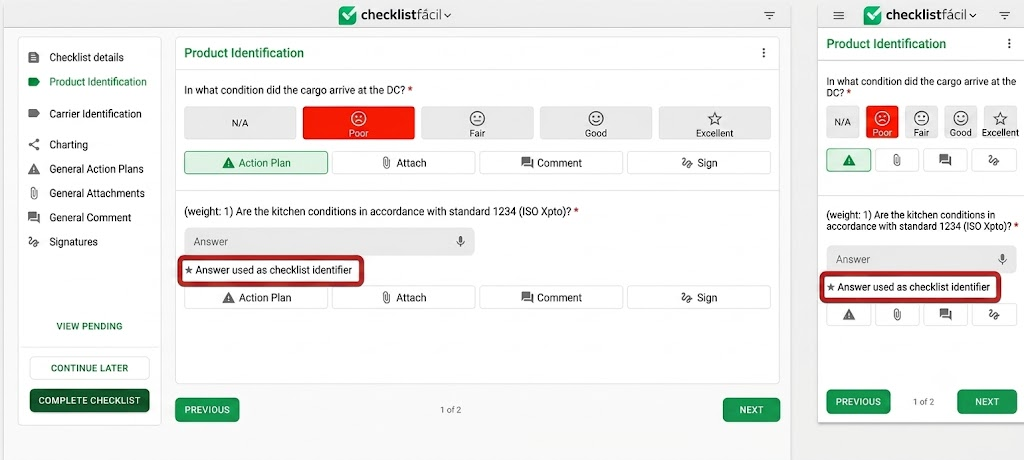
During filling (Web or App), the identifier item displays a visual tag with the text "Response used as checklist identifier" right below the field. This indication is purely informative and does not change requirement rules.
How to view the identifier item
In the Application:
In the list of started checklists, the response appears below the name and unit, always accompanied by a star icon. The information only appears if the field has already been filled out.
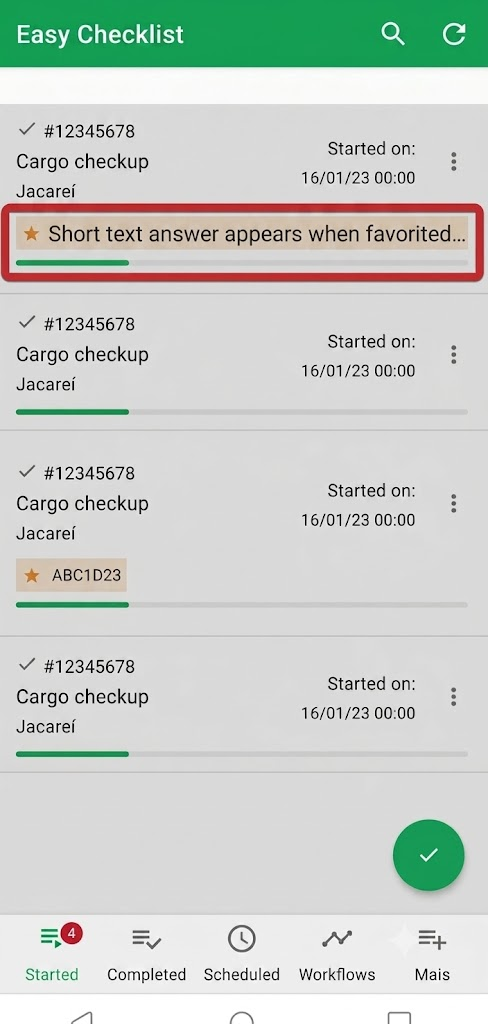
If the identifier item has not been answered, no information will be displayed in the listing.
On the Web (Applied Checklists):
You must activate the "Identifier item" column using the "Reorganize columns" option.
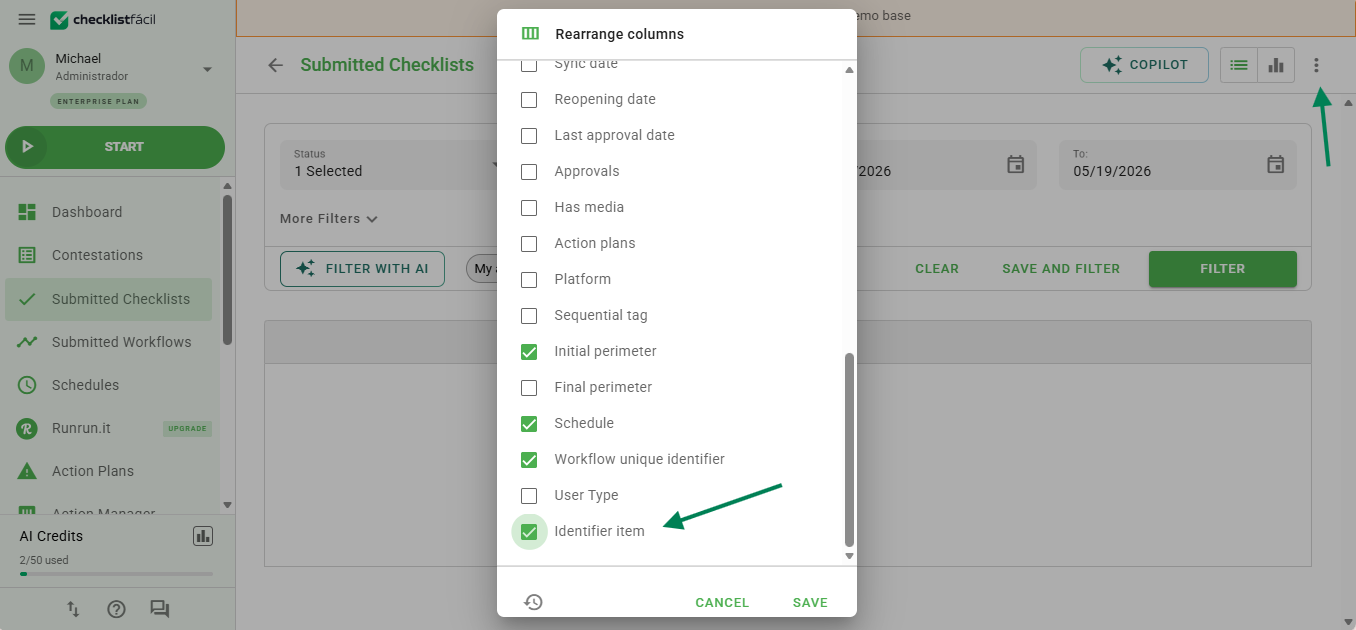
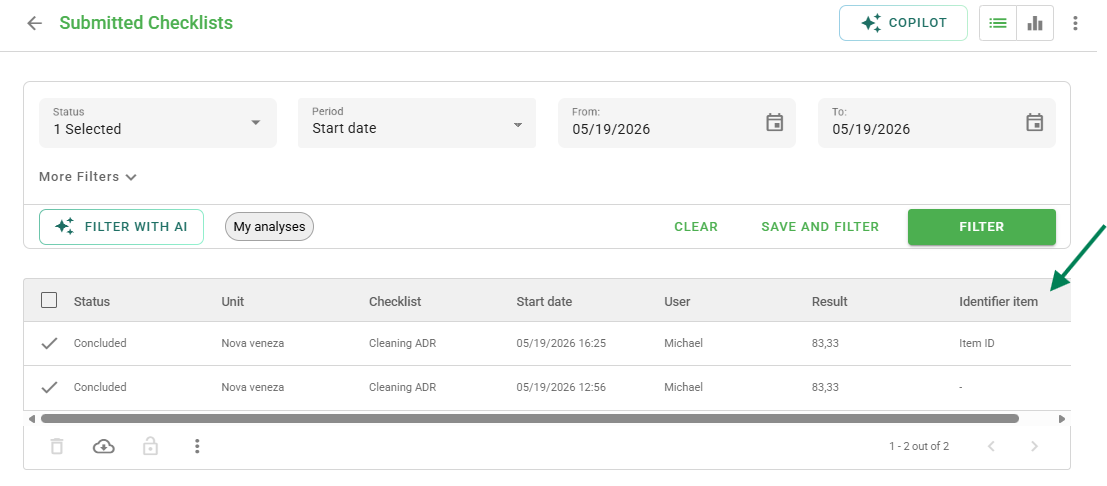
After checking the option, it will appear before the result column:
Synchronization and Offline Mode
Operation within the application depends on data synchronization:
- The identifier configuration is downloaded during the data update and stored locally.
- Changes made on the Web will only reflect in the App after a new synchronization.
- The response display works normally even if the device has no connection.
Best practices
• Choose items with unique values that are easy to recognize, such as License plate, CPF, or Barcode.
• Avoid generic items that could repeat across many checklists.
• Remember that only the first 15 characters appear in the Web listing, so prioritize items where the beginning of the response is already identifiable.
Frequently Asked Questions (FAQ)
1. Can I define more than one identifier item?
No. Each checklist template supports only one item configured as an identifier at a time.
2. Is the identifier item mandatory?
No. The configuration is optional and serves to assist with visual organization.
3. Why does the response not appear in my App listing?
There are two common reasons: either the item has not yet been answered within the checklist, or the application has not yet been updated to receive the new configuration made on the Web.
4. What happens if I change the item type?
If the new type is not on the list of eligible types (such as changing to 'Multiple Choice'), it will automatically stop being the identifier.
5. What are the limitations of this feature?
The main limitations are:
• It allows only 1 identifier item per checklist.
• It is not possible to click on the identifier directly within listings.
• There is no specific change history for the identifier definition.
❓Tem dúvidas? Entre em contato com nosso time de suporte.