Intervals allow you to implement your business rule for numeric items and have them participate in the calculation of the checklist score by means of weight.
*Ranges are available for all types of numeric fields (e.g., Currency, Amount, etc.).
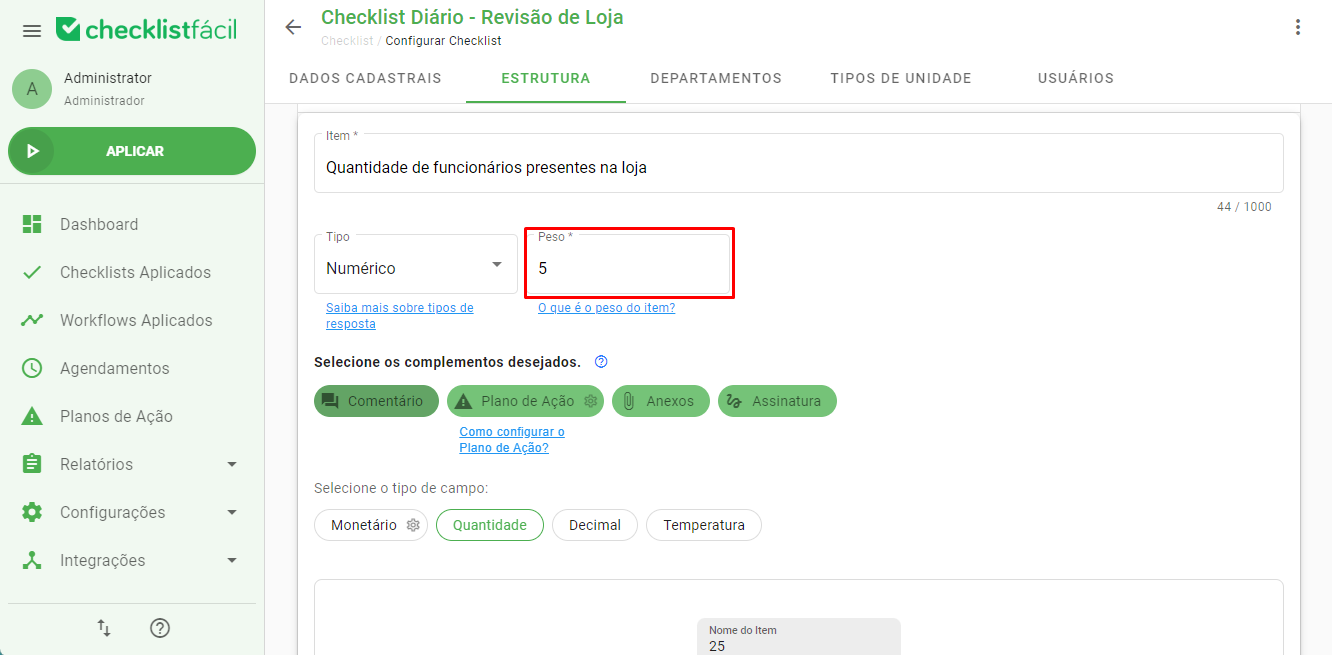
In the interval configuration, we will be able to select the following options:
Any value: Any value will be accepted. similar to the previous behavior of the numerical item;
Greater than: when the value filled in the checklist is greater than the interval rule;
Less than; when the value filled in the checklist is less than the interval rule;
Equals ; when the populated value is equal to the range rule;
Between values: when the populated value is between the two values determined in the range rule.
Then, the Value field (or values, in the case of the Between Values option) must be populated with the expected value for the range rule to be applied. Then, we define what percentage of the weight the interval will count, and finally we choose the mandatory complements:
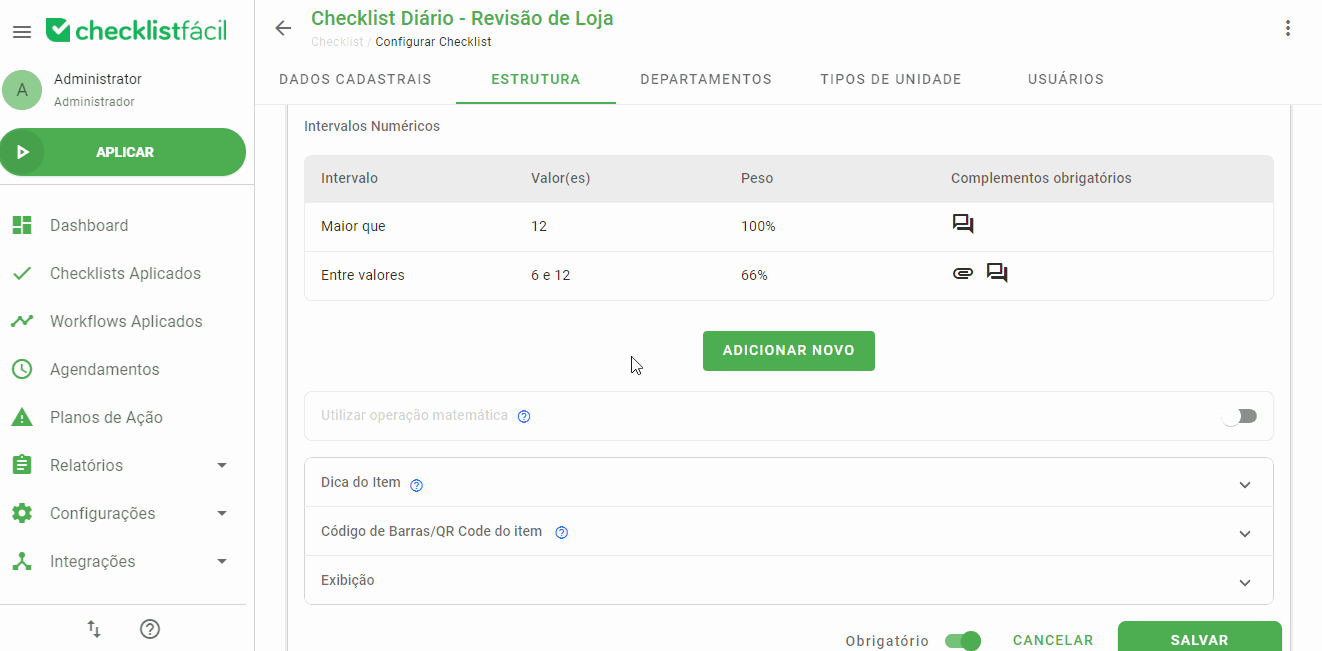
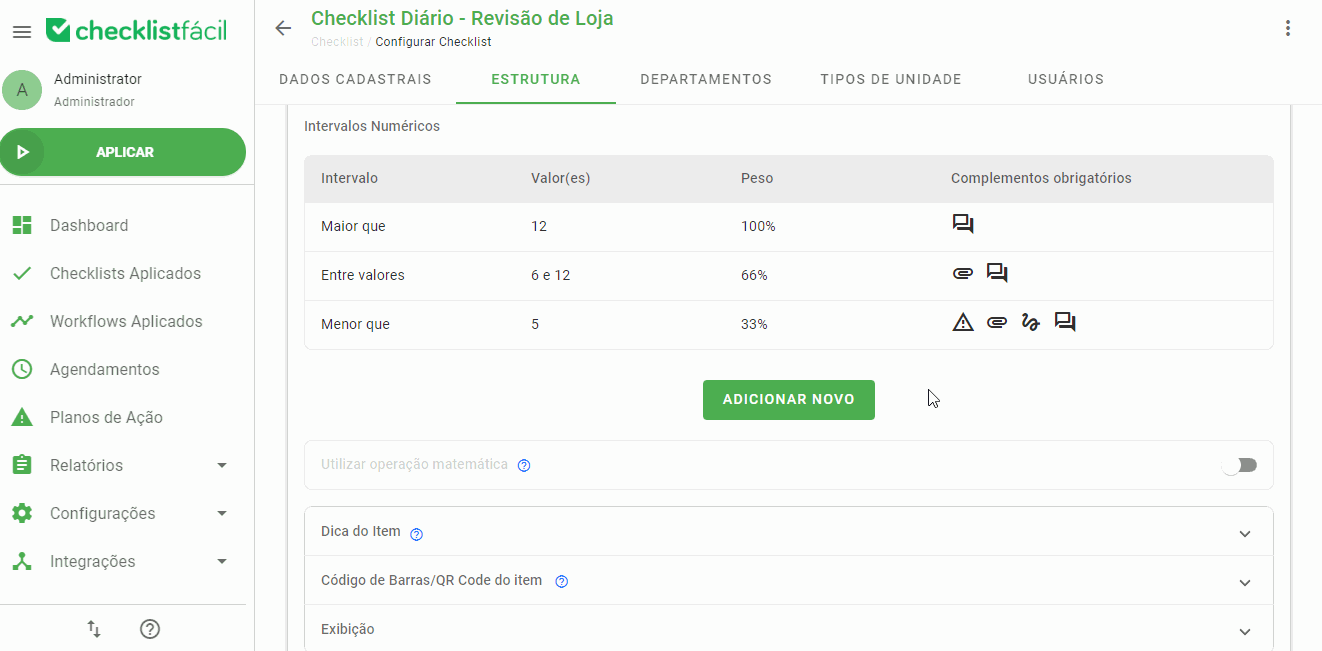
In the image below, an example of an interval for counting employees present in a particular store:
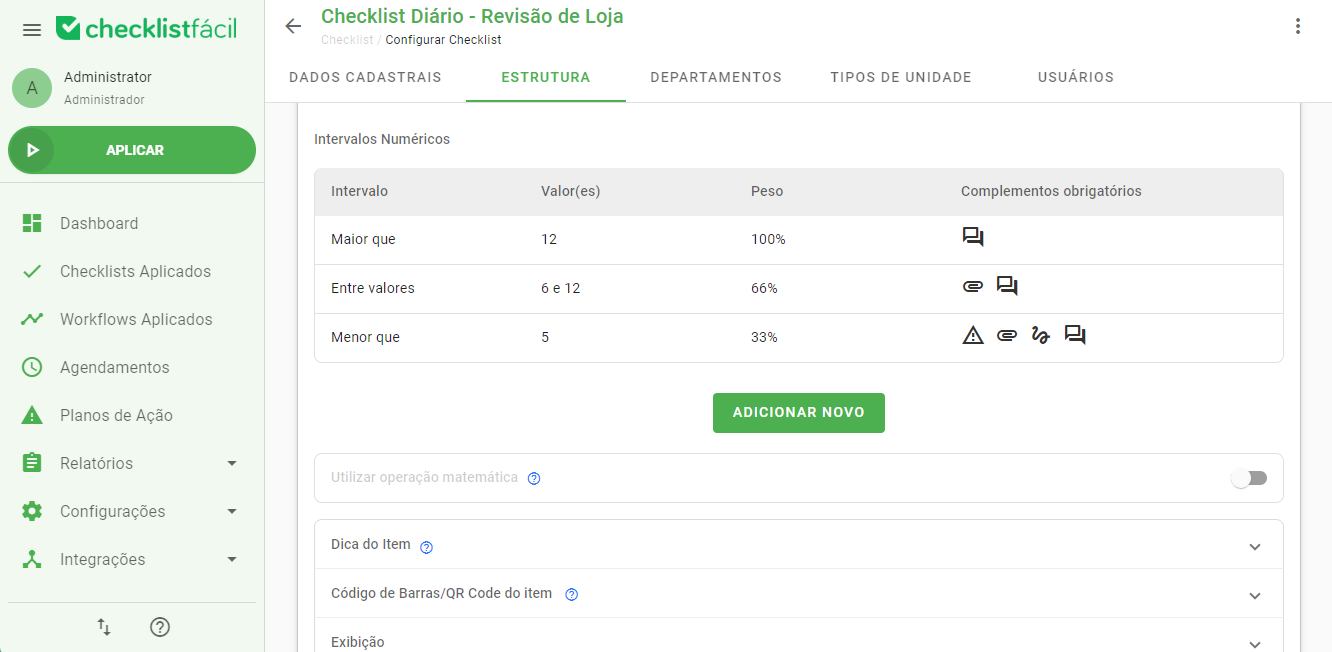
In this example, if the number of employees filled in the checklist application is 10, the item will have 66% of its weight and will need an attachment and comment mandatorily.
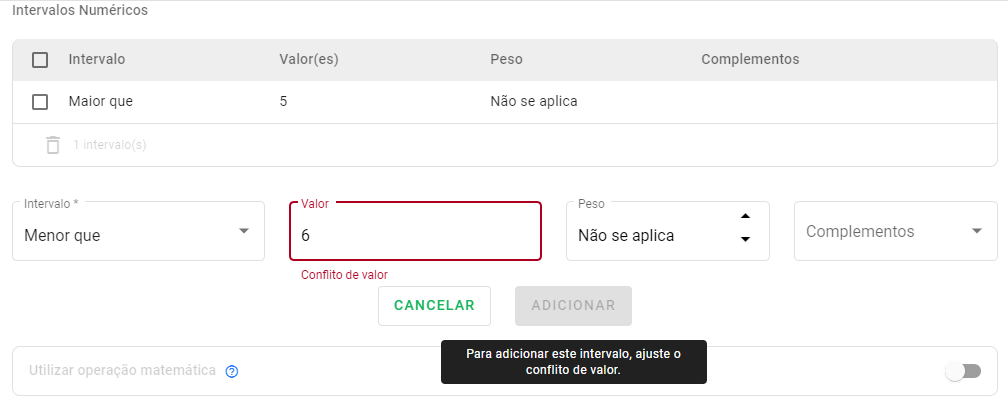
If the value field is filled with a number that conflicts with a range already added in the ranges, the system will warn you of the conflict, surrounding the field in question in red and displaying the following message:
To edit or delete a range, simply hover over it, and click the pencil icon to Edit or the trash can icon to Delete:
➡️ Was this article useful? Leave your review!
❓Do you still have questions? Contact us via chat or ticket!
❓Tem dúvidas? Entre em contato com nosso time de suporte.