Learn how to apply checklists using the Smart Response module to make your visual inspections faster and more accurate.
- How to apply checklists with Smart Response active?
- How does Smart Response answer text-type items?
- Is it possible to answer multiple items using the same image?
- Is it possible to reuse attachments inserted in previous items?
- Is it possible to answer a Smart Response item again?
- Is it possible to delete a photo attached to a Smart Response item?
How to apply checklists with Smart Response active?
The Smart Response module uses Artificial Intelligence to analyze images and suggest responses automatically. This technology is available on the Web platform and in the app (mobile or tablet).
Have not configured Smart Response yet? Click here and learn how to perform the initial configuration.
To use the feature during an application, follow the steps below:
Step 1: In the app, click on the "check" icon (bottom right corner) and select Start checklist.
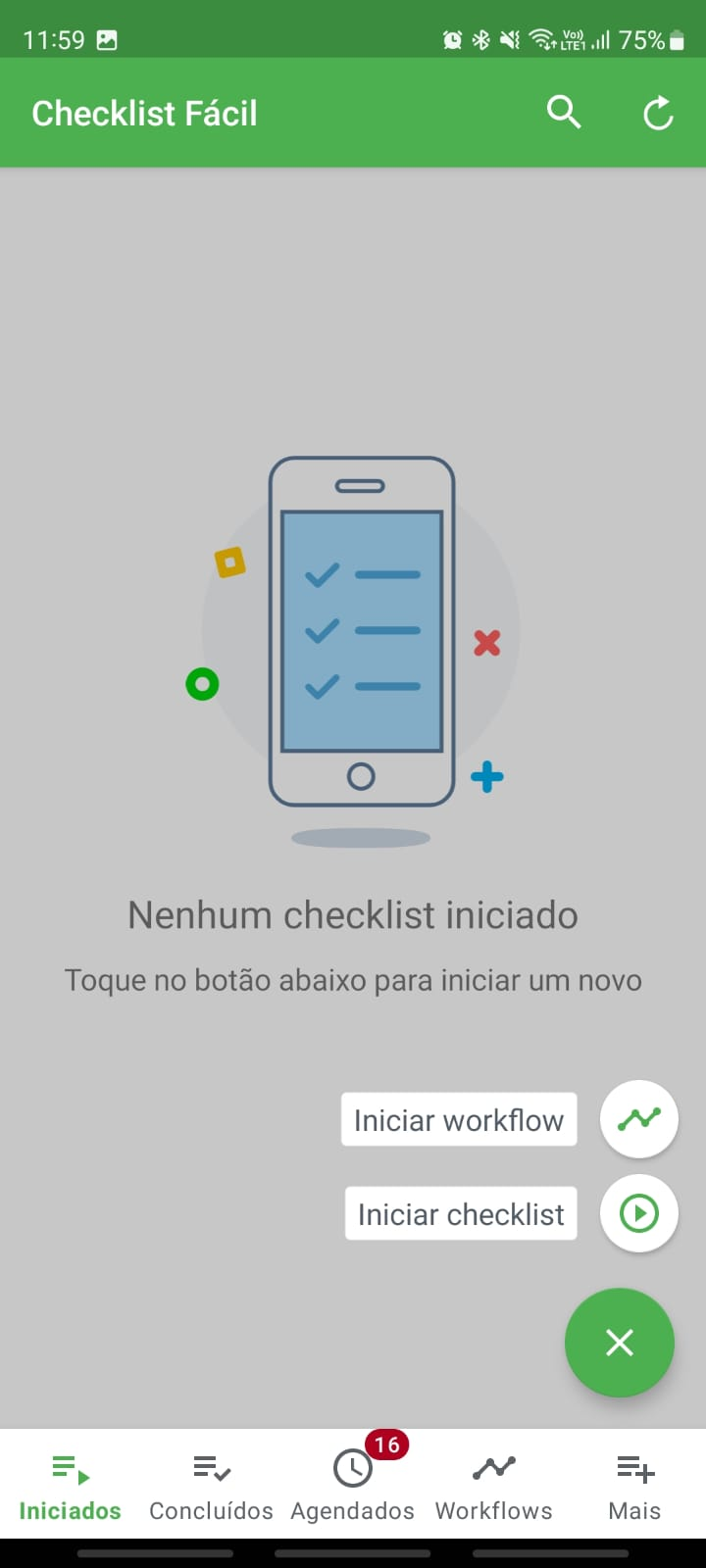
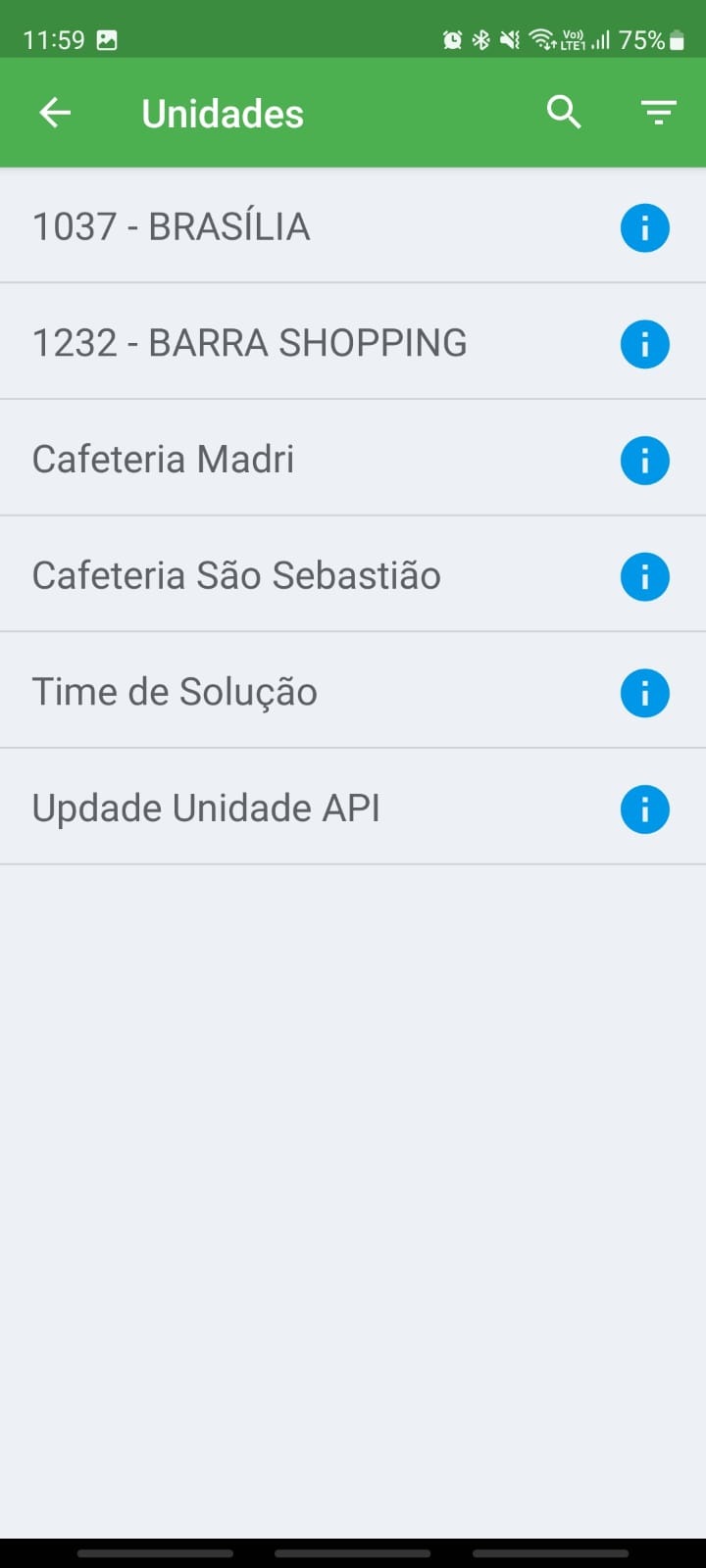
Step 2: Select the desired unit.
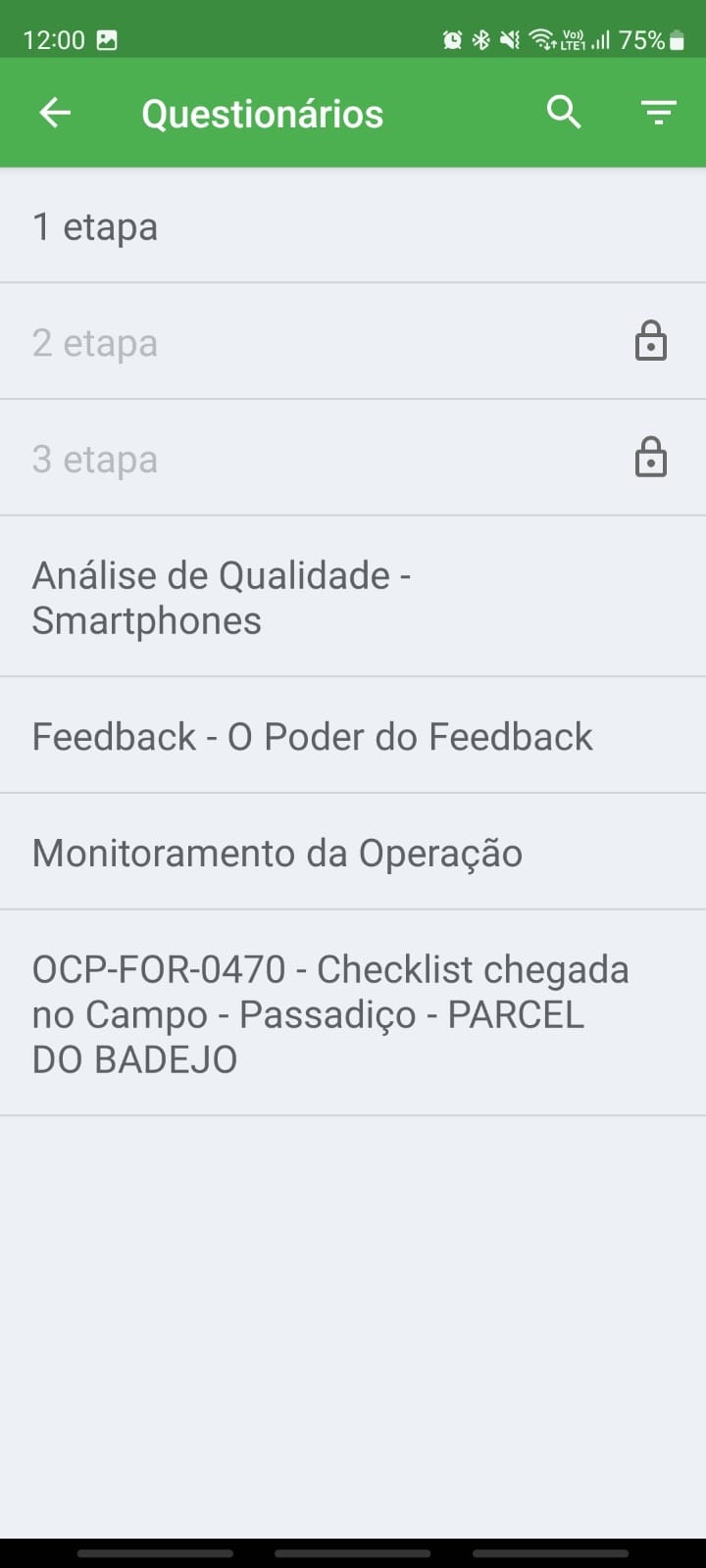
Step 3: Choose the checklist that has the AI configuration.
Step 4: In the configured items, you will see the Attach photo button.
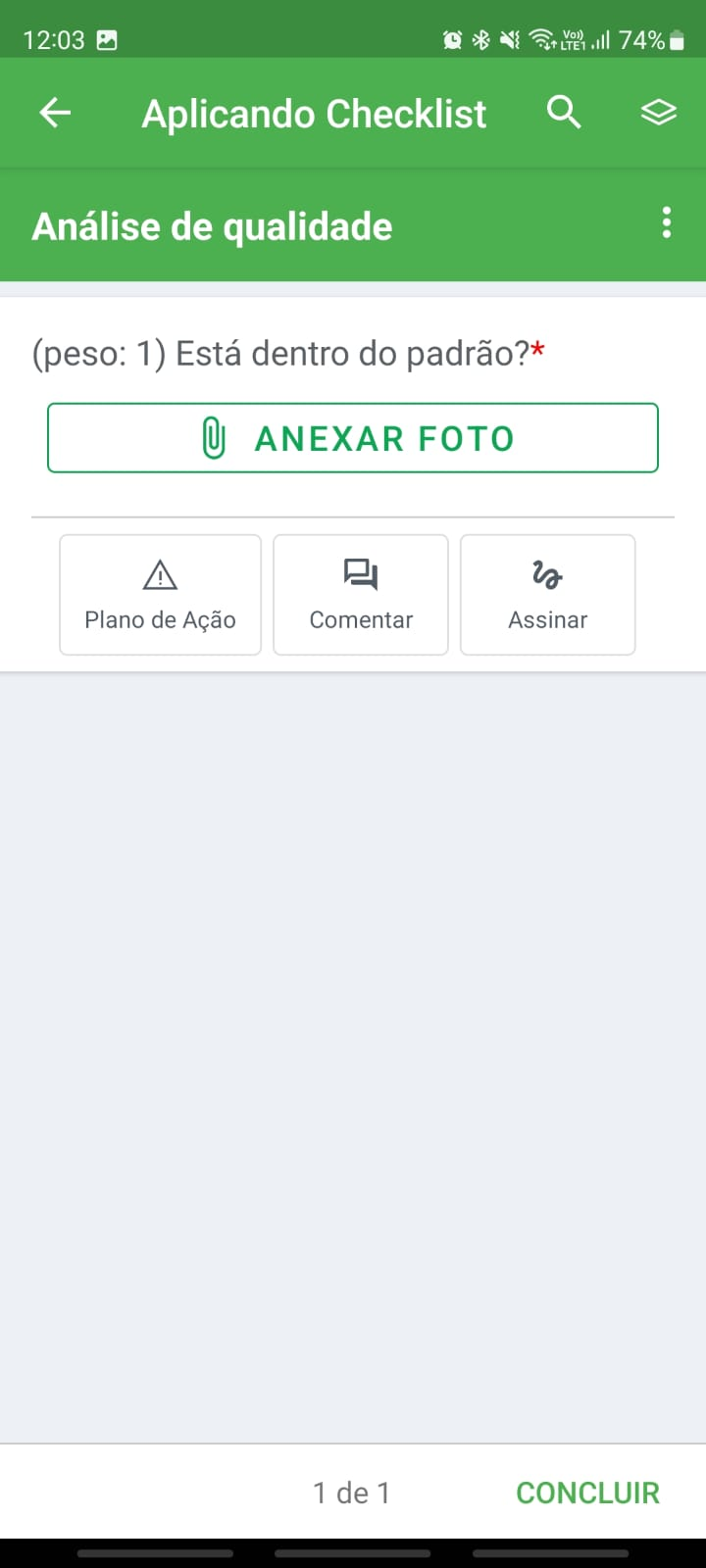
Step 5: When clicking the button, choose between taking a photo on the spot or selecting an image from your device gallery.
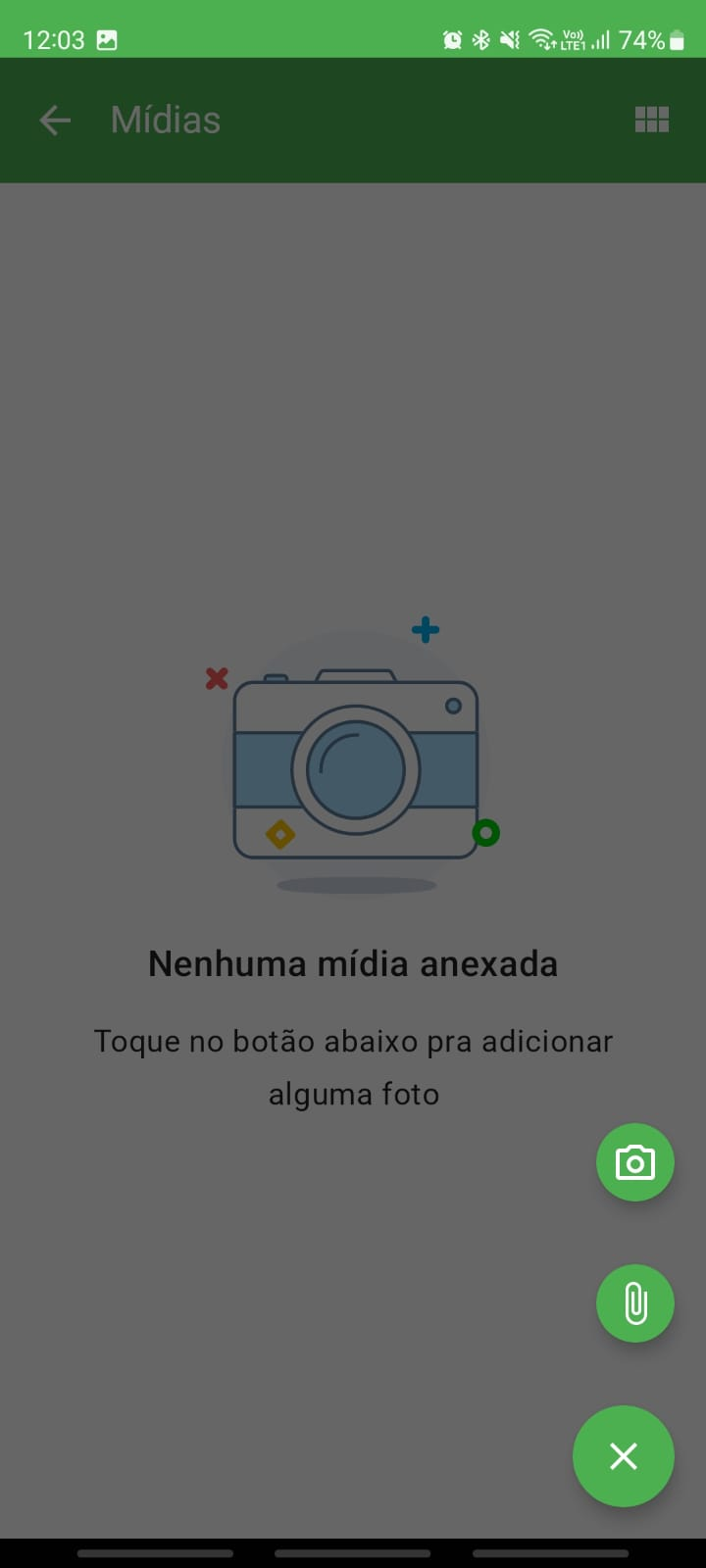
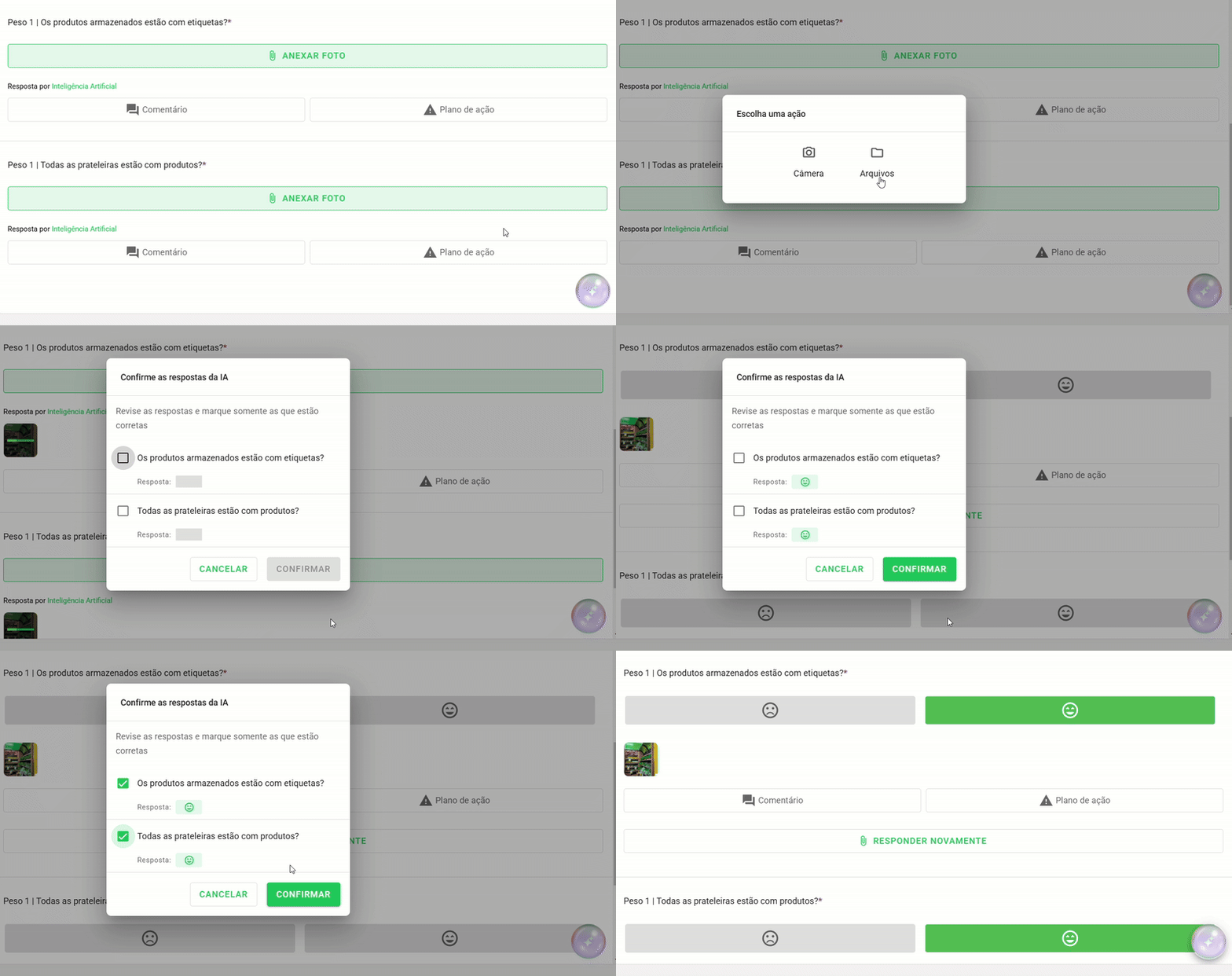
Step 6: Wait for processing. The AI will analyze the image to answer the item automatically.
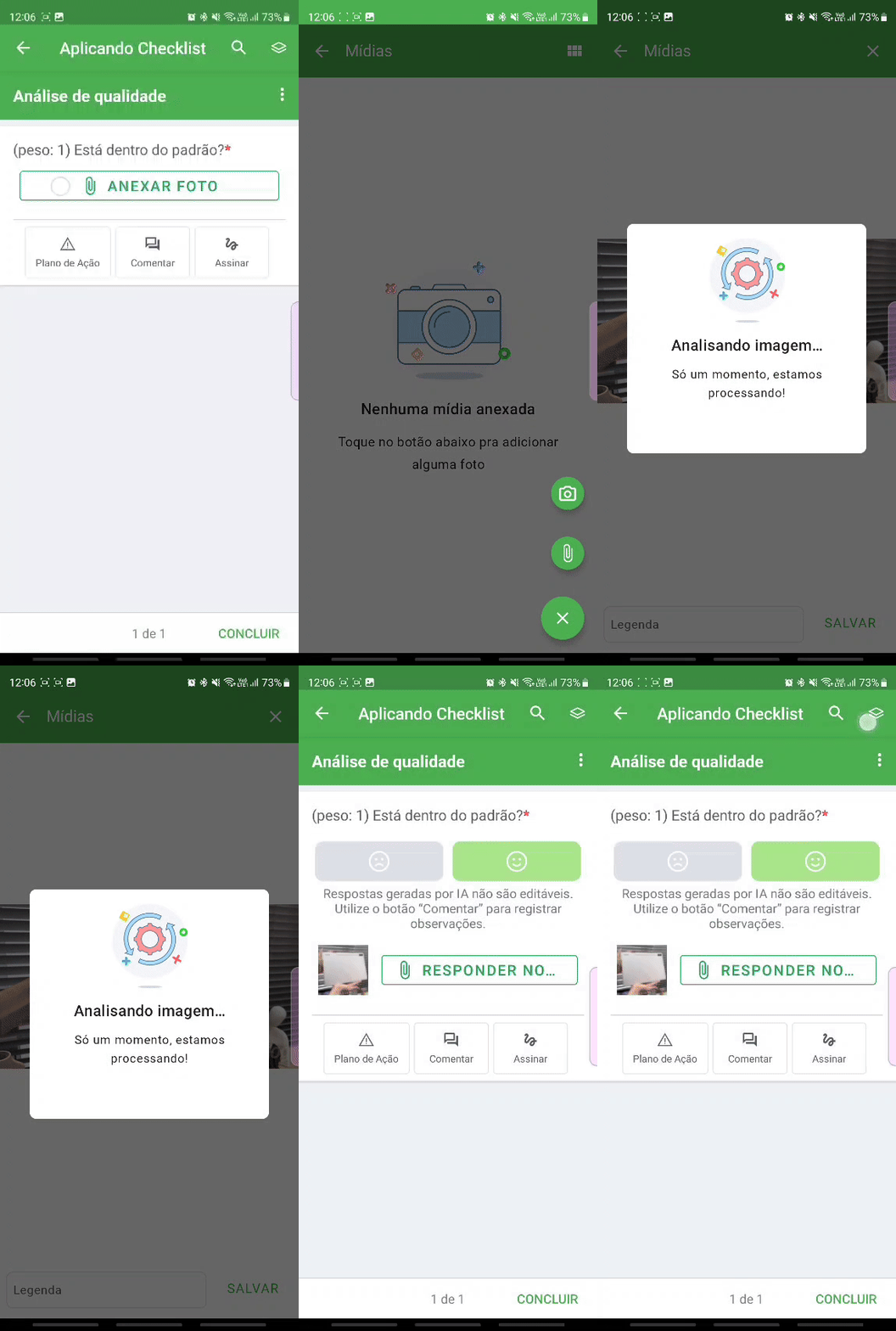
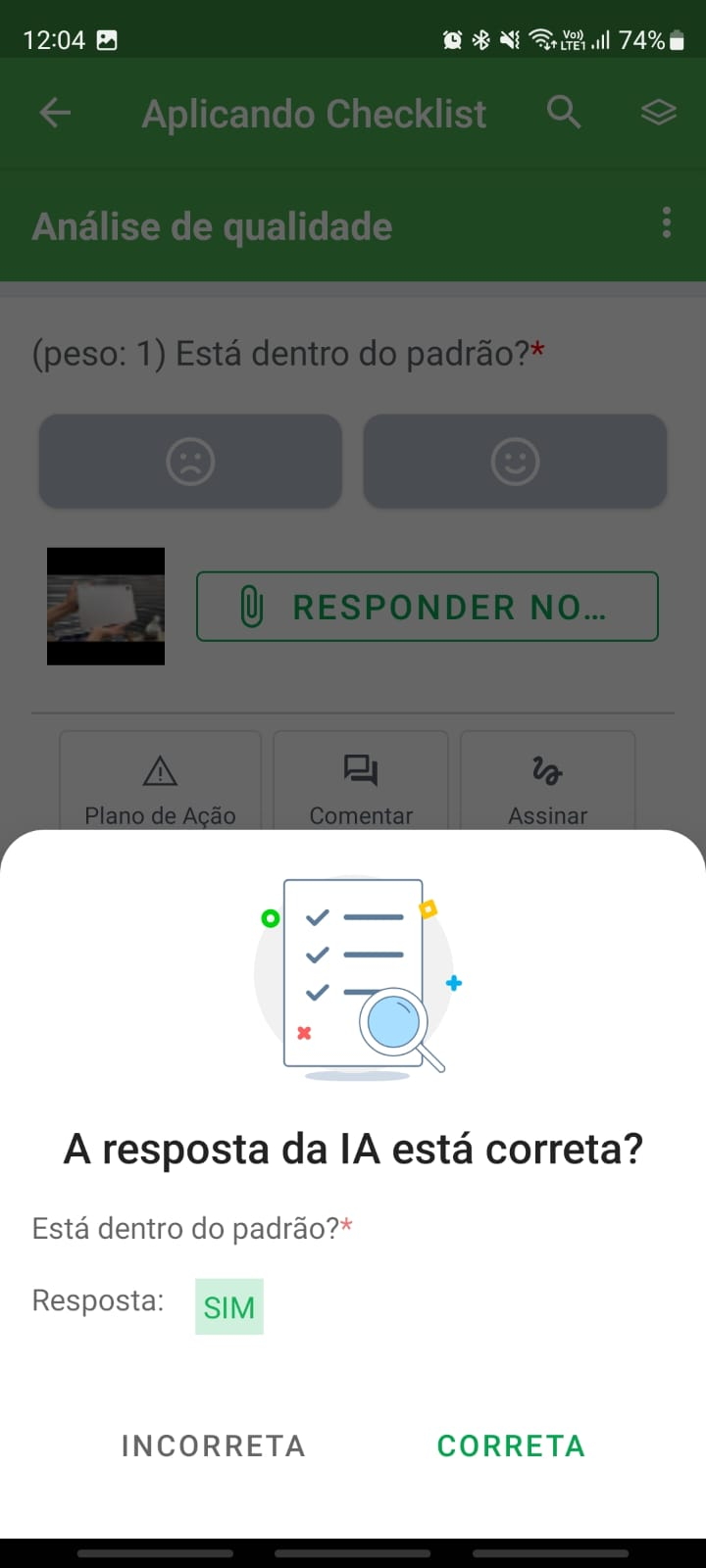
Step 7: A review modal will appear. Verify if the suggested response is correct and confirm. The analyzed photo will be attached to the item.
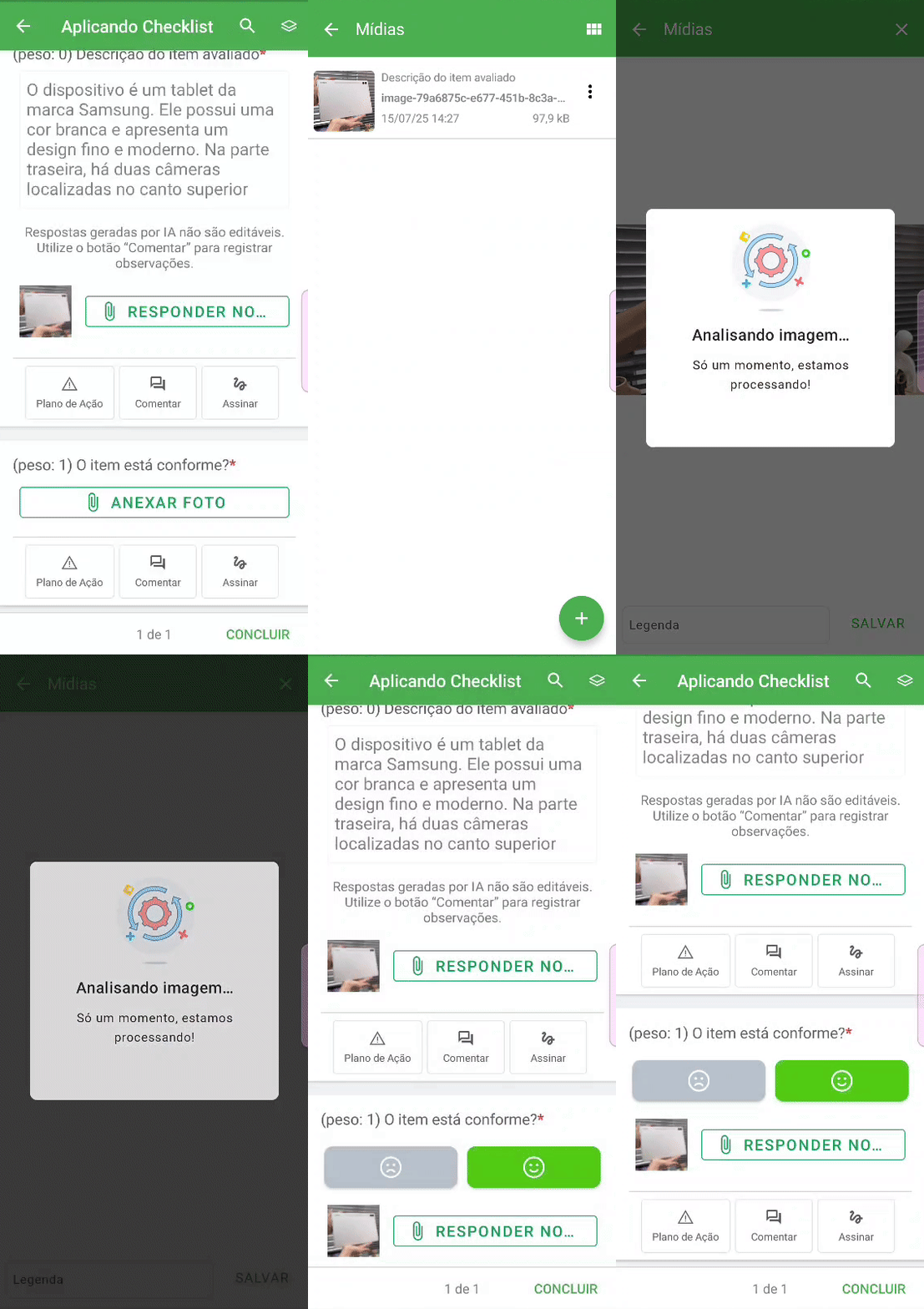
How does Smart Response answer text-type items?
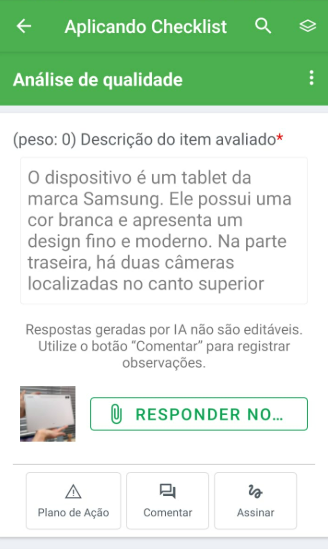
For text-type items, the process is the same. When attaching the image, the Artificial Intelligence will perform the analysis and fill in the field with a descriptive text response.
Is it possible to answer multiple items using the same image?
Yes, but this functionality is exclusive to the Web platform. On the computer, it is possible to attach a single photo to answer up to 3 items configured with AI within the same area.
This functionality is not yet available on mobile apps (Android/iOS).
If the checklist meets the requirements, a floating button will appear in the bottom right corner of the screen:
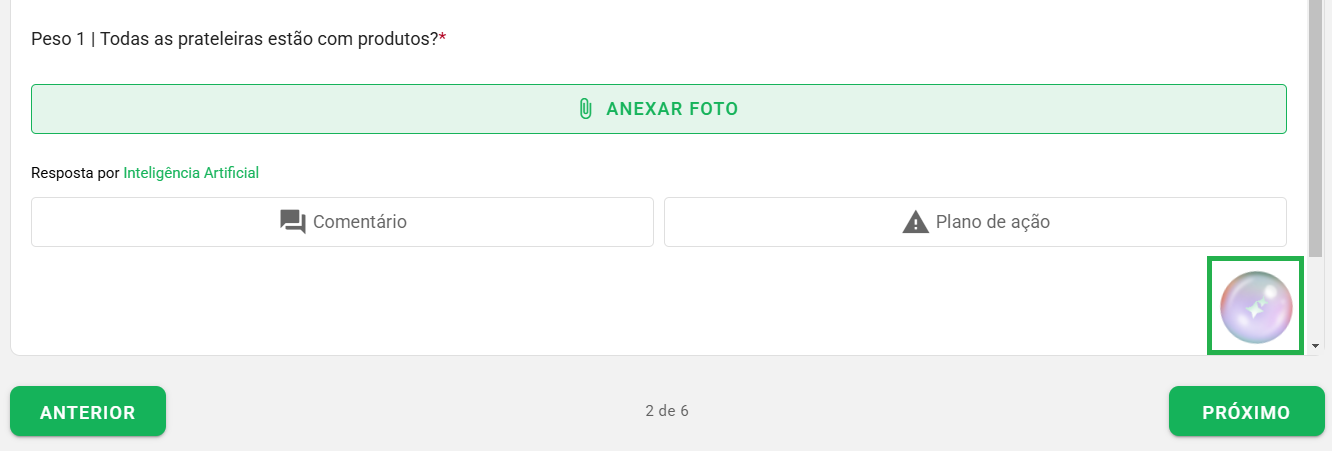
Click the button, select the items you wish to answer, and attach the image. The system will present the suggested answers for all selected items at once.
Is it possible to reuse attachments inserted in previous items?
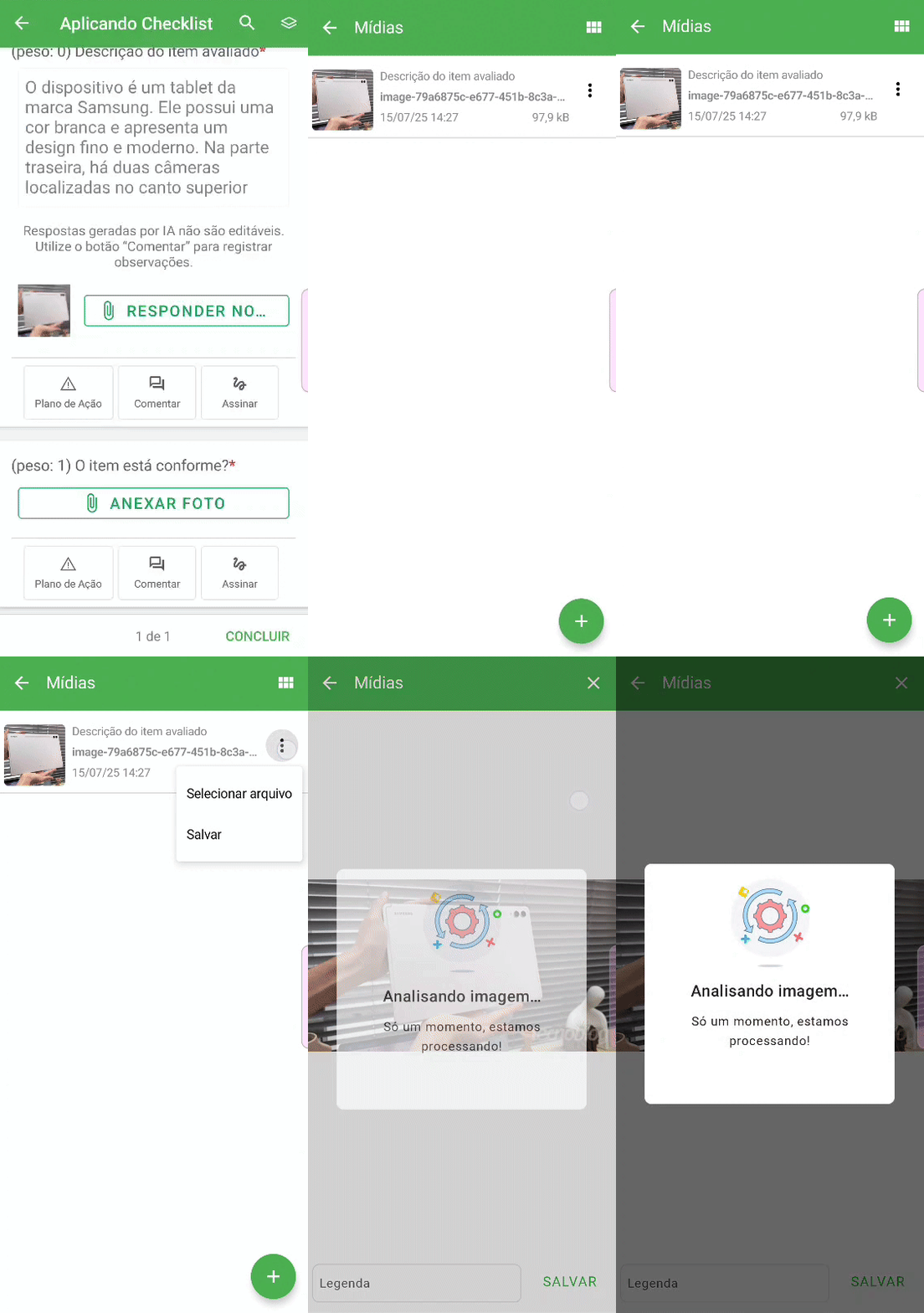
Yes! Both on the Web and in the App. If you have already attached a photo in a previous item, you can reuse it for the AI to analyze another item in the same area.
Click on Attach photo, locate the image in the checklist gallery (by accessing the three dots next to the image) and select Select file.
Is it possible to answer a Smart Response item again?
Yes. If the submitted image was not suitable or you want to redo the analysis, click the Answer again button after the first attempt.
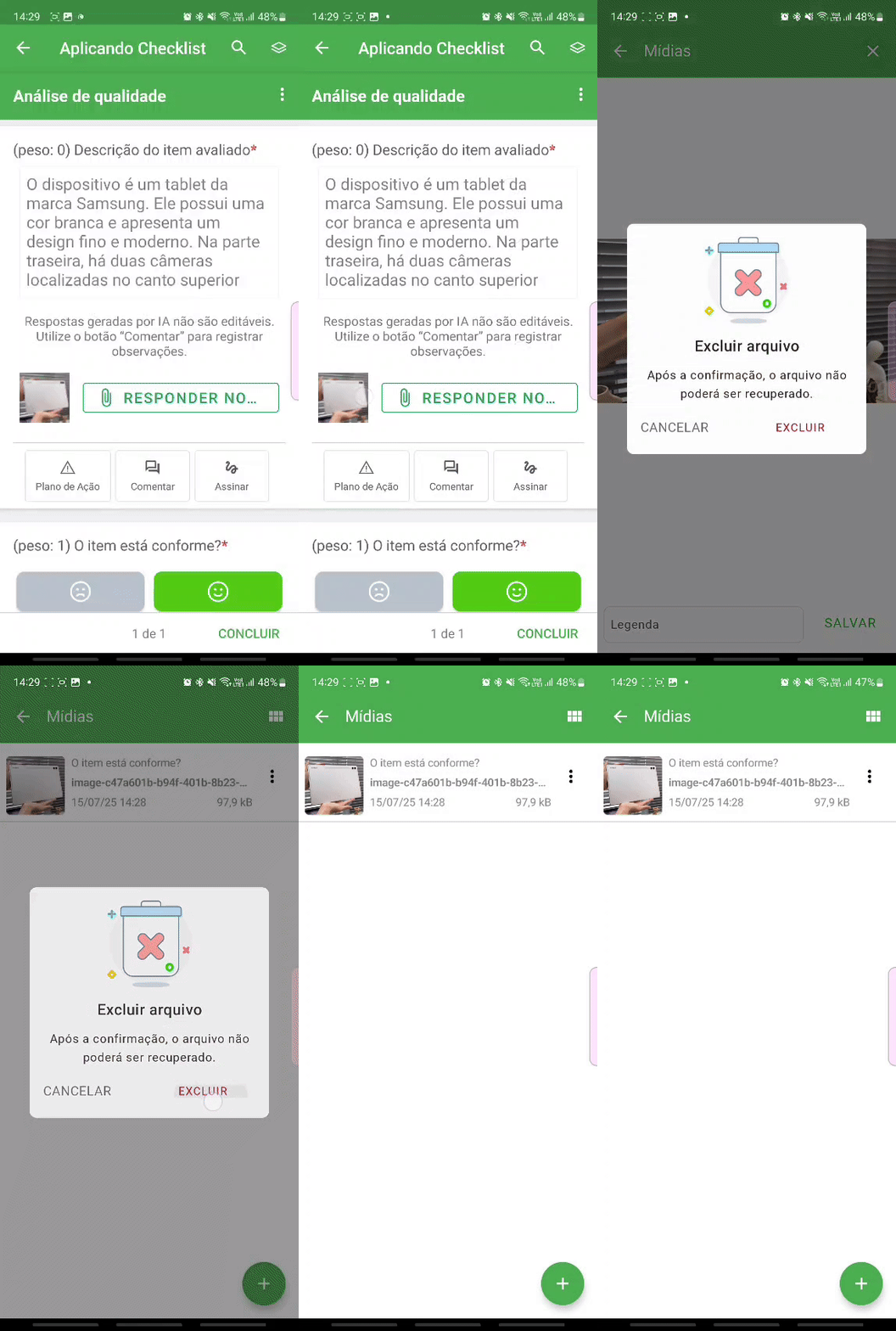
Is it possible to delete a photo attached to a Smart Response item?
Yes. To remove an already evaluated photo, click on the thumbnail of the attached image and select the X icon in the upper right corner.
Frequently Asked Questions (FAQ)
1. I cannot edit the response generated by AI. What to do?
This occurs when the administrator has configured the item to block editing of the AI response. In this case, it is not possible to change the suggested text. If you identify a frequent error, contact your manager to review the configuration.
2. Can I use the multiple item response on mobile?
No. The functionality to answer multiple items with a single image is currently available only on the Web platform.
❓Tem dúvidas? Entre em contato com nosso time de suporte.