The options to activate or deactivate a user provide control and flexibility in granting access to and use of the system.
Currently, there are two ways to manually activate and deactivate users and two forms of automatic deactivation:
- Activate/deactivate users individually
- Activate/deactivate users in bulk
- Automatic deactivation due to inactivity
- Automatic deactivation due to password error
Activate/deactivate users individually
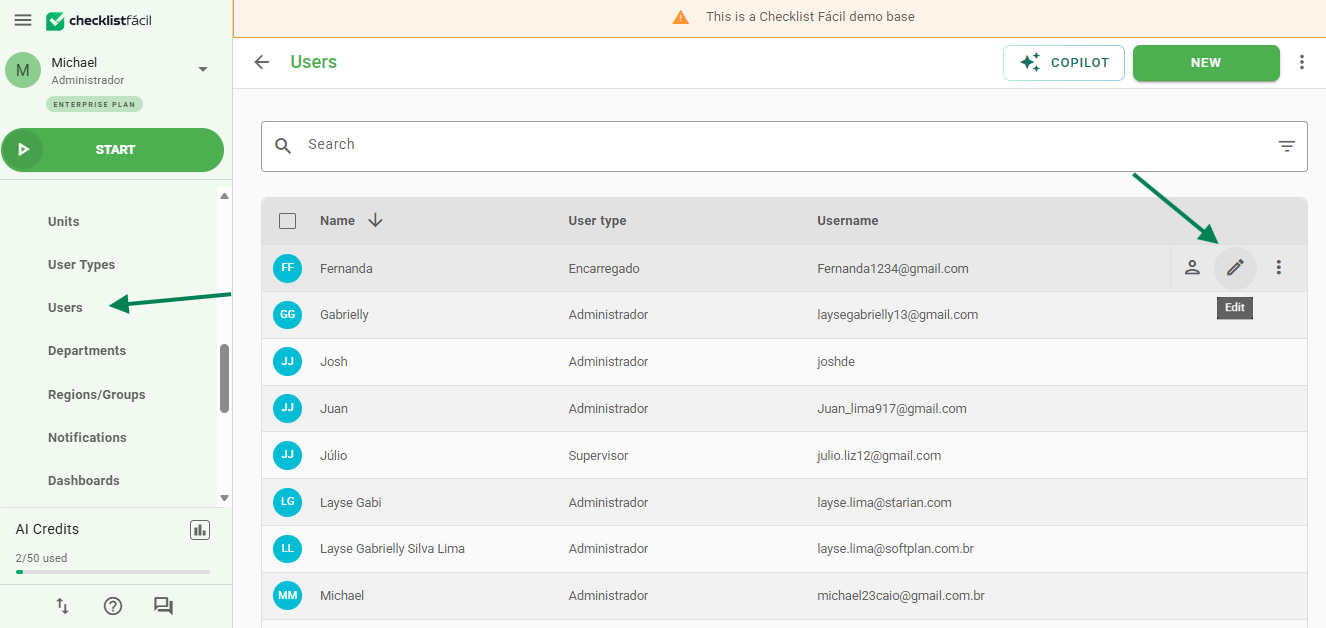
After accessing a user's registration in the Settings > Users menu, scroll down to the bottom of the screen. There, you will find the option to activate or deactivate the user:
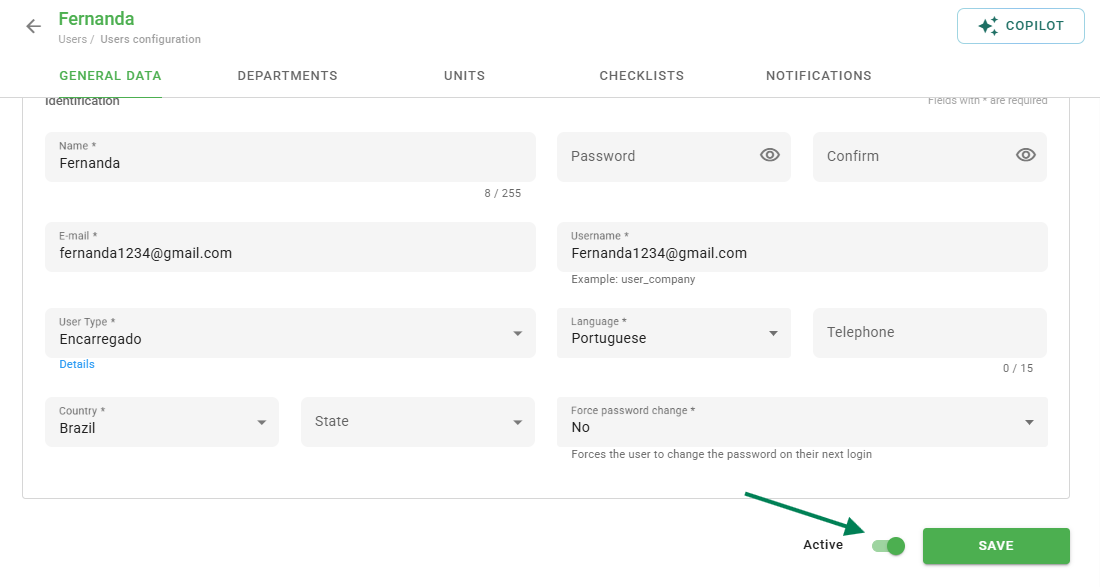
It is not possible to deactivate the General Administrator user of the database. If it is necessary to replace them, the administrator themselves must define who the new General Administrator will be and change this setting in the new user's registration.Activate/deactivate users in bulk
In the Settings > Users menu, it is possible to view all users registered in the database:
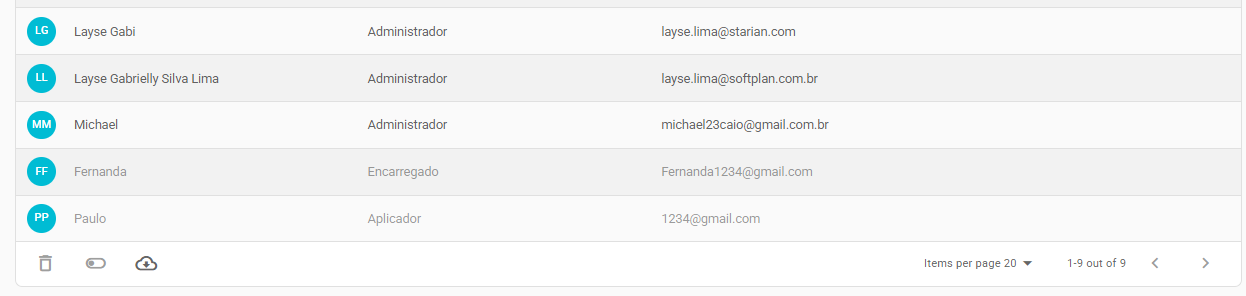
In the list, the difference in the shading of the user's name text indicates whether the user is active or deactivated:
- Darker shade: Active user
- Lighter shade: Deactivated user
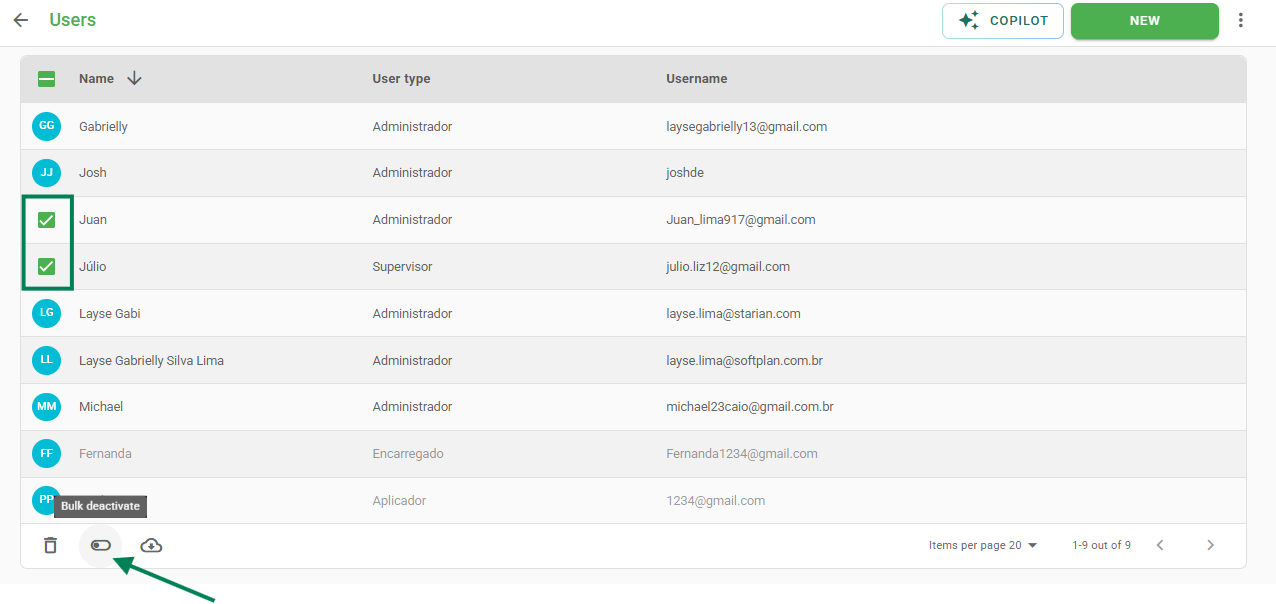
Select the users you want to activate/deactivate using the checkbox next to their names. Then, simply click the key icon to execute the action.
Automatic deactivation due to inactivity
In addition to manual deactivation, the system also performs automatic deactivation of inactive users through the Access Expires Due to Inactivity feature. This setting provides greater security and organization by preventing unused accounts from remaining active for long periods.
This setting is available in the Settings > Advanced Settings menu, under the Security tab:
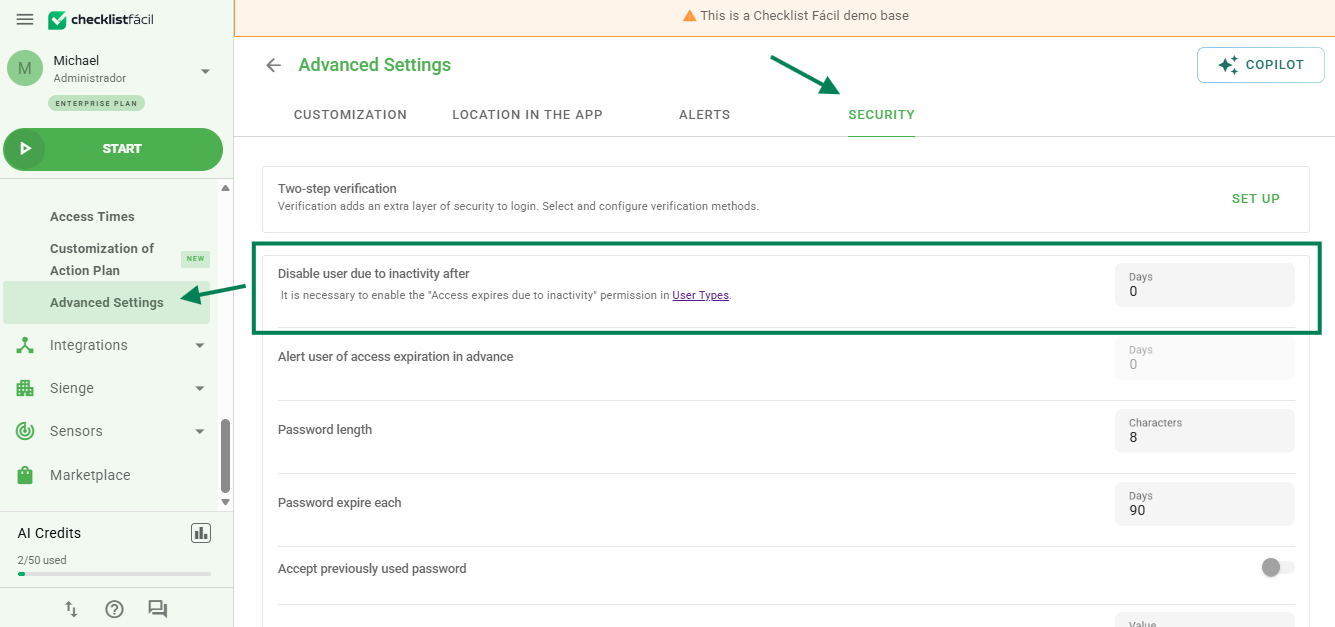
With this option, the administrator can define the number of inactive days after which the user will be automatically deactivated.
When a period is defined, the system continuously monitors the user's last relevant action, such as:
- Last login
- Last data update
- Last synchronization
- Manual reactivation (via screen, API, or import)
If the user does not perform any of these actions during the configured period (e.g., 30 days), they will be automatically deactivated on the following day (in the example, the 31st day).
If the user is manually reactivated, this action resets the inactivity count. Therefore, they will not be deactivated again the next day and will only be deactivated again if they remain inactive for the configured period.
Users who have never logged in are also considered by the rule. In these cases, the system uses the user's creation date as the starting point for the inactivity count.
Automatic deactivation due to password error
Complementing access control through inactivity, the system also includes the Deactivate user when login fails feature. This option automatically deactivates users who exceed the limit of incorrect login attempts, whether due to an incorrect email/username or password, strengthening protection against unauthorized access and ensuring even greater security for system accounts.
To disable the setting, simply fill in the field with "0".
This setting is also available in the Settings > Advanced Settings menu, under the Security tab: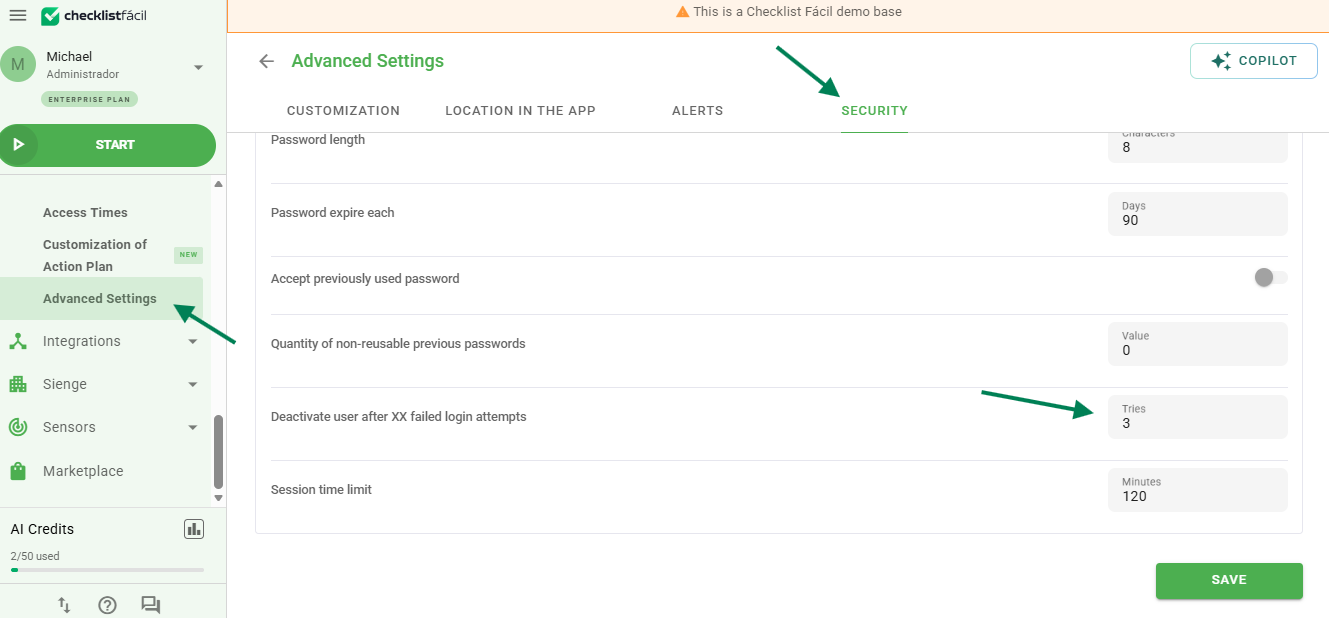
❓Tem dúvidas? Entre em contato com nosso time de suporte.