- About the Action Manager
- Creating an action via web
- Creating an action via mobile
- Frequently Asked Questions (FAQ)
About the Action Manager
A new module has arrived at Checklist Fácil to facilitate the management of actions in progress, concluded, or to be performed by your team: the Action Manager.
This module allows for the creation of simple records, which integrate the problem-solving process into the applied checklists and centralize communication quickly and efficiently.
Throughout this article, we will show you how to create an action when applying a checklist via Web or Mobile.
→ Attention: To create an action, it is necessary that, in the checklist model, the item is configured with the "Action" add-on enabled.
Creating an action via web
To create an action using the web platform, follow the steps below:
1. When applying a checklist, on the desired item, click the Create Action button.
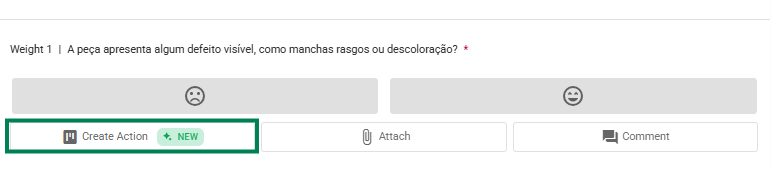
2. A screen will open to fill in the data.
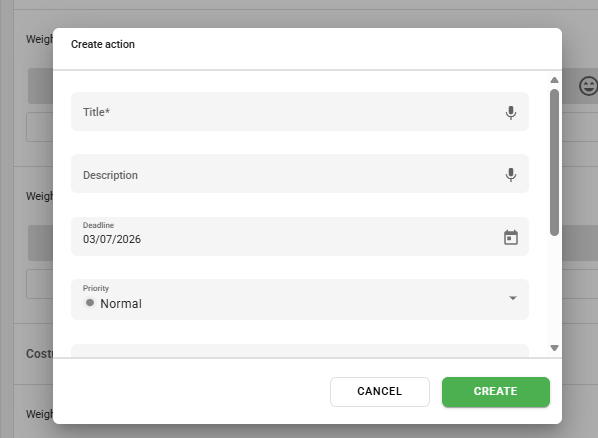
On this screen, you must fill in the following information:
- Title: Name the necessary action (required).
- Description: Enter details on how to execute it or additional information (optional).
- Deadline: Inform the completion date (optional – pre-selected for the next day).
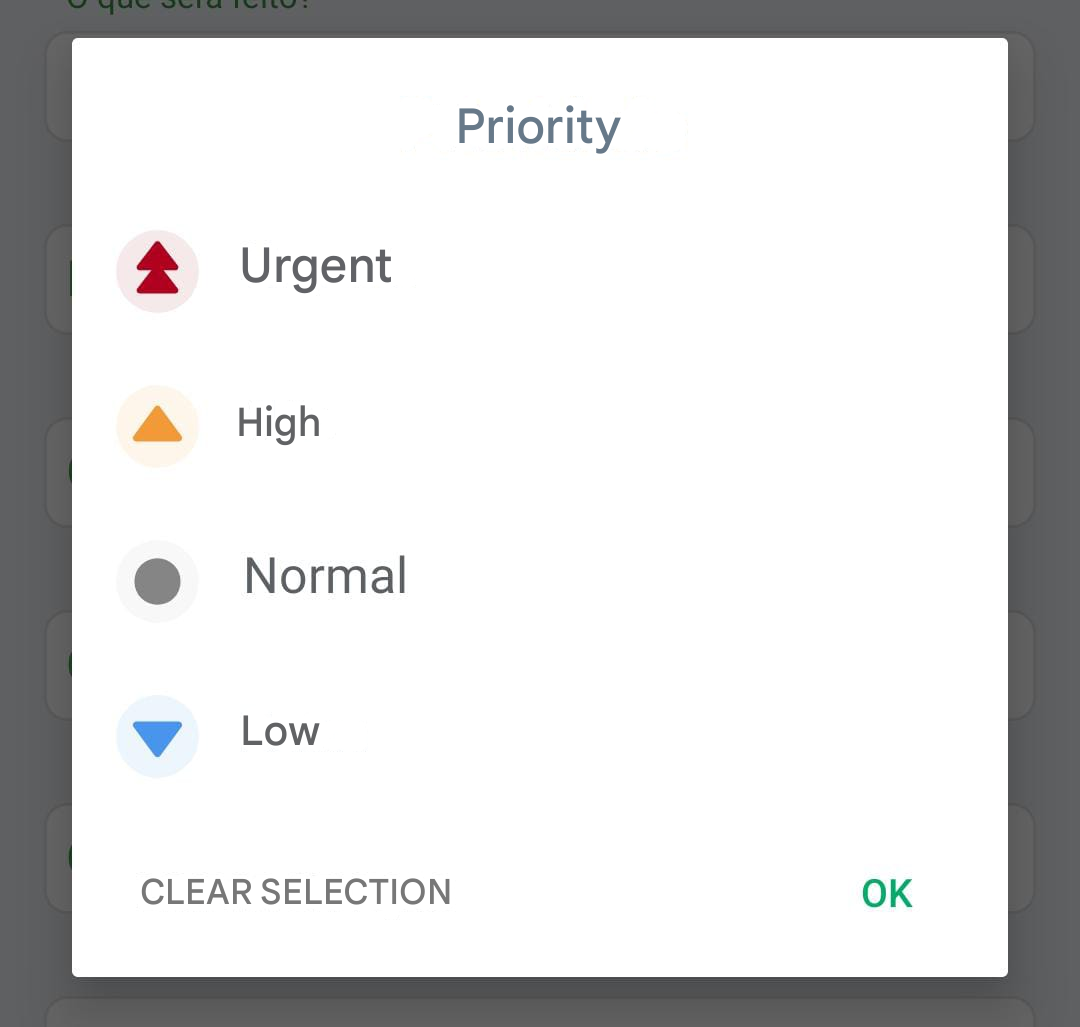
- Priority: Classify as Normal, Low, High, or Urgent (required – default "Normal").
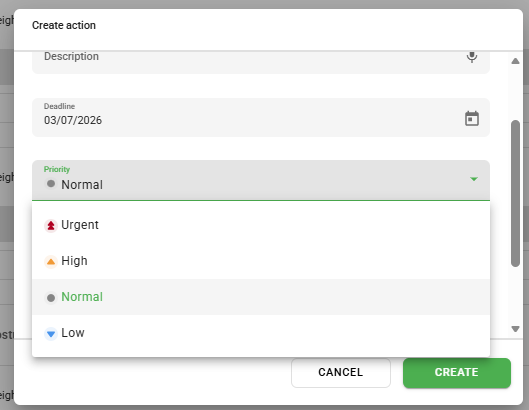
- Responsible: Define the user responsible for execution (optional).
- Stage: Select the current stage: "To do", "In Progress", or "Concluded" (required).
- Media: You can attach files to comments (max. 100MB per file).
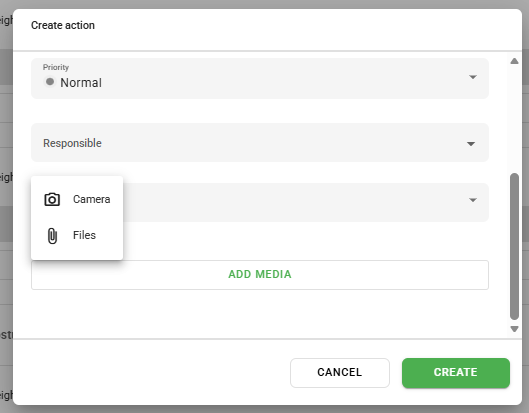
3. After filling in the data, click Create.
→ An email will be sent automatically to you and to the responsible party (if any), confirming the creation of the action.
Creating an action via mobile
To create actions directly through the app, the process is very similar:
1. During the checklist application, tap Create action on the corresponding item.
2. The data entry screen will be displayed. Enter the requested information:
- Priority: Level of urgency for the action.
- What will be done: Description of the task.
- Why it will be done: Reason for the action.
- Where it will be done: Location of execution.
- When it will be done: Completion date (Deadline).
- Who will do it (Responsible): Assigned user.
- How it will be done: Execution method.
- How much it will cost: Estimated cost.
- Email to be notified: Additional recipients.
- Observations: Extra information.
3. To finish, tap the Check icon (confirm) in the upper right corner of the screen.
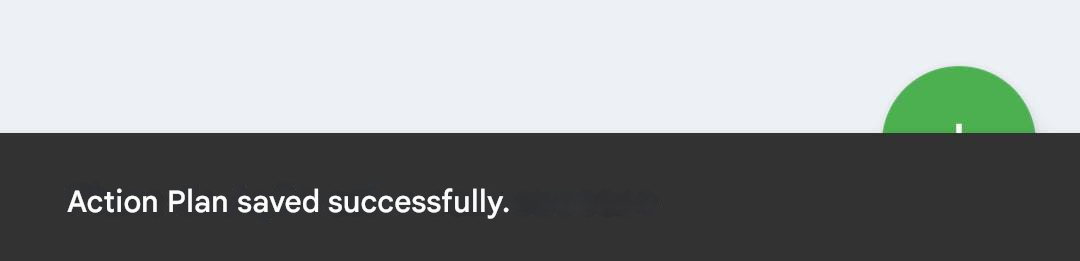
A confirmation message will appear on the screen, as shown in the image below:
→ Tip: Automatic emails are also sent when comments are added or when the action stage is changed. Comments allow for image attachments and texts of up to 5,000 characters.
Frequently Asked Questions (FAQ)
1. Who receives the email notifications?
The email is triggered automatically to the owner (who created the action) and to the defined responsible party. If the action does not have a responsible party, only the owner will receive the notification.
2. Why can't I find the "Create Action" button?
To create an action, it is mandatory that the item within the checklist model is configured with the "Action" add-on enabled. Check the settings.
3. Can I attach files to the action?
Yes, you can attach files of up to 100MB directly from your computer in the comments.
❓Tem dúvidas? Entre em contato com nosso time de suporte.