See how simple and practical it is to apply a checklist via the web and how to view those that have already been applied!
- How to apply a checklist via the web?
- What information must be entered at the time of application?
- Why am I unable to conclude the checklist?
- I am trying to apply a checklist, but a message appears. What should I do?
- Why does a unit or checklist not appear for application?
- How to share the checklist result via email?
- How to view the checklists that have already been applied?
How to apply a checklist via the web?
Applying a checklist is very simple. As soon as you log into Checklist Fácil, you can view the Start button on the left side menu of the screen, as highlighted below.
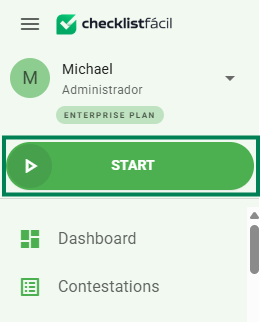
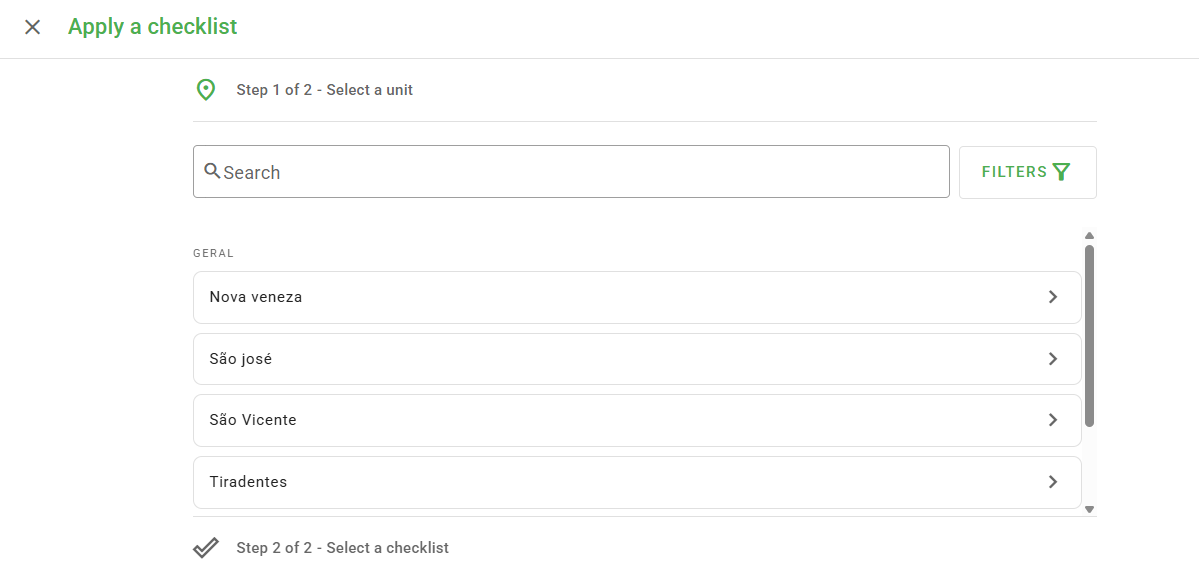
After clicking the Start button, select a unit. If you have several units registered, use the filter or type the name of the desired unit in the Search field.
Next, choose the checklist to be evaluated:
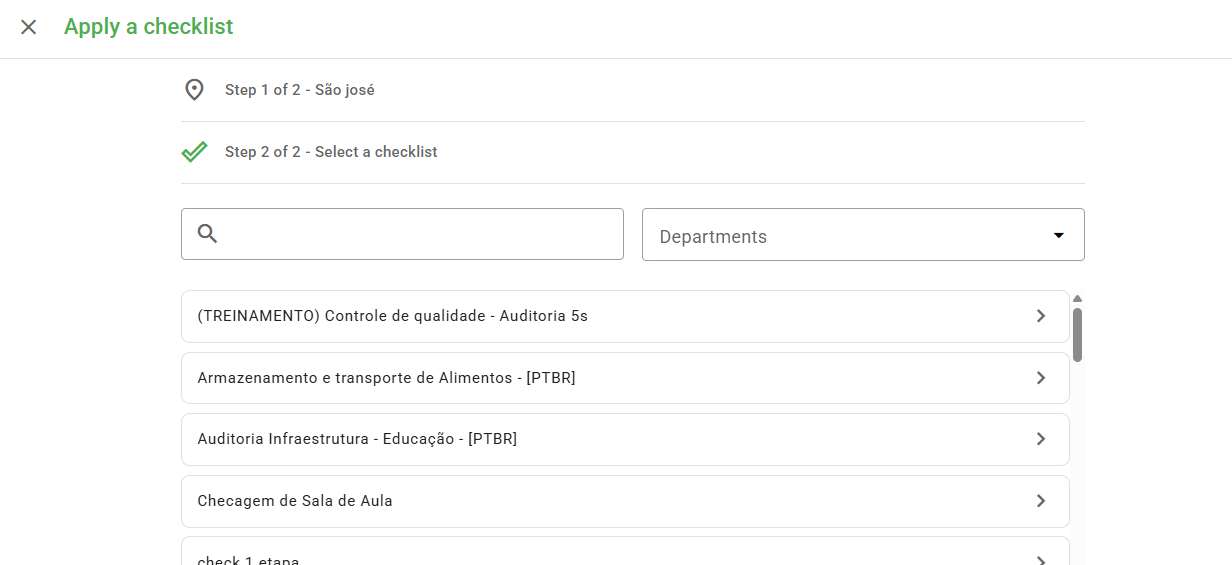
Upon accessing the checklist, you can start the application:
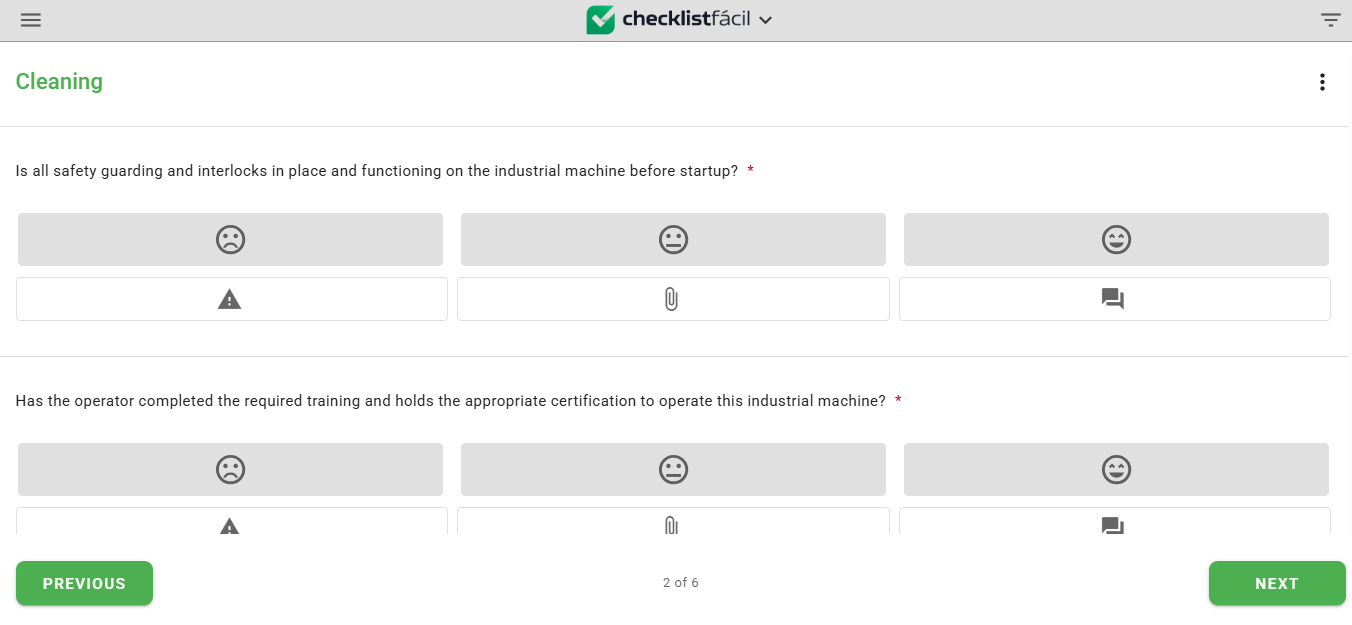
Note in the image above that you have the option to proceed with the application using the previous/next buttons at the bottom of the screen or by navigating through the menu on the left side:
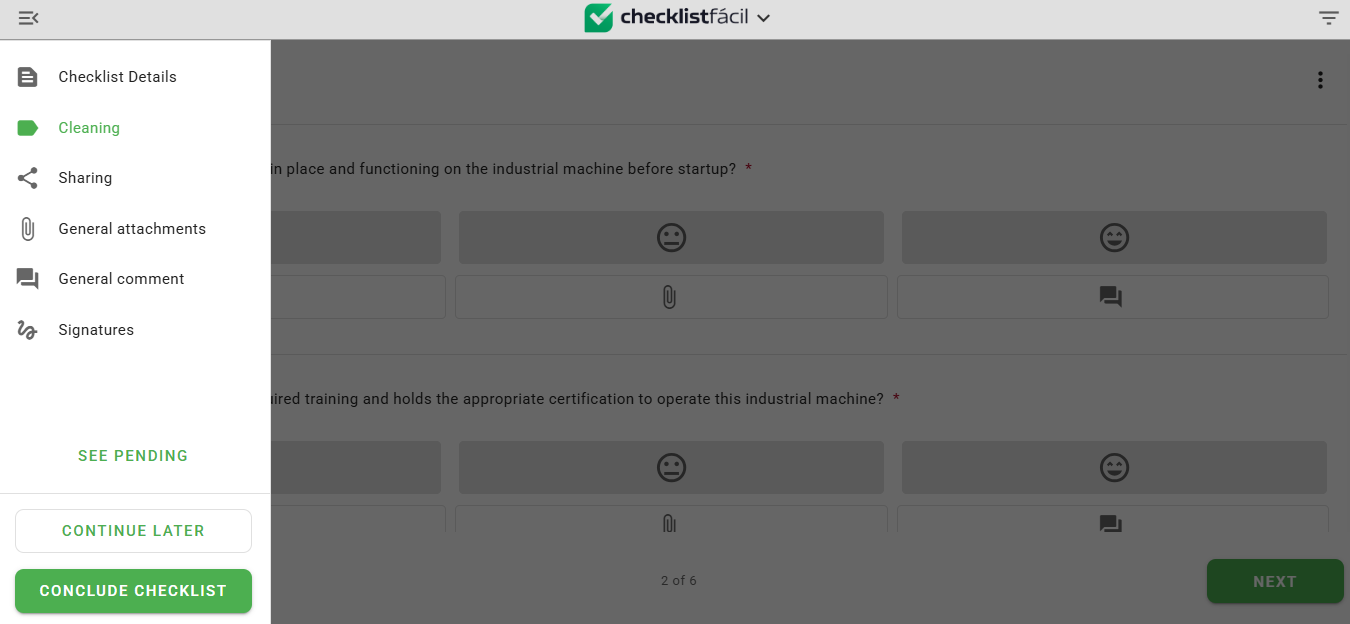
Normally, the application sequence follows the order shown in the side menu, but nothing prevents you from continuing the application of this checklist at another time, provided this configuration is enabled.
At the end of the application, simply click Conclude checklist. There, the application is done!
What information must be entered at the time of application?
It depends largely on the settings made by the account administrator.
Thus, in addition to the evaluative scale (which consists of evaluation faces or the letters N and S), some additional options may be requested for each item:
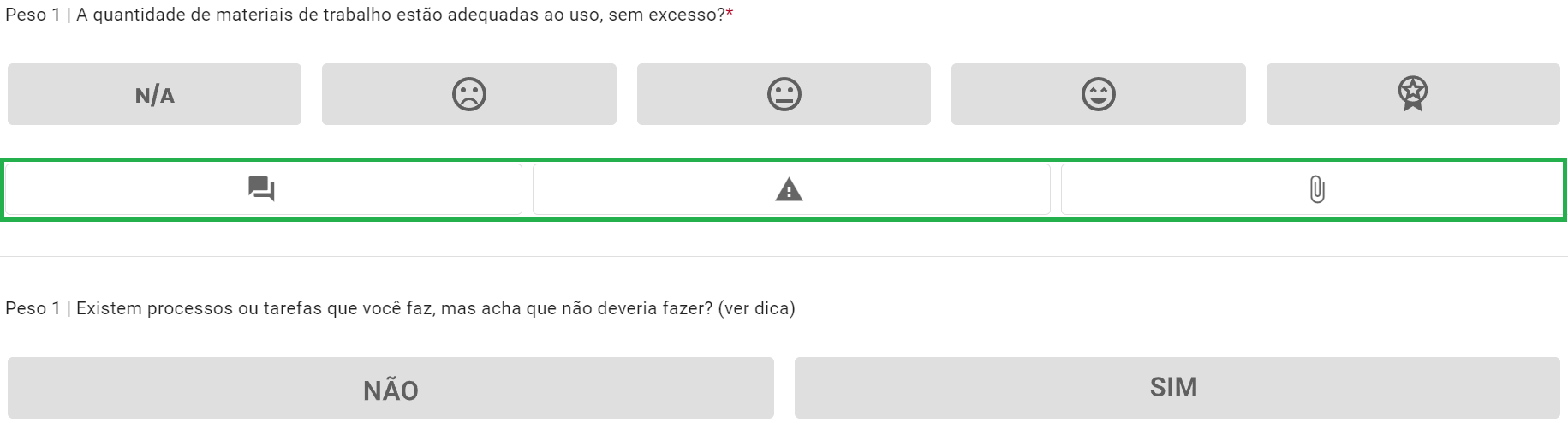
In this way, you may need to add a comment about that specific item, or, if a nonconformity has been detected, an Action Plan may be requested to resolve the issue in question.
In addition, you may be asked to submit a signature and an attachment (video, photo, audio, or a file). For security reasons, the allowed file types for each format are:
- Video: .avi, .flv, .wmv, .mov, .mp4, .mpg, .mpeg, .mkv, .3gp, .m4v, .webm, .ts, .vob, .ogv
- Photo: .jpg, .png, .jpeg, .gif, .tiff, .bmp, .heic
- Audio: .mp3, .aac, .flac, .wma, .pcm, .aiff, .m4a, .mp4a, .mpga, .ogg
- File: .pdf, .doc, .docx, .xls, .xlsx, .ppt, .pptx, .ods, .odt, .rtf, .zip, .7z, .rar, .tar, .gz, .svg, .webp, .dwg
➕ Tip: Always remember that the more information added at the time of application, the greater the chances of mitigating nonconformities, increasing the efficiency of the entire process being evaluated.
Why am I unable to conclude the checklist?
You may be unable to conclude the application due to some pending issue related to an item.
In this case, a message will appear indicating which item and which pending issue must be completed.
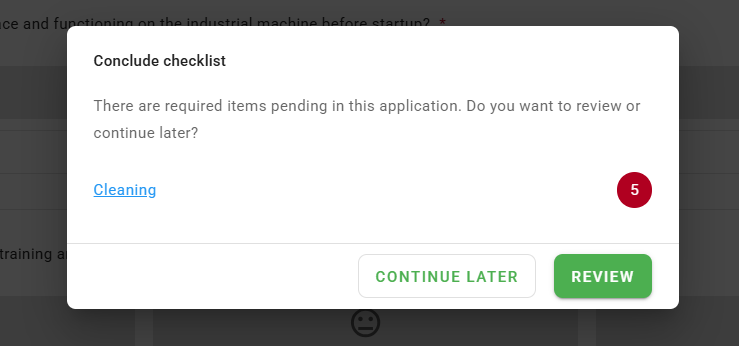
Click Review and fill in the missing information.
I am trying to apply a checklist, but a message appears. What should I do?
When there are pending action plans related to the checklist you are going to apply, the following message may appear:
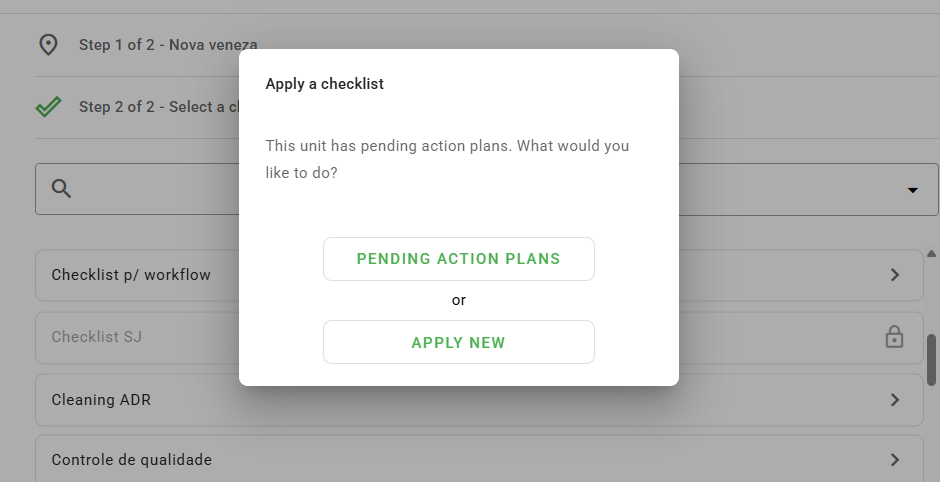
If you wish to apply the checklist even if it contains these pending issues, click Apply New and proceed with the evaluation normally. If you decide to view the pending issues for this checklist, click Pending Action Plans.
Why does a unit or checklist not appear for application?
To perform an evaluation, it is necessary to access a unit and, subsequently, a checklist.
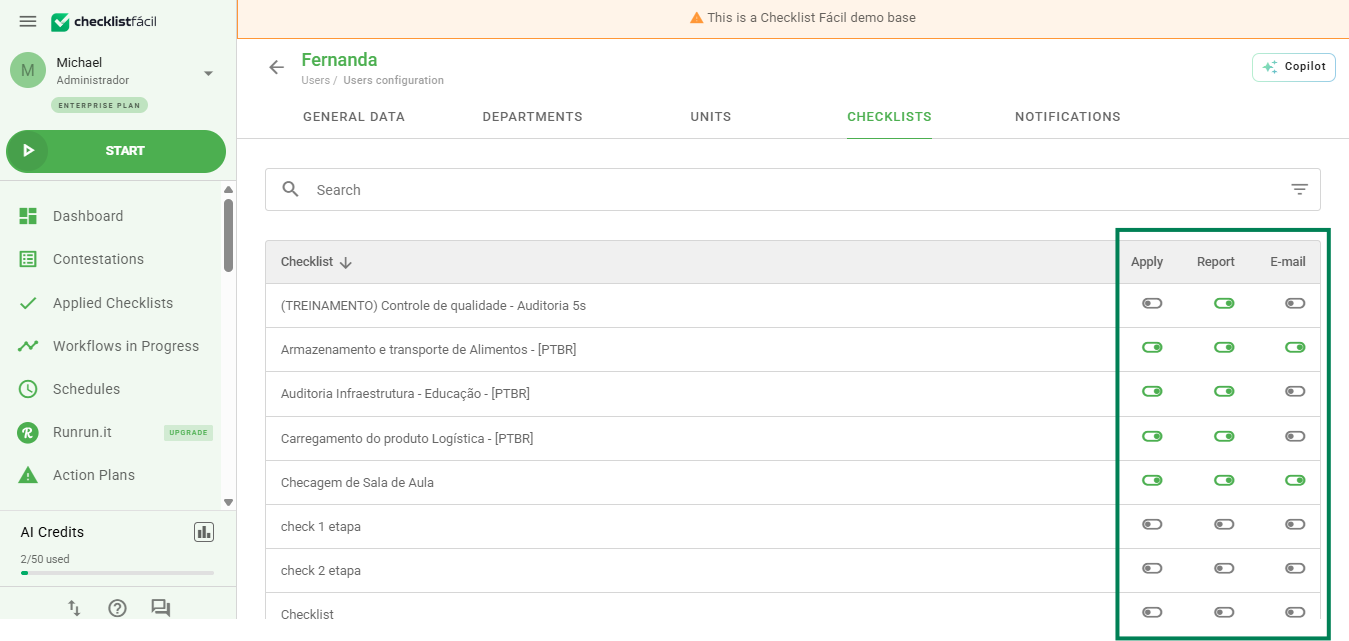
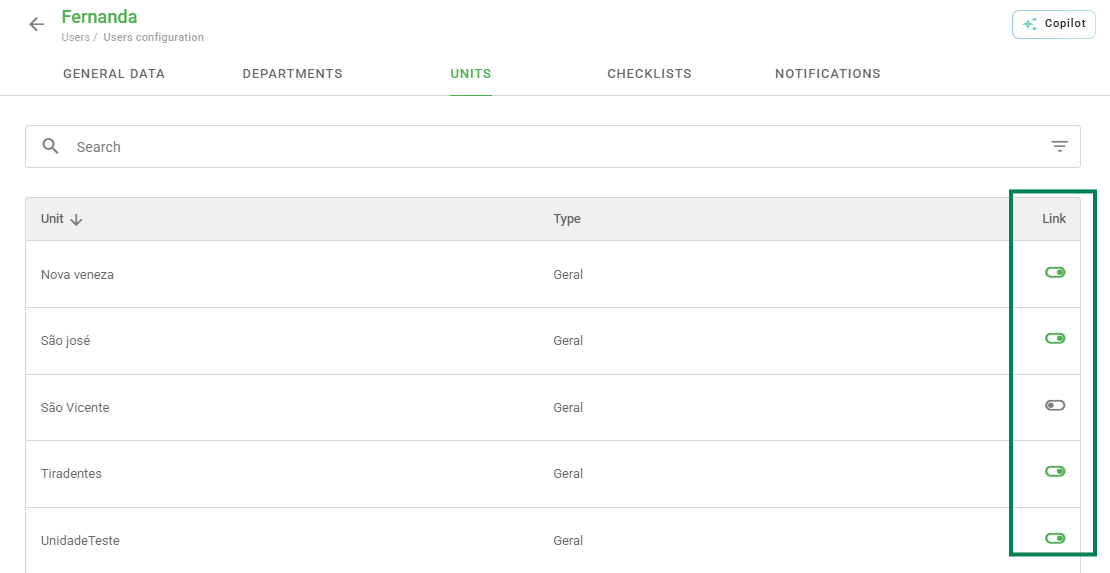
If you cannot find a unit or checklist, it is possible that these resources have not been released to you. In this case, it is necessary for your user to be linked to the corresponding unit and checklist.
To do this, review your links with the administrator of your sector to ensure that the units and checklists you are going to evaluate are released.
If you have the configuration permission for users, you can configure the links yourself. Simply go to the system's left side menu, click on Settings, and then on Users. Hover your mouse over your name and click the pencil icon. In the Units and Checklists tabs, enable the links.
How to share the checklist result via email?
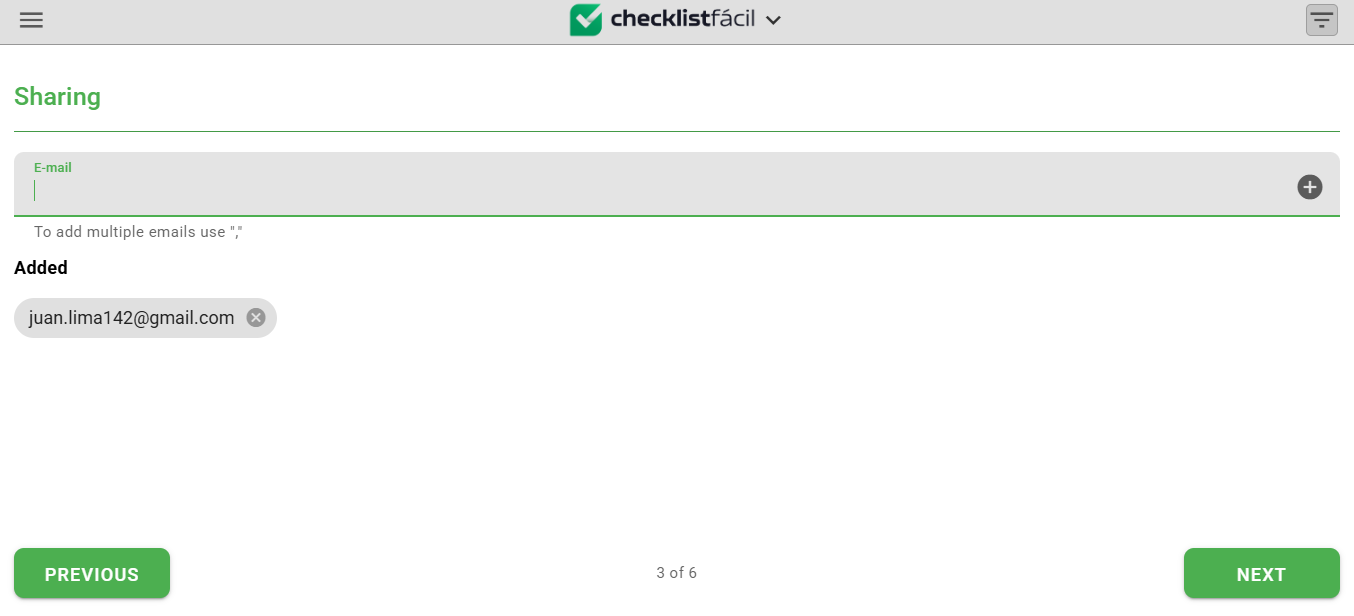
After applying a checklist, specifically on the conclusion screen, it is possible to add email addresses to receive copies of the result of this application.
To add them, answer the items correctly until you reach the conclusion area, specifically on the Sharing page. There, enter the address(es) you would like to share the result with in the Email field, and click the + icon to add them. When finished, select next and continue the checklist conclusion stage.
How to view the checklists that have already been applied?
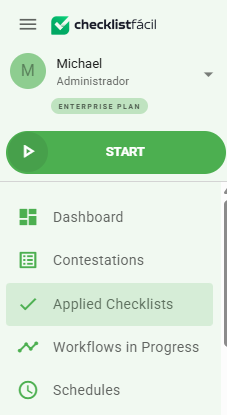
To view the checklists that have already been applied, go to the system's left side menu and click on Applied Checklists.
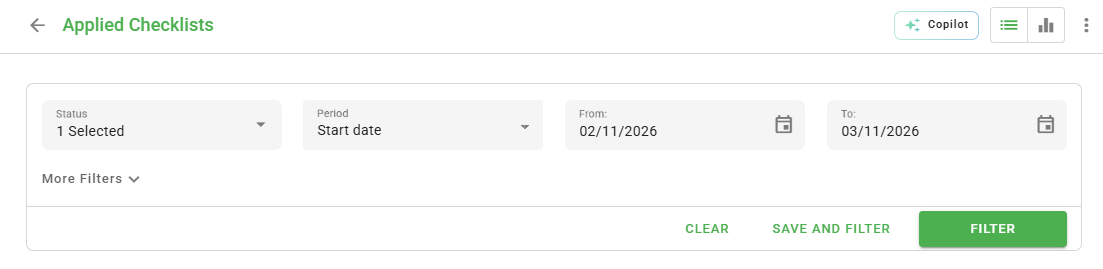
Use the status and period filters to find the desired checklist.
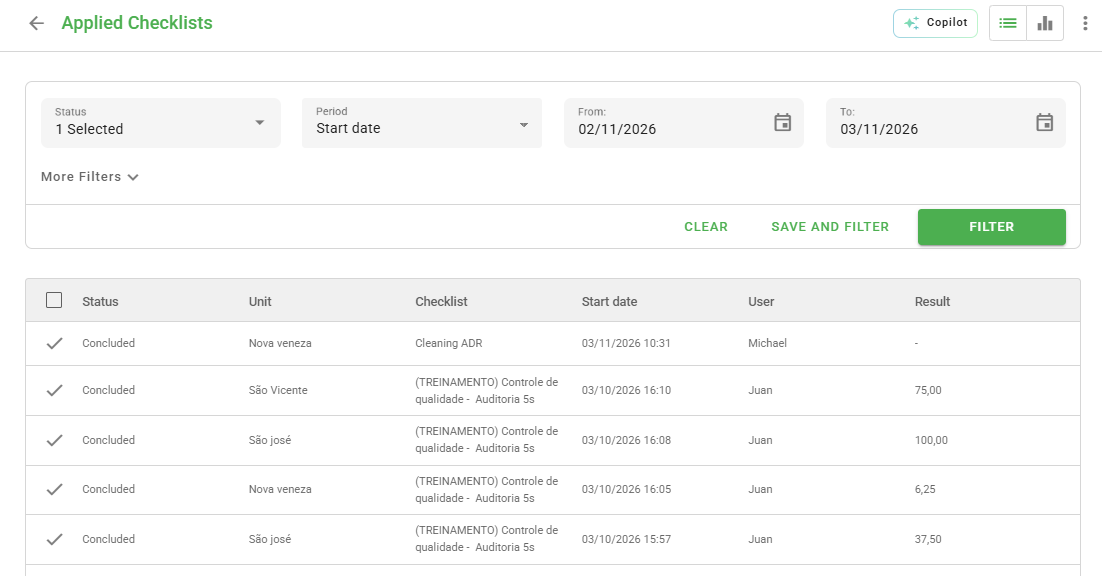
When you click on Filter, a list will appear with all checklists, as well as information about them, such as: status, unit, checklist, start date, applying user, and result.
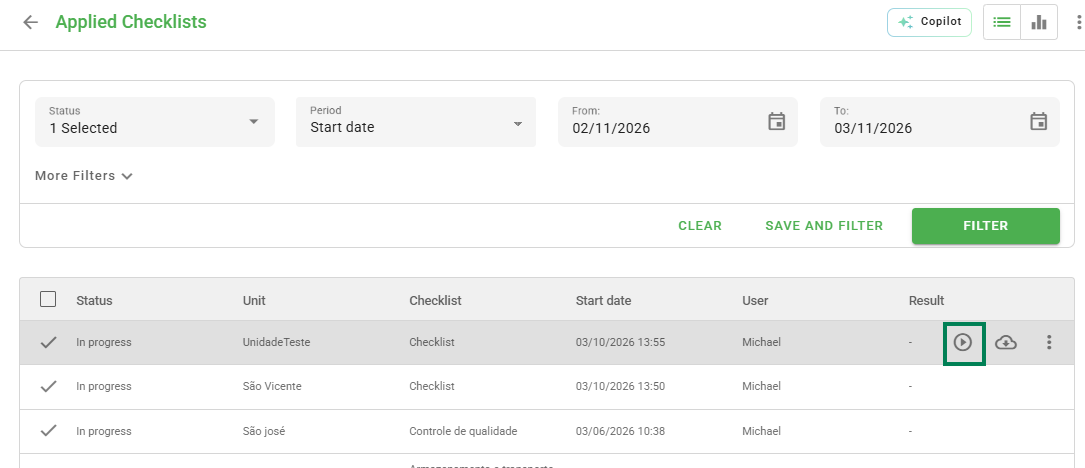
If you identify a checklist that has the In Progress status and wish to continue its application, hover your mouse over it and click the Continue evaluation arrow, as in the image below:
Frequently Asked Questions (FAQ)
1. Can I pause the application and continue at another time?
Yes, you can interrupt and resume later. To do this, access the "Applied Checklists" menu, locate the checklist with "In Progress" status, and click the arrow to "Continue evaluation".
2. Why does my unit or checklist not appear on the list?
This usually occurs due to a lack of linkage. It is necessary for your user to be linked to the unit and the checklist model. Contact the account administrator to request access or, if you have permission, adjust it in Settings > Users.
3. What prevents the conclusion of my checklist?
If the conclude button does not work, check if there are mandatory pending issues. The system will display a message indicating which items need to be filled in or if there are pending action plans that need to be resolved or justified.
4. What file types can I attach as evidence?
The system accepts various formats to ensure proof of inspection, including videos (.mp4, .avi), photos (.jpg, .png), audios (.mp3, .aac), and documents (.pdf, .docx, .xls), as configured in the item.
❓Tem dúvidas? Entre em contato com nosso time de suporte.