See how simple and practical it is to apply a checklist using the Checklist Fácil app!
- How to apply a checklist via the app?
- Are there other resources available during application?
- What information must be entered during application?
- Why does a unit or checklist not appear for application?
- How to view checklists that have already been applied?
How to apply a checklist via the app?
Applying a checklist via the app is very easy. As soon as you log into the Checklist Fácil System app, you will see the Start button in the bottom right corner of the screen, as highlighted below.
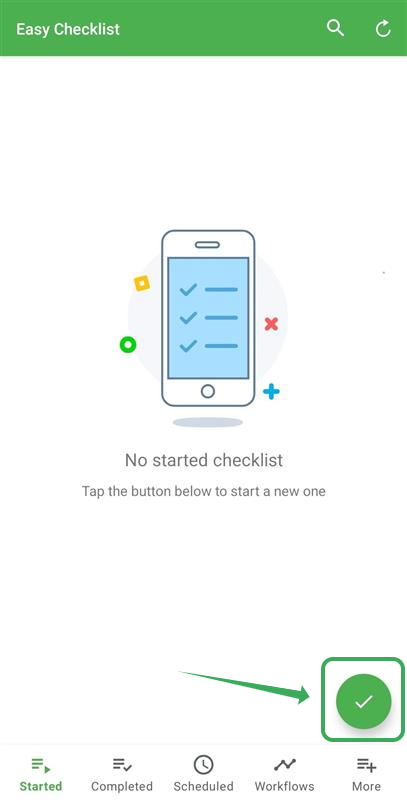
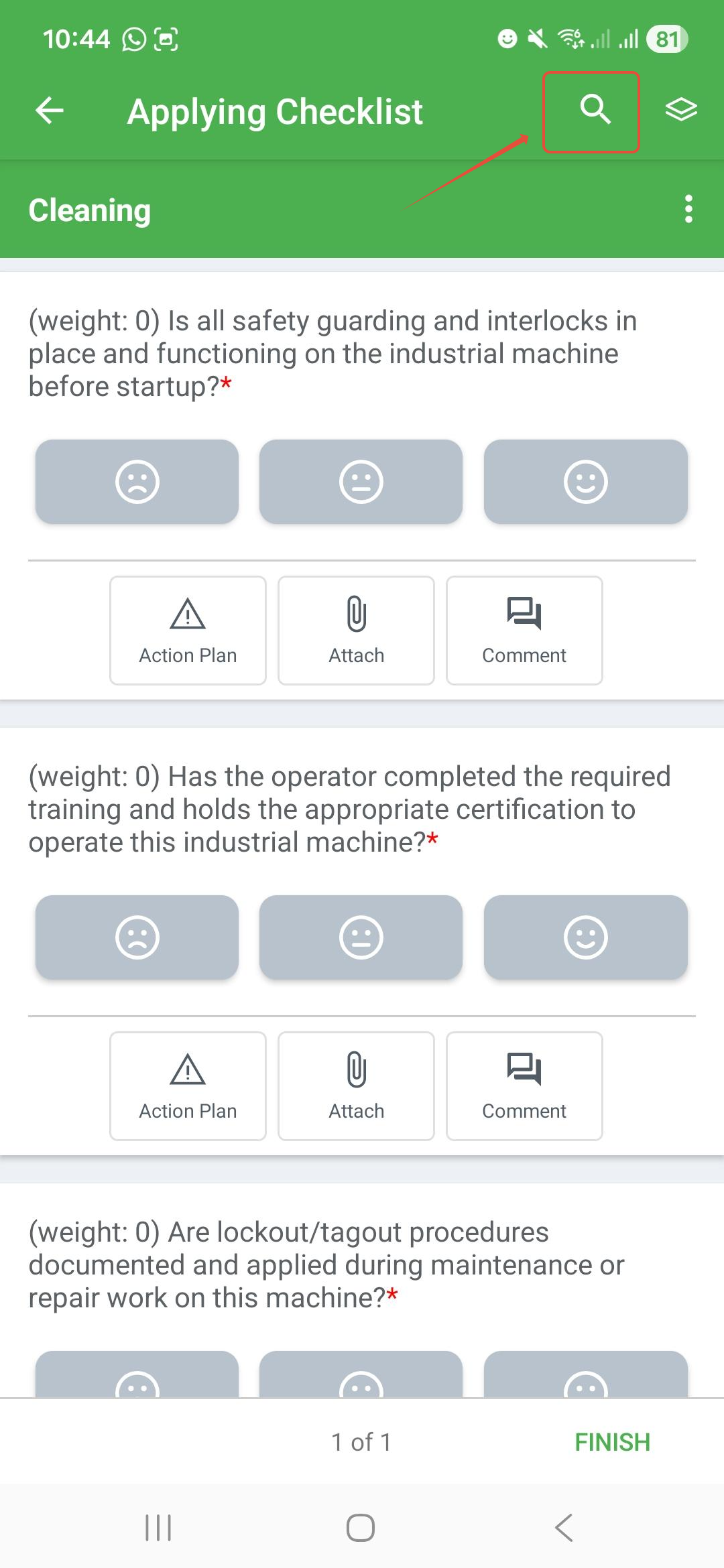
After clicking this button, select a unit and then the checklist to be evaluated. Once you open the checklist, the items you can evaluate will appear, as shown in the image below:
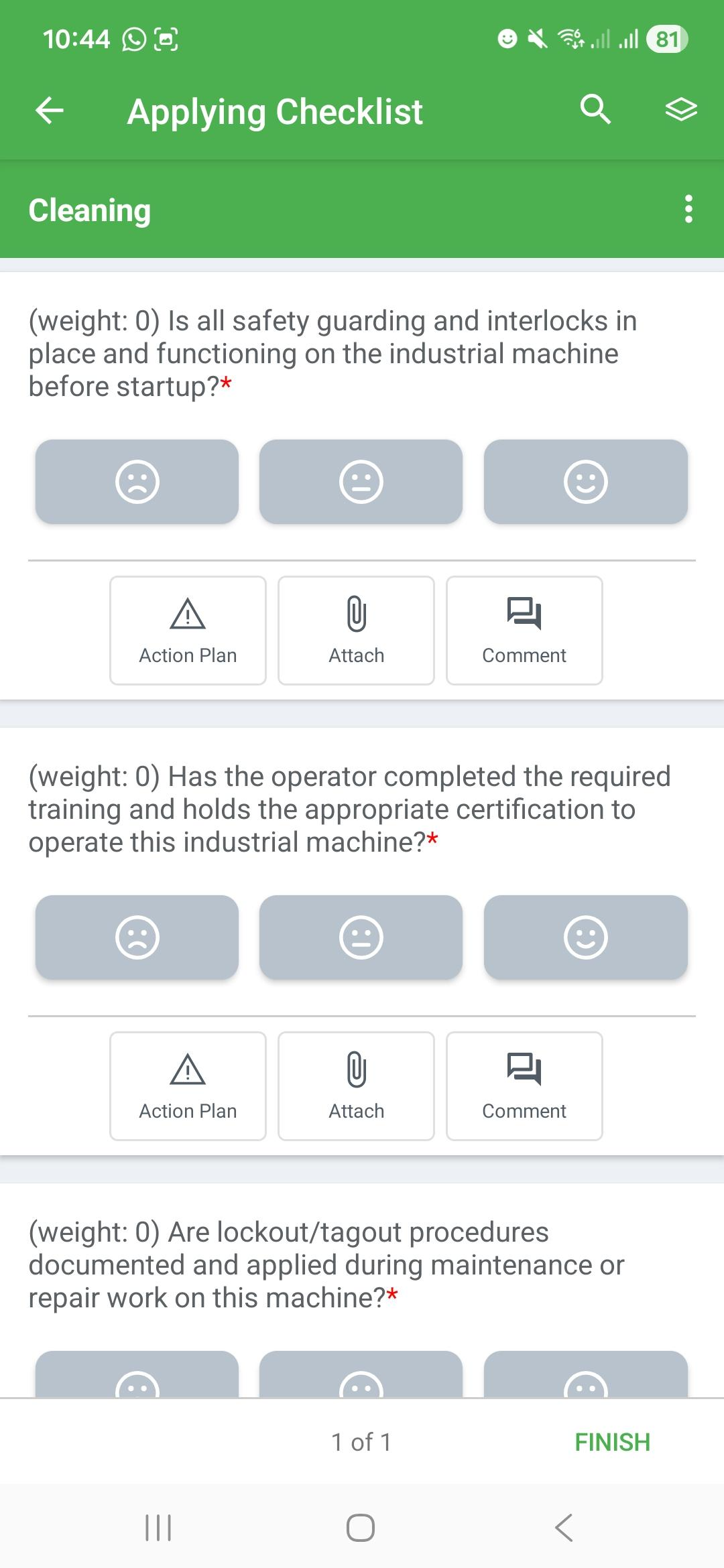
After evaluating all items, click Concluded.
Are there other resources available during application?
Yes! Some resources can be used to assist during application, such as:
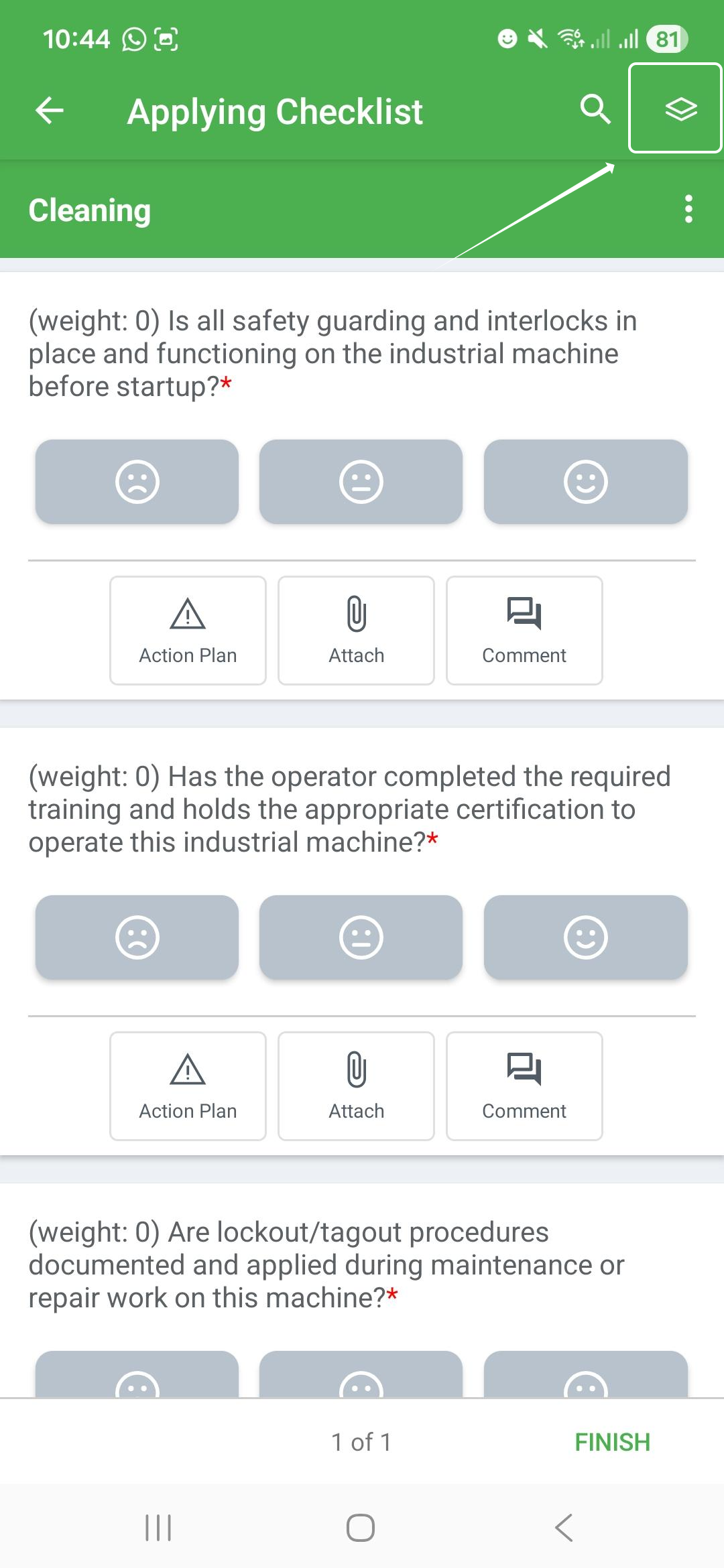
- Check evaluation progress: by clicking on the icon highlighted in red in the image, you can check the percentage of items already filled out and, if the evaluation is finished, conclude it.
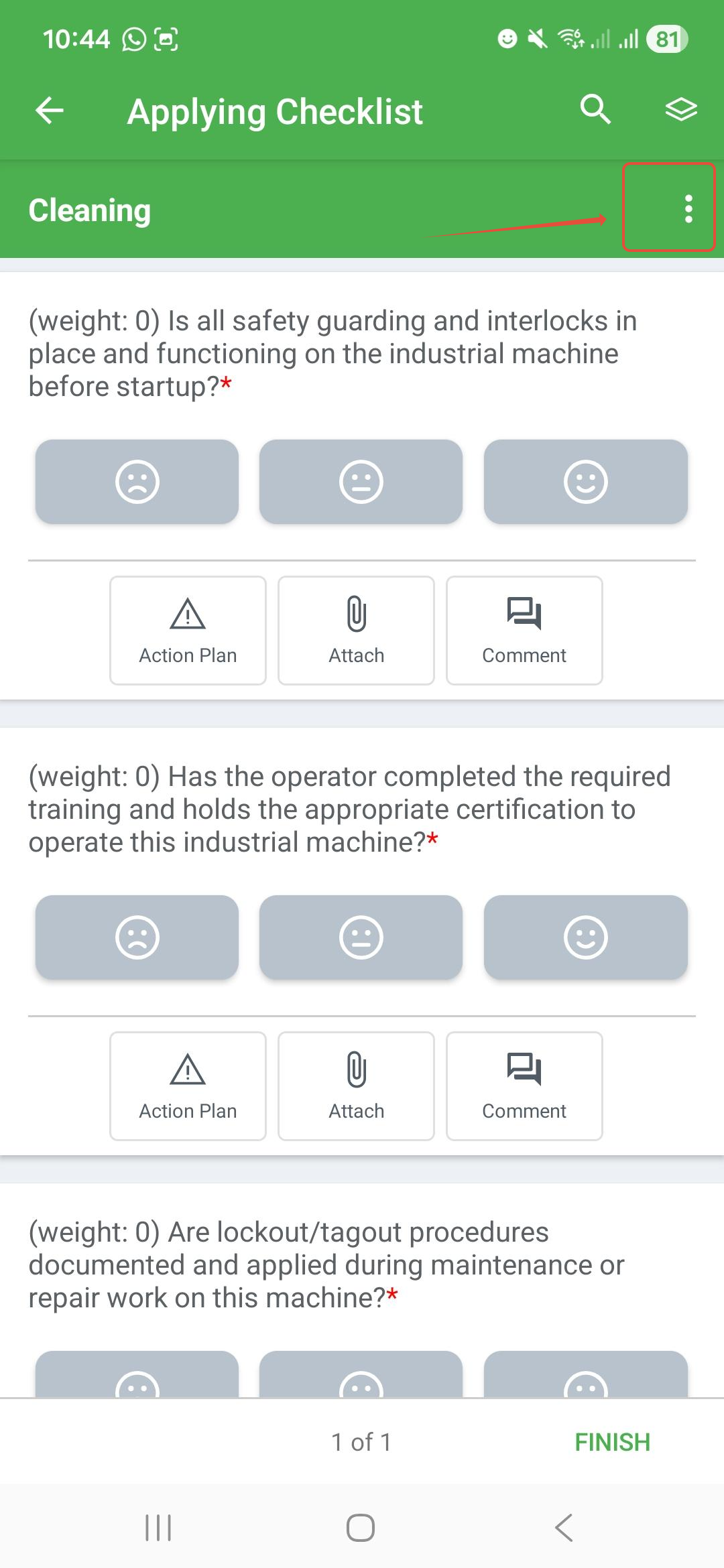
- Apply a response to all items: the three dots, in turn, allow you to apply a specific evaluation to all items in an area.
- Search for items: by clicking on the magnifying glass, you can search for specific items within the checklist being evaluated.
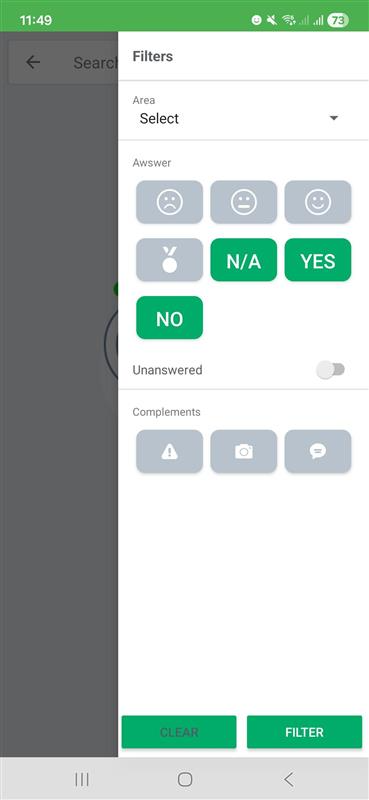
 However, after clicking the magnifying glass, you have the option to filter by area, response, add-ons, or items not yet answered.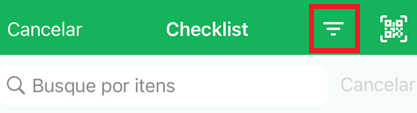
What information must be entered during application?
It depends largely on the previous settings. In addition to the evaluative scale, some additional options may be requested for each item.
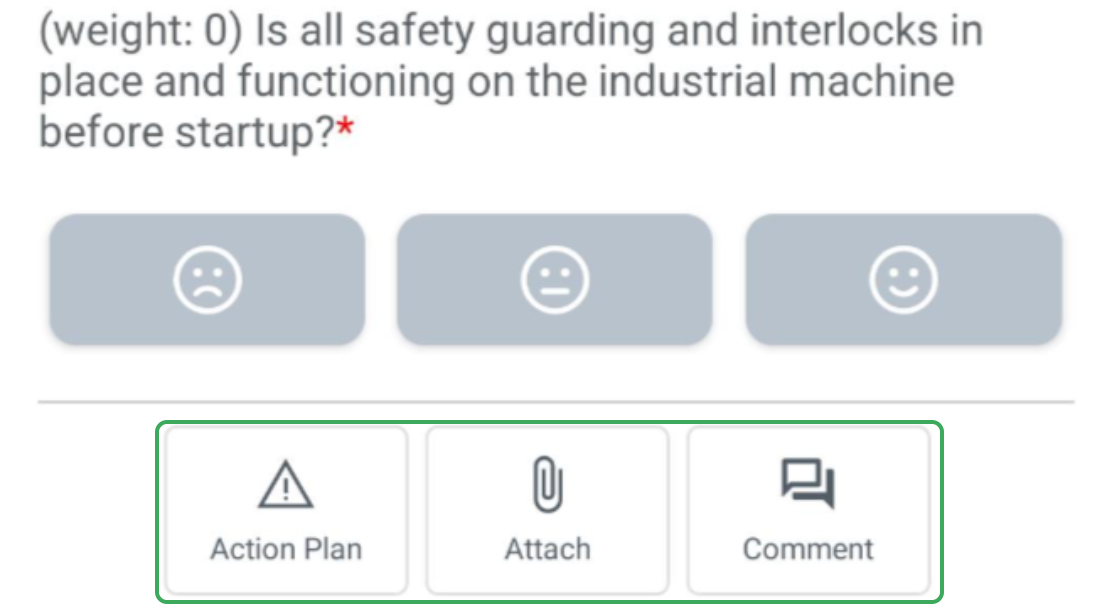
Thus, you may need to add a comment about that specific item, or, if a nonconformity is detected, it may be mandatory to upload media (a photo, video, or file).
Always remember that the more information you provide during evaluation, the greater the chances of mitigating nonconformities.
Why does a unit or checklist not appear for application?
If a resource does not appear as an application option, here are some common reasons:
- Lack of links: It is possible that these resources have not been released for your user. Your profile must be linked to the corresponding unit and checklist.
- Data update: If the links are correct, it may be necessary to update the app data to fetch new information from the system.
How to view checklists that have already been applied?
To view checklists that have already been finished, go to the bottom menu of the app and click on the Concluded icon:
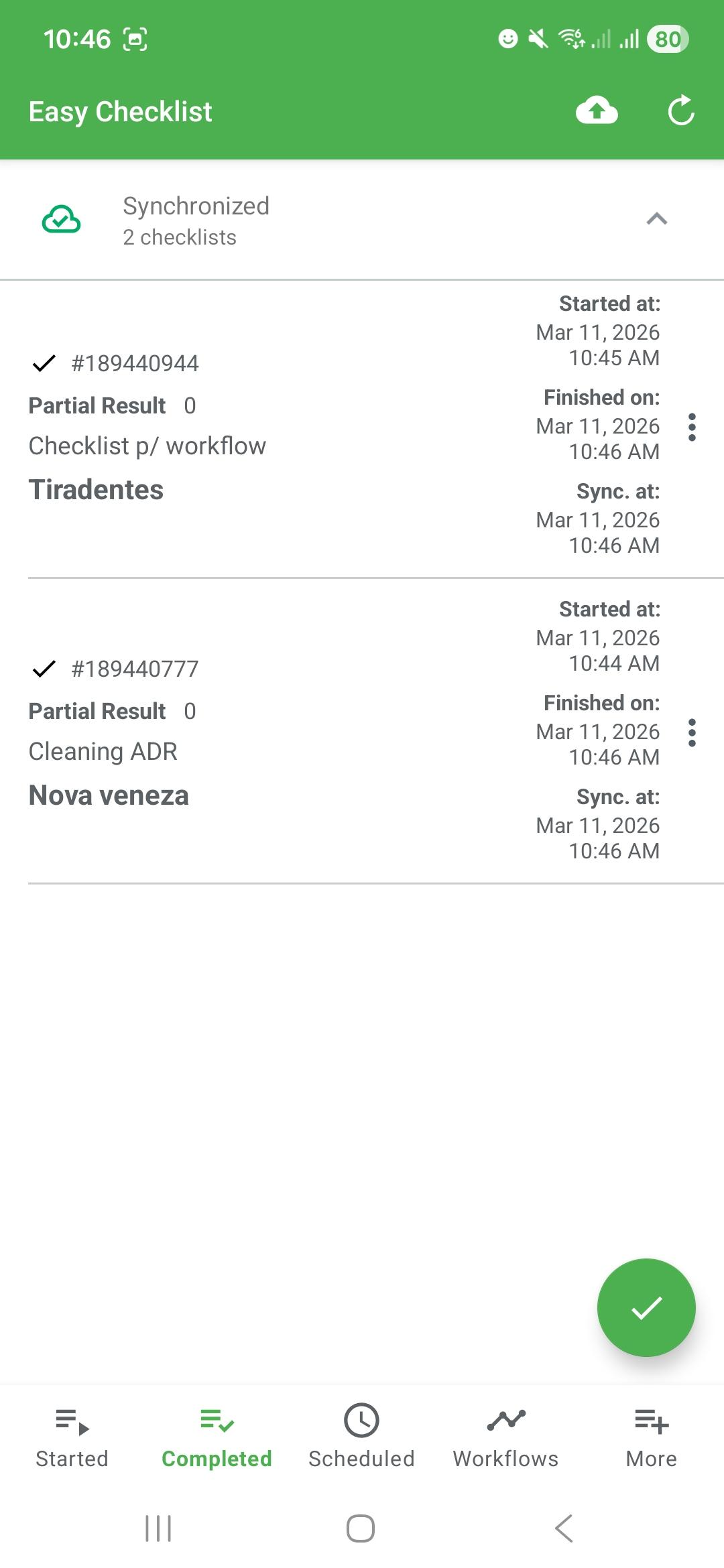
If you want to check checklists that have been started but not yet finished, click on the button on the left, In Progress.
Frequently Asked Questions (FAQ)
1. How to update the app data?
App data consists of your user information and links (checklists, units, and permissions). Since the app works offline, constant updates are necessary to ensure the most recent settings.
To update, simply press the Update button at the top right or in the side menu.
Important: there cannot be any checklist in progress in the app to perform this action. Synchronize everything before updating.
2. Can I apply a checklist without internet?
Yes! The Checklist Fácil app allows the complete application of inspections even without a connection. The data is saved on the device and must be synchronized as soon as you have access to an internet network.
❓Tem dúvidas? Entre em contato com nosso time de suporte.