Digital security is one of the primary concerns when using online systems and platforms. To protect sensitive data and prevent unauthorized access, two-step verification with facial recognition emerges as an extra layer of protection, in addition to traditional login and password. In this article, we will show how to enable this feature, as well as explore additional resources.
Enabling the two-factor verification option
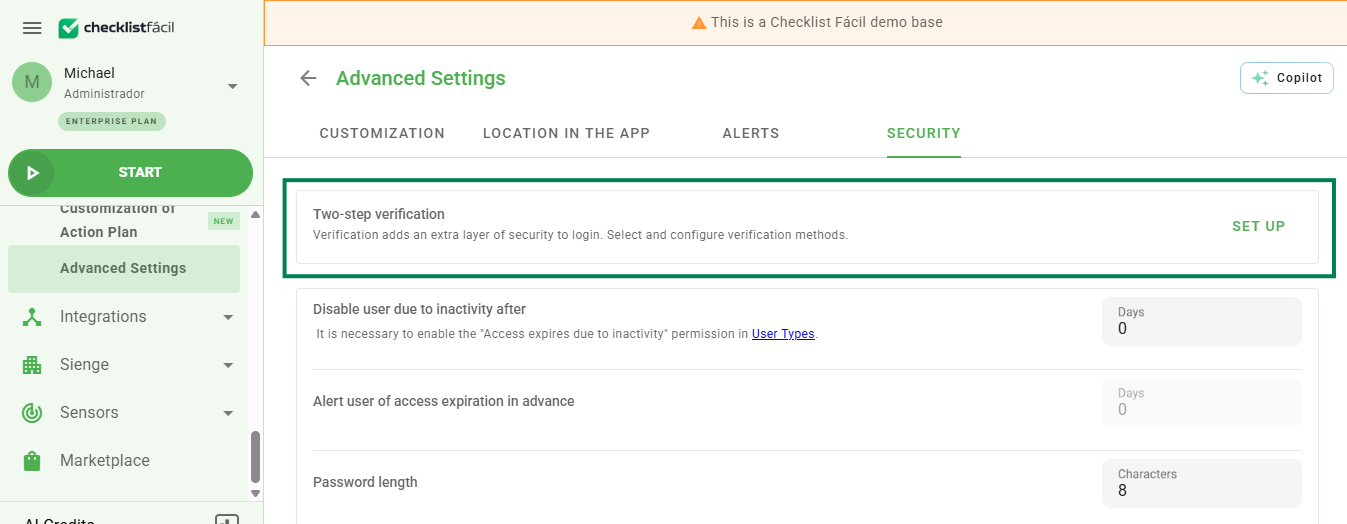
In the Settings menu, Advanced settings section, Security tab, the Two-step verification option will be available right at the top of the list, where you simply click configure.
The configuration will be available for users whose User Type has the Advanced Settings permission within the Settings section.Under Verification methods, enable the option Two-step verification for all users and then
Two-step verification by facial recognition for all users. By enabling this option, all users will be affected.
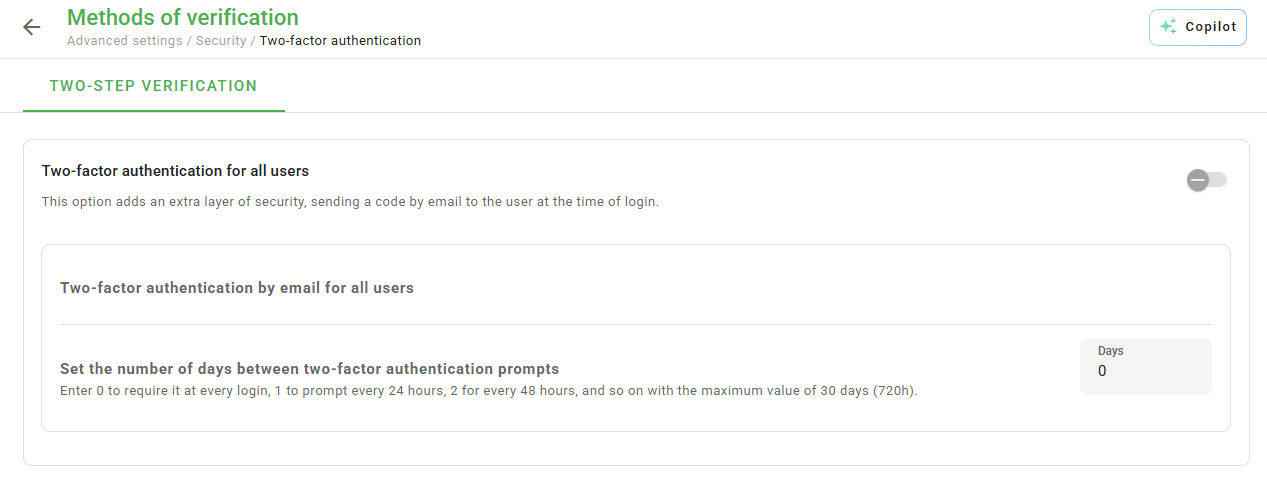
When activating two-step verification, a confirmation email will be sent to all registered users.Additionally, with the option Define the number of days between two-factor verifications it is possible to set an interval of up to 30 days between access verifications.
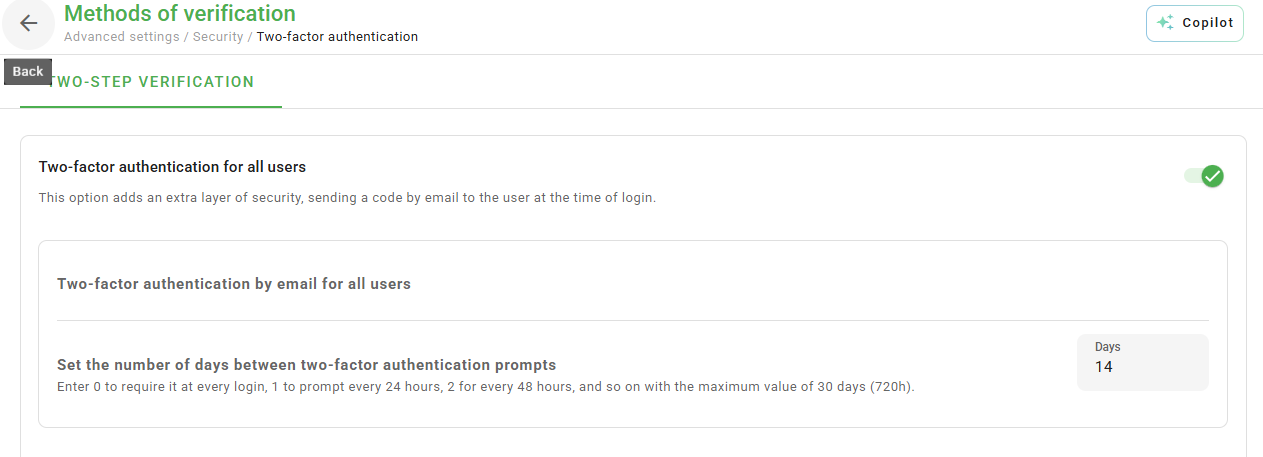
Enable facial recognition verification
Once activated, the Two-step verification by facial recognition for all users option will add an extra layer of authentication to the login. In this case, each user will be directed to configure access by facial recognition during the next login or, if preferred, via an automated email sent at the time the feature is enabled.
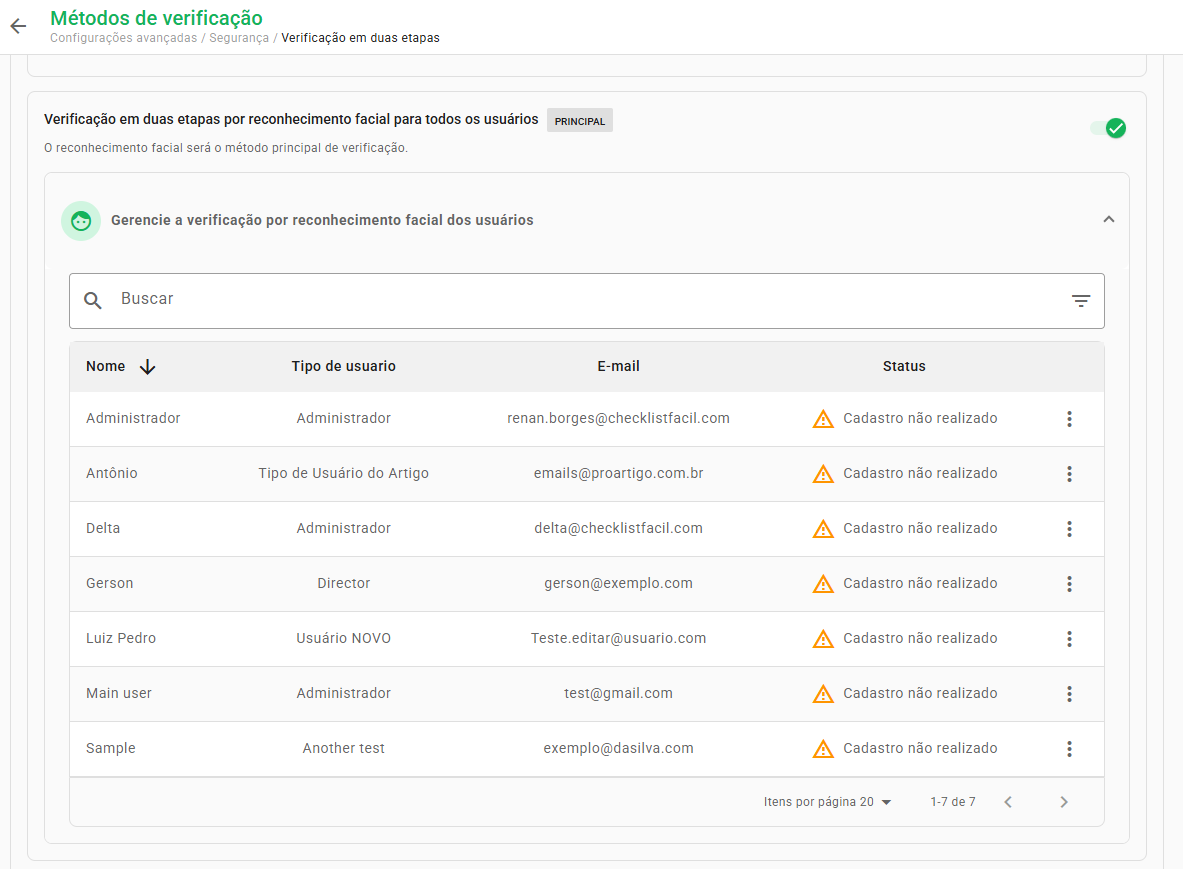
Still on the Verification methods screen, with the Two-step verification by facial recognition for all users option enabled, the Manage user facial recognition verification functionality will be displayed. When expanded, a table will show the status of each user's facial authentication registration.
The user management table allows viewing the facial registration status, resending emails, or copying registration links for those who have not yet completed the process, in addition to enabling the removal of already registered faces.
❓Tem dúvidas? Entre em contato com nosso time de suporte.