- About the connection
- Creating your API Key
- Importing data into Power BI
- Next Steps
- Frequently Asked Questions (FAQ)
About the connection
Integrating Checklist Checklist to Power BI allows you to create customized dashboards, automate tasks, and analyze your data with much more agility. Follow this guide to configure your connection quickly and securely.
Creating your API Key
The API key works as a security password so that Power BI can access your data with protection.
1. In the main menu, go to Integrations.
2. Select API Keys and click New.
3. Define a Name for the key and select the corresponding User.
4. Click Save.
5. Copy the API key and keep it in a safe place.
Importing data into Power BI
⚠️
To perform the import, it is necessary to have the Power BI Desktop software installed on your computer. You can perform the official download through this link: Power BI.
With the key in hand and Power BI Desktop installed, follow the steps below:
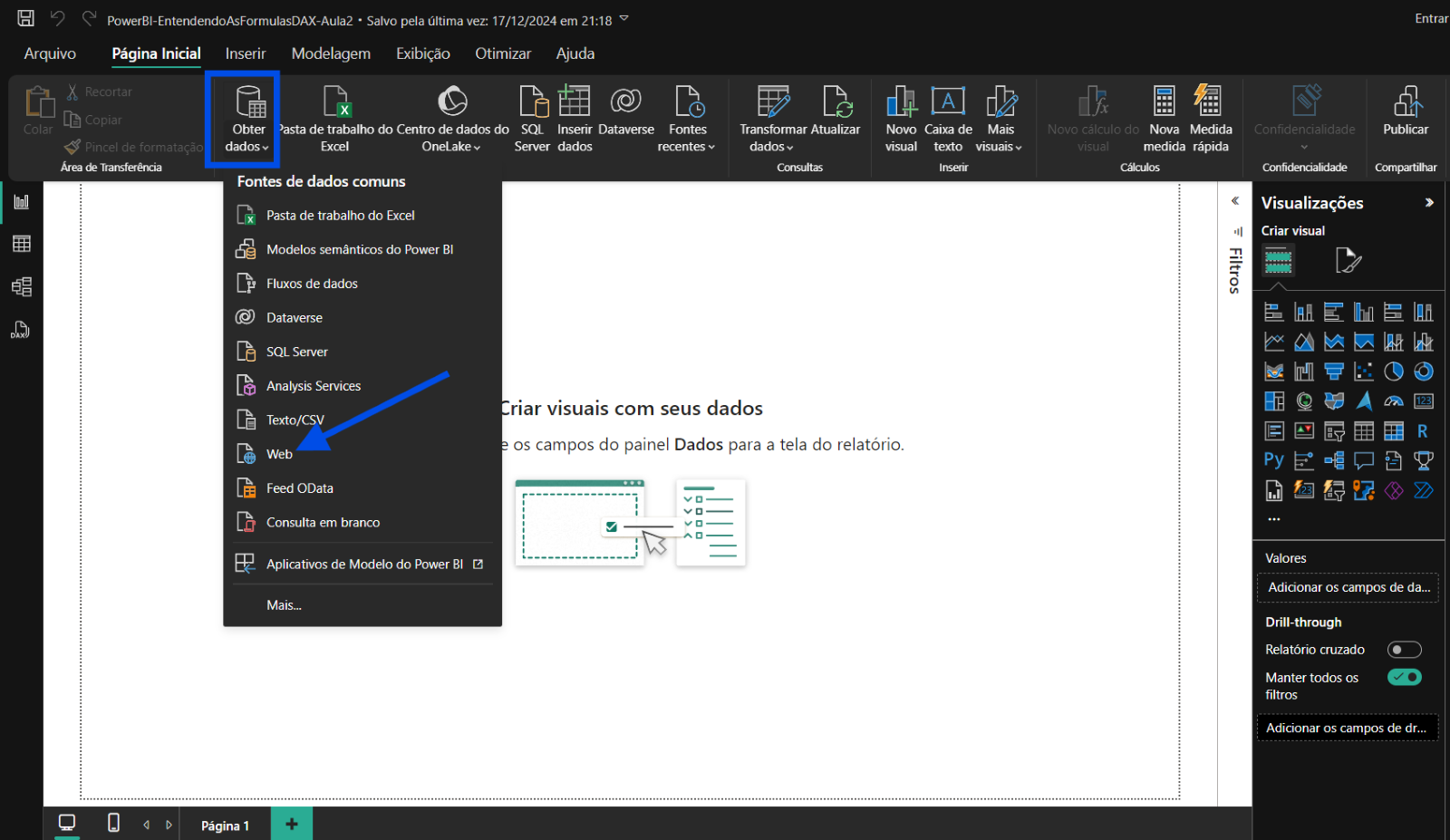
1. In the "Home" tab, click Get Data.
2. Choose the Web option.
3. In the window that opens, select the Advanced option.
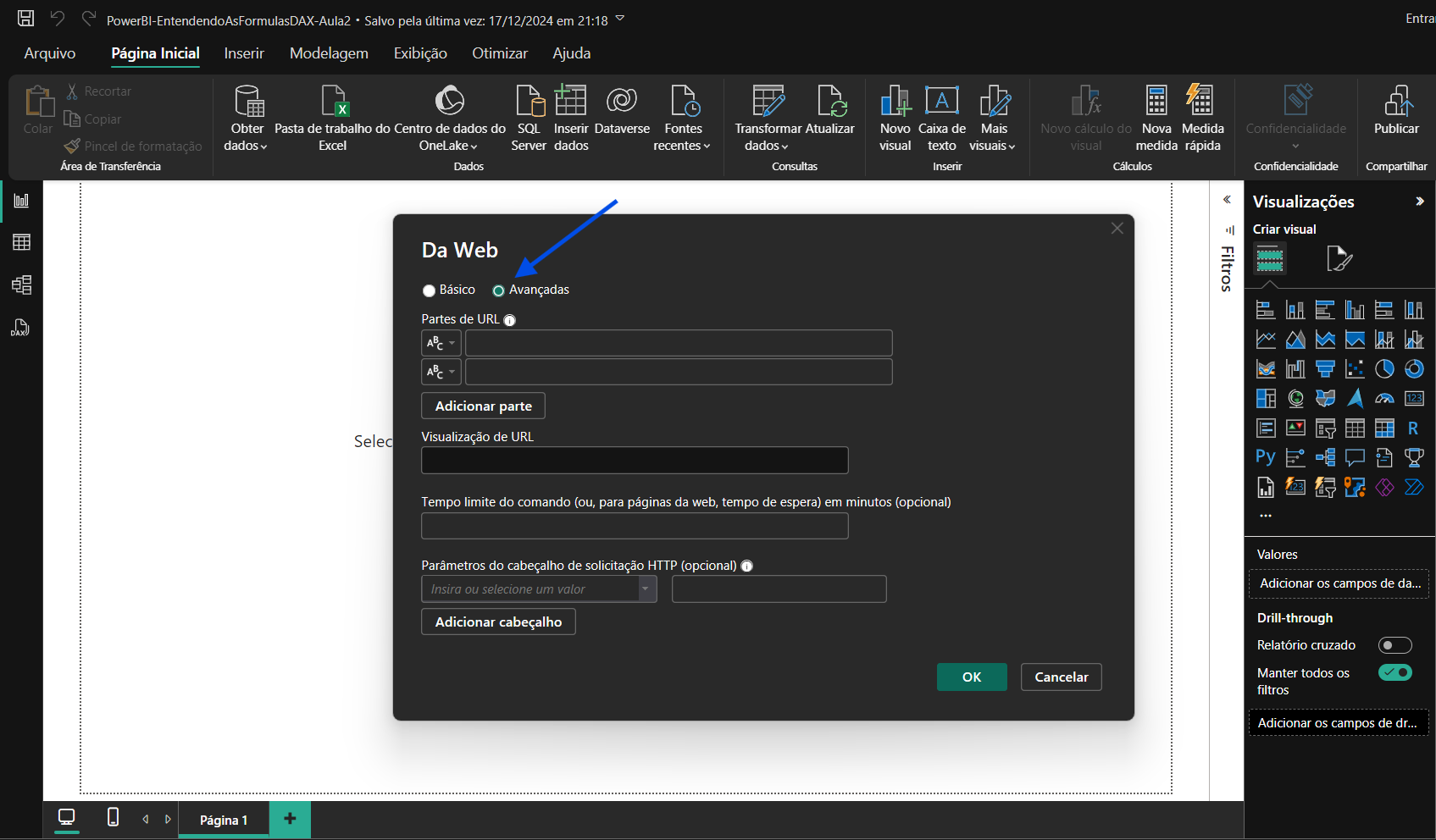
4. In URL parts, enter the desired route for the import.
5. In the HTTP request header parameters field, fill it out as follows:
• In the first column, type: Authorization.
• In the second column, type Bearer followed by a space and paste your API Key.
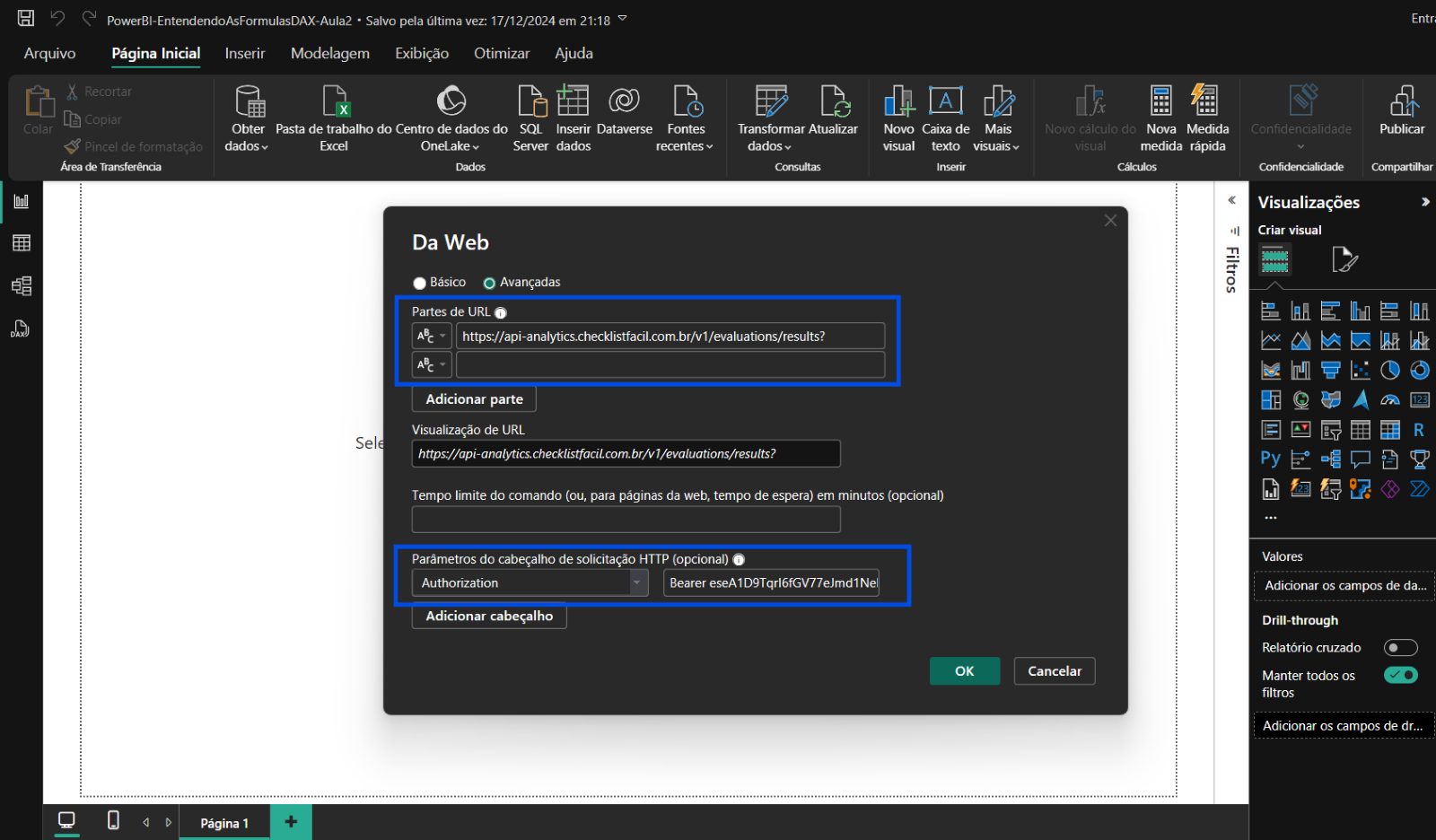
Filling example: Bearer your_token_here. Remember to keep the first letter of "Authorization" and "Bearer" capitalized.
6. Click OK so that the data can be loaded.
Important Information: For the connection to work, it is necessary that the API V2 module is active in your database. If you visualize a 403 Error during the connection attempt, it means that this resource is not yet enabled. In this situation, please contact your Account Manager (CS) or our Support Team to request activation.
Next Steps
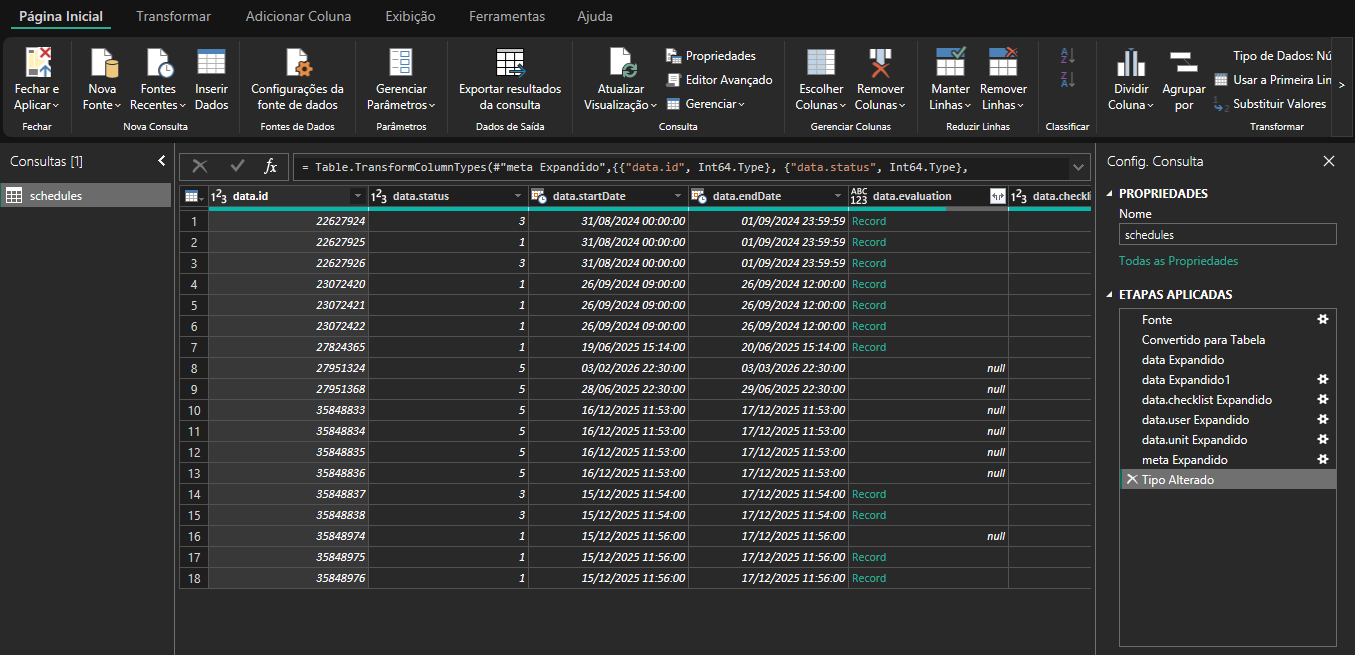
Once connected, the data will be viewed in tables, facilitating the assembly and analysis of your indicators. For details on available routes and data, consult the API Documentation directly in your database.
In the example below, we used the Schedules: route (https://integration.checklistfacil.com.br/v2/schedules). This route allows you to extract detailed data about the inspections that are scheduled in your system, making it easier to monitor deadlines and organize your team's demands directly in Power BI.
Frequently Asked Questions (FAQ)
1. What does the 403 Error mean in the connection?
This error indicates that the API module is not activated in your database. Since this is an administrative setting, you must request activation from support or your CS.
❓Tem dúvidas? Entre em contato com nosso time de suporte.