- Overview and Benefits
- How it works
- Search component rules
- Step-by-step guide to use
- User feedback
- Business Rules and Logs
- Limitations and Out of Scope
- Frequently Asked Questions (FAQ)
Overview and Benefits
The Filter with AI is a feature that allows applying filters on the Applied Checklists screen using natural language. Instead of manually filling out several fields, you can describe what you want to search for, and the system interprets the text, automatically converting it into structured filters.
This tool solves problems such as time wasted on complex searches and high cognitive effort for new users. With it, we ensure faster data analysis, fewer errors in filter application, and a much more intuitive experience for managers and administrators.
The AI does not create new filters. It intelligently uses the fields that already exist on your screen to present the desired results in an agile way.
How it works
When accessing the Applied Checklists screen, you will find the "Filter with AI" button. Upon clicking, the traditional filters interface is hidden to make room for the new smart search field.
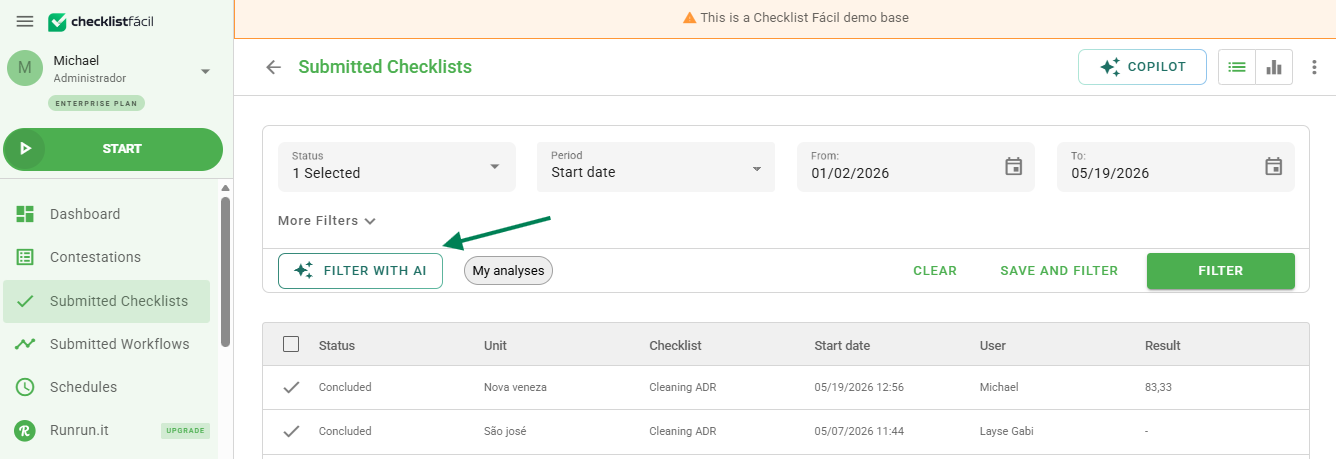
When clicking to filter, the system sends your search to the AI, which interprets the intent, converts it into existing filters, and automatically applies them to the screen.
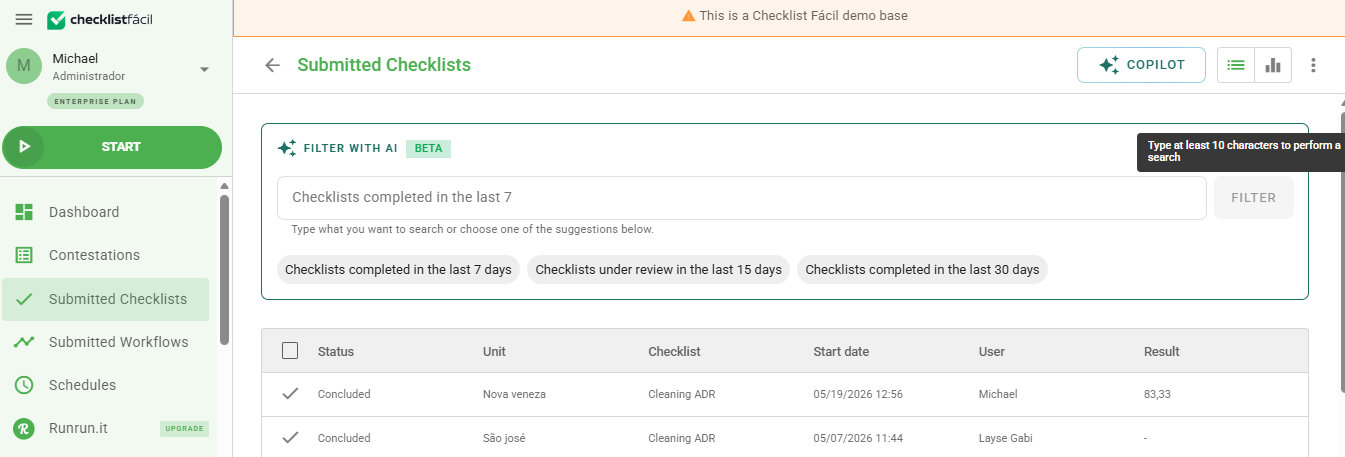
Search component rules
For the interpretation to be accurate, the search field follows a few guidelines:
- Minimum size: It is necessary to type at least 10 characters for the processing to be activated.
- Dynamic placeholder: The field displays "Describe what you want to search..." to guide the beginning of the sentence.
- Suggestions: Right below the field, there are clickable examples that serve as shortcuts for the most common searches.
- Search examples:
Checklists concluded in the last 7 days
Checklists in analysis in the last month
Checklists started in the last 30 days
Currently, the AI interprets filters such as status, period, dates, unit, and checklist.
Step-by-step guide to use
1. Type your search intent (e.g., "Checklists concluded in the last 7 days").
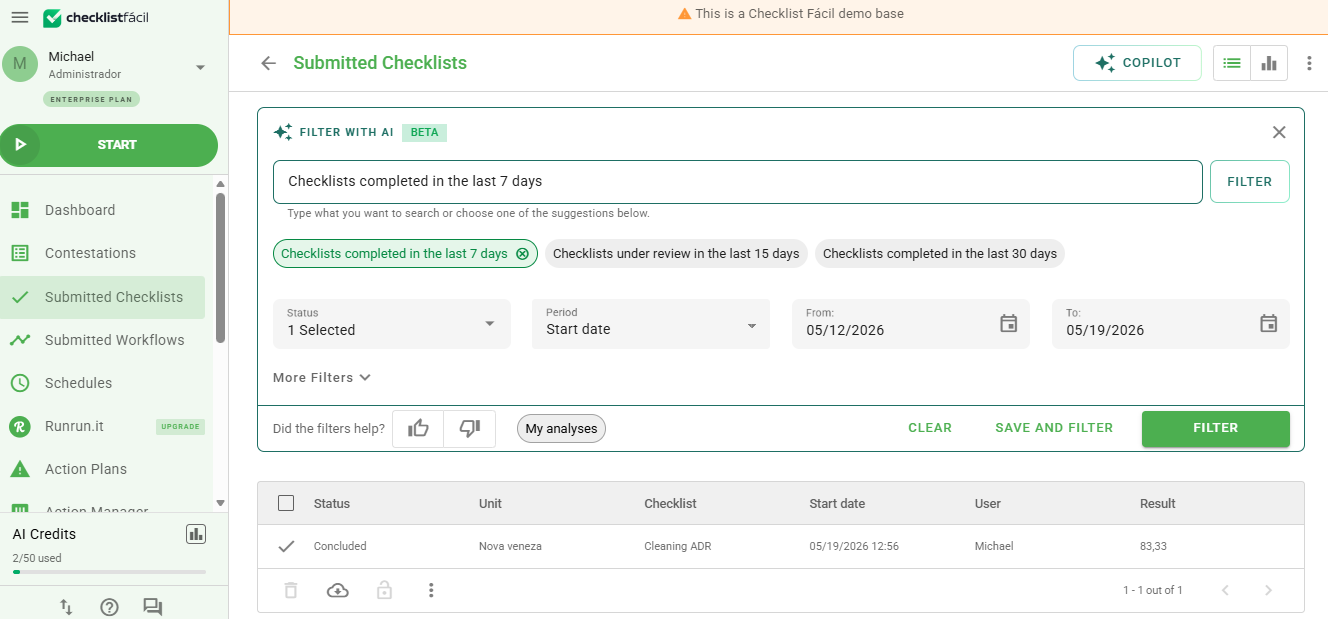
2. Click "Filter". The system will process the text and automatically fill in the filters in the sidebar.
3. Check the applied filters. If necessary, you can make manual adjustments before concluding the analysis.
4. After applying the filter, the AI mode remains active for new searches.
User feedback
Your opinion is essential for the evolution of the tool. After applying the filter, the system will ask: "Did the filters help?".
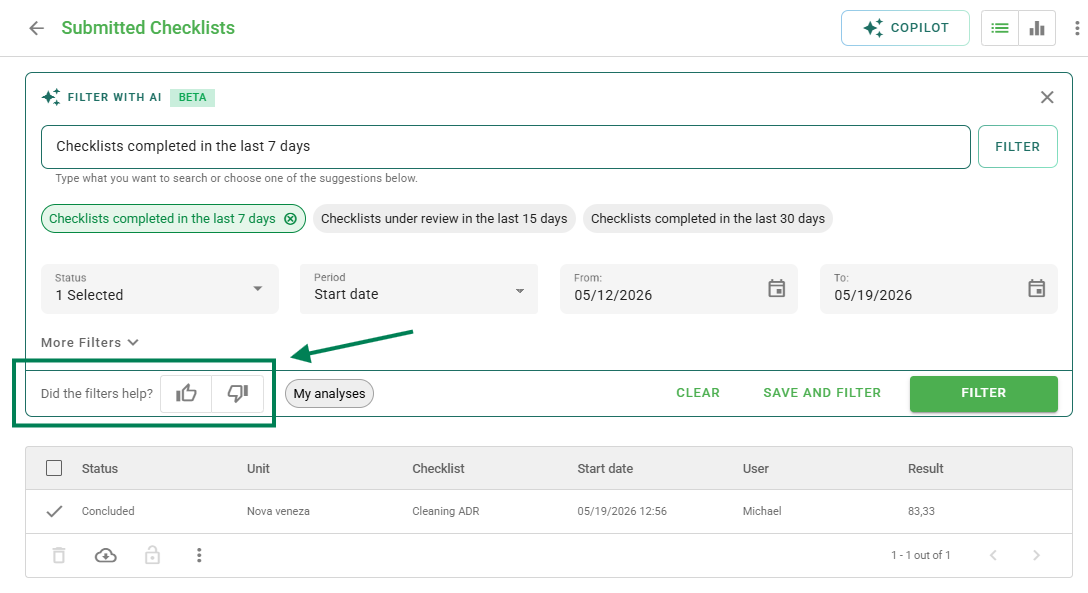
When clicking the negative icon, an optional text field will be displayed. Use this space to tell us what the AI did not interpret correctly or what could be improved.
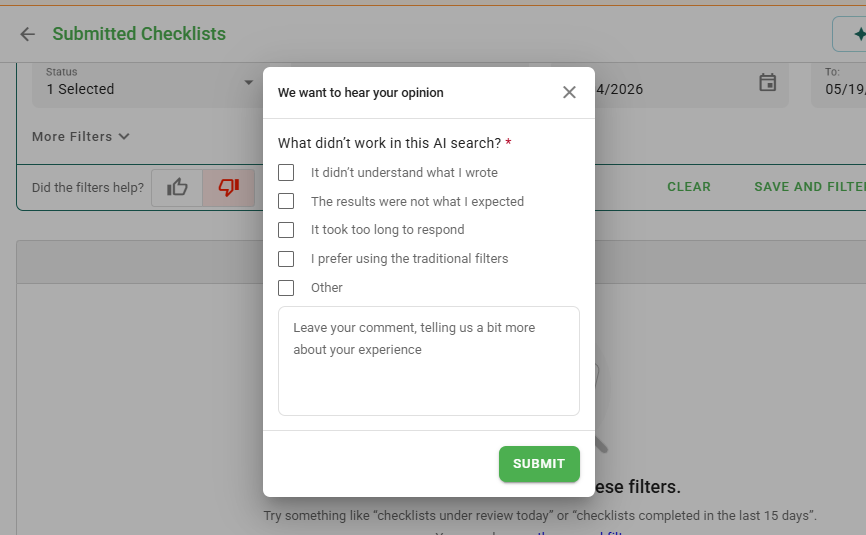
Interacting with the feedback helps to train the model specifically for the needs of your operation.
Business Rules and Logs
We constantly monitor the performance of the feature through logs that record the text typed, whether the conversion was successful, and if the user needed to edit the filters manually after the AI suggestion.
When saving, only the filters are stored — the original typed text is not saved or reused.
Important: If you use the "Save and Filter" option, the system will store only the configuration of the structured filters, and not the original typed text.
Limitations and Out of Scope
To align expectations, this initial version presents the following limitations:
- Screen Scope: Available only for Applied Checklists. Schedules, Action Plans, and Applied Workflows are out of scope.
- AI Type: It is not a conversational AI (chat); it only translates text into technical filters.
- Memory: The system does not store a history of phrases (prompts) per user for future queries.
Frequently Asked Questions (FAQ)
1. What happens if the AI does not understand my search?
The search may fail when:
- the text is too short;
- there is not enough context;
- the requested filter does not exist;
- the values are not valid.
When the AI cannot interpret, no filter is applied and the system suggests new ways to search or the use of manual filters.
2. Can I filter by specific user names?
Yes, the AI tries to identify entities such as unit names, checklists, and date periods to fill in the corresponding fields.
3. Does using the AI have any additional cost?
The feature will be available for all plans free of charge. There will be no additional cost.
❓Tem dúvidas? Entre em contato com nosso time de suporte.