- Overview
- What Is MCP
- Who Can Access It
- How Access Works
- OAuth Authentication
- What MCP Can Do
- Limitations and What It Does NOT Do
- Frequently Asked Questions (FAQ)
Overview
MCP (Model Context Protocol) is a server that allows AI agents, such as Claude and Cursor, to operate directly within Checklist Fácil. With MCP, you can perform actions using natural language commands, without requiring technical knowledge of APIs.
For example, instead of building a technical request, you can simply say: "create a unit named XYZ" and the AI identifies the action, requests any missing data, and confirms before executing.
MCP is different from the traditional REST API: the AI itself interprets your natural language commands and performs the actions in a secure and confirmed manner.
This feature is available for the Professional and Enterprise plans.
What Is MCP
MCP is an open protocol that acts as an intermediary between AI agents (such as Claude) and Checklist Fácil. It allows the AI to perform operations directly in the system without requiring you to write code or API requests.
Main benefits:
- Simplified access through natural language
- No technical knowledge of APIs required
- Automatic confirmation before destructive actions
- Secure authentication via OAuth
- Direct integration with popular AI tools
Who Can Access It
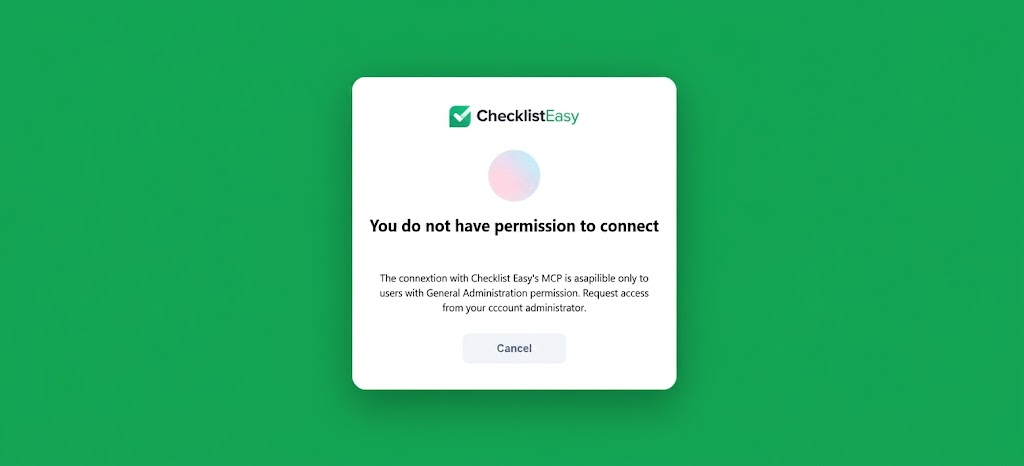
Access to MCP is restricted for security reasons. Only users with General Administration permission are able to complete the authentication and use MCP.
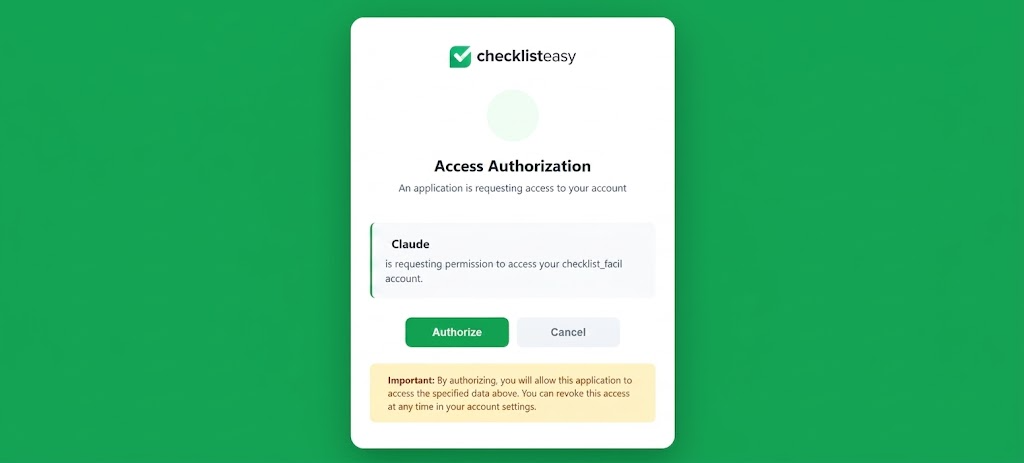
If a user without this permission attempts to access MCP, they will be blocked on the authorization screen, before any session is created. The only option available will be the "Cancel" button.
Important: Only general administrators can authenticate and use MCP. Check your permissions before attempting to configure access.
How Access Works
The MCP access flow involves three main steps:
1. Register the MCP Address
In the AI client (such as Claude Desktop or Cursor), register the Checklist Fácil MCP server address:
https://mcp.checklistfacil.com.br/mcp
2. Log In and Authorize
After registering the address, you will be redirected to log in through the browser. Here, you authorize the AI client to access your Checklist Fácil account. This is the OAuth authentication step, which ensures the security of the connection.
3. Receive the Session Token
After successful authorization, the server issues a session token (JWT). This token keeps your session active for subsequent access, without requiring you to authenticate again for each command.
OAuth Authentication
MCP uses OAuth for secure authentication. This is a widely adopted security standard that allows third-party applications to access your account in a controlled manner.
How it works:
- You log in through the browser using your Checklist Fácil credentials
- You authorize the AI client to access your account
- A secure token (JWT) is generated and stored by the client
- The token allows the client to perform actions on your behalf, without exposing your password
OAuth has replaced the previous model of manually generated Bearer Token/API key, offering greater security and ease of use.
What MCP Can Do
MCP allows you to perform a variety of operations directly in Checklist Fácil using natural language:
Organizational Structure
- Create and list units
- Create and list unit types
- Create and list departments
- Link entities (for example: a unit to a unit type, a user to a unit)
Users
- List existing users and user types
- Invite new users by email
- Link users to units, checklists, and departments
Checklists
- List existing checklists
- View the complete structure of a checklist
- Create checklists automatically through AI (automatic generation)
- Generate application links for checklists
- Import checklists from files
- Link checklists to units and departments
Important: Some actions have limits. For example, it is possible to link up to 20 entities per call. In addition, checklist creation is not granular - the AI creates the complete checklist, not item by item.
Limitations and What It Does NOT Do
Although MCP is powerful, there are features that are not yet available in it. For these operations, you can use the traditional Checklist Fácil REST API.
MCP CANNOT:
- Manage records and catalogs
- Create or manage Schedules
- Create or manage Action Plans
- Access Applied Checklists
- Manage regions and groups
- Configure webhooks, SSO, or IoT
- Access location data (country, state, city)
For these features, refer to the Checklist Fácil REST API documentation or contact our support team.
Frequently Asked Questions (FAQ)
1. Which is better to use: MCP or the REST API?
It depends on your use case. If you want to automate tasks using an AI agent (Claude, Cursor), MCP is easier because it works with natural language. The REST API is ideal if you want to build complex integrations or need features that MCP does not yet offer.
2. Can I use MCP without technical knowledge?
Yes. MCP was designed to be accessible. You describe what you want to do in natural language, and the AI handles the rest. However, you must have General Administration permission to access MCP.
3. What is the MCP server address?
The address is https://mcp.checklistfacil.com.br/mcp. Register it in your AI client (such as Claude Desktop) to get started.
4. Will my session token expire?
The session token (JWT) is issued after successful OAuth authentication and remains active for subsequent access. If the token expires, you will need to log in again through the browser to obtain a new token.
5. Is MCP available in all regions?
Yes, MCP is available to the entire user base. You can use the same server address regardless of your location.
6. How can I link a user to multiple units?
You can do this through MCP using natural language. For example, tell your AI agent: "link John to units A, B, and C". The limit is up to 20 links per call.
7. Can I create checklists item by item with MCP?
No. Checklist creation via MCP is not granular. The AI creates the complete checklist (with all areas and items) at once. To create or edit individual items, you can use the Checklist Fácil interface.
8. How do I use MCP in Claude Desktop?
Open the Claude Desktop settings, locate the MCP section, and register the address https://mcp.checklistfacil.com.br/mcp. Then, log in through the browser when prompted and authorize the access. After that, you can use MCP normally in your conversation with Claude.
❓Tem dúvidas? Entre em contato com nosso time de suporte.