Learn how to use the new Smart Response module and make your checklists more agile and precise!
- What is Smart Response?
- Test Smart Response for free
- How to configure the Smart Response module?
- Is it possible to test the prompt during configuration?
- How to access the AI Report?
What is Smart Response?
It is now possible to create a command, when configuring a checklist, so that Artificial Intelligence evaluates photos taken by users on the spot or attached from the gallery, ensuring more reliability and speed in your process. The AI verifies if the image meets the requested context and provides a standardized response, reducing errors. The user validates the responses, and a single photo can answer up to 3 items, streamlining audits.
Imagine a product verification where the user checks multiple pieces of information for each product individually while performing a checklist. With Smart Response, the user can arrive at the verification site, take a photo of the products to be evaluated, and the artificial intelligence will check all products shown in the image at once.
Simply configure it in evaluative or textual items to start using!
Test Smart Response for free
If your company has the Basic, Professional or Enterprise plans, you can test the Smart Response module for free! To start using it, simply activate the module in new or existing checklist items and configure the prompts to obtain precise answers.
Upon activating the module, you receive 50 responses to test the adaptability of artificial intelligence in your processes for free.
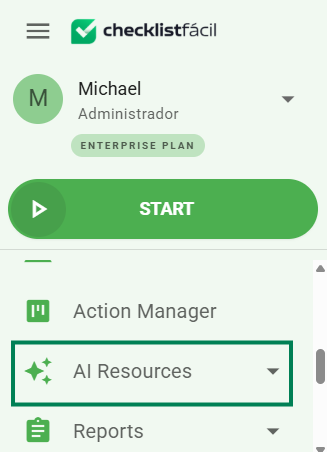
To track the number of tests used, access the Artificial Intelligence tab in the left side menu.
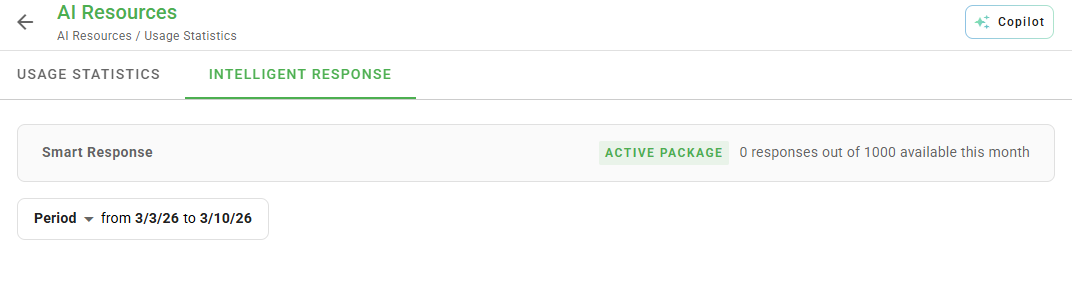
Next to the Free Trial identification, you will track the number of responses used to date.
After using the 50 free responses, you can purchase the module via Marketplace to continue using Smart Response in your processes.
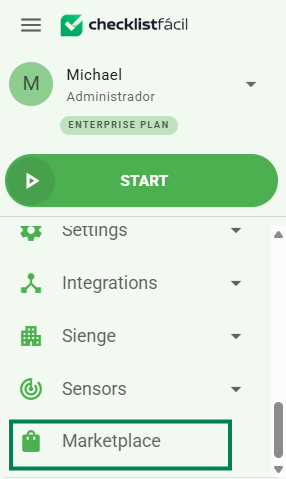
In the left side menu, click on Marketplace.
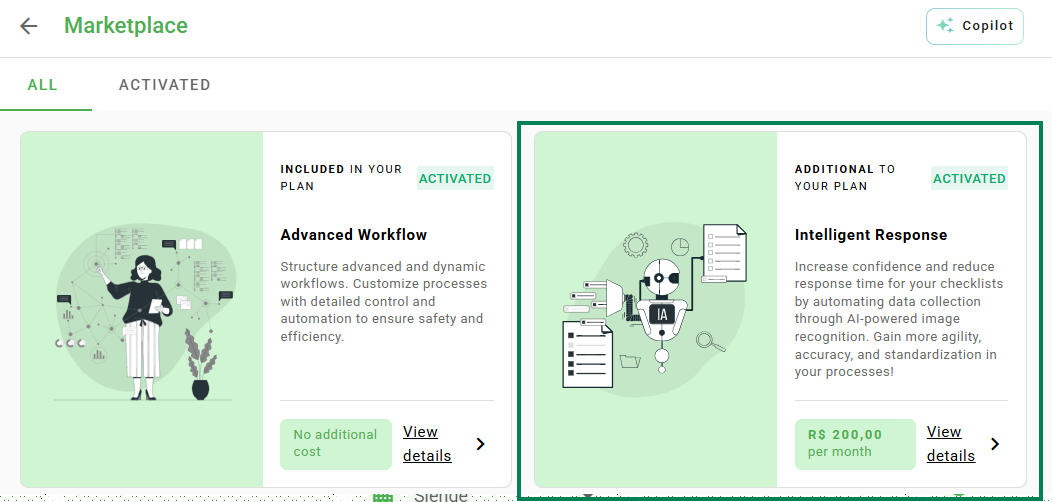
In the Available tab, you will find the Smart Response module. Click on the View Details option to get more information.
To purchase the Smart Response module, click the Acquire module button.
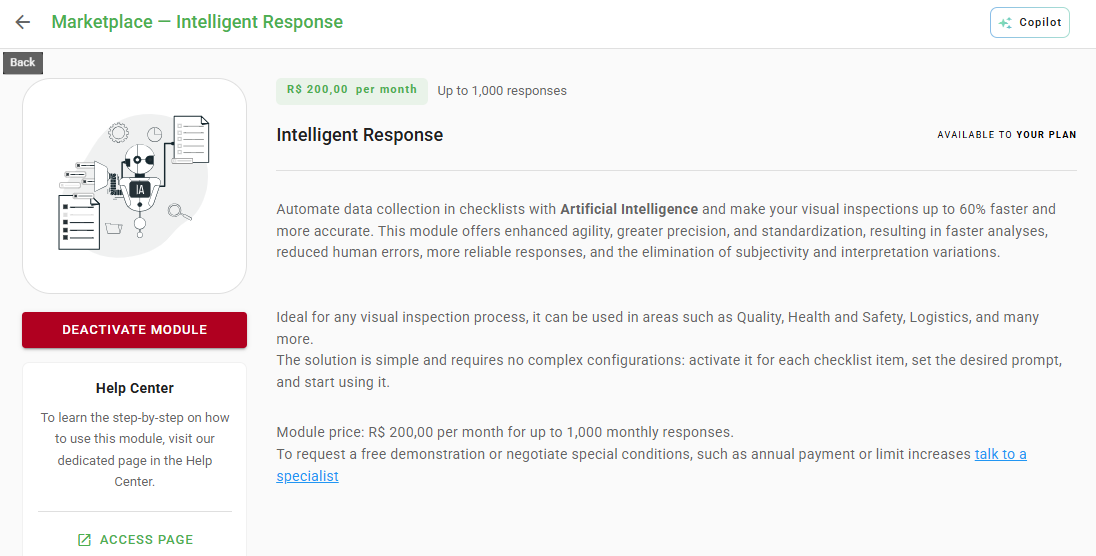
Ready! Now you can continue obtaining precise responses with AI in your processes for an additional value.
How to configure the Smart Response module?
To configure the application of a checklist with this module, simply access the Checklist Fácil platform via browser using a computer, phone, or tablet.
Smart Response can be configured in an evaluative or textual type item of a checklist. Check out the step-by-step guide:
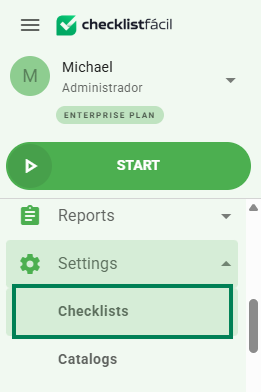
Step 1 - In the left side menu, click on Settings > Checklists.
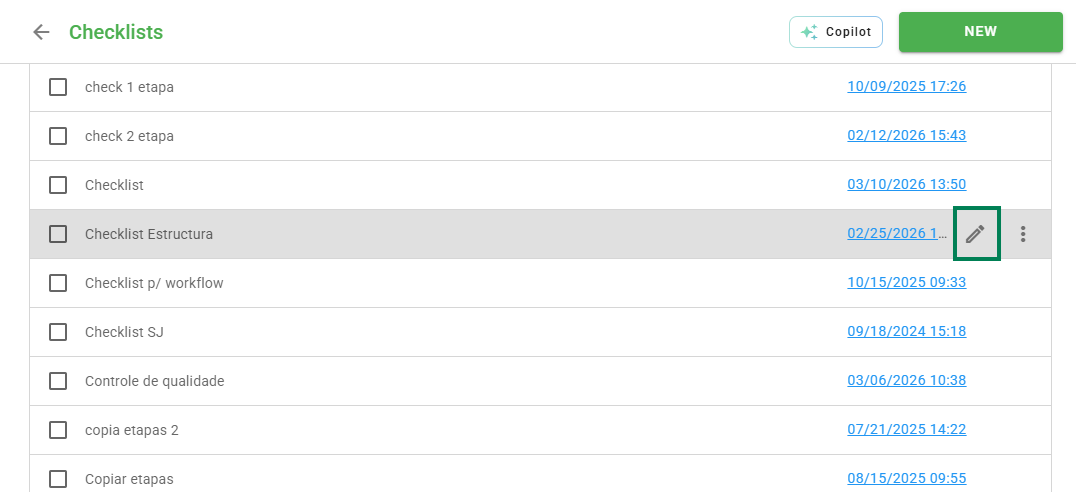
Step 2 - Create a new checklist by clicking New, or edit an existing checklist by clicking the pencil icon on the right side.
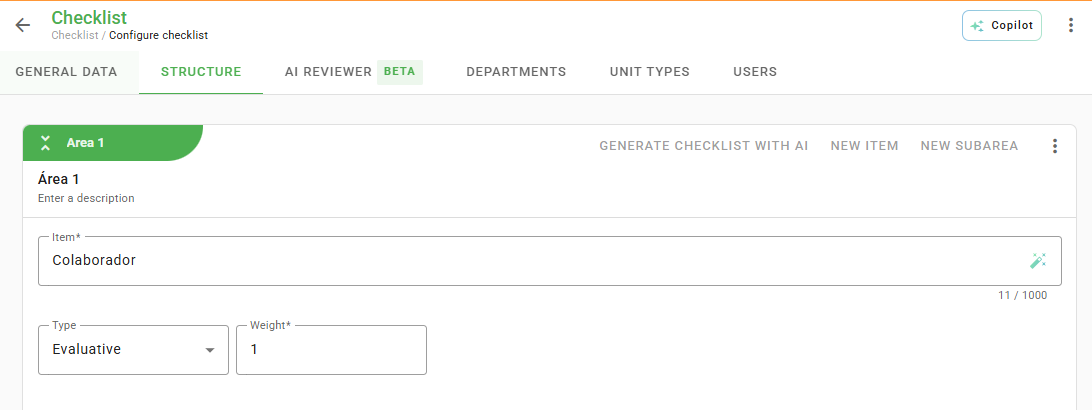
Step 3 - In the Structure tab, define the item that will use the tool and select the Evaluative or Text option in the item type. For Text items, select Short Text (250 characters) or Long Text (500 characters) options.
Step 4 - If you have selected an Evaluative type item, choose between the two scale options below for smart response to function properly.


Note: additional scale options such as "Not Applicable" (N/A) and "Medal" may be enabled on the item where smart response is configured; however, the tool will not use them, as the AI only generates a positive or negative response for the item.

Step 5 - When you select one of the scales mentioned in step 4, the feature will be available for activation right below.
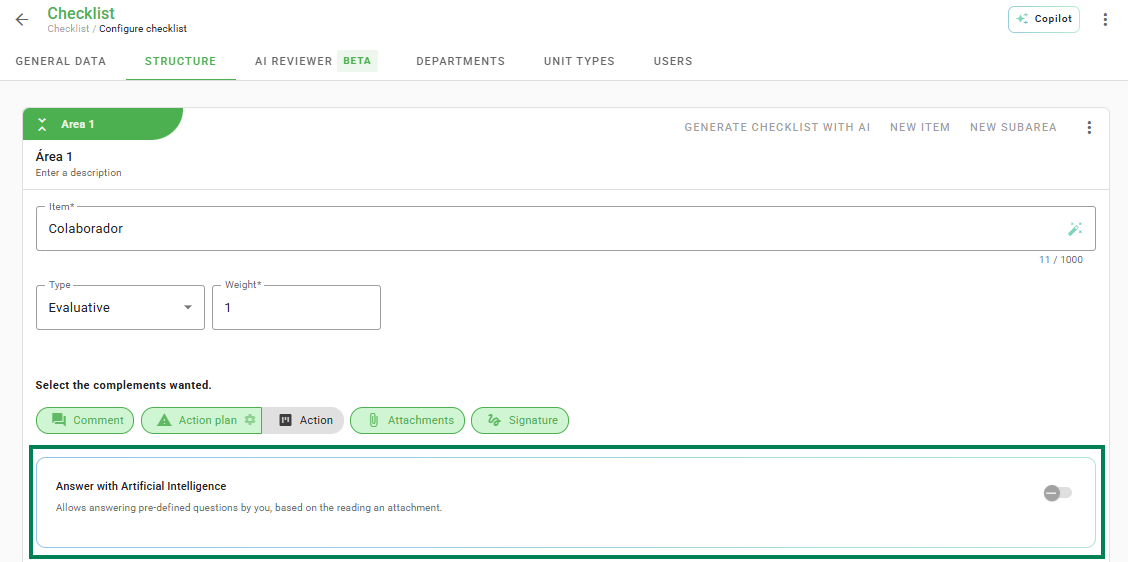
Step 6 - With the module active, a description field will appear so you can instruct the AI, via a prompt, what it should recognize in the image captured by the camera as soon as the user takes the photo.
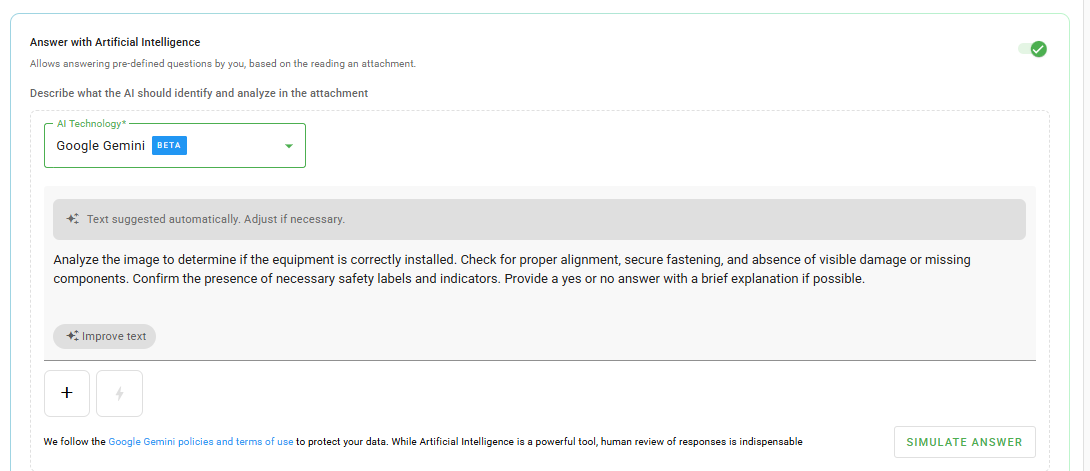
Within the input field itself, there is an example; however, it is not necessary to follow the format using context. Depending on what is requested in the item, the prompt can be built in a direct and simplified way, as in the other example below:

Don't know what a prompt is? Access our article explaining everything you need to know: ➡️Click here⬅️Step 7 - Fill the field with the prompt that the AI should follow.
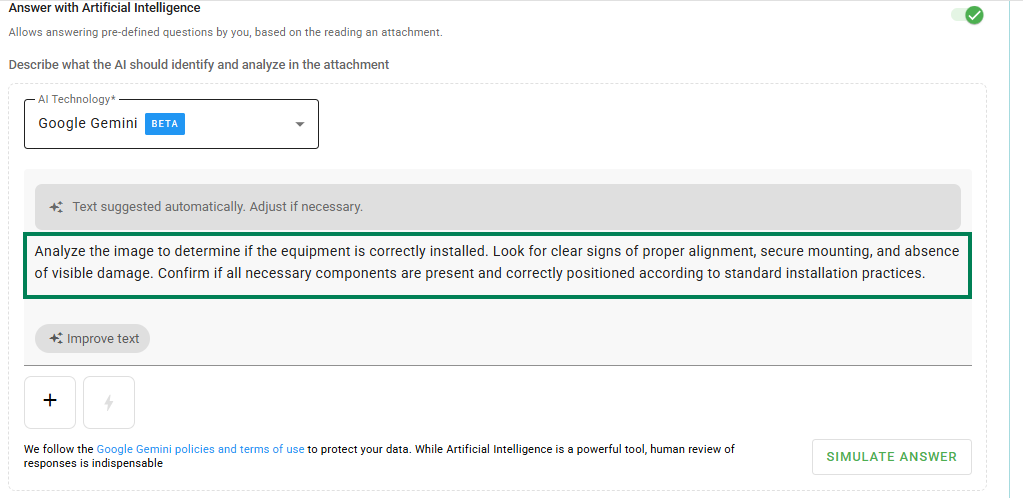
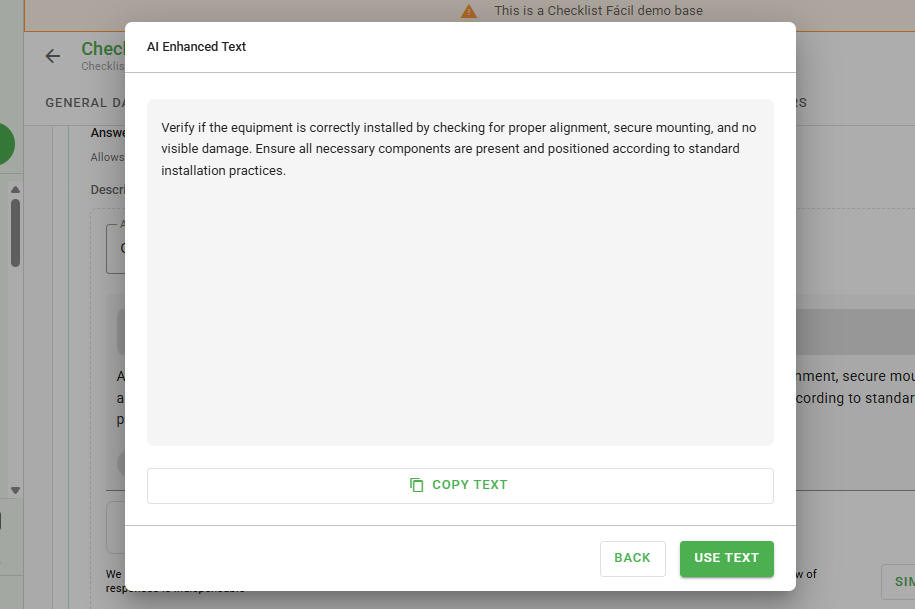
You can also use artificial intelligence to improve your prompt. Simply click on the Enhance text option and wait for the system to generate a suggestion.
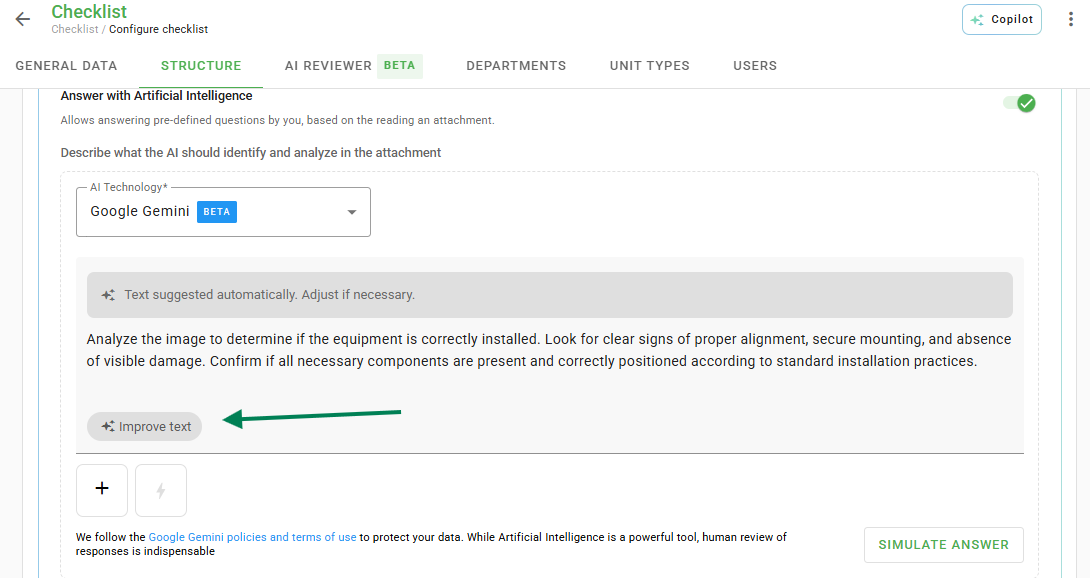
After processing the request for a few seconds, the system will offer an enhanced text suggestion for your prompt. If desired, you can make adjustments to the content before copying it to the prompt field.
Step 8 - Advanced Settings
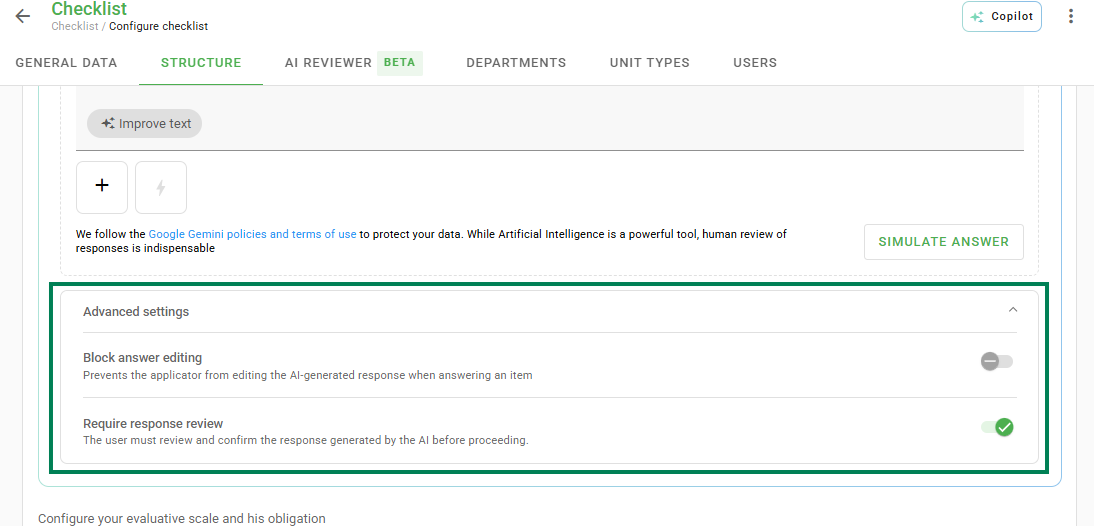
To ensure even more security and integrity in the collected information, you can activate Advanced Settings:
Block response editing: activate this option if you want the AI-generated responses to remain unchanged. By enabling it, the user will not be able to modify the content suggested by artificial intelligence, ensuring greater control and precision in results.
Require response review: upon activating this function, the AI will request the user to review and confirm the response before proceeding. In this way, you ensure that each result is manually validated, avoiding possible errors in the checklist application.
Ready! Now your checklist item is configured to use the Smart Response module.
Is it possible to test the prompt during configuration?
Yes!
In addition to the tips and instructions on how to create a prompt, there is an option to test it to verify if the AI's responses are correct. Through this test, you will be able to validate and ensure the quality of the prompt.
To validate if the prompt entered in the field of step 7 is adequate and working, simply click on the Test prompt button, select the image to be verified, and wait for the test to complete, as shown in the video below:
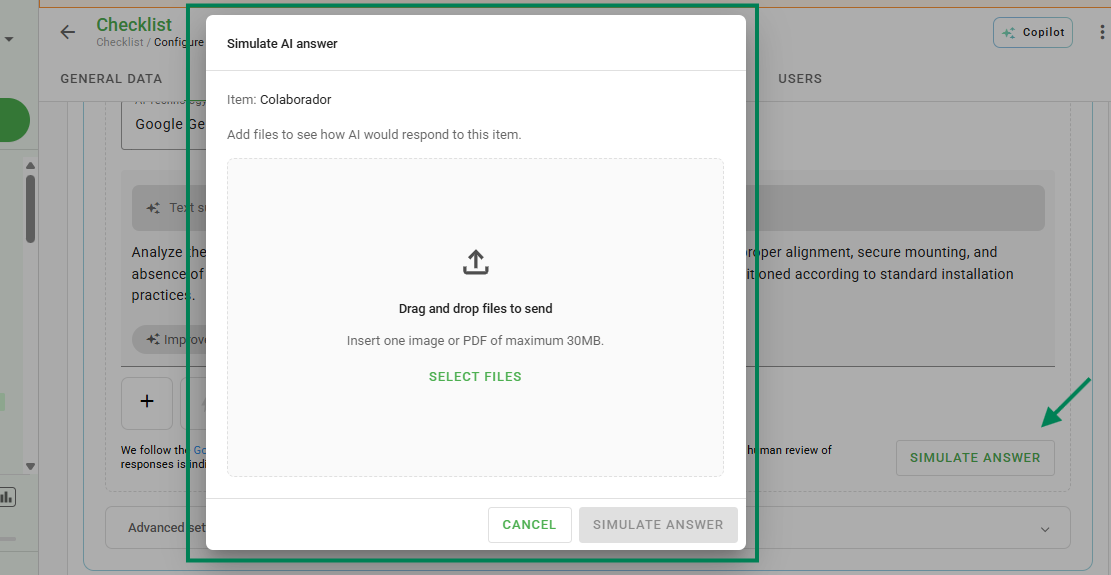
At the end of the verification performed by the AI, confirm if the response provided is correct. If it is, the prompt is correct. However, if the AI response does not match the submitted image, consider rewriting the prompt.
We recommend testing the prompt more than once, with different photos and instructions, to ensure the accurate result of artificial intelligence during application.
If you are using the Smart Response module for free, the prompt test will not be counted against the 50 free responses provided.
Would you like to know how to use the Smart Response module during checklist application? ➡️Click here⬅️ and check out our articleHow to access the Artificial Intelligence Report?
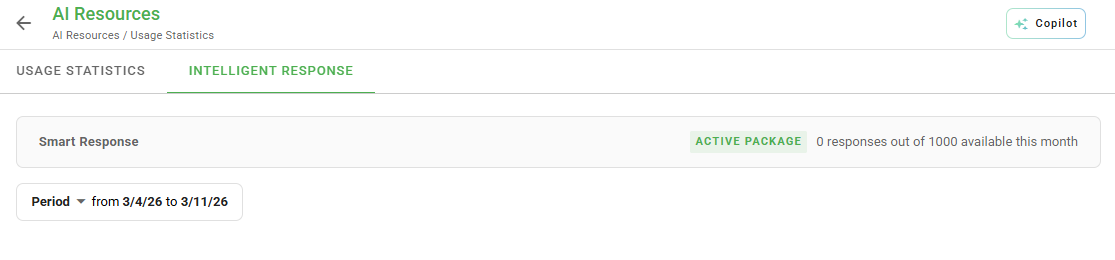
It is possible to track in a report format all checklist applications where the Smart Response module was used. It serves for the administrator to monitor the precision of prompts and evaluate their use in the company's processes.
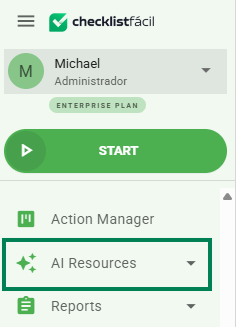
To view the report, access the left side menu and click on Artificial Intelligence.
Select the period for which you want to check the applications, and view a list of all checklists that were applied with the configured module along with the number of applications made in each one.
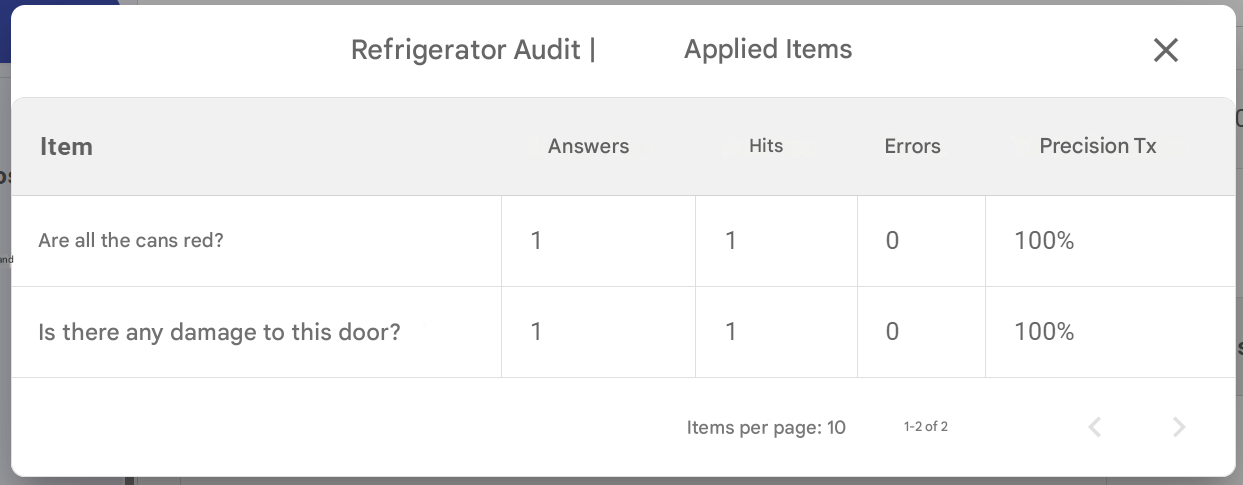
Upon clicking a checklist, a modal will appear informing which items were configured, the number of responses, including successes and errors, in addition to the precision rate in each response.
❓Tem dúvidas? Entre em contato com nosso time de suporte.