An item with dependencies has the power to trigger the display of other items, according to the response it receives.
By accessing the settings of an item of type evaluative or picklist that has already been created, we can inform which response will trigger the display of a certain item in the Dependencies tab.
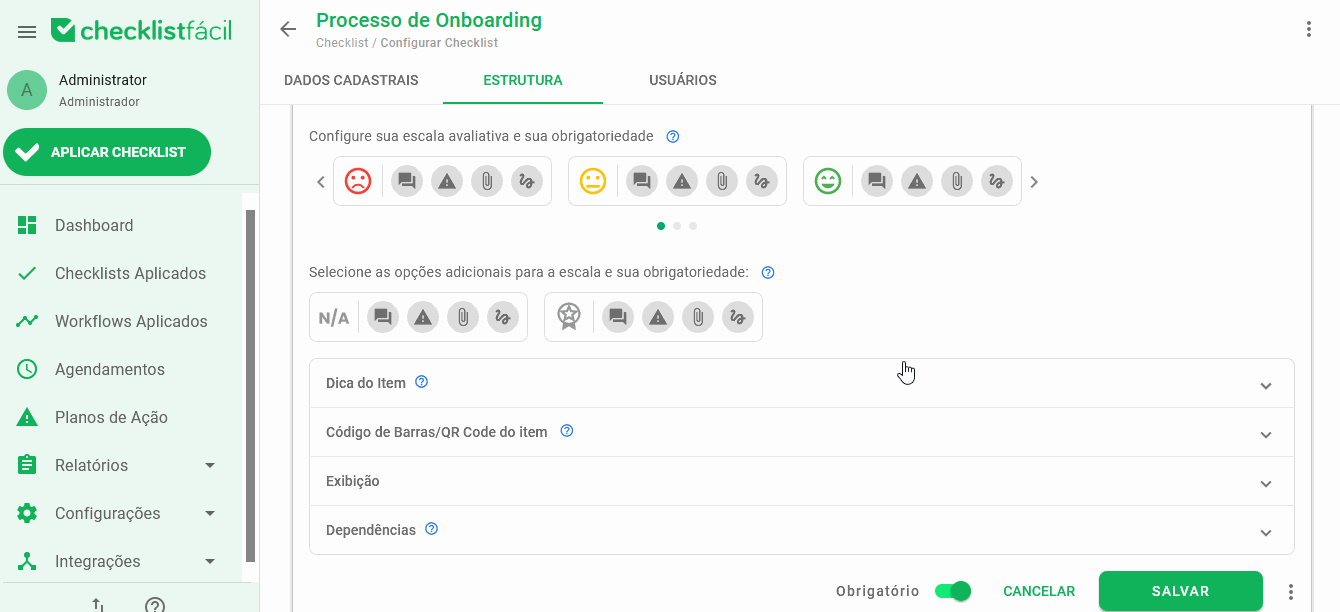
After filling in the Answer Choice and Dependent Items field, simply click Add to create a rule for the dependent item. You can configure more than one dependency per item.
It is important to remember that only evaluative items (yes or no faces) and list of options allow the configuration of dependencies, and the items that will be triggered with the dependency need to be in the same Area and Sub-Area in the checklist structure.
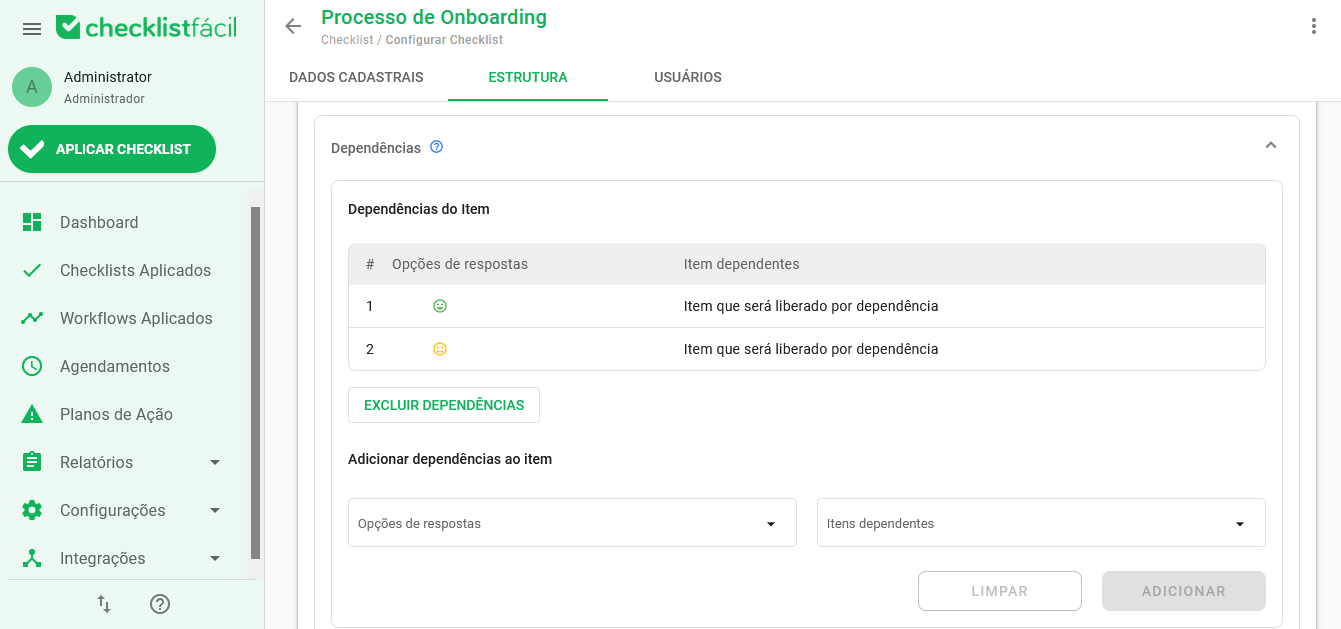
If you want to remove a dependency, simply hover over the condition, and then click the Delete icon:
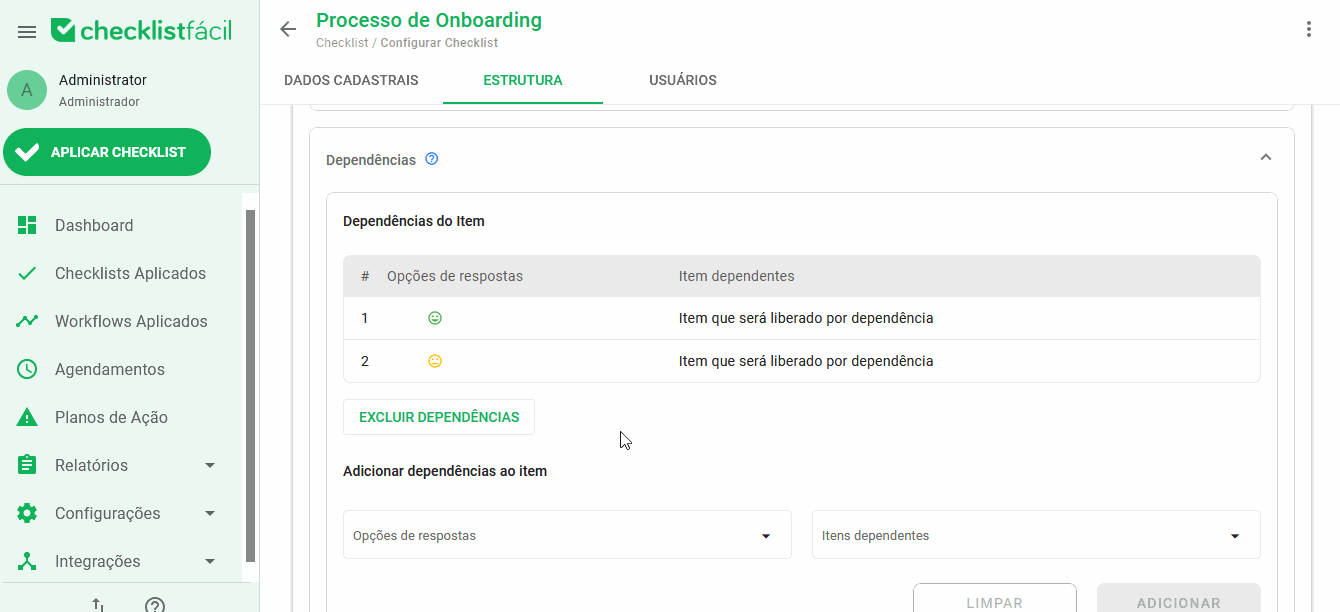
Once you've added all the conditions for displaying the next items, just save the item's edit.
➡️ Was this article useful? Leave your review!
❓Do you still have questions? Contact us via chat or ticket!
❓Tem dúvidas? Entre em contato com nosso time de suporte.