It is possible to configure the system so that applied checklists go through a review stage. This information and response validation process ensures higher quality and reliability for the collected data.
Prerequisites
To use this feature, make sure the configuration below is active on the checklist:
→ The option “Applied checklists must undergo analysis” must be enabled.
How to locate checklists for analysis
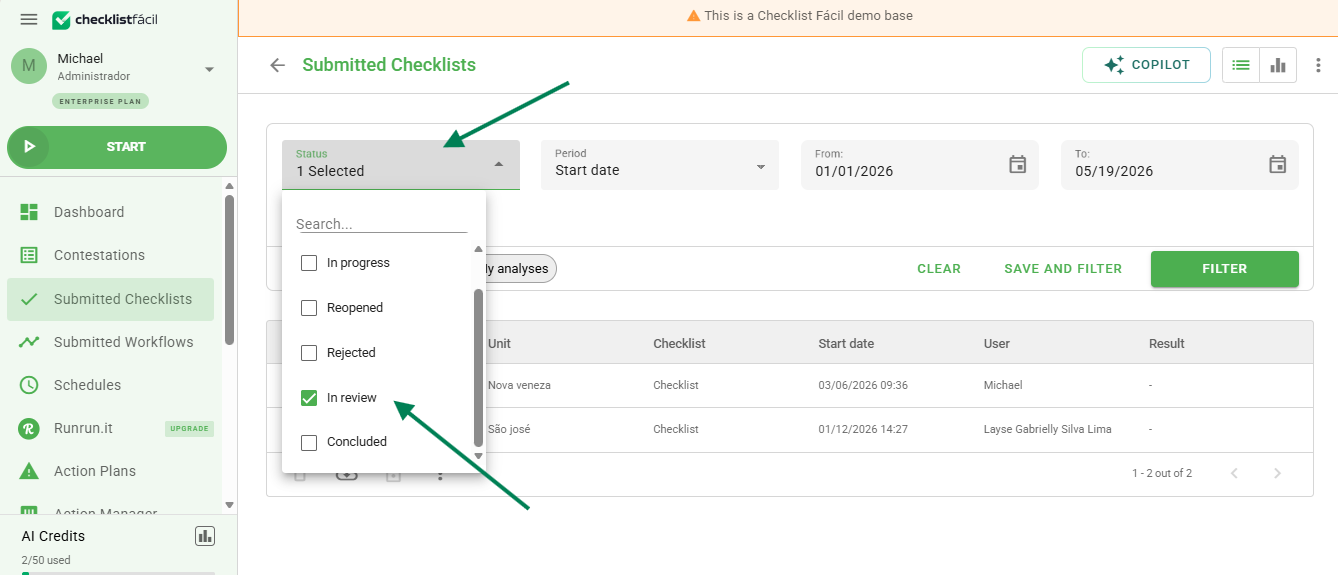
When the analysis workflow is configured, you must use filters to find the pending assessments.
1. Access the applied checklists listing;
2. In the Status filter, select the In Analysis option.
How to approve or disapprove an assessment
After filtering the records, you can start the data verification.
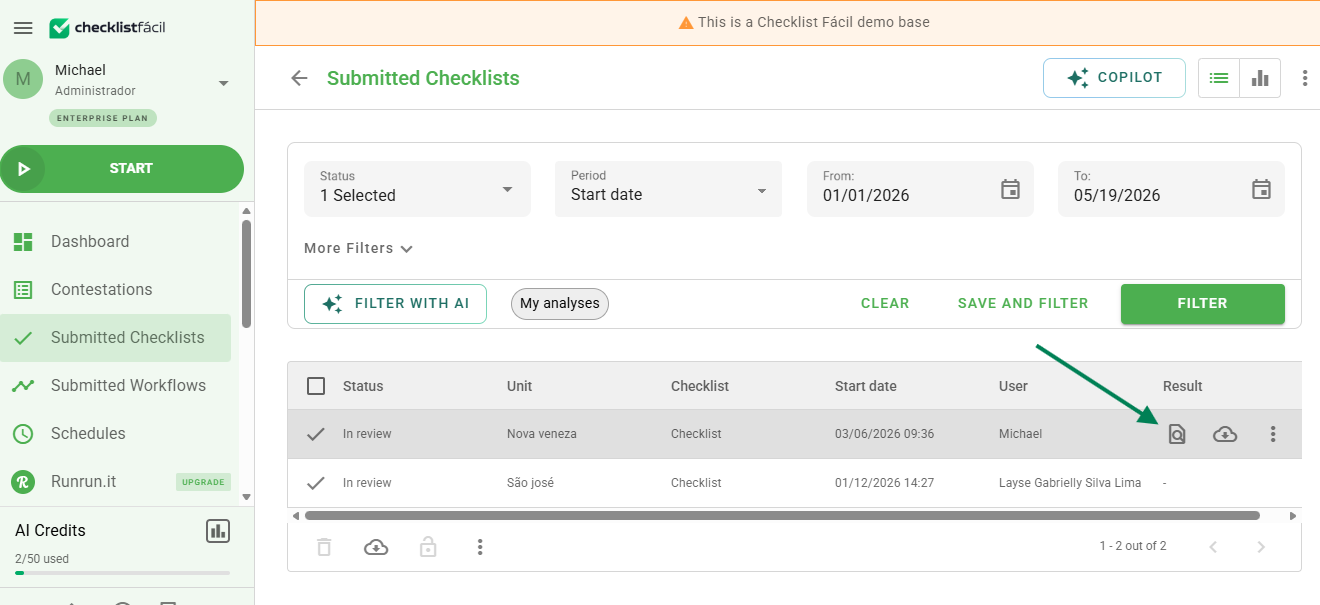
1. Identify the desired checklist in the list;
2. Click on the Analyze assessment button (clipboard/magnifying glass icon).
The assessment will open in preview mode so you can review responses and evidence. At the bottom of the page, you will find the decision buttons:
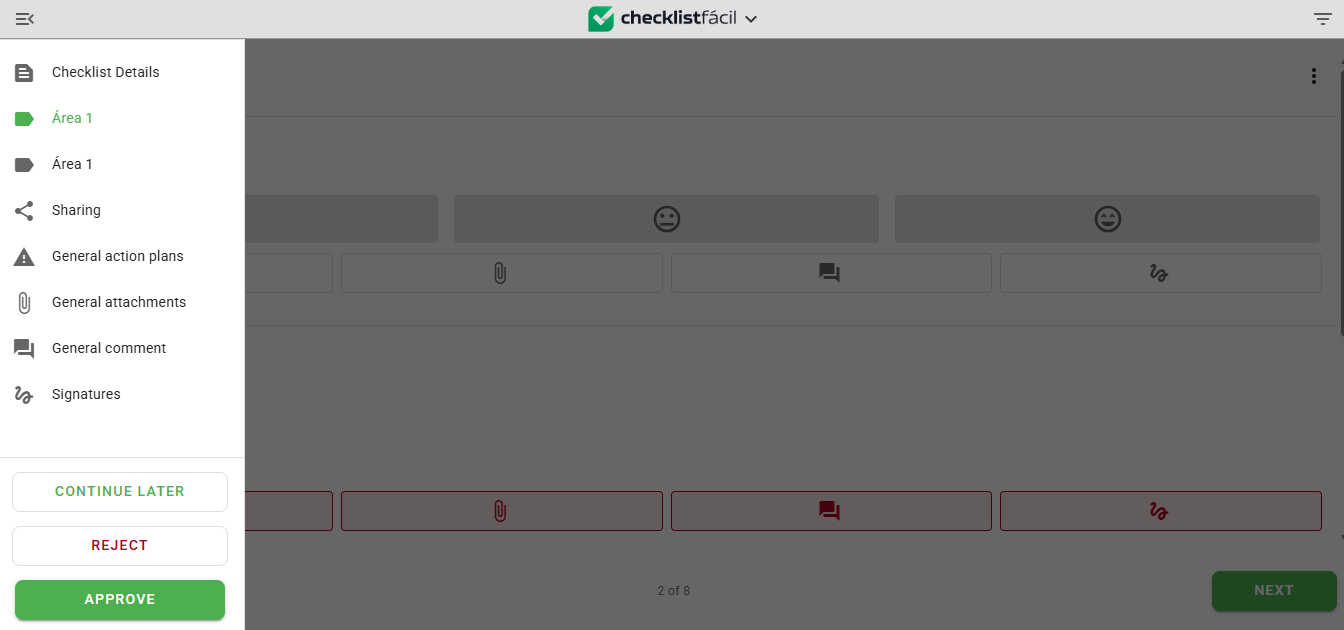
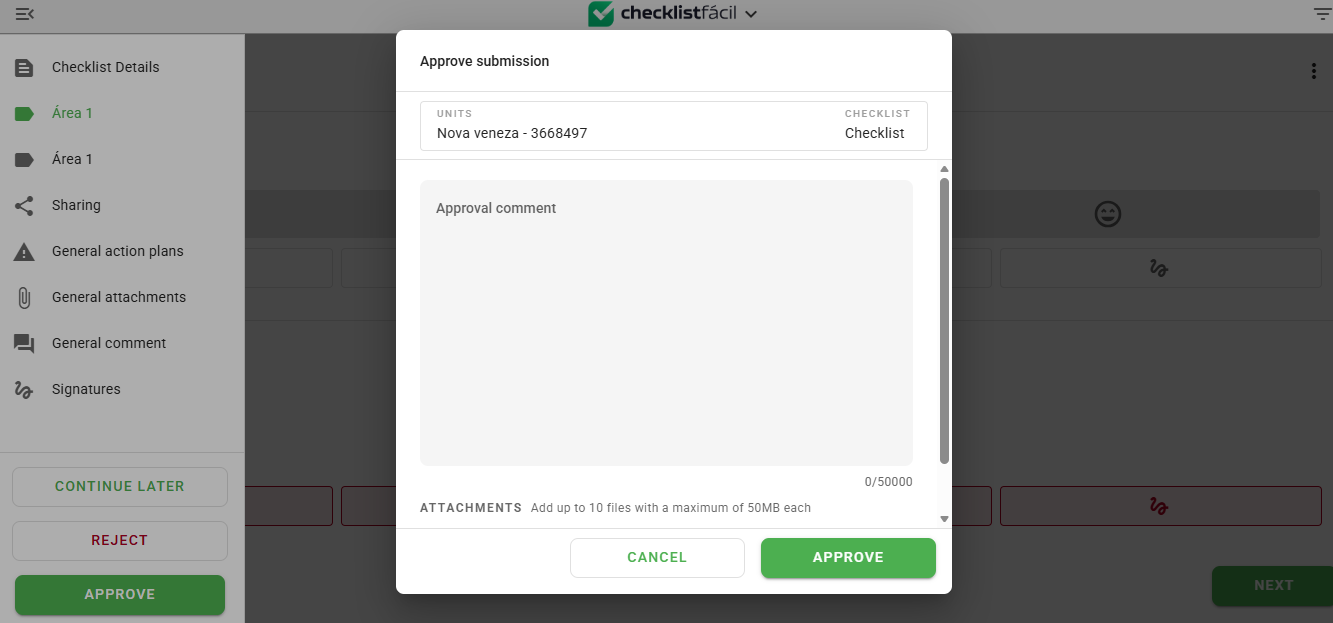
 → Approve: The checklist receives the "Concluded" status.
 → Disapprove: The checklist receives the "Disapproved" status.
Frequently Asked Questions (FAQ)
1. Who can perform the checklist analysis?
Users who participate in the configured analysis workflow or who have administrative permissions to view and edit checklists from other users.
2. What happens after disapproving a checklist?
The checklist will change its status to Disapproved. Depending on your company's internal workflow, it may be necessary to request a new application or reopening for correction.
❓Tem dúvidas? Entre em contato com nosso time de suporte.