If your company has many departments and you want to register them quickly and in bulk, the department import feature is the ideal solution.
How to access the import
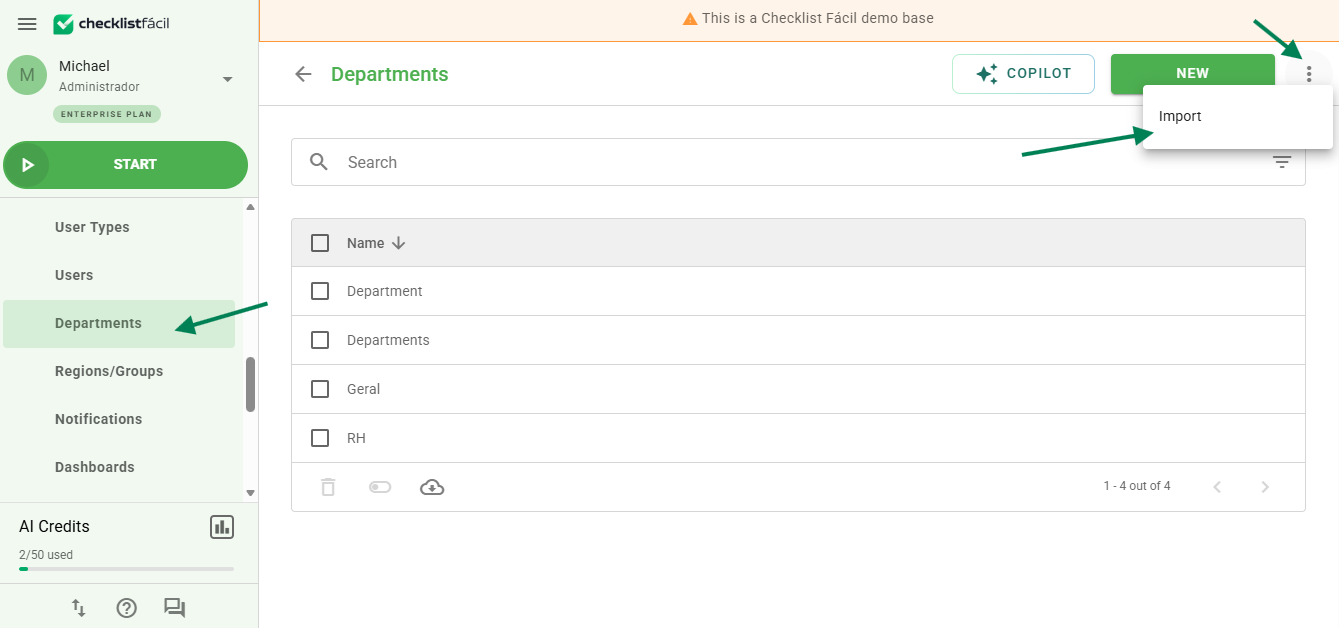
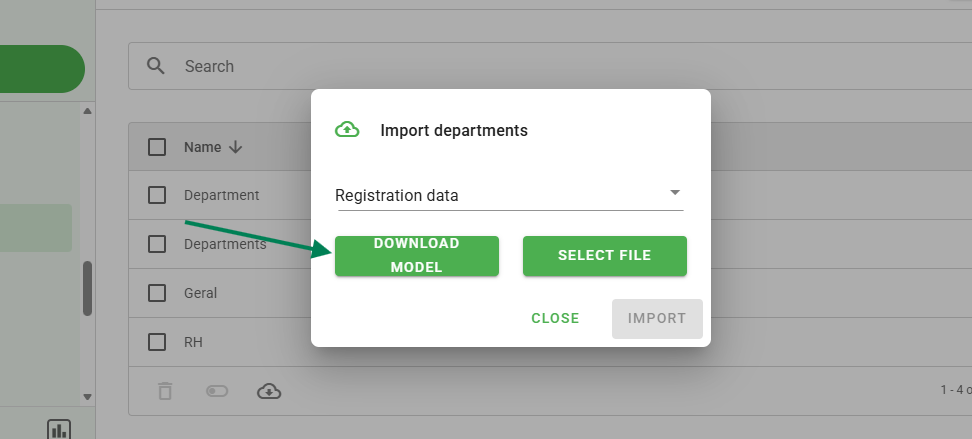
The process is carried out through a template spreadsheet available directly in the system. To download it, access the departments screen, click the three dots icon (next to the "New" button), and select the Import option.
How to fill out the template spreadsheet
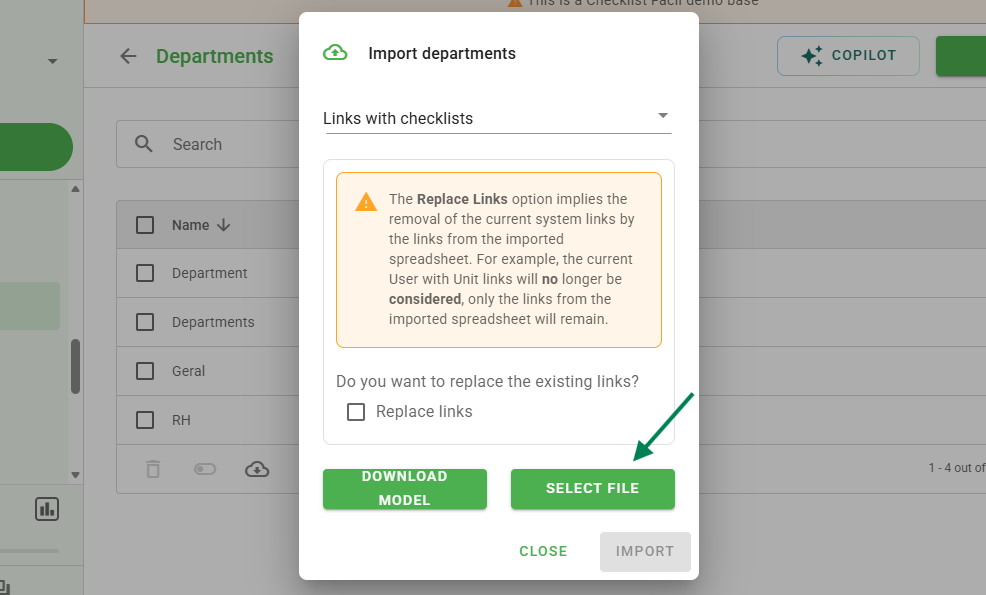
The import allows you to manage registration data, checklist associations, and user associations. The system will generate specific spreadsheets for each type of required information.
When filling out the spreadsheet, pay attention to the details of each column:
ID: Fill in only if you want to overwrite existing data. To create new departments, leave it blank.
Department: Enter the name of the department you want to create or update.
Active: Use "Y" for Active and "N" for Inactive (Not active).
User email: Enter the auditor's email address who will have access to the department.
Checklist: The name must be exactly the same as the checklist already created in the system.
Finalizing the import
After filling out the spreadsheet, return to the import window in the system. Select one file at a time and click the Import button.
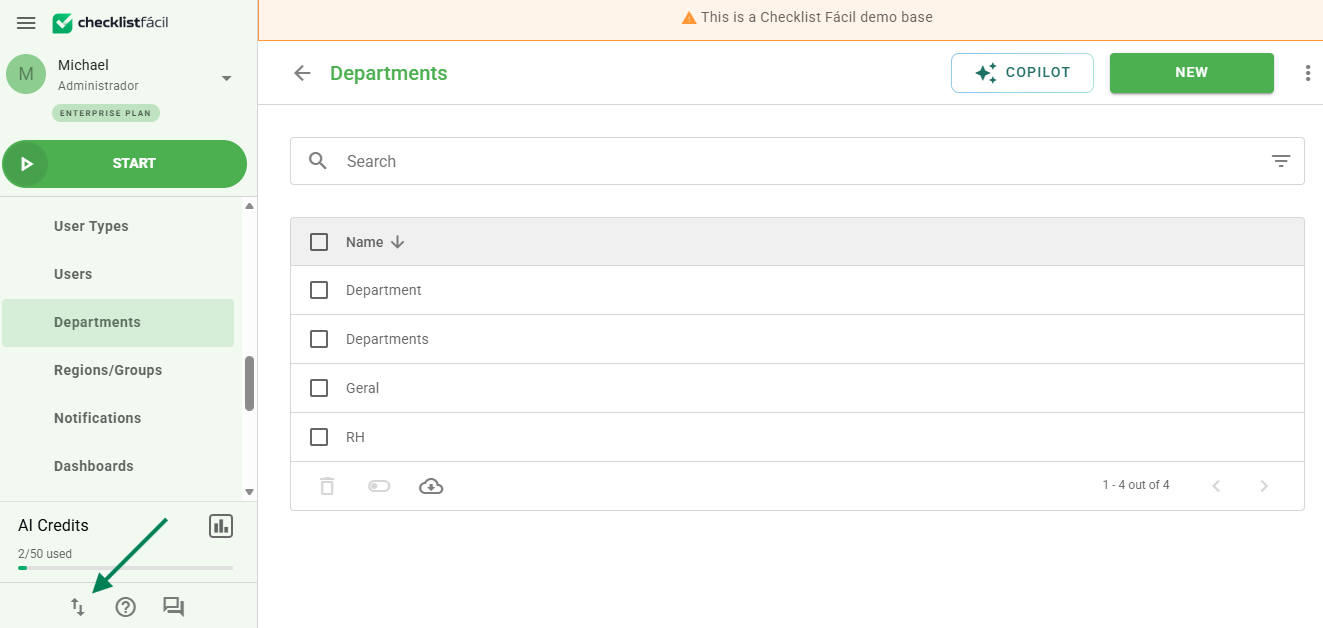
You can track the process status by clicking the link that will appear in the lower-left corner of your screen.
Frequently Asked Questions (FAQ)
1. Do I need to fill out the ID column to create a new department?
No. The ID column is only used to update existing data in the system. For new registrations, keep this column blank.
2. What happens if I enter the wrong checklist name in the spreadsheet?
The import may fail or the association will not be created. Make sure the name in the checklist column is written exactly the same as in the system registration.
❓Tem dúvidas? Entre em contato com nosso time de suporte.