- What is departmentalization
- How to create a new department
- Configuring tabs
- Bulk linking and filters
- How to manage departments
- Bulk actions
- Frequently Asked Questions (FAQ)
What is departmentalization
Ideal for further organizing your view within the platform, departmentalization allows you to segregate Checklists and Users according to your business areas, ensuring greater objectivity in platform use for these users.
By dividing your base into departments, you have the possibility to create one or more manager users for each department, create Checklists that are relevant to only one department, limit user access to their department, among others.
This feature is fundamental for companies with multiple branches, distinct sectors, or regional operations.
How to create a new department
Creating departments is the best way to organize your company's areas within Checklist Fácil. Furthermore, the process is very simple.
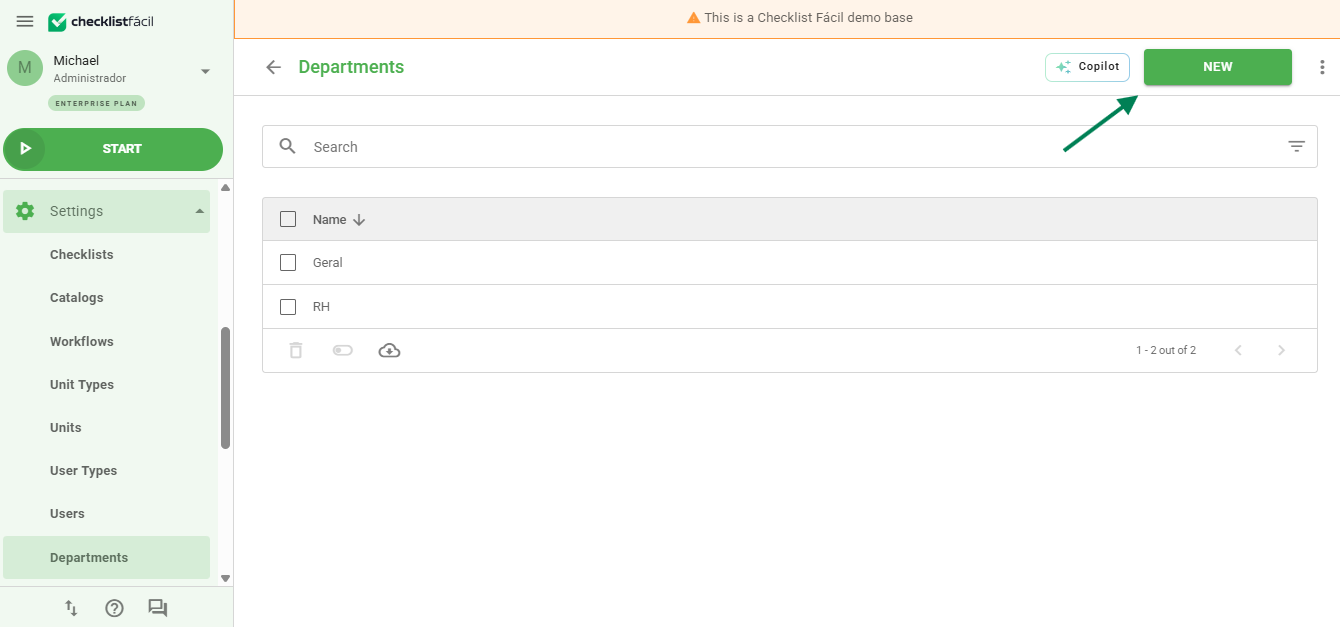
To start, access the Settings > Departments menu and click the New button.
Configuring tabs
After clicking New, you will need to fill in the information in the available tabs:
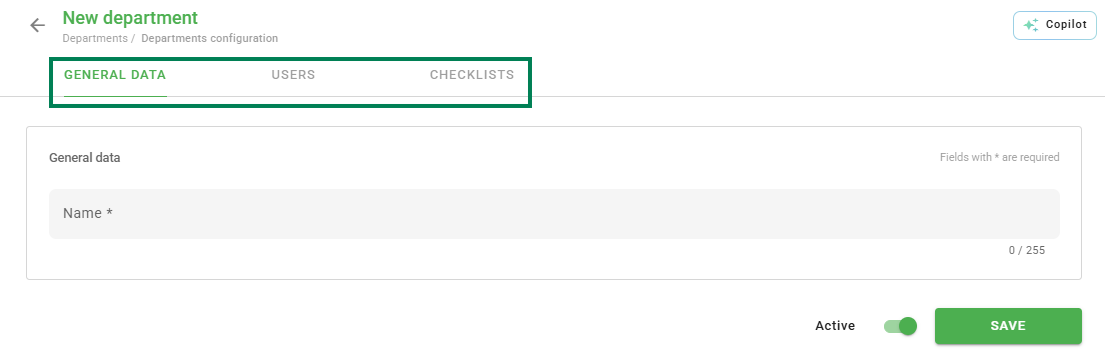
Registration data: defines the department name.
Users: defines the users who will have access to this department.
Checklists: defines which templates will be available for application.
Bulk linking and filters
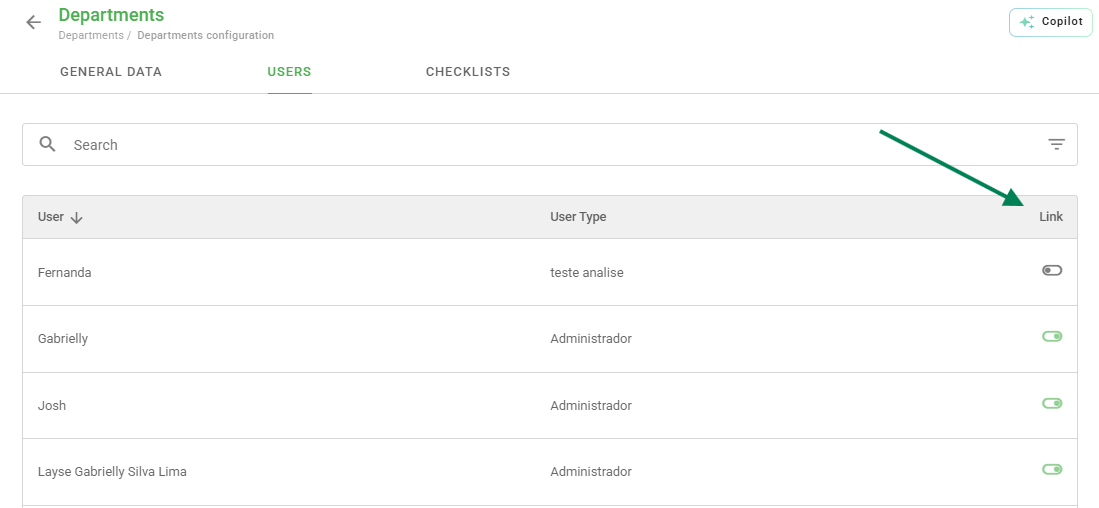
With creation agility in mind, you can perform a bulk selection. To do this, simply click on Link.
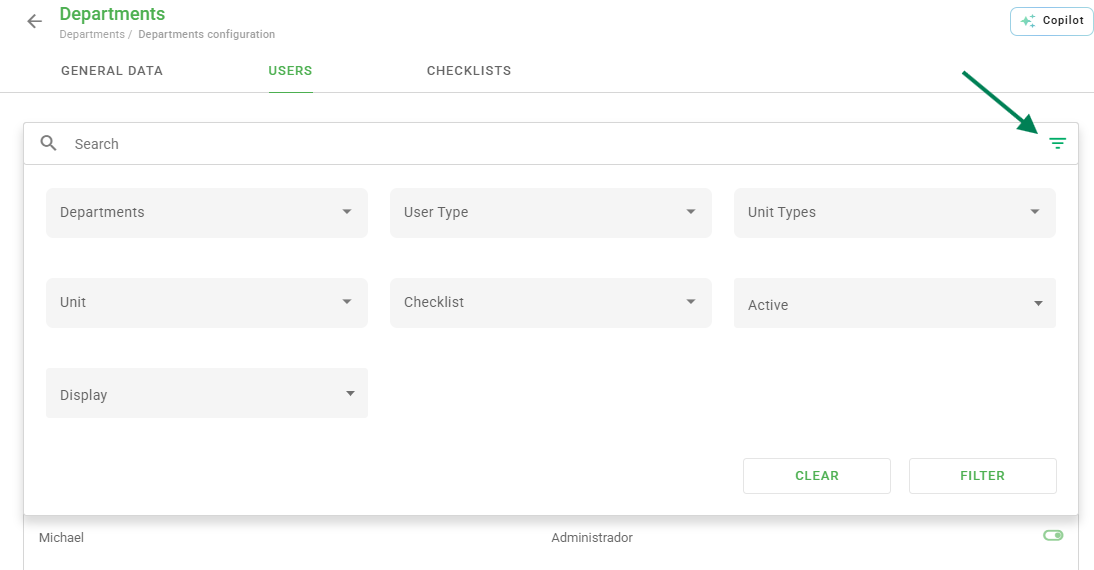
It is also possible to use various filters when selecting your users and checklists, making it easier to locate the desired items.
How to manage departments
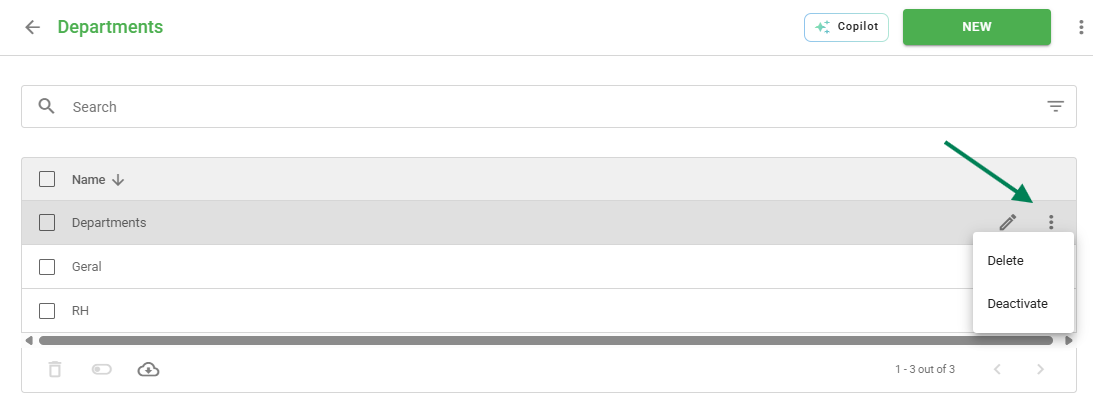
By accessing the Settings > Departments menu, you can view the general list, where you can edit, delete, or deactivate an existing department.
Bulk actions
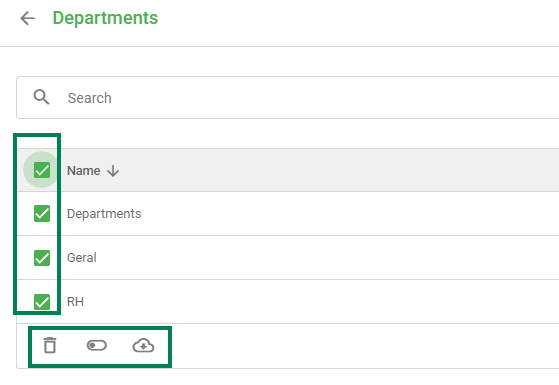
By selecting one or more departments in the list, you enable bulk actions. With this feature, it is possible to delete, deactivate, and export department records all at once.
Frequently Asked Questions (FAQ)
1. What is the purpose of departmentalization?
It serves to organize users and checklists by areas, branches, or sectors, limiting access and vision only to what is relevant for each group.
2. Can I edit a department after creating it?
Yes. After saving, you can access the department list again, click on the desired department, and perform the necessary changes in the registration data, users, or checklists tabs.
3. Can I delete several departments at the same time?
Yes. By selecting the desired departments in the list, bulk actions are enabled, allowing multiple deletion.
❓Tem dúvidas? Entre em contato com nosso time de suporte.