In this article, we will cover everything involving User Types. Stay informed and learn how to manage the various groups and permissions within your Checklist Fácil account.
- What are User Types?
- How many User Types can be added to the Basic plan?
- How to register a new User Type?
- How to link a user type to a user?
- How to import User Types?
- Is it possible to edit a user type's permissions?
- How to delete a user type?
What are User Types?
User Types are categories that define all the actions a specific user can perform within the system.
Thus, it is possible to create a user type based on the activities that one or more employees will perform within Checklist Fácil.
For example, if an employee will apply checklists, you can grant certain permissions to their user type, such as approving or canceling schedules, viewing action plans, and so forth.
How many User Types can be added to the Basic plan?
The maximum amount of user types that can be added is 3 (three). If you reach the maximum amount and need to register new types, it is possible to subscribe to the Professional plan.
How to register a new User Type?
Creating a user type is quite simple. Follow the steps below:
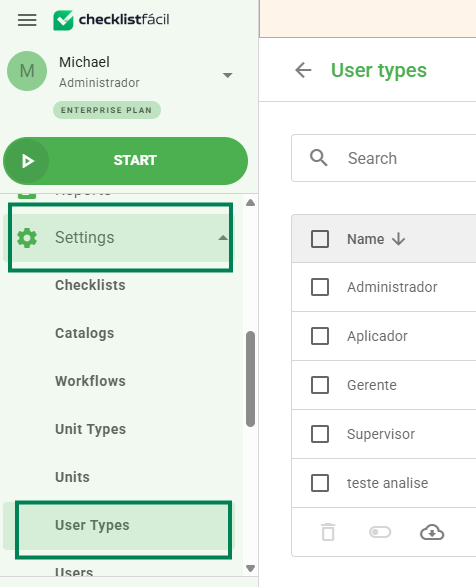
Step 1: Access the Settings tab and then User Types in the system's left sidebar menu:
Step 2: Then, click New in the upper right corner of the screen: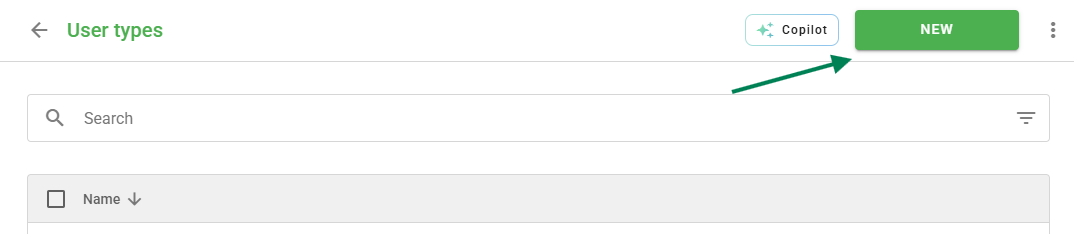
Step 3: The new user type screen contains two tabs - Permissions and Users.
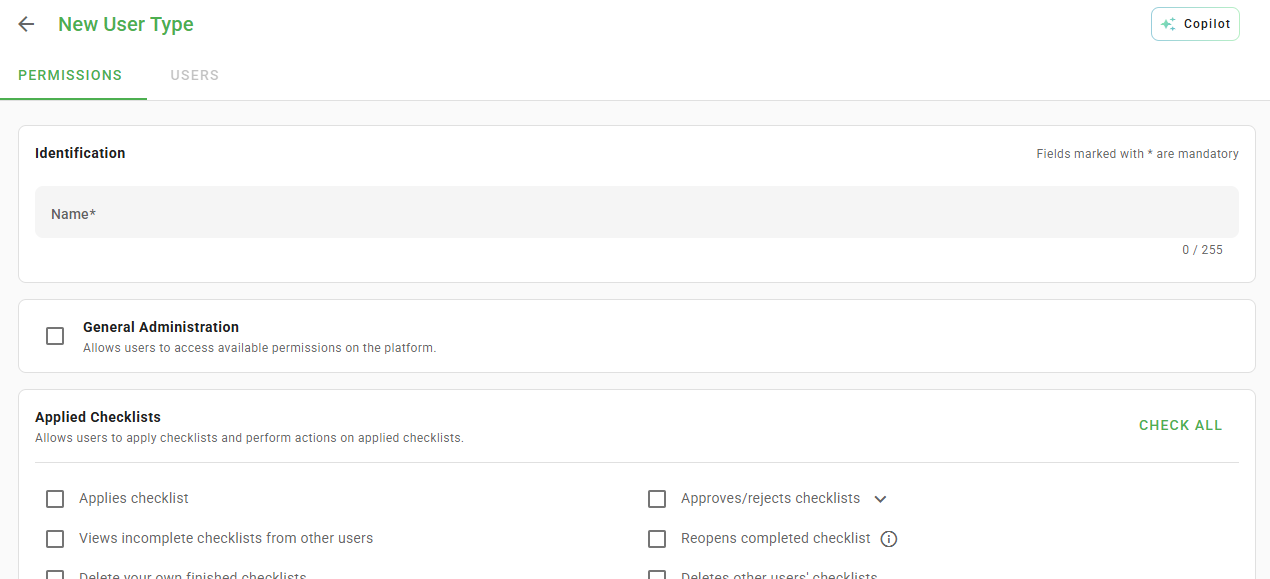
On the Permissions tab, you must:
- Create a name to identify the user type; and
- Select the permissions that this user type will have.
If you want this user type to have all available permissions, you can select the General Administration box.
Otherwise, select one or more permission groups (General Parameterization, Reports, Settings, and Action Plans) or just the specific ones you want this user type to possess.
Step 4: After naming and selecting the permissions for this user type, set it to active and click Save. 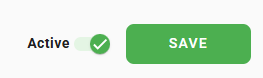 Done, your user type has been created!
How to link a user type to a user?
With a user type created and its permissions already selected, it is time to link it to a user. To make this connection, click on the Users tab, as shown in the image below:
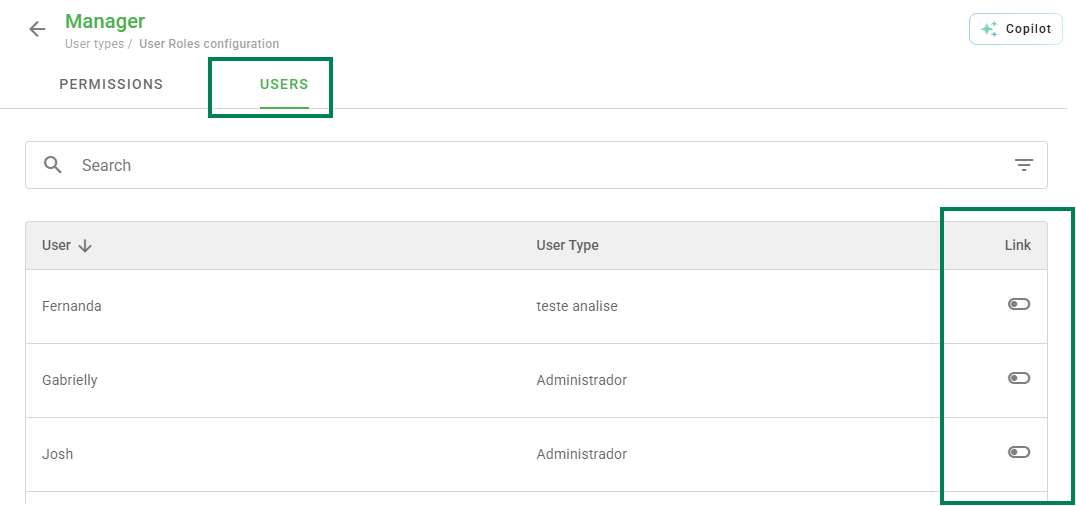
If you already have users registered in your account, simply link them in the selection box and save.
✅ Don't have registered users yet? Access this article and learn how: ➡️Click here⬅️
How to import User Types?
If you already have a spreadsheet with user types or if you want to create multiple types at once, it is possible to perform an import.
When accessing the add user types screen, click on the three dots and then click Import:

A modal will open like the one in the image below. In it, you have the option to import registration data or user links, in addition to being able to overwrite existing data.
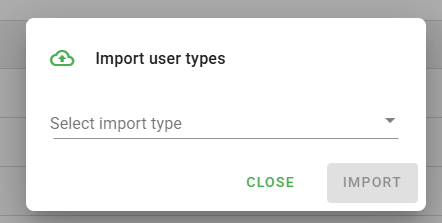
To import the data, simply click Select File, locate the spreadsheet on your computer with the data to be imported, and click Import.
If you do not have this spreadsheet yet, just select the import type and click Download Template. Once filled out, locate the file on your computer and click Import.
Is it possible to edit a user type's permissions?
Yes, if you want to add or remove any permission from a user type, just go to the add user types screen, hover the mouse cursor over the name you want to change and click Edit on the icon highlighted in the following image:
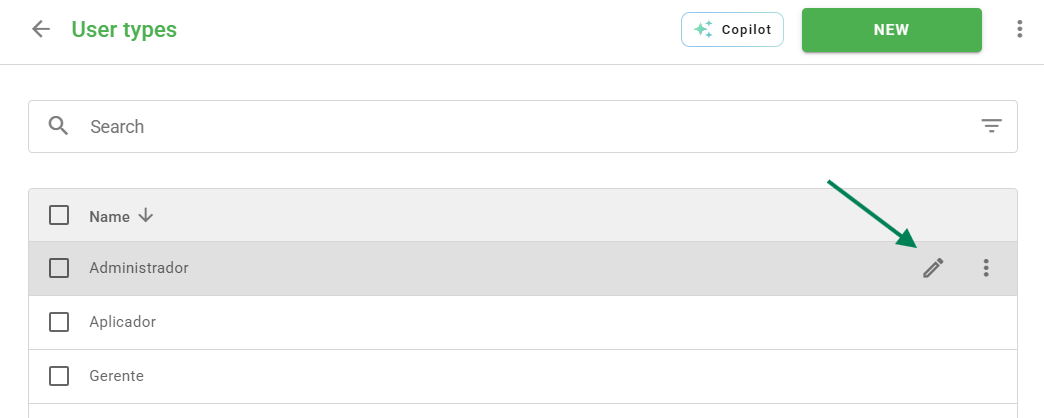
The edit screen allows you to change the fields that were defined at the time of registration. Similarly, it is possible to activate or deactivate the link of the user type in the Users tab.
Oh, and don't forget to click Save after making the desired modifications.
How to delete a user type?
Next to the edit option, it is possible to delete or deactivate a user type by clicking on the three dots and selecting the desired option:
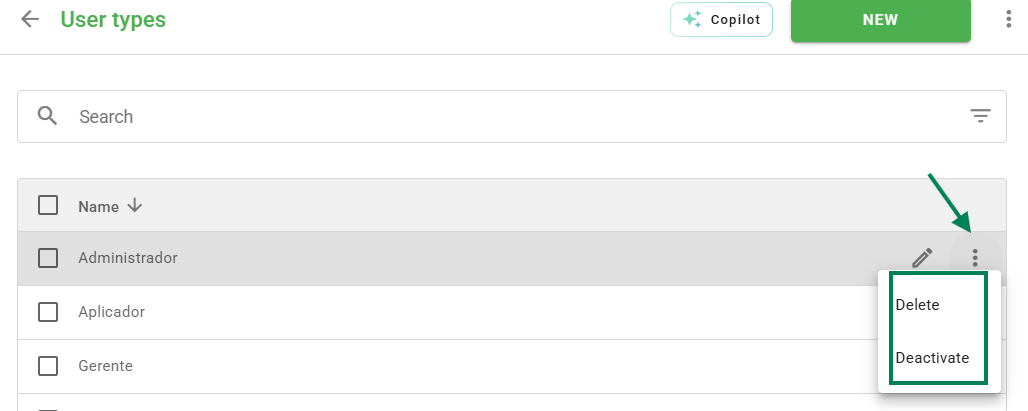
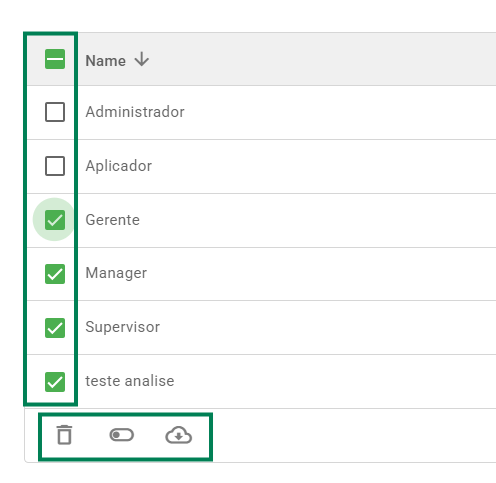
If you want to delete, deactivate, or export several user types at once, select the corresponding boxes and apply the bulk actions available at the bottom of the page:
❓Tem dúvidas? Entre em contato com nosso time de suporte.