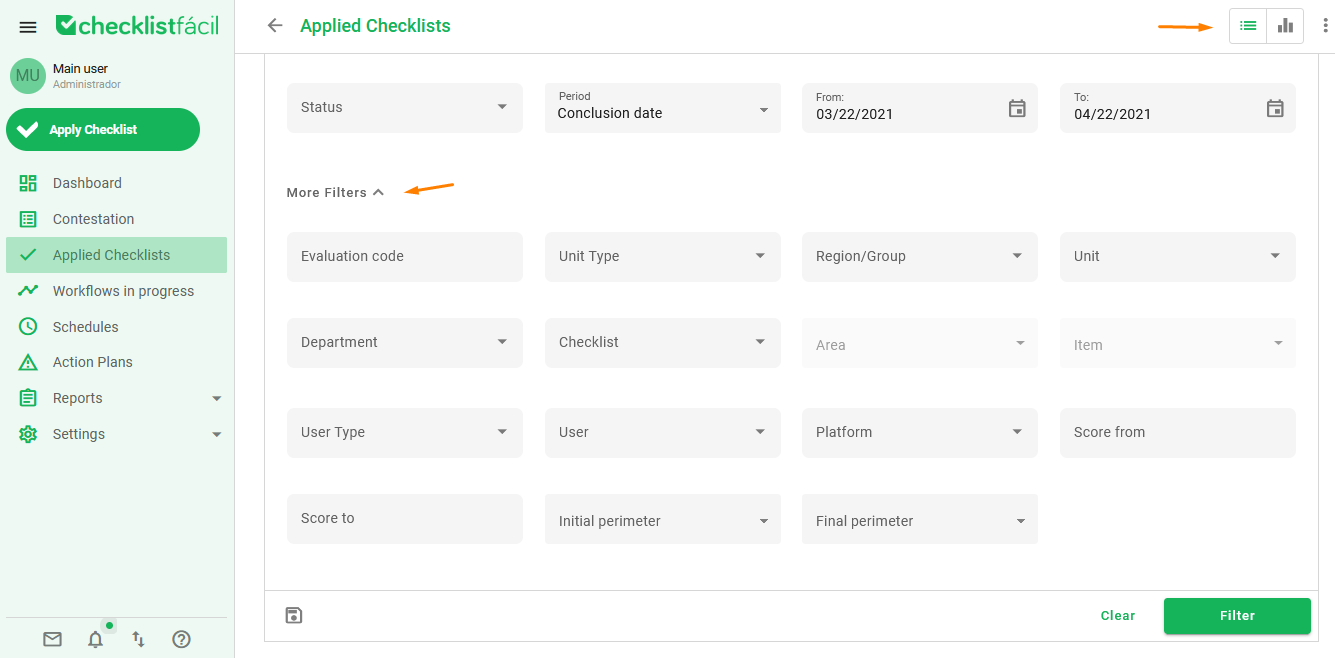
By clicking the Applied Checklist option at the left sided menu, you’ll have access to all the evaluations registered on the tool. Selecting the in list option, the tool will show a list of the evaluations that fit to the applied filters.
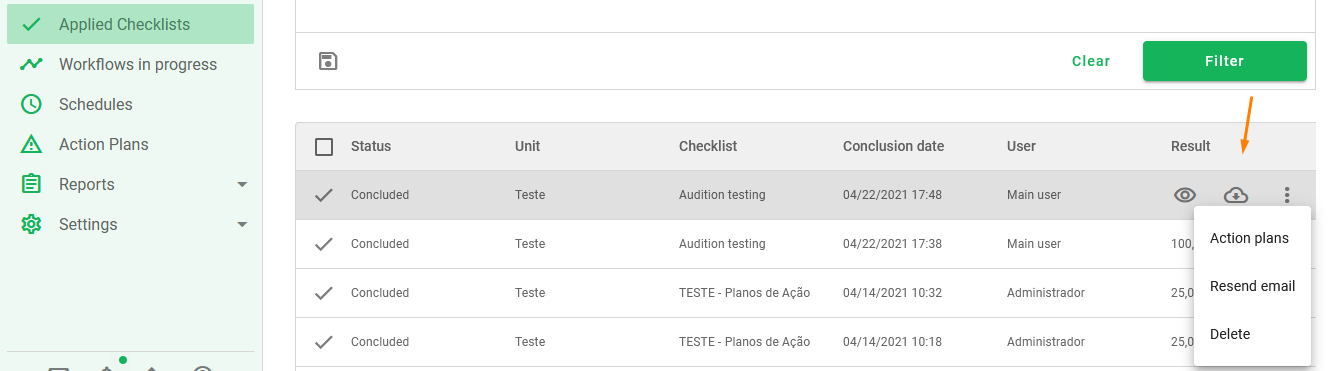
Hover over the wished evaluation to show some options. The eye (view evaluation) icon, allows you to access the evaluation report. The cloud (export) icon allows you to export all media files of this evaluation, a report in .pdf or in .csv, and the option to choose if the items will be on columns or lines. The three dots icon shows more options as resend email, delete evaluation and if it exists, action plans.
And to speed up your search, the used filter can be saved to be used again later! For that, you just have to click on the floppy (save) icon and name it to identify it later.
Once it’s done, a folder with the saved filters will appears next to the save option. To load a saved filter, just open the folder, select the filter and then click Load.

We always seek to improve your experience!
If you have any questions, just call your Solution team by Ticket or Chat!
❓Tem dúvidas? Entre em contato com nosso time de suporte.