- How to insert records into catalogs
- Mandatory standard fields
- Customizing with additional fields
- Frequently Asked Questions (FAQ)
How to insert records into catalogs
After creating your catalogs, it is time to insert your company's records. This process allows you to organize what will be evaluated during your inspections.
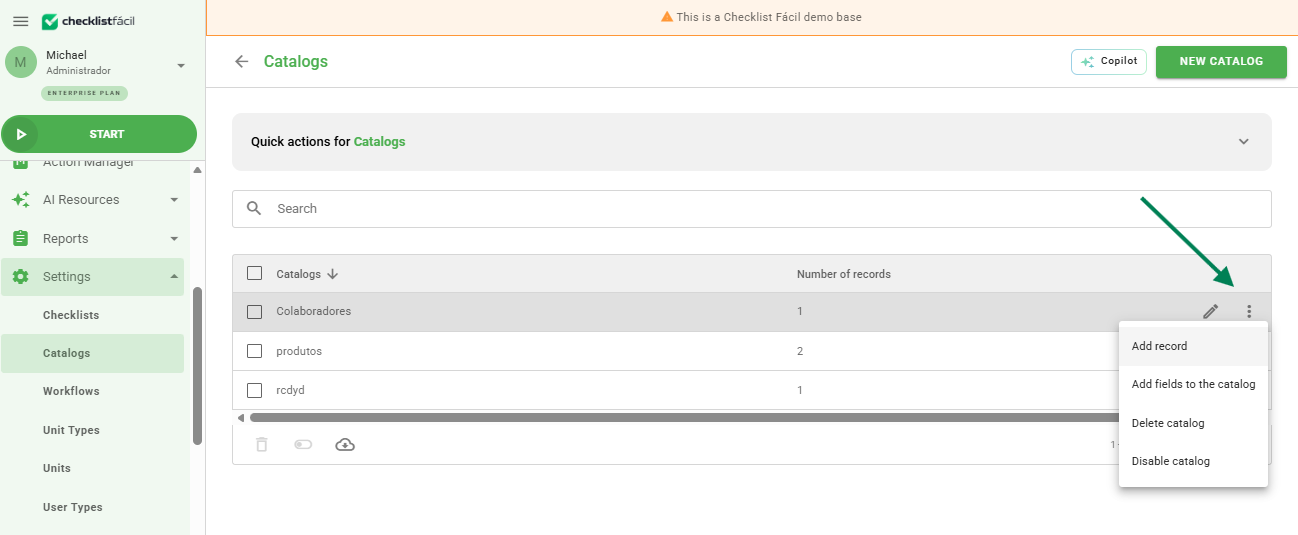
Go to Settings > Catalogs to view your list. Hover your mouse over the desired catalog and click on the list icon (the first icon in the row).
Mandatory standard fields
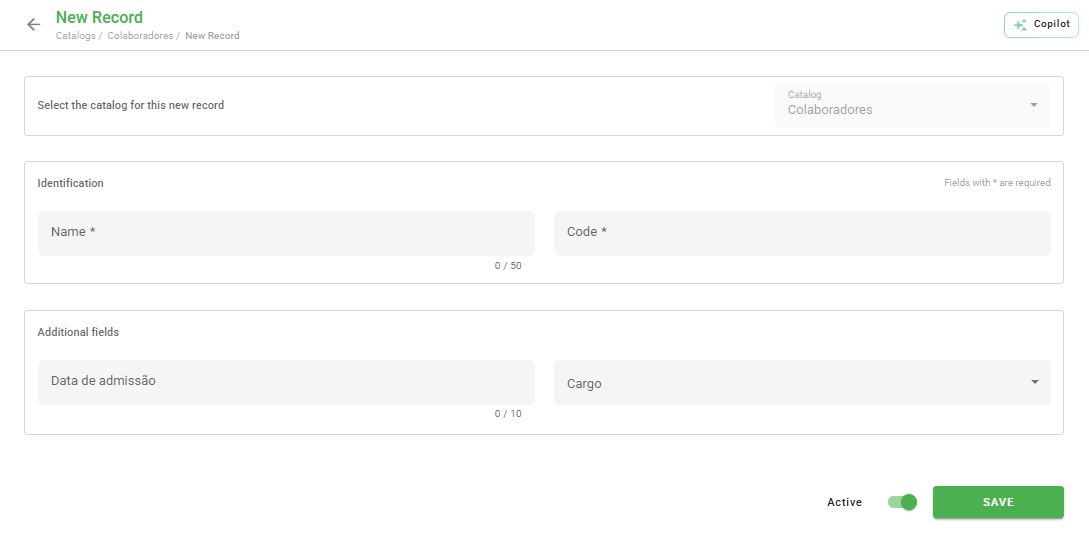
Click on New record and fill in the information. There are two essential fields for identification:
- Record name: An intuitive name that facilitates identification during the audit.
- Barcode: A unique identifier for the system (it can be a vehicle license plate, registration number, or SKU).
Customizing with additional fields
If you need more details in the registration, you can create custom fields in the Additional fields tab within the catalog settings.
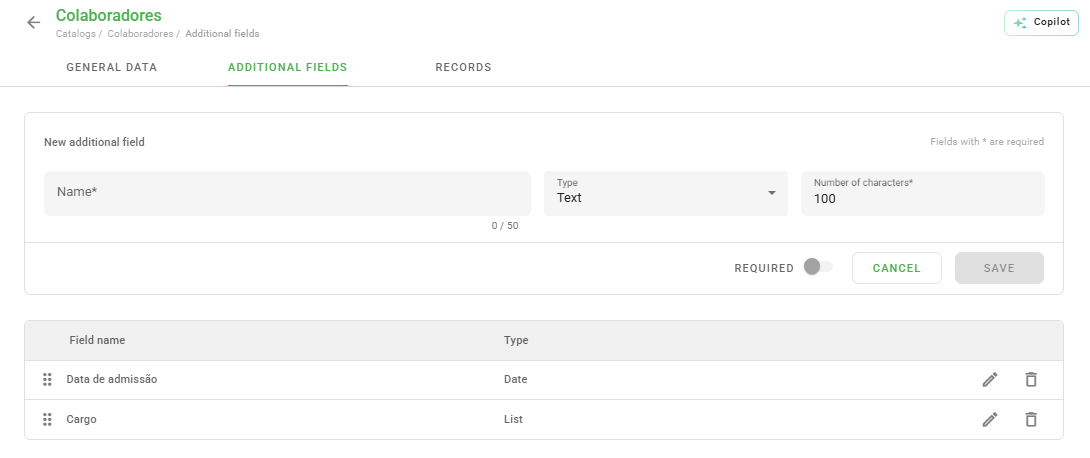
When adding a new field, you define:
- Field name and type;
- If completion is mandatory;
- Maximum character limit.
Tip: If you have a large amount of data, you can facilitate the process by using bulk import. Check how to do it here: How to import records?
Frequently Asked Questions (FAQ)
1. Can the barcode be repeated across different records?
No. The barcode functions as a unique identifier within each catalog to ensure accuracy during scanning or searching.
2. Can I change an additional field after creating it?
Yes, you can edit the field properties, but remember that this may affect how information is displayed in already saved records.
❓Tem dúvidas? Entre em contato com nosso time de suporte.