- Accessing the import
- Filling out the import template
- Tracking progress
- Frequently Asked Questions (FAQ)
Accessing the import
Importing records is an excellent way to speed up the creation of your catalogs, allowing you to insert large volumes of data at once.
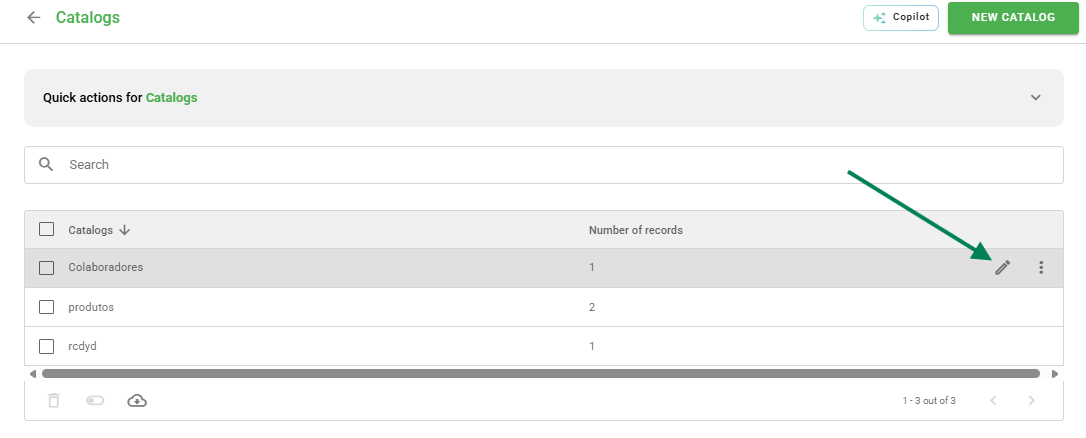
To start, access Settings > Catalogs. Hover your mouse over the desired catalog and click on the list icon.
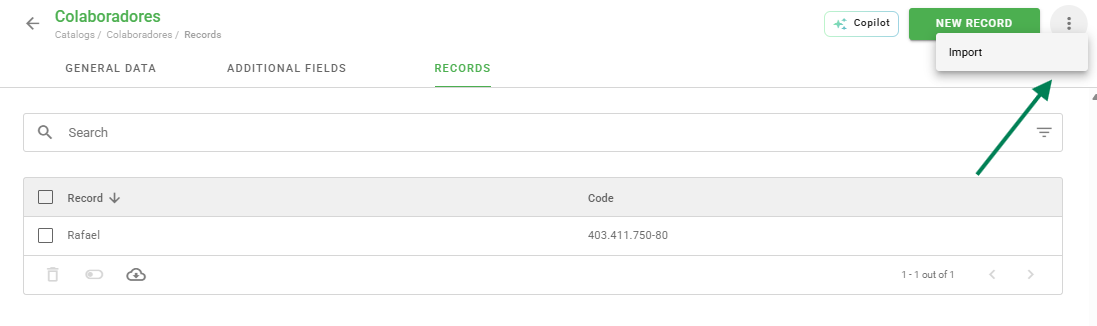
Within the record listing, click on the three-dot icon in the upper right corner and select the Import option.
Filling out the import template
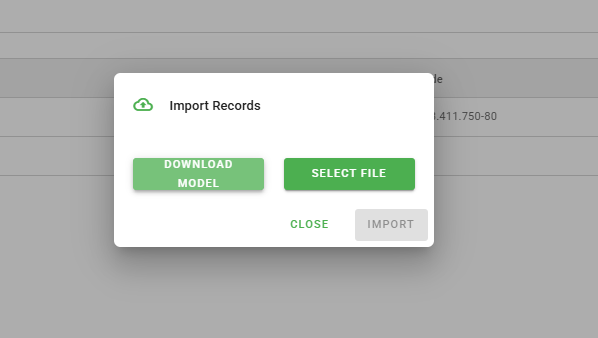
On the import screen, download the provided template file. It is essential to follow the guidelines and examples contained in the spreadsheet so that the system identifies the data correctly.
Attention: If your catalog has additional fields, they must be created in the system before you download the template. This way, the spreadsheet will already include the correct columns for filling out.
Tracking progress
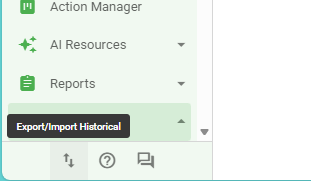
After uploading the filled file, the system will process the information. You can track whether the import was successfully concluded or if there was an error through the Import History, located in the footer of the left menu.
Tip: Always validate if the data format (such as dates or codes) matches the spreadsheet example to avoid processing failures.
Frequently Asked Questions (FAQ)
1. Can I import records into a catalog that already has data?
Yes. The import will add new records to those already existing in the system.
2. What to do if the import shows an error?
Access the Import History and download the error report. It will indicate exactly in which row and column the data needs correction.
❓Tem dúvidas? Entre em contato com nosso time de suporte.