On the Action Plans page, we can select how to display them.
To rearrange the display of columns, click the three-dot button next to the chart view option, then Rearrange columns. In addition to setting the order of the columns, you can select only the ones you need to see.
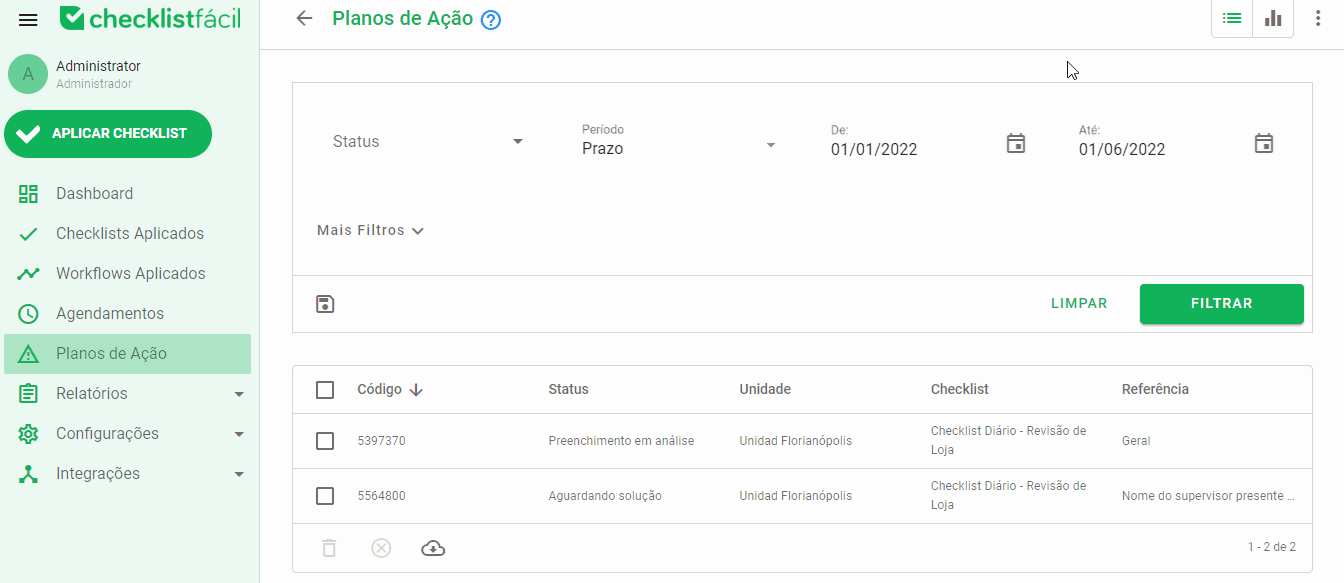
Going back to the top bar on the Action Plans homepage, there is the view of these Action Plans, the first option in the right corner is to display the Action Plans in list, as it comes by default. In the second option, you can view the Action Plans by chart.
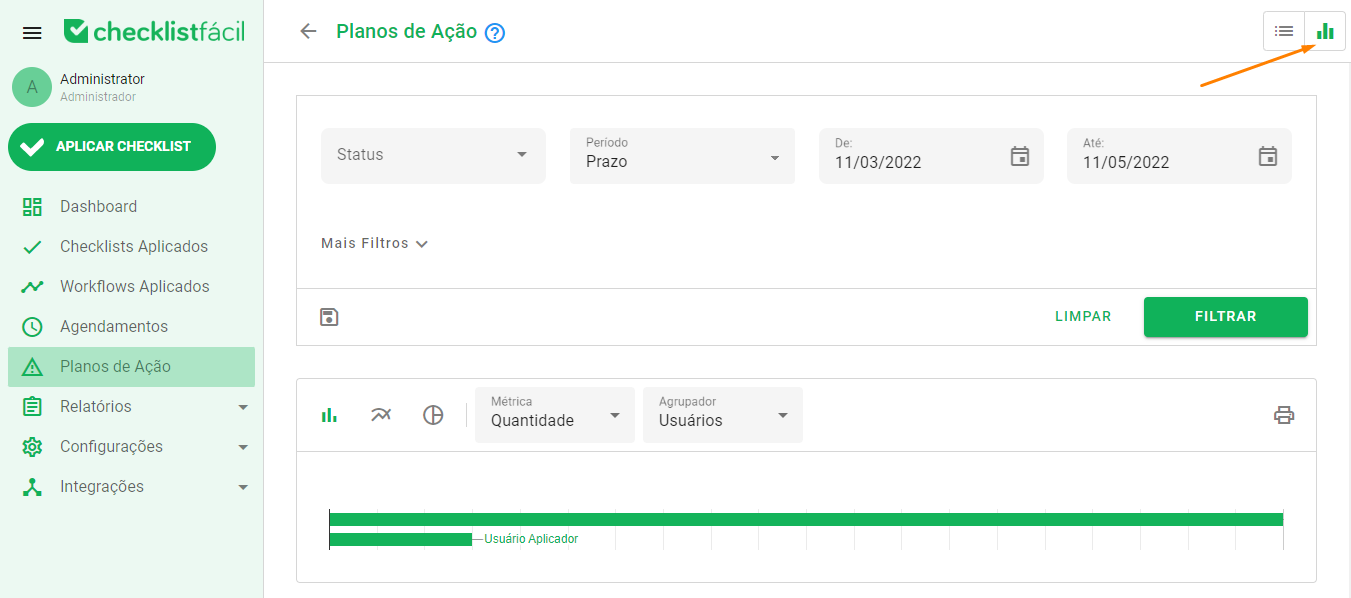
There are several options for displaying the graphs, we will explain more in detail about each option.
Bar chart: The data is available in horizontal bars and their divisions in a vertical position with the values it represents. Ideal for comparisons;
Line Chart: Connection between multiple "marker" data points by line segments. Ideal for keeping up with developments and trends;
Pie chart: Pie chart, where the values represent part of a whole. Ideal for measuring aspect ratios.
In addition, we can define the grouping factor and metric.
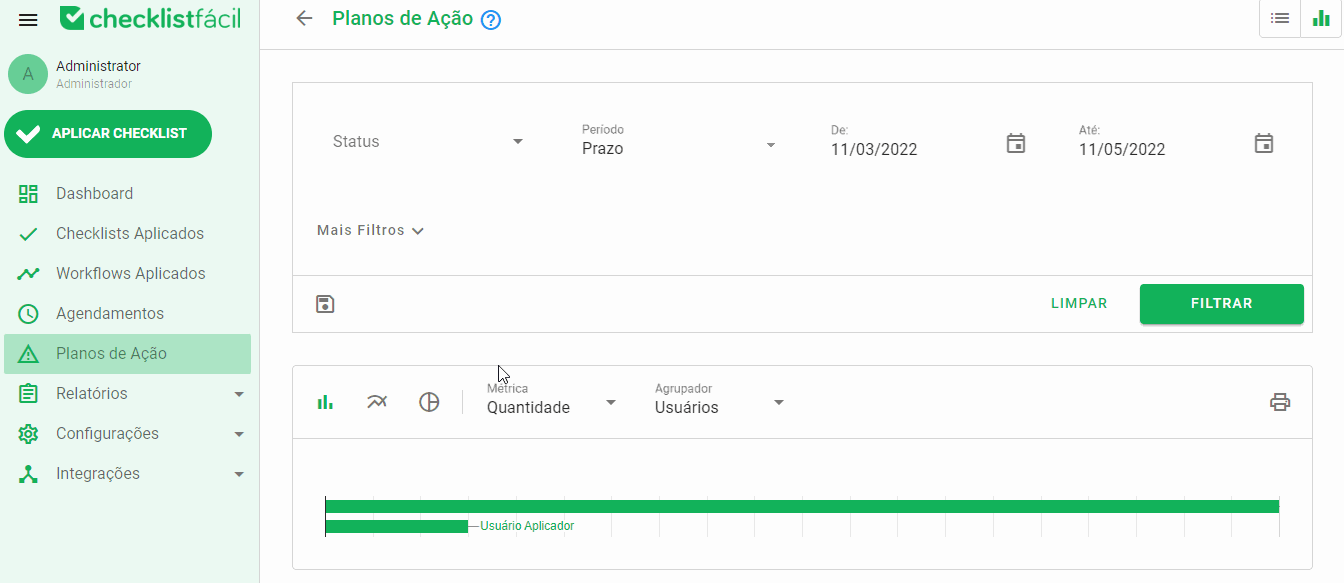
You can choose to display, for example, the quantity value, which is the number of action plans created. Right on the side, there is the Grouper, you can select which information will make up your chart, it is possible to change from one to the other during the analysis.
Units: Audited units that generated action plans;
Status: Status of the action plans created;
Deadlines: Deadline for completion of the action plan;
Region/Group: Action plans created by region;
Users: Users who have created an action plan;
Checklists: Checklists that originated the action plans;
User type: Types of users who created an action plan;
Responsible: Responsible for solving the action plan.
➡️ Was this article useful? Leave your review!
❓Do you still have questions? Contact us via chat or ticket!
❓Tem dúvidas? Entre em contato com nosso time de suporte.